
System Settings: Analytics
The Analytics category on the System Settings screen allows you to configure Row-Level Security rules and manage the KPI cards that appear on customer pages. It is accessible by navigating to Admin > System Settings > Analytics.
Row-Level Security
The Row-Level Security section displays all RLS rules configured in your Rev.io environment. Row-Level Security automatically limits which rows of data each user sees in Analytics dashboards based on the email address they signed in with.
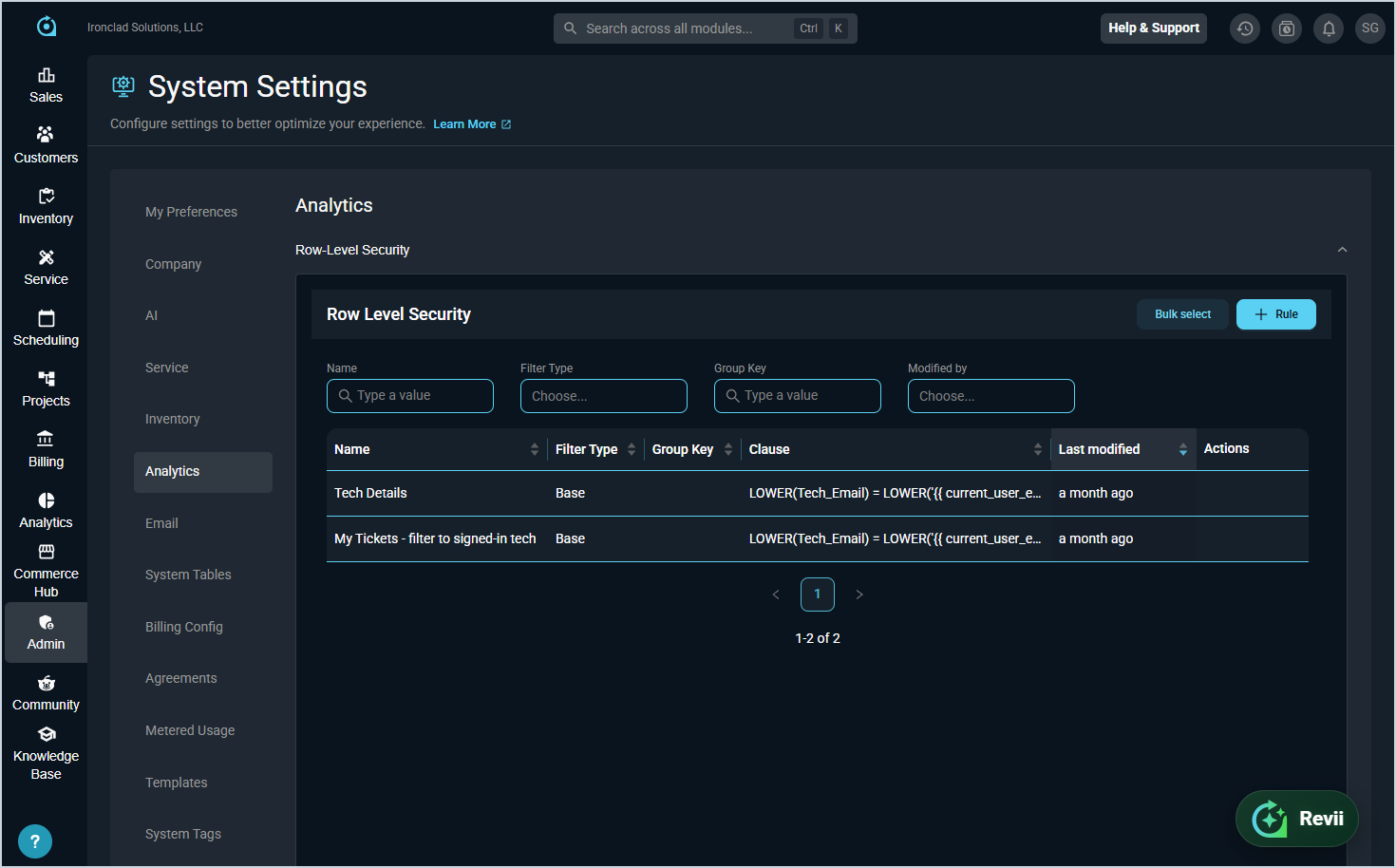
Each column in the Row-Level Security list is defined below.
| Label | Definition |
| Name | Name of the RLS rule. |
| Filter Type | Type of filter applied by the rule, either Base or Regular. |
| Group Key | Optional group key associated with the rule. |
| Clause | The filter condition applied by the rule. |
| Last Modified | Date the rule was last modified. |
The following actions are available in the Row-Level Security section.
- Add a new rule by clicking + Rule.
- Search and filter the list using the Name, Filter Type, Group Key, and Modified by fields at the top of the list.
- Edit or delete a rule by clicking the rule's row in the list.
- Select multiple rules by clicking Bulk select.
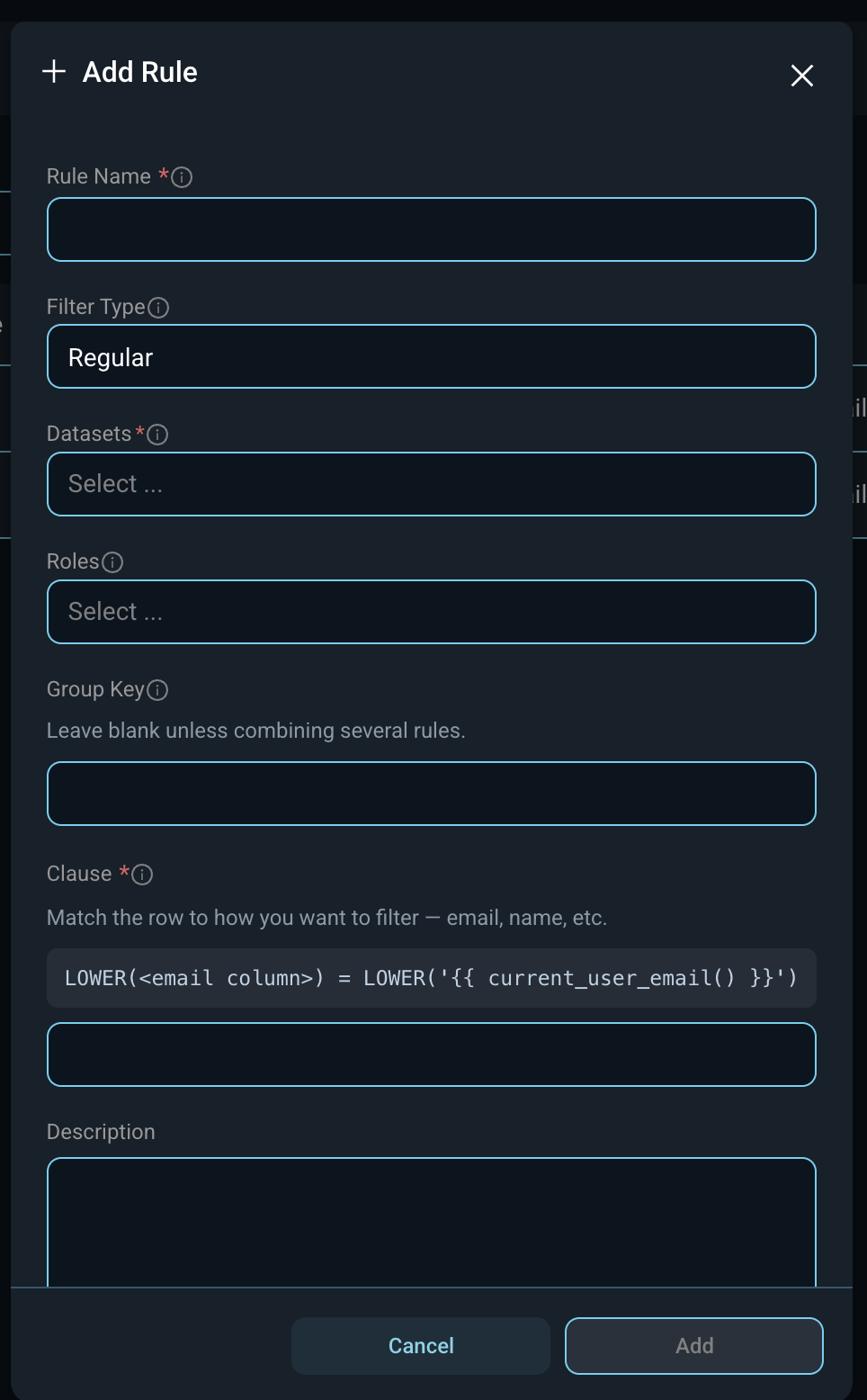
Clicking + Rule opens the Add Rule window.
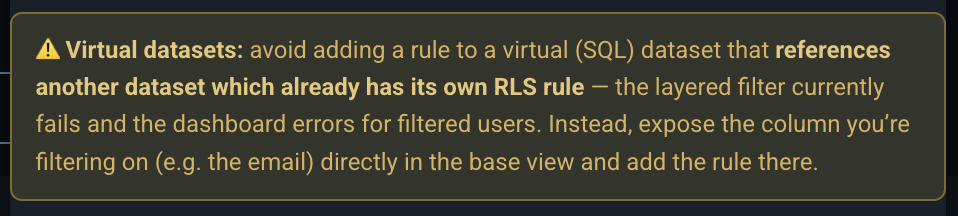
| IMPORTANT: Do not add a rule to a virtual (SQL) dataset that references another dataset that already has its own Row-Level Security rule. The layered filter fails and the dashboard shows errors for the filtered users. Instead, expose the column you are filtering on, such as the email address, directly in the base view and add the rule there. |
Each field in the Add Rule window is defined below.
| Label | Definition |
| Rule Name | Name of the rule. |
| Filter Type | Type of filter the rule applies. Regular is selected by default. Regular (the default) applies the filter only to users in the roles selected in Roles; use it to limit what a specific role can see. Base applies the filter to all users except the roles selected in Roles, so those roles are exempt and see all rows; use it when everyone should be restricted by default and only certain roles should see everything. |
| Datasets | Datasets the rule applies to. |
| Roles | Roles the rule applies to. |
| Group Key | Key used to group rules together. Leave this field blank unless you are combining several rules. |
| Clause | Condition that matches each row to the user who is signed in, such as by email or name. For example, LOWER(<email column>) = LOWER('{{ current_user_email() }}') limits the rows to those that match the signed-in user's email address. |
| Description | Description of the rule. |
Click Add to save the rule or Cancel to close the window without saving. The Add button is available once the required fields are completed.
Customer Page KPI Cards
The Customer Page KPI Cards section allows you to choose which Analytics charts appear as KPI cards on customer pages. KPI cards display key metrics for the customer being viewed and are the same across all customer pages in your organization, with each card automatically filtered to show that customer's own values.
Only Analytics charts that include a Customer_ID filter are eligible to appear as cards. If a chart you expect to see is not available in the list, it is missing that filter. Select charts from the Add a Chart field dropdown list.
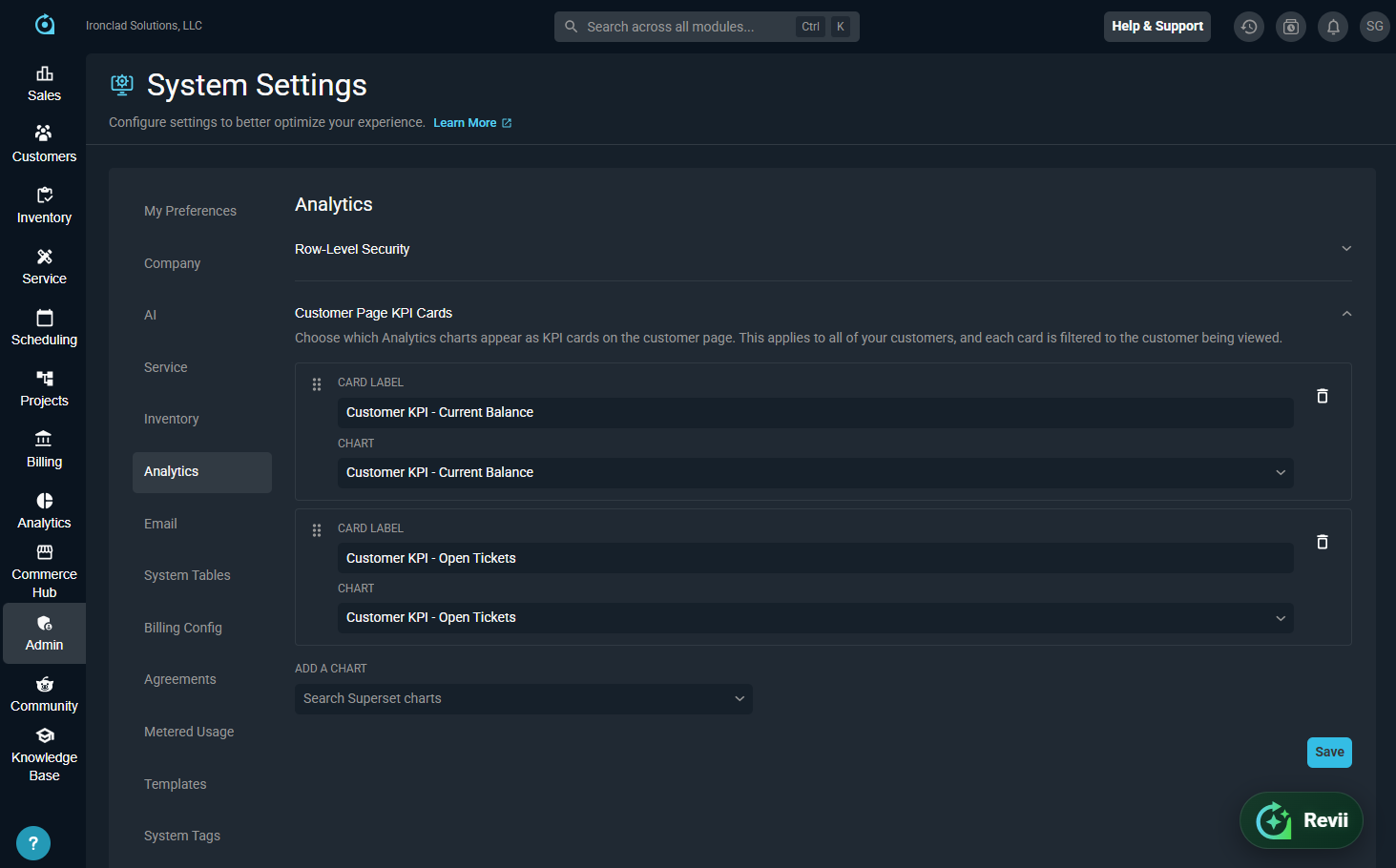
Each field in the Customer Page KPI Cards section is defined below.
| Label | Definition |
| Card Label | The title displayed on the card on the customer page. This can differ from the chart's name in Analytics. |
| Chart | The Analytics chart that powers the card. Only charts with a Customer_ID filter appear in this list. |
The following actions are available in the Customer Page KPI Cards section.
- Add a new card by selecting a chart from the Add a Chart dropdown and entering a card label.
- Reorder cards by clicking and dragging the grid icon at the start of each card row. The order set here is the order cards appear on the customer page.
- Remove a card by clicking the delete icon at the end of the card row.
- Click Save to apply your changes. Saving replaces the previous set of cards, so add all the cards you want before saving. NOTE: The card configuration applies to all customer pages in your organization. Changes take effect immediately after saving.