Capturing Signatures on Tickets
Capturing customer signatures on tickets allows you to confirm service completion directly within Rev.io. By clicking the Capture Signature button on the ticket Activity tab, the customer will be prompted to review and acknowledge the work performed before providing their signature. This verification helps ensure clear confirmation and proper documentation of completed services.
Capturing Signatures
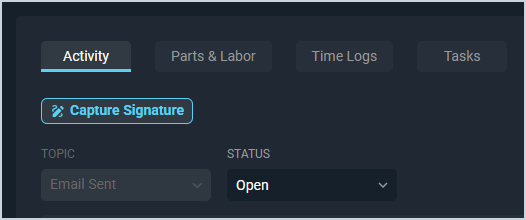
From the ticket Activity tab, click the Capture Signature button to allow the customer to sign off on the work completed on the ticket.
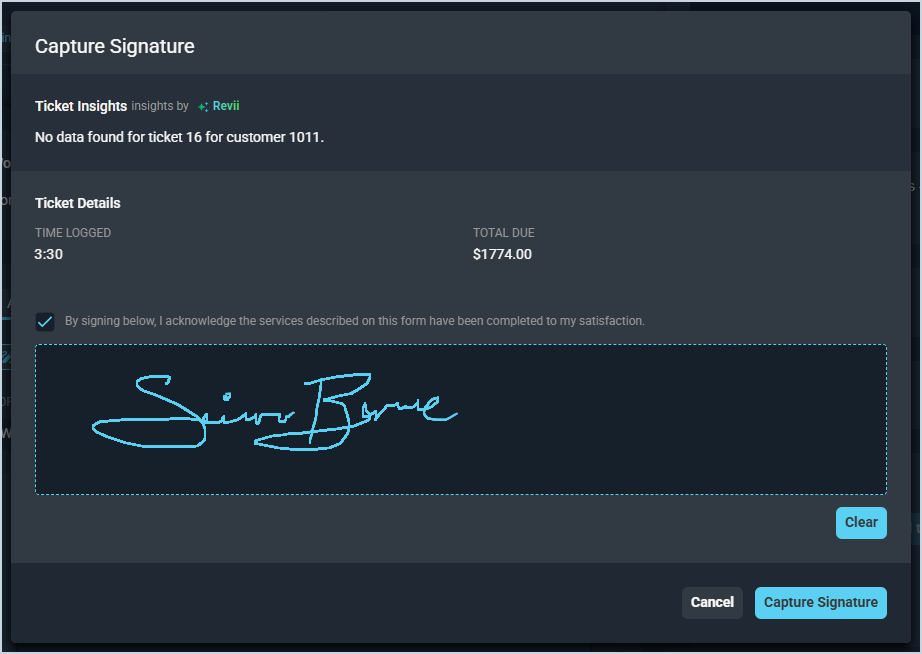
On the Capture Signature window, the customer can review the time logged on the ticket, the total amount due, and complete an acknowledgement before signing their name. Once the customer has signed the ticket, click the Capture Signature button.
Viewing Captured Signatures
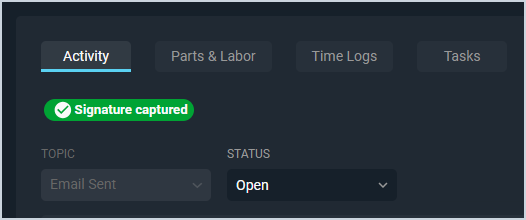
Once the customer has signed off on the work, the Capture Signature button on the ticket Activity tab is replaced with a Signature Captured verification.
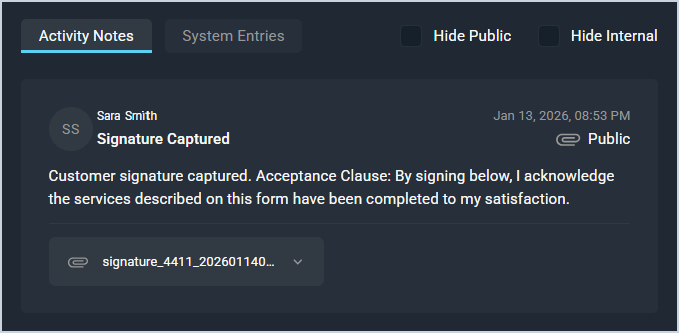
Additionally, a public activity note is added to the Activity Notes section to reflect that the signature was successfully captured. In addition to the acknowledgement message, the activity note shows the rep who initiated the signature capture and attaches the signature as an image to the note.