
Dashboards List View
The Dashboards screen in the Analytics module is your starting point for at-a-glance business intelligence. Each dashboard is a curated collection of charts and metrics grouped around a specific area of your business, such as billing, revenue, workforce, or customer accounts. We've developed several standardized dashboards that you can use to unlock instant insights from your data without any configuration.
NOTE: If you have the Create Reports permission, you can see all dashboards regardless of category. If you only have any of the View permissions, you can see dashboards matching your specific data categories.
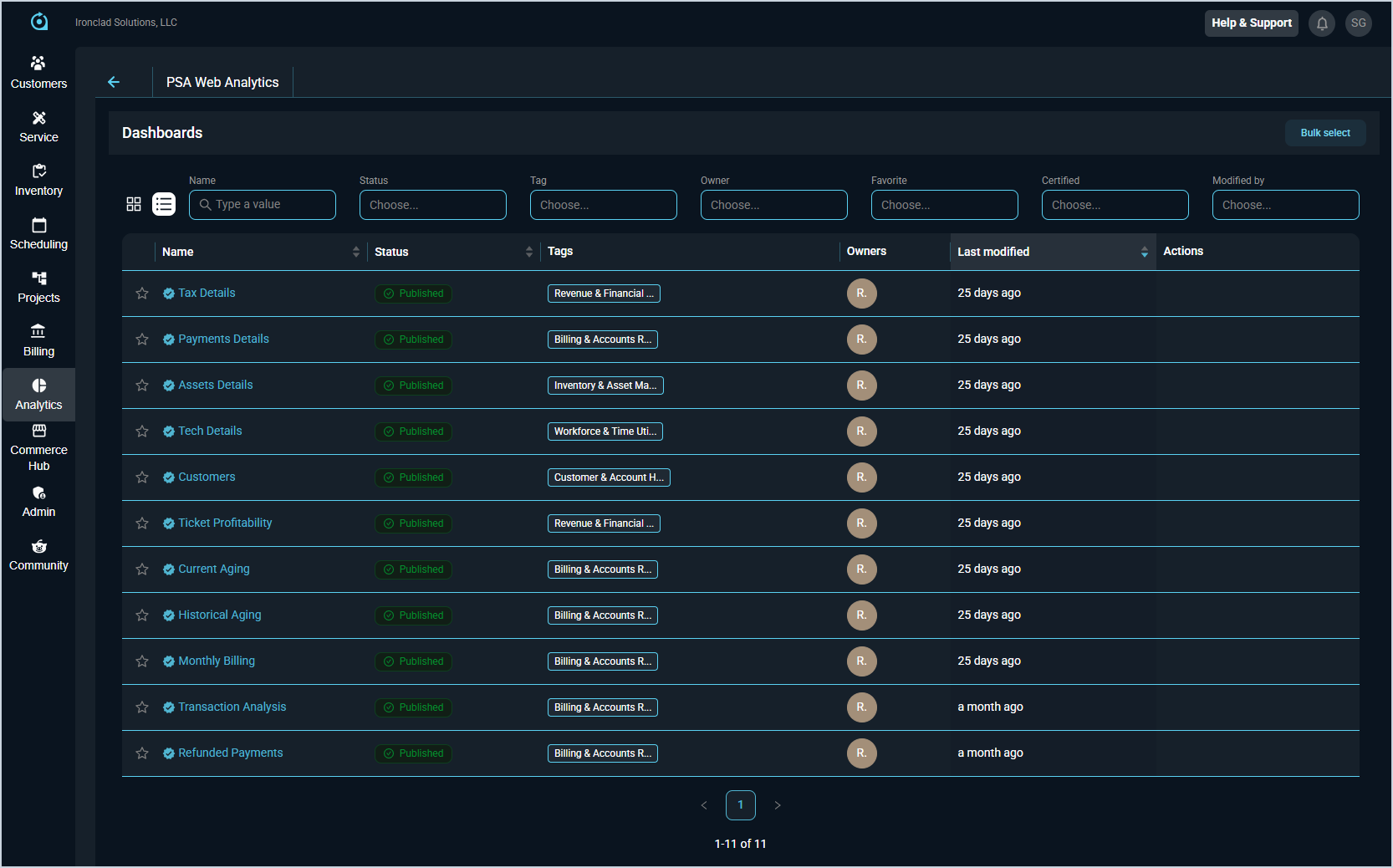
Each field on the Dashboards list view is defined below.
| No. | Label | Definition |
| 1 | Name | Name of the dashboard. |
| 2 | Status | Status of the dashboard. At this time, all visible dashboards are in the Published Status. |
| 3 | Tags | Tags added to help categorize the dashboards. |
| 4 | Owners | Owner of the dashboard. Rev.io is the owner of all dashboards that come prepopulated in the system. |
| 5 | Last Modified | Time period when the dashboard was last modified. |
| 6 | Actions | Hover over the Actions column for a particular dashboard row and click the Export icon to export the dashboard. |
These actions are available on the Dashboards list view.
- Set a dashboard as a Favorite by clicking the star icon at the start of the row.
- Click the Bulk Select button to enable selecting multiple dashboards to export them or add tags.
- View the available dashboards as a grid instead of a list by clicking the grid icon below the Dashboards heading.
- View the available dashboards as a list instead of a grid by clicking the list icon below the Dashboards heading.
- Filter the dashboards displayed on this view by entering text or selecting specific options in any of the filters above the grid. The list view updates to display dashboards matching your filters. NOTE: When entering text in a filter, you must click out of the filter or press the Enter key on your keyboard for the dashboard results to update.
- Sort the results in the table by clicking the column label in the table header.
- View the dashboard by clicking the dashboard Name. See the View Dashboard Details article for more information.