
Unbillable Usage Report
The Unbillable Usage Report displays all usage records that could not be matched to a billable service or customer in Rev.io. This report is used to identify and investigate usage that was not billed, such as calls associated with a billing identifier that does not match an active service in the system. The Unbillable Usage Report is accessible from the Billing module in the sidebar.
Use the Start Date and End Date fields at the top of the screen to filter the report to a specific date range.
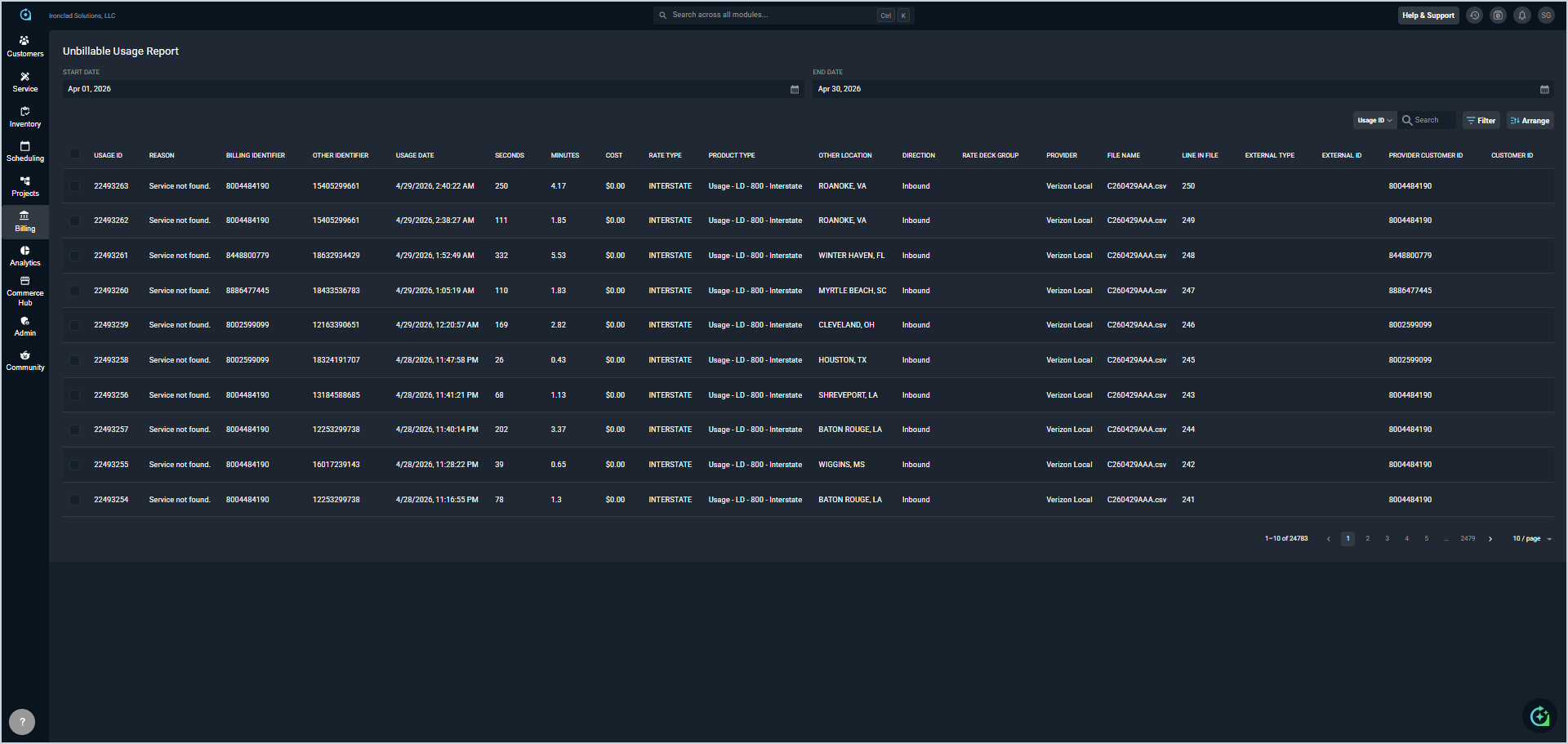
Each field in the Unbillable Usage Report is defined below.
| No. | Label | Definition |
| 1 | Usage ID | System-assigned identifier for the usage record. |
| 2 | Reason | Reason the usage record could not be billed, such as Service not found. |
| 3 | Billing Identifier | Billing identifier associated with the usage record, such as a telephone number. |
| 4 | Other Identifier | Secondary identifier associated with the usage record. |
| 5 | Usage Date | Date and time the usage occurred. |
| 6 | Seconds | Duration of the usage in seconds. |
| 7 | Minutes | Duration of the usage in minutes. |
| 8 | Cost | Cost associated with the usage record. |
| 9 | Rate Type | Rate type applied to the usage record, such as Interstate. |
| 10 | Product Type | Product type associated with the usage record. |
| 11 | Other Location | Location associated with the usage record. |
| 12 | Direction | Direction of the usage, such as Inbound or Outbound. |
| 13 | Rate Deck Group | Rate deck group applied to the usage record, if applicable. |
| 14 | Provider | Provider associated with the usage record. |
| 15 | File Name | Name of the file from which the usage record was imported. |
| 16 | Line in File | Line number of the usage record within the imported file. |
| 17 | External Type | External type associated with the usage record, if applicable. |
| 18 | External ID | External identifier associated with the usage record, if applicable. |
| 19 | Provider Customer ID | Customer identifier from the provider's system. |
| 20 | Customer ID | Rev.io customer identifier associated with the usage record, if applicable. |
The following actions are available on the Unbillable Usage Report.
- Select one or more usage records by checking the checkbox at the start of the row, then click the Rerate Selected button to rerate the selected records.
- Filter the report to a specific date range by entering dates in the Start Date and End Date fields.
- Search the usage records by selecting a column from the dropdown and entering text in the Search field.
- Filter the usage records displayed by clicking the Filter button and selecting the desired filter criteria.
- Customize which columns display in the report and the order in which they display by clicking the Arrange button. See the Arrange Columns article for more information.
- Sort the results in the table by clicking the column label in the table header.