COPS Integration: Configuration
| NOTE: An authorized user account is required to run this integration. To support better security and audit visibility, we recommend creating a dedicated "service account" user. When configuring this integration, sign in using the service account rather than your personal user account to ensure that audit logs reflect the service account running the integration instead of the user who originally installed it. |
Complete the steps below to configure the COPS integration.
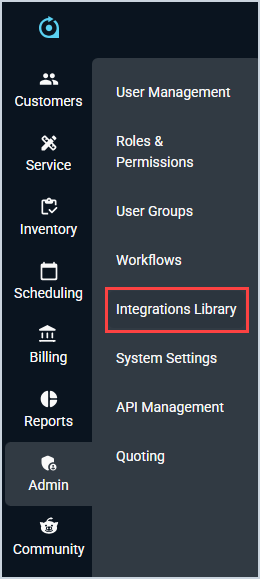
- Click Admin on the sidebar menu and select Integrations Library.
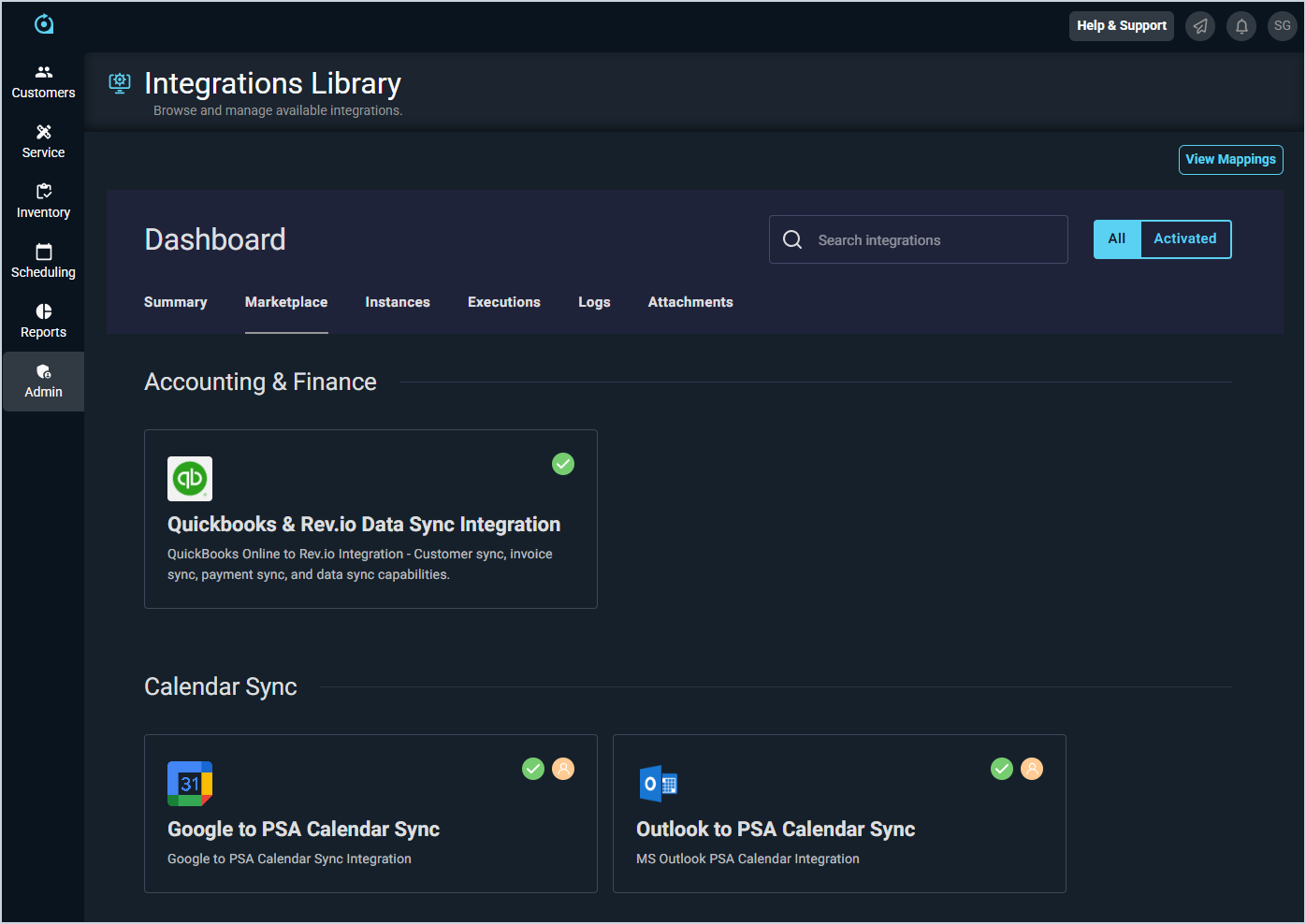
- Click the Marketplace tab.
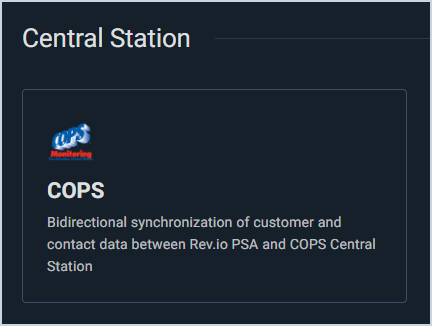
- Locate and select the COPS Integration in the Central Station section.
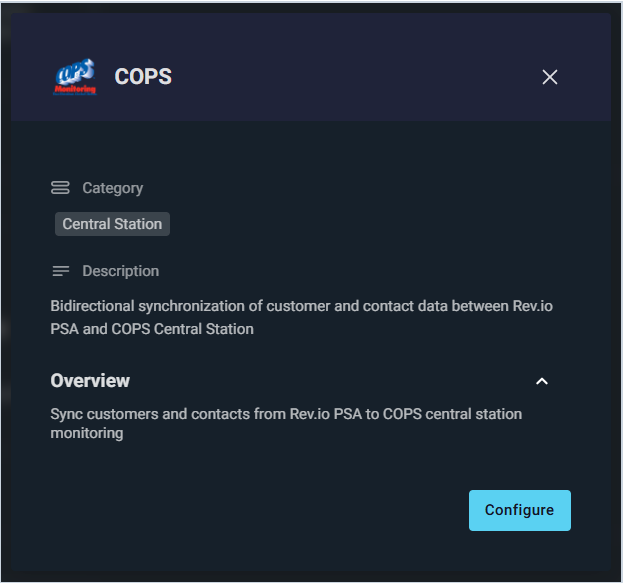
- Click the Configure button.
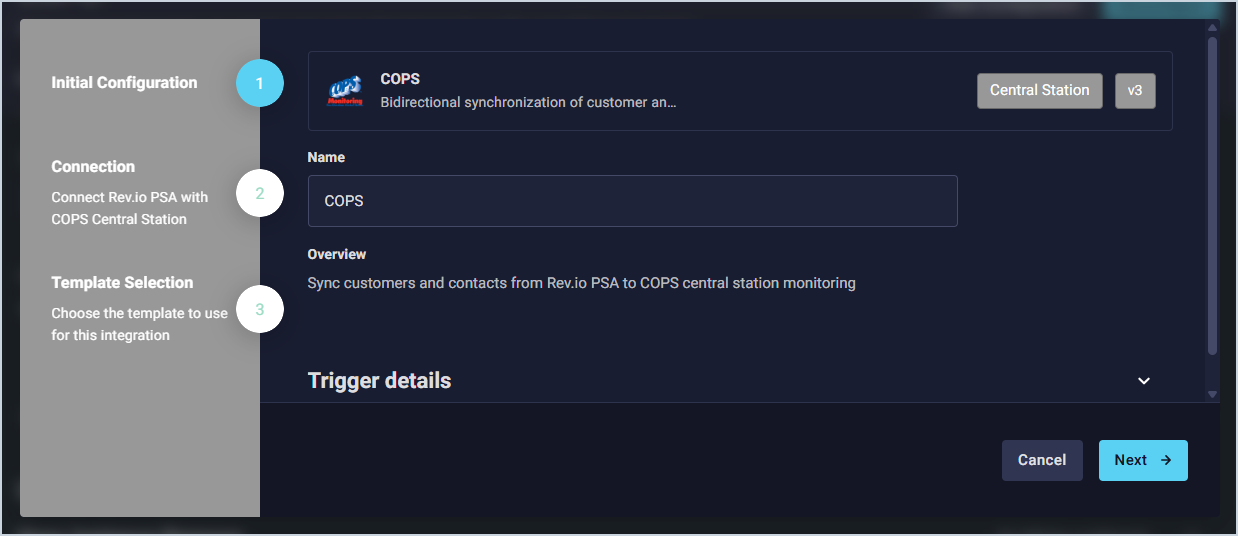
- The Initial Configuration section is automatically populated. Click the Next button.
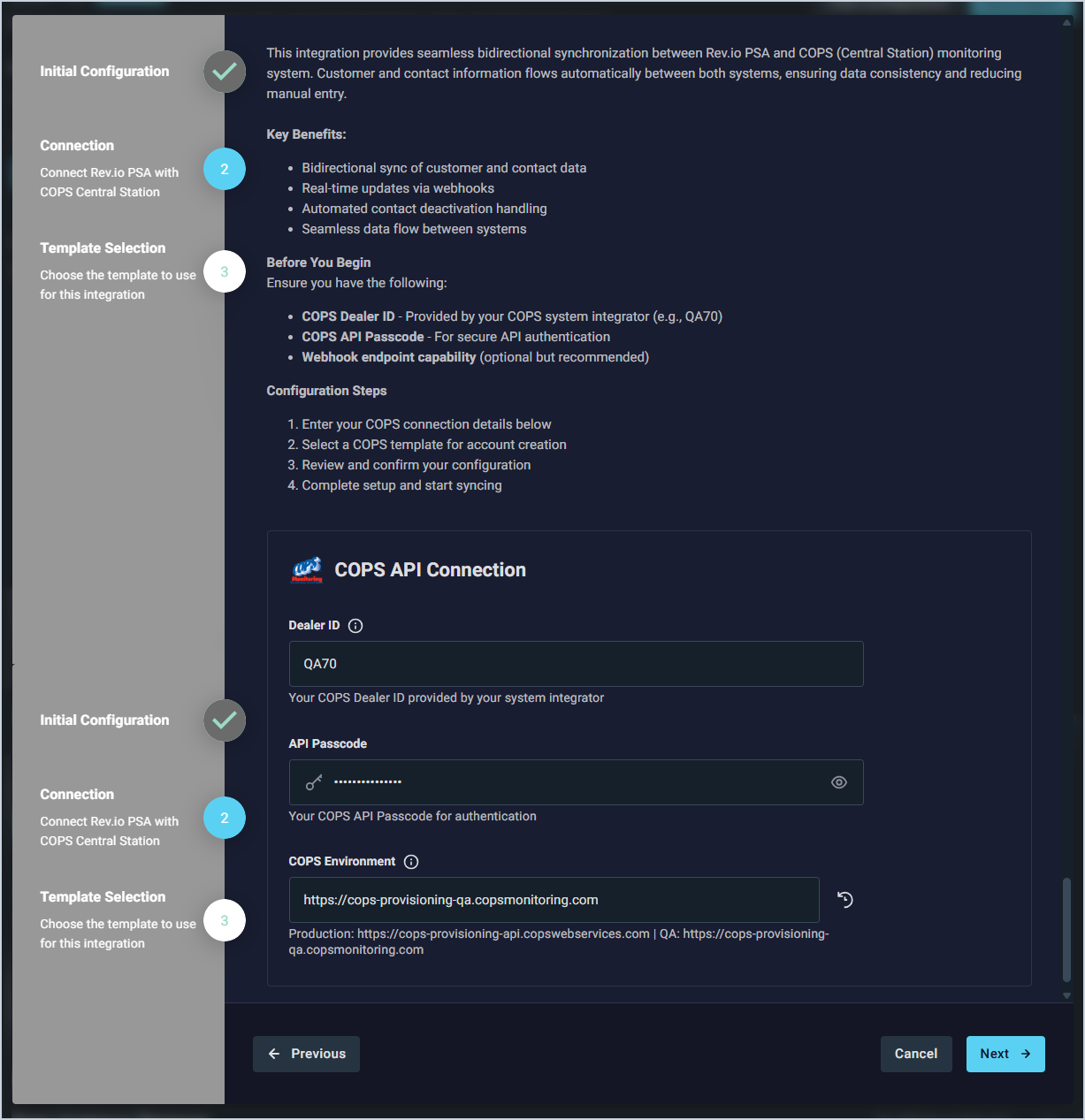
- In the COPS API Connection section, enter your Dealer ID, API Passcode, and COPS Environment URL. Then, click the Next button.
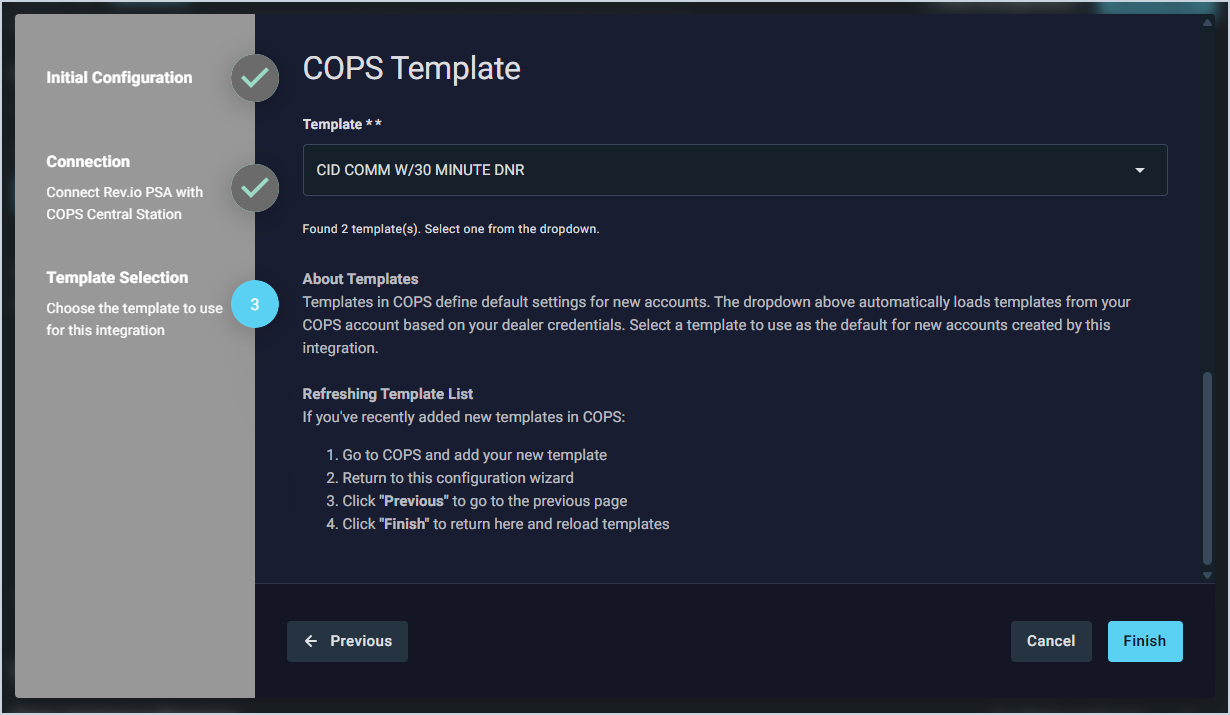
- Select the Template you want to use from your COPS account to define default settings for new customer accounts. Then, click the Finish button.
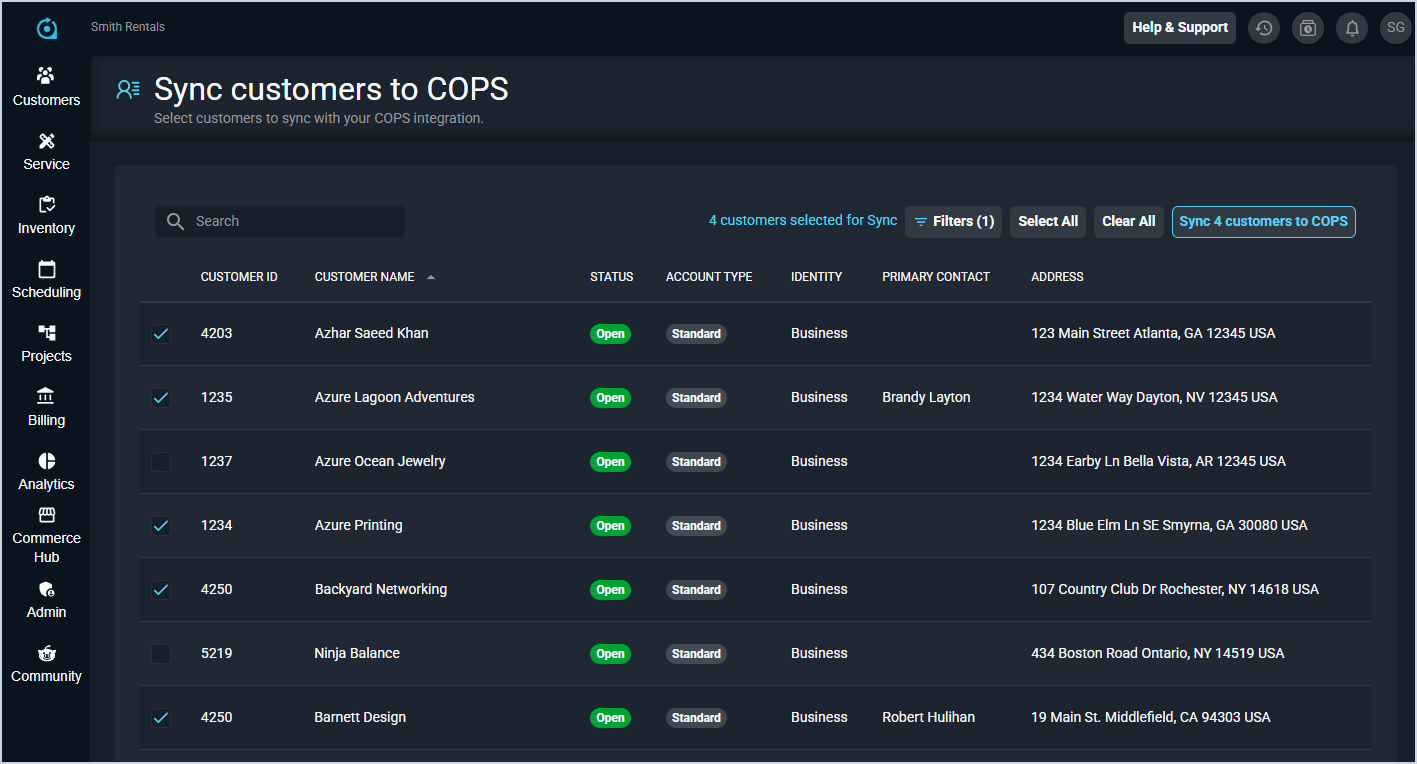
- Select the customers you want to sync with COPS and click the Sync customers to COPS button. You'll receive an in-app notification when the sync is complete.
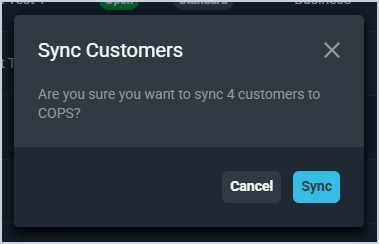
- Click the Sync button to confirm. You will receive a pop-up notification in the lower right corner when the sync is complete.
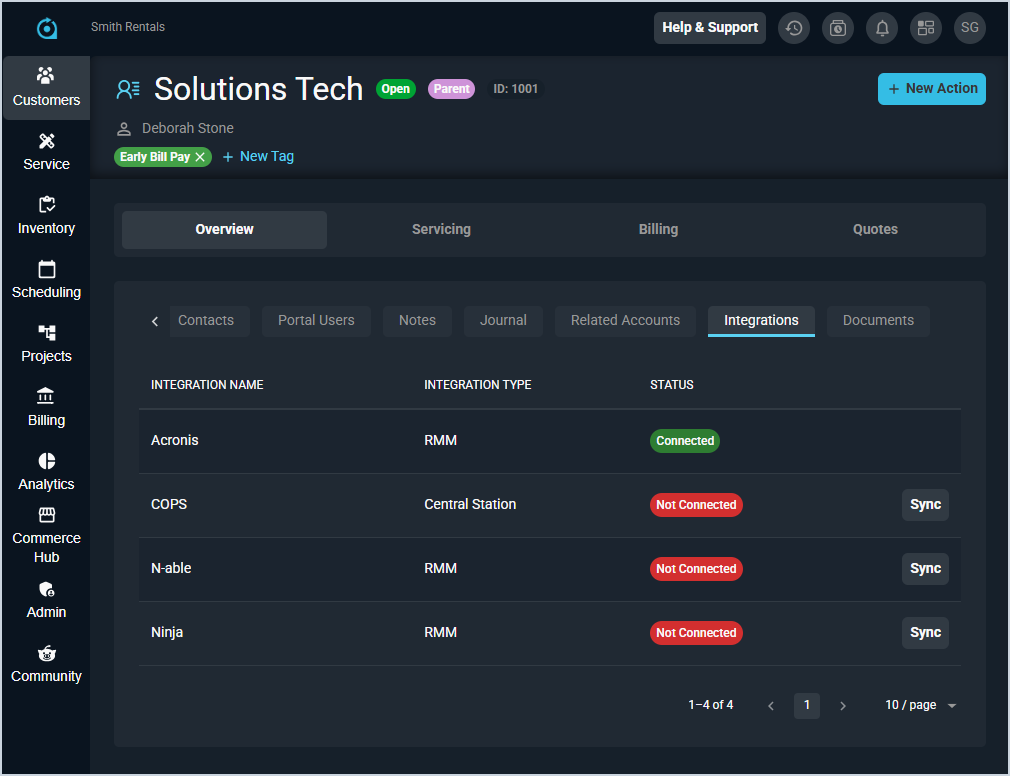
- To sync new customers with COPS, open the Integrations tab on the customer profile screen and click the Sync button for the COPS integration. To deactivate a customer's COPS sync, you'll need to remove the sync manually from both Rev.io and COPS.
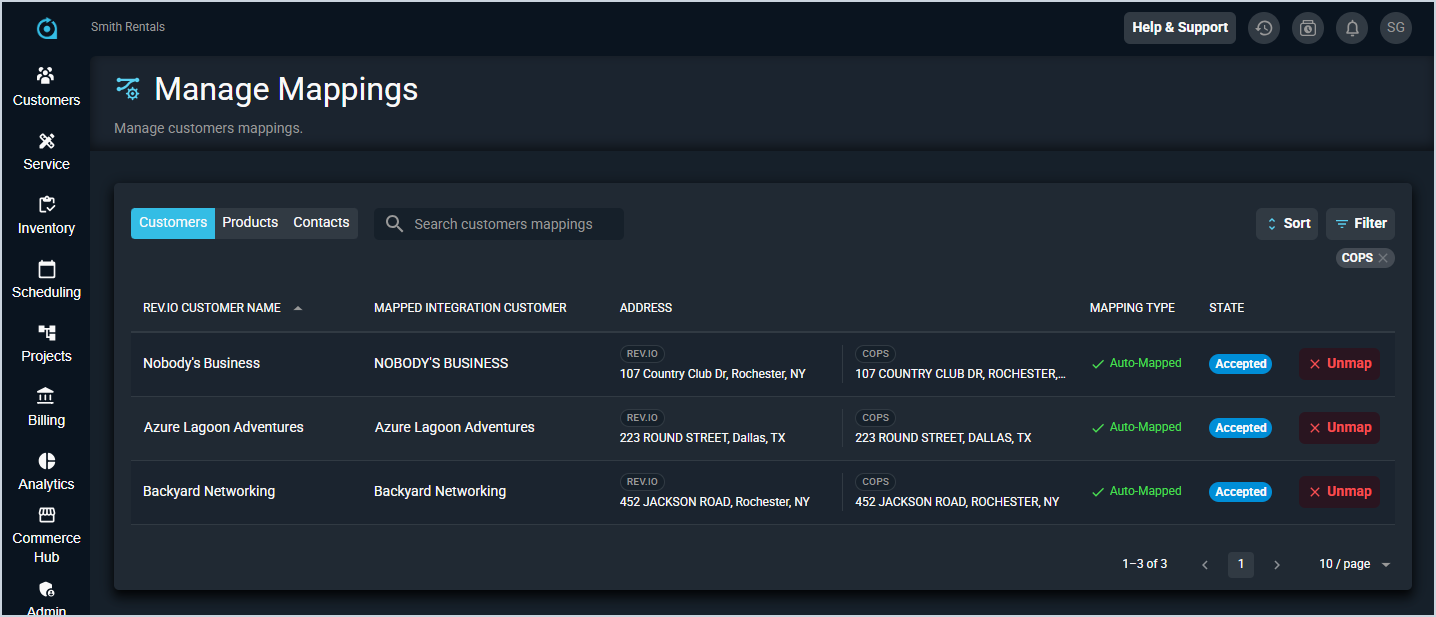
- To deactivate a customer's COPS sync, click Admin > Integrations Library > Marketplace tab > COPS > View Mappings button in the upper right hand corner. Click the Filter button and select COPS from the Integration System dropdown. Then, click the Unmap button next to any customers you want to unsync.