
Expenses List View
The Expenses list view displays all ticket and admin expenses in your Rev.io instance. Use it to review expenses, export them for your accounting team, and mark reimbursable expenses as paid. To open it, click Service in the sidebar menu and select Expenses.
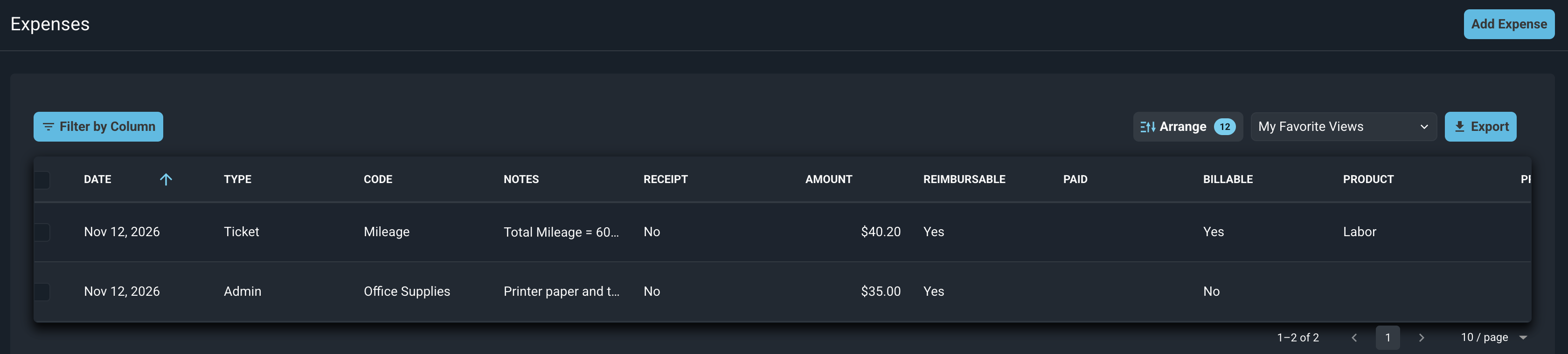
Each column on the Expenses list view is defined below.
| Label | Definition |
| Date | Date of the expense. |
| Type | Kind of expense. Ticket expenses are tied to a ticket, and Admin expenses are not. |
| Code | Expense code selected for the expense. |
| Notes | Notes entered for the expense. |
| Receipt | Indicates whether a receipt is attached to the expense. |
| Amount | Cost of the expense. |
| Reimbursable | Indicates whether the expense is reimbursable to the user who incurred it. |
| Paid | Indicates whether a reimbursable expense has been marked as paid. |
| Billable | Indicates whether the expense is billed to the customer. |
| Product | Product catalog item used for the charge on billable expenses. |
| Price | Amount charged to the customer, including any markup. |
| Expense By | User who incurred the expense. |
The following actions are available on the Expenses list view.
- Add an admin expense by clicking the Add Expense button. See the Add/Edit Expenses article for more information.
- Filter the list by clicking the Filter by Column button.
- Customize which columns display and the order in which they display by clicking the Arrange button. See the Arrange Columns article for more information.
- Save the current filters and columns as a view by clicking My Favorite Views and selecting Save New View.
- Export the current page as a CSV, Excel, or PDF file by clicking the Export button and selecting a format.
- Mark expenses as paid by selecting them and clicking the Mark Paid button. Click Clear to clear your selection.
- Sort the results in the table by clicking the column label in the table header.
| NOTE: Marking expenses as paid requires the Mark expense paid permission in the Expenses category on the role. This permission is off by default. See the Add/Edit Roles article for more information. |
For more information about expenses, see the following articles.
Add/Edit Expenses
Ticket Details: Expenses Tab
System Settings: System Tables - Expenses