
Opportunity List View
The Opportunities list view displays all opportunities across your Rev.io instance, giving your sales team a dedicated place to track and manage potential deals. 'Opportunities' in Rev.io are potential deals or sales engagements associated with a customer account. They allow your sales team to track the progress of a deal from initial interest through to close, including key details such as the expected value, opportunity type, and current stage in the sales process.
Opportunities can be created directly from a customer record and include key details such as the owner, source, and status. A visual stage progression indicator and color-coded status badges make it easy to track deal progress. A visual sales funnel and summary cards at the top of the screen provide a high-level overview of your pipeline. The sales funnel displays a visual breakdown of opportunities by stage, showing the total value and number of opportunities at each stage.
Opportunities can be closed as Won or Lost and remain visible in your lists for reference. Each customer profile also includes an Opportunities tab in the Quotes section showing that account's deal history.
| Fields shown in the list view can vary based on the data entered on record creation. If a field is left blank or a column is hidden using the Arrange columns option, it will not appear in the list view. |
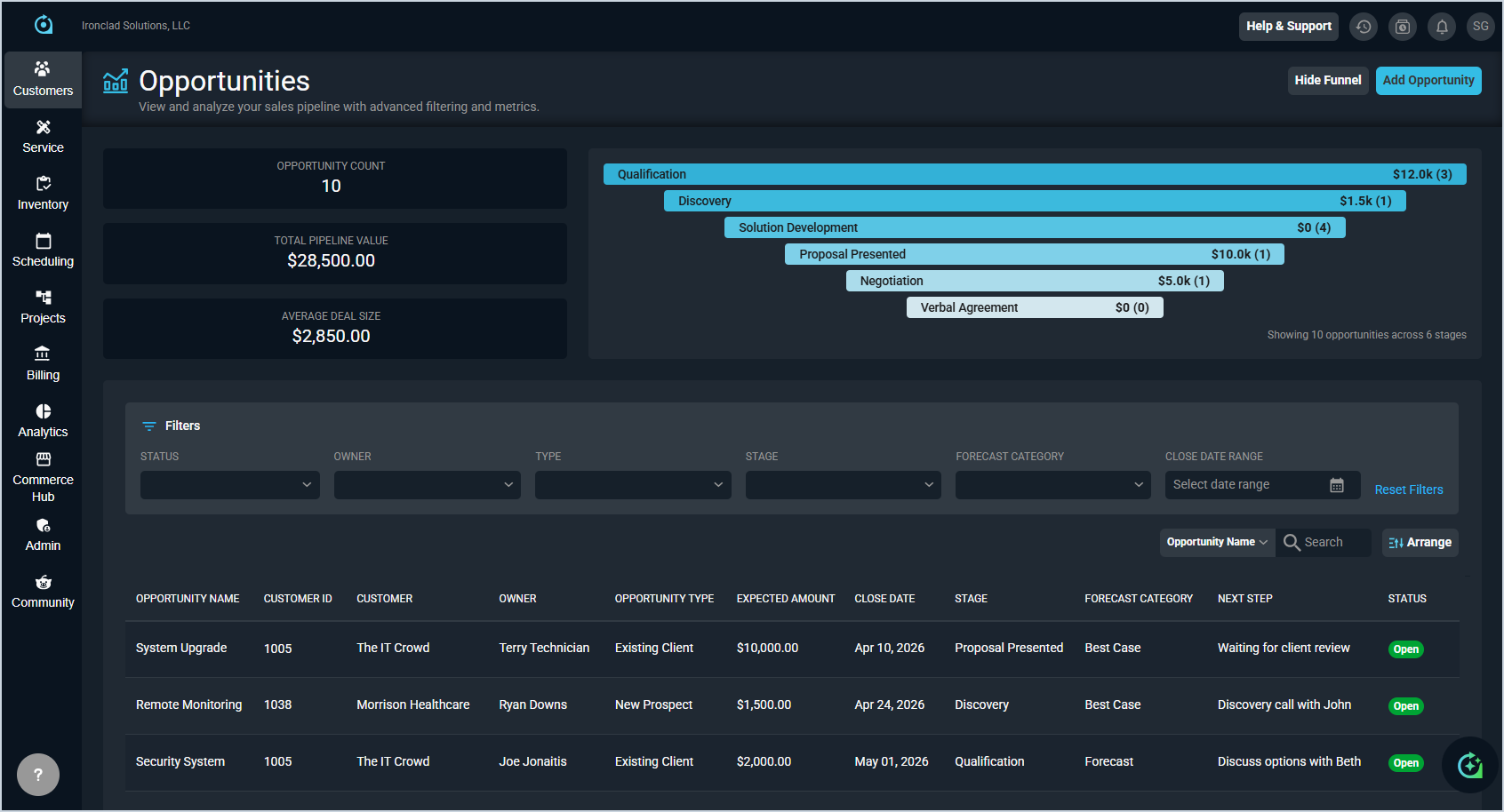
Each field on the Opportunities list view is defined below.
| No. | Label | Definition |
| Summary Cards | ||
| 1 | Opportunity Count | Total number of opportunities currently in your pipeline. |
| 2 | Total Pipeline Value | Combined expected value of all opportunities in your pipeline. |
| 3 | Average Deal Size | Average expected value across all opportunities in your pipeline. |
| Sales Funnel | ||
| 4 | Stage Name | Name of the stage in the sales process. |
| 5 | Total Value | Combined expected value of all opportunities in that stage. |
| 6 | Opportunity Count | Number of opportunities currently in that stage, displayed in parentheses next to the total value. |
| List View | ||
| 7 | Opportunity Name | Name of the opportunity. |
| 8 | Customer ID | Unique identifier for the customer associated with the opportunity. |
| 9 | Customer | Name of the customer associated with the opportunity. |
| 10 | Owner | User assigned as the owner of the opportunity. |
| 11 | Opportunity Type | Type of opportunity, such as Existing Client or New Business. |
| 12 | Expected Amount | The estimated value of the opportunity. |
| 13 | Close Date | The target date for closing the opportunity. |
| 14 | Stage | The current stage of the opportunity in the sales process, such as Qualification. |
| 15 | Forecast Category | Forecast category assigned to the opportunity, such as Best Case or Forecast. |
| 16 | Next Step | Description of the next action to be taken on the opportunity. |
| 17 | Status | The current status of the opportunity. Status options include Open, Won, and Lost. |
The following actions are available on the Opportunities list view.
- Add a new opportunity by clicking the Add Opportunity button at the top of the screen. See the Add/Edit Opportunities article for more information.
- Show or hide the sales funnel by clicking the Hide Funnel or Show Funnel button.
- Click a stage in the funnel to filter the list view to opportunities in that stage.
- Filter the opportunities displayed by selecting options from the Status, Owner, Type, Stage, Forecast Category, and Close Date Range filters. Click Reset Filters to clear all active filters.
- Search the opportunities displayed by selecting a column from the dropdown and entering text in the Search field.
- Customize which columns display in the list view and the order in which they display by clicking the Arrange button. See the Arrange Columns article for more information.
- Sort the results in the table by clicking the column label in the table header.
- View more details for an opportunity by clicking the row. See the View Opportunity Details article for more information.