
System Settings: System Tables - Opportunities
The Opportunities tab in the System Tables category on the System Settings screen allows you to configure the values available in various dropdowns related to opportunities throughout the system, including opportunity types, sales stages, opportunity statuses, and opportunity sources.
Opportunity Types
The Opportunity Types section allows you to manage the types available when creating and categorizing opportunities.
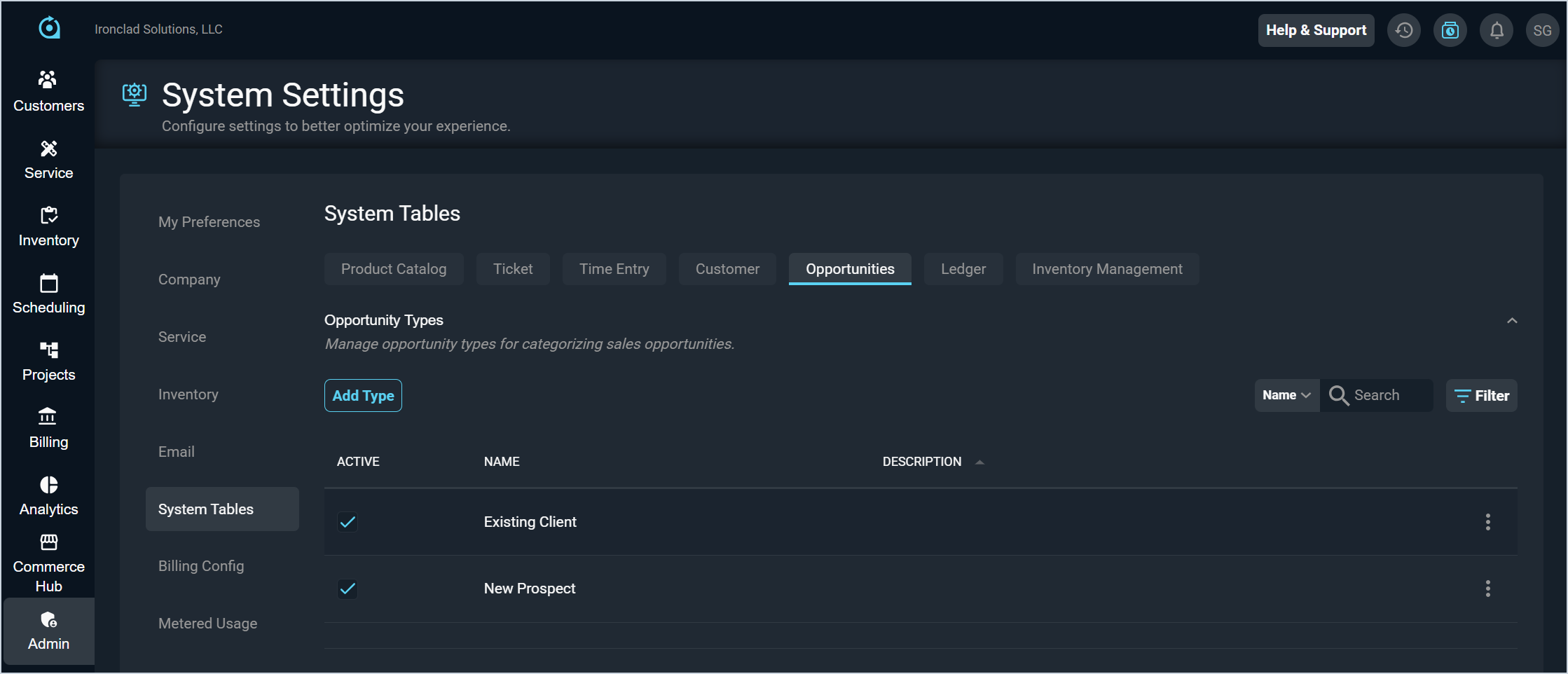
| No. | Label | Definition |
| 1 | Active | A checkmark indicates that the opportunity type is active in your instance. |
| 2 | Name | Name of the opportunity type. |
| 3 | Description | Description of the opportunity type. |
Sales Stages
The Sales Stages section allows you to manage and reorder the stages that appear in the progression indicator on the opportunity detail view. The sort order of stages determines how they display in the progression indicator.
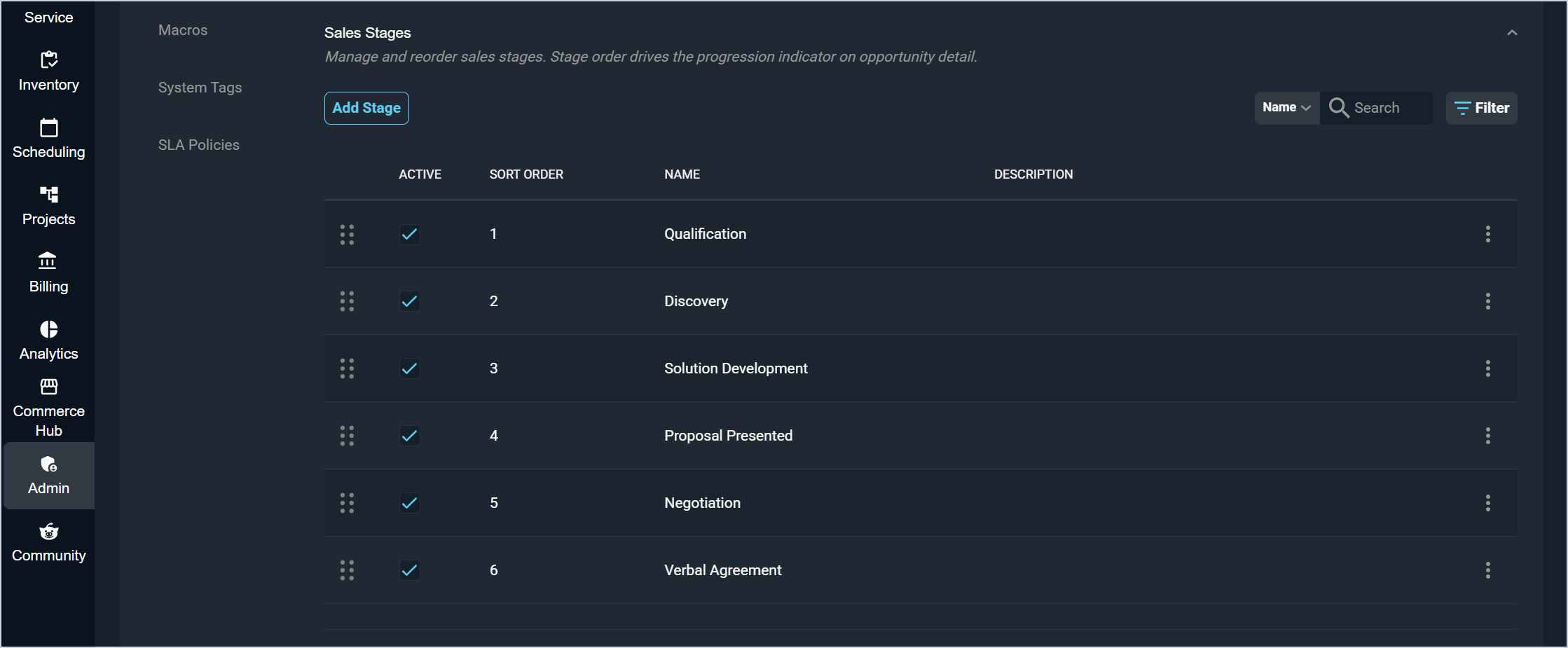
| No. | Label | Definition |
| 1 | Active | A checkmark indicates that the stage is active in your instance. |
| 2 | Sort Order | The order in which the stage appears in the progression indicator. To reorder stages, click and drag them into the desired order using the drag icon at the start of the row. |
| 3 | Name | Name of the sales stage. |
| 4 | Description | Description of the sales stage. |
Opportunity Statuses
The Opportunity Statuses section allows you to manage the statuses available on opportunities and their associated status types.
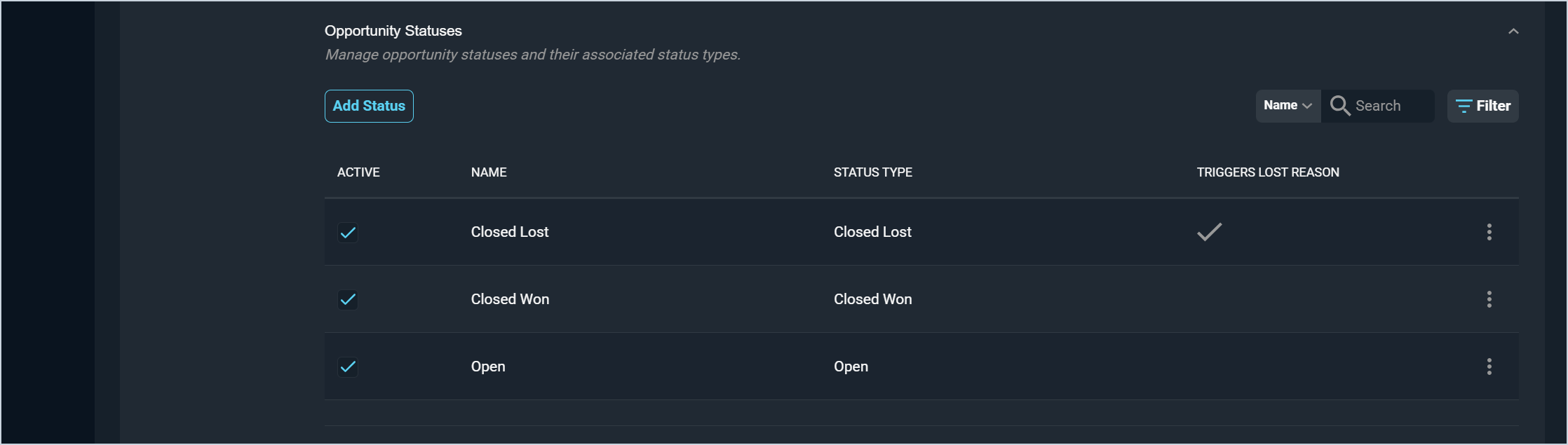
| No. | Label | Definition |
| 1 | Active | A checkmark indicates that the status is active in your instance. |
| 2 | Name | Name of the opportunity status. |
| 3 | Status Type | The status type associated with the opportunity status. Status type options include Open, Closed Won, and Closed Lost. |
| 4 | Triggers Lost Reason | A checkmark indicates that selecting this status will prompt the user to enter a reason for the opportunity being lost. |
Opportunity Sources
The Opportunity Sources section allows you to manage the lead sources available for tracking where opportunities originate.
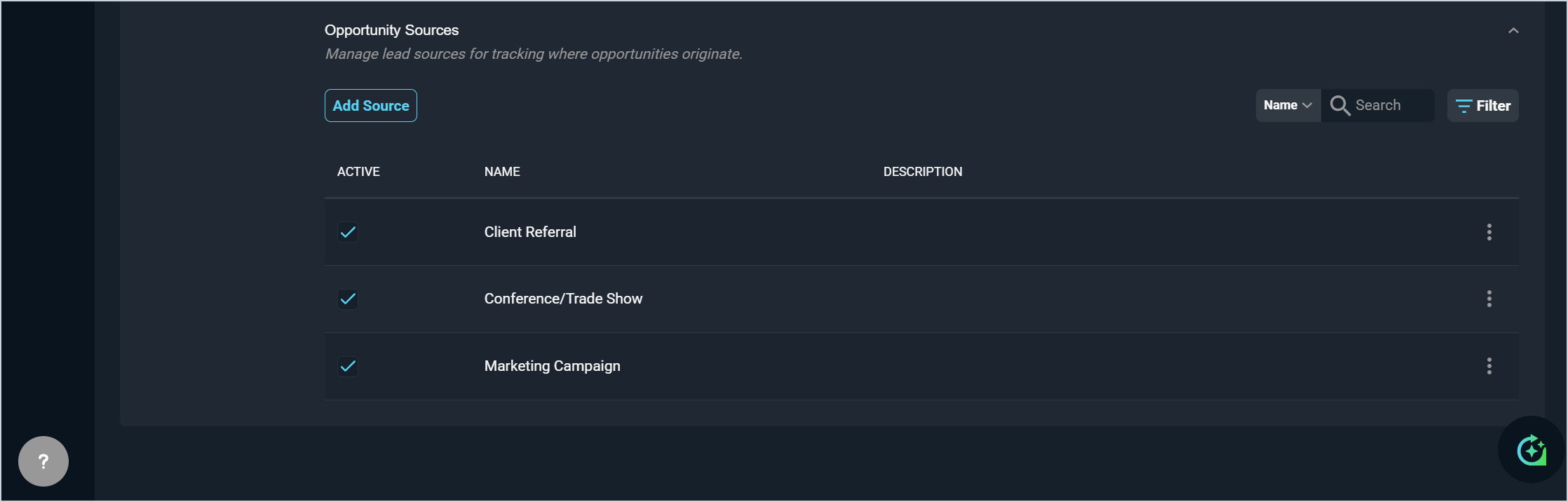
| No. | Label | Definition |
| 1 | Active | A checkmark indicates that the source is active in your instance. |
| 2 | Name | Name of the opportunity source. |
| 3 | Description | Description of the opportunity source. |
These actions are available on the Opportunities tab.
- Add a new item to any section by clicking the Add button in that section, completing the desired fields, and clicking Save.
- Search within any section by selecting a column from the dropdown and entering text in the Search field.
- Filter the items in any section by clicking the Filter button.
- For sections with the drag icons at the start of each row, reorder the line items by simply clicking and dragging the items into the desired order using the drag icons.
- Edit an item by clicking the ellipsis at the end of the row and selecting Edit from the menu options.
- Delete an item by clicking the ellipsis at the end of the row and selecting Delete from the menu options. NOTE: You cannot delete an item if it is currently in use in your instance.