How To Guide: Managing Packages
1. Introduction
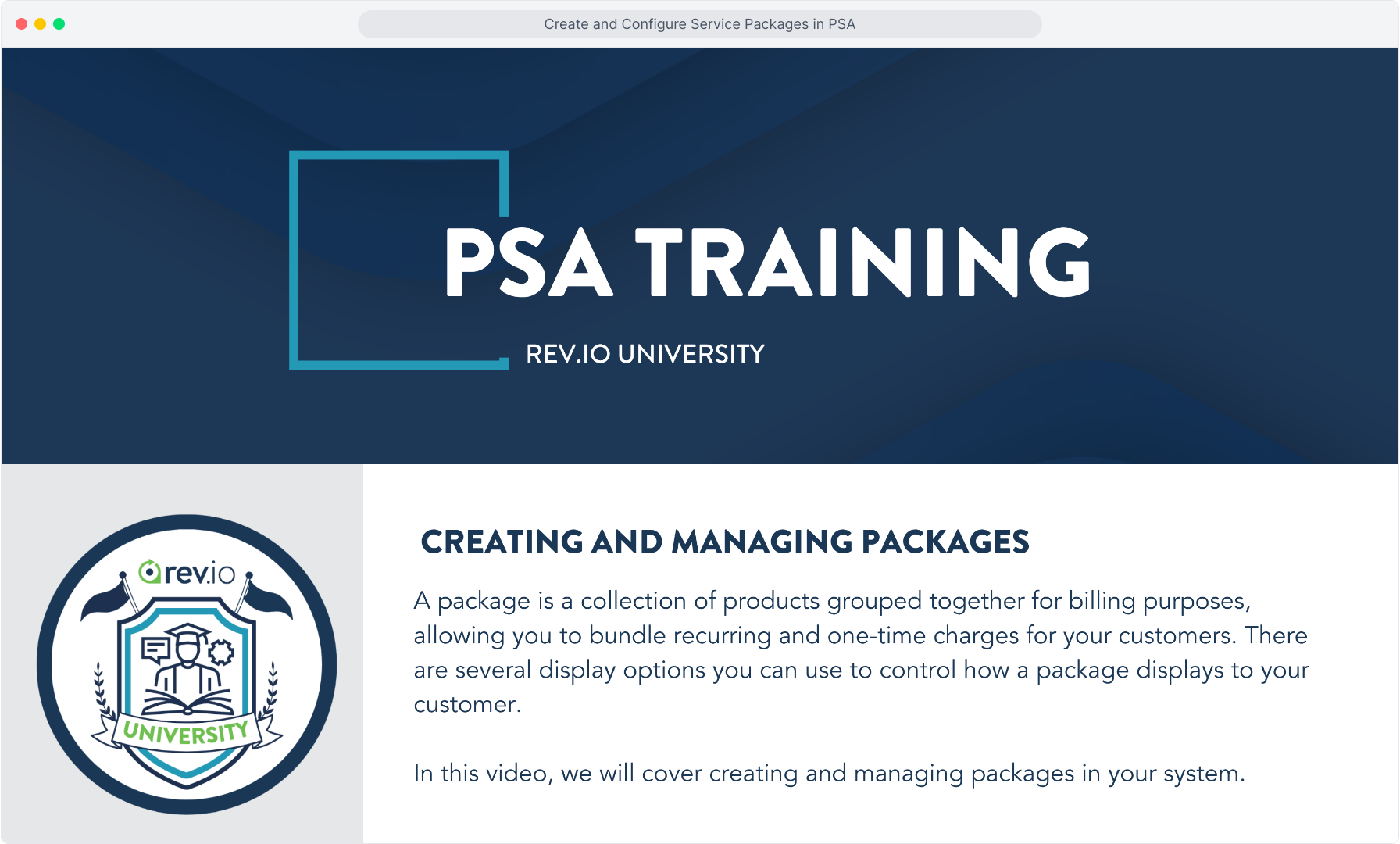
2. From the Inventory menu, click the Packages option to view and manage product packages.
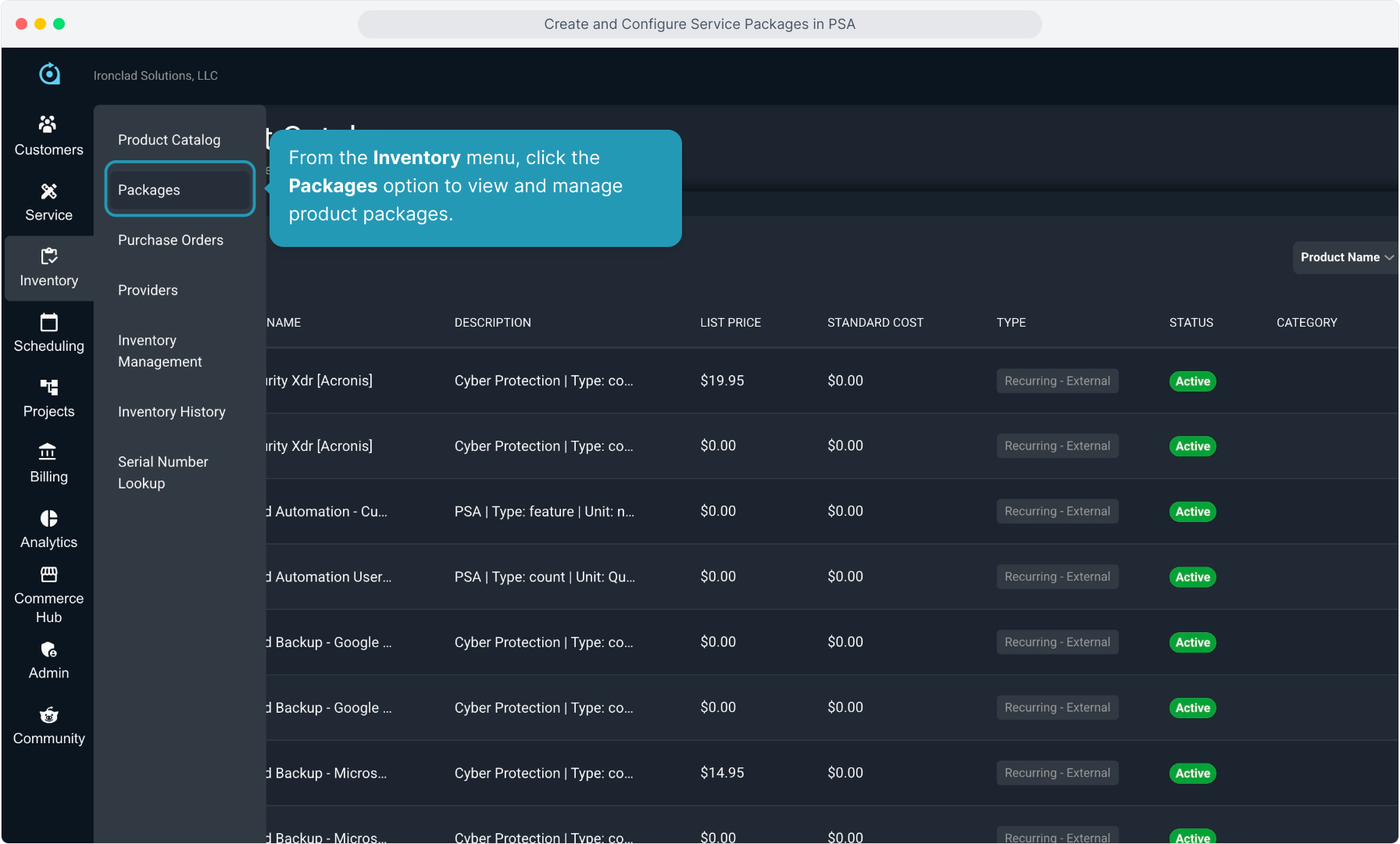
3. Click the Add Package button to create a new package.
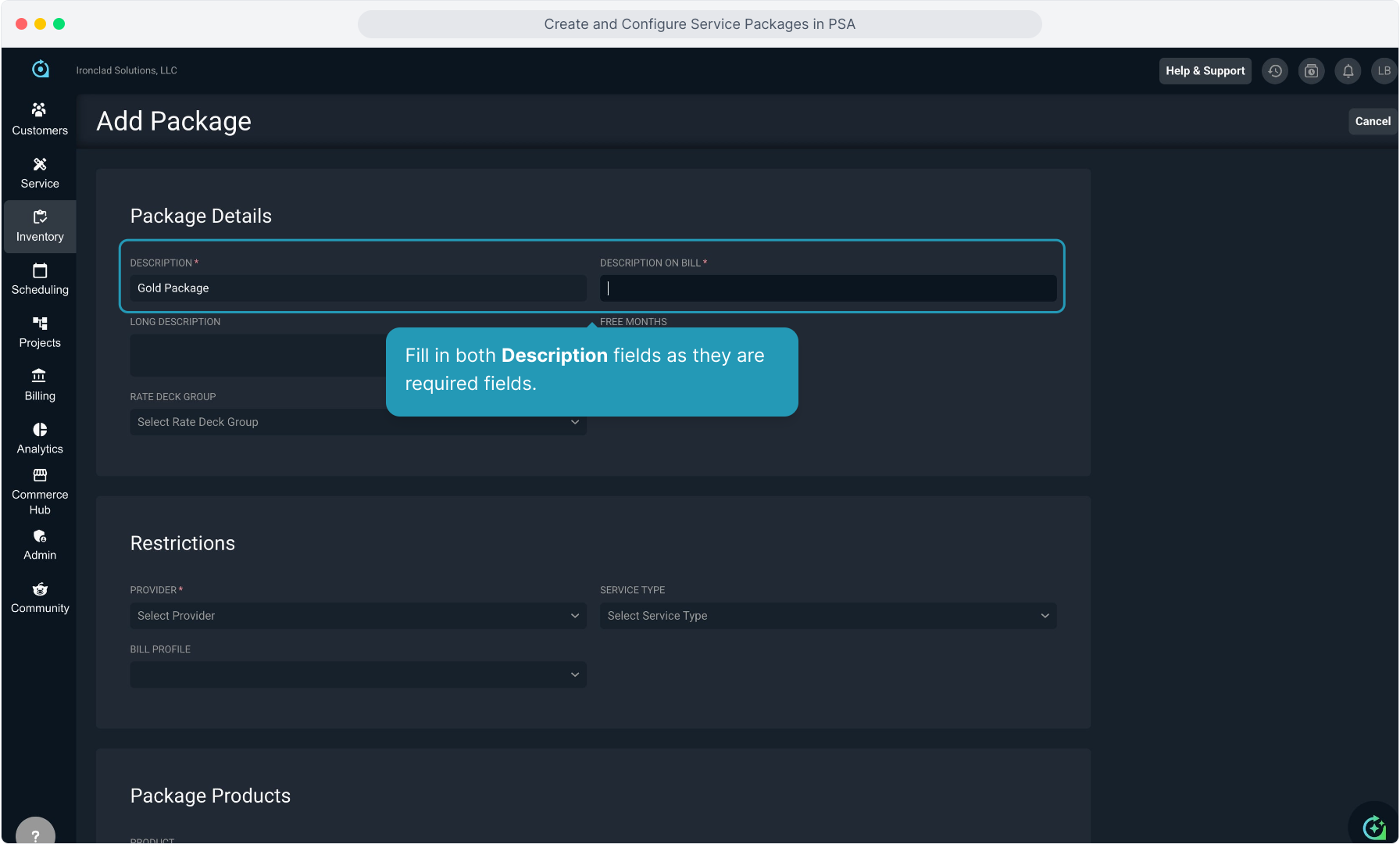
4. Fill in both Description fields as they are required fields.
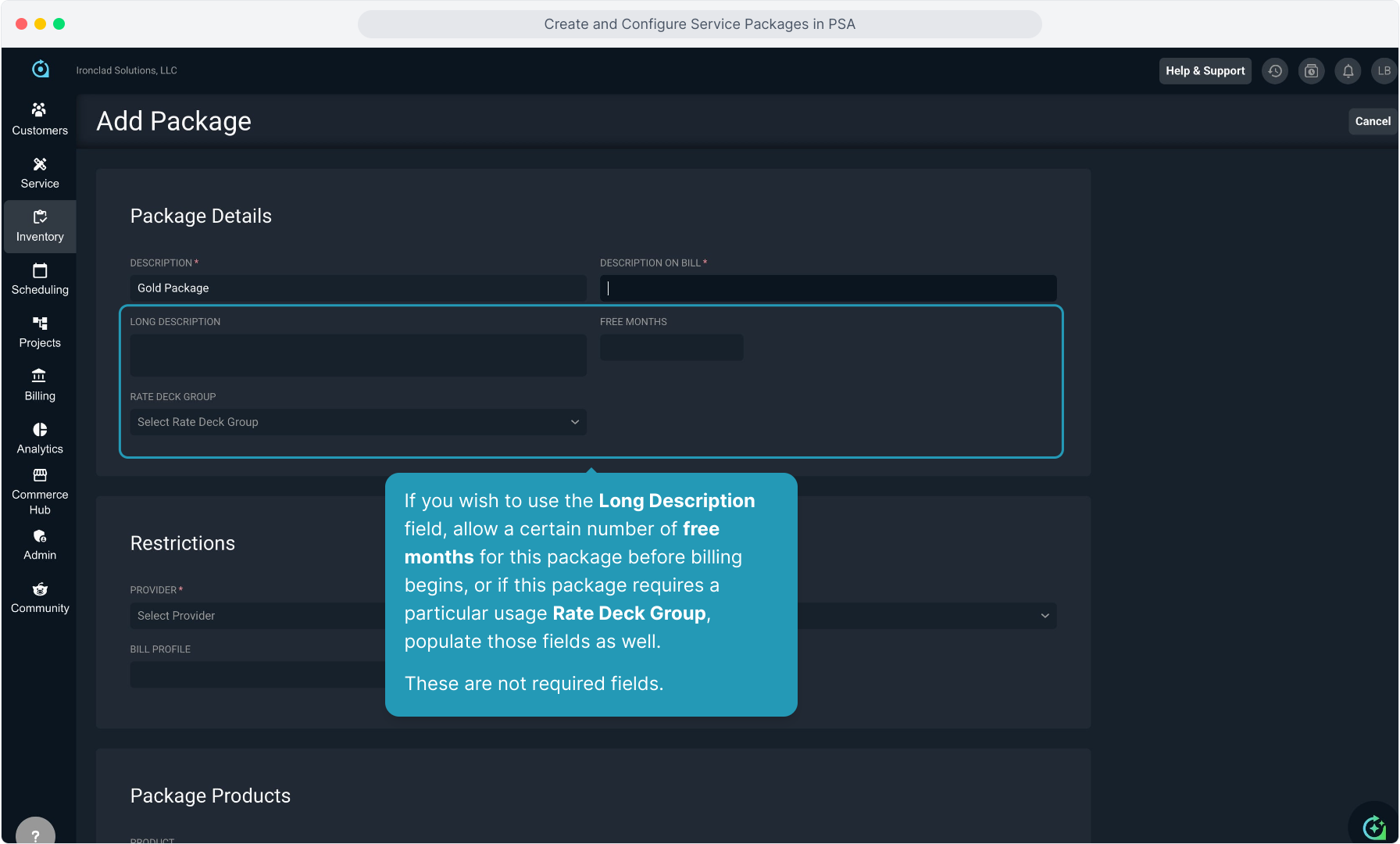
5. If you wish to use the Long Description field, allow a certain number of free months for this package before billing begins, or if this package requires a particular usage Rate Deck Group, populate those fields as well. These are not required fields.
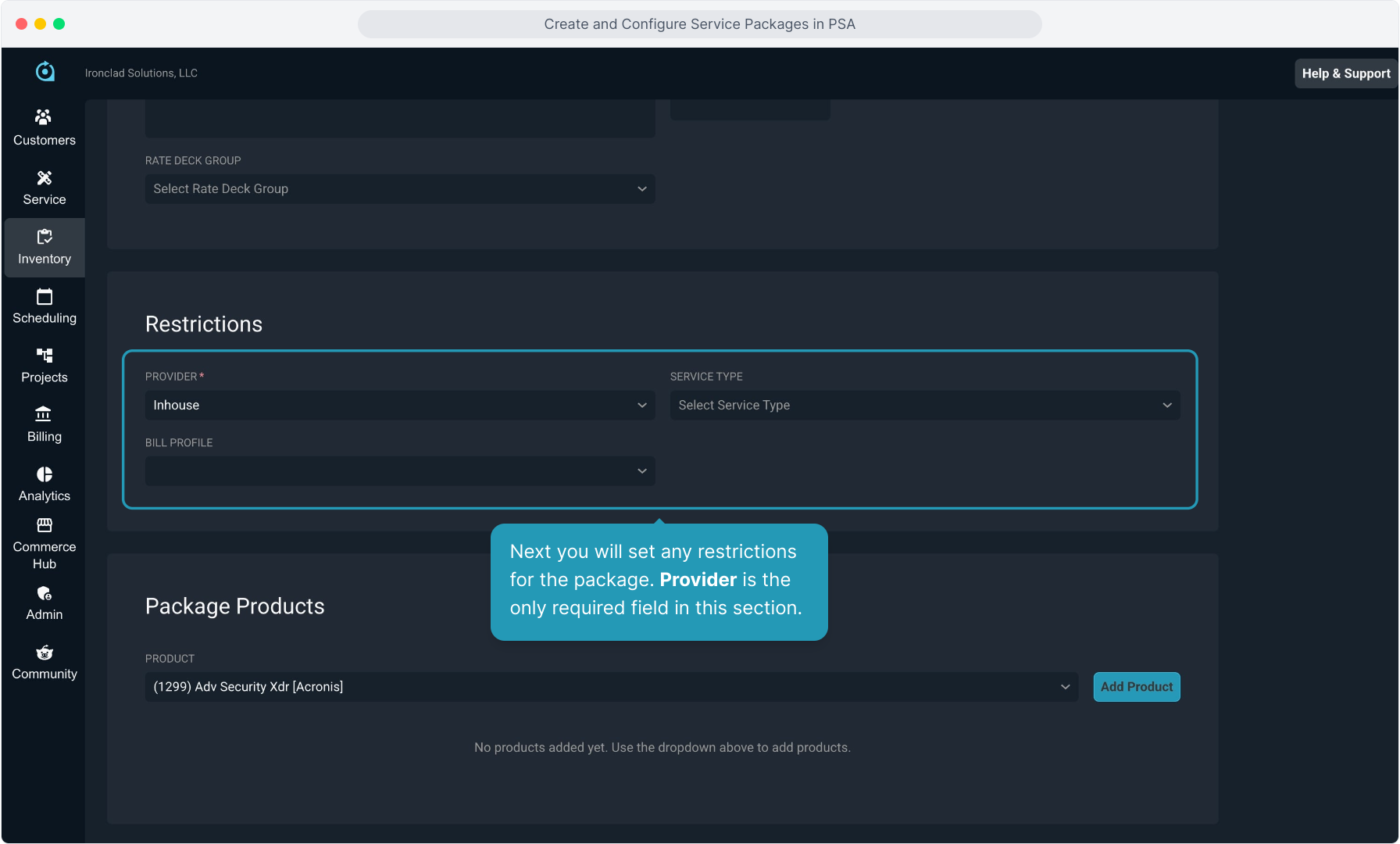
6. Next you will set any restrictions for the package. Provider is the only required field in this section.
7. Moving to the Package Products section, begin selecting the products that are to be included in the package.
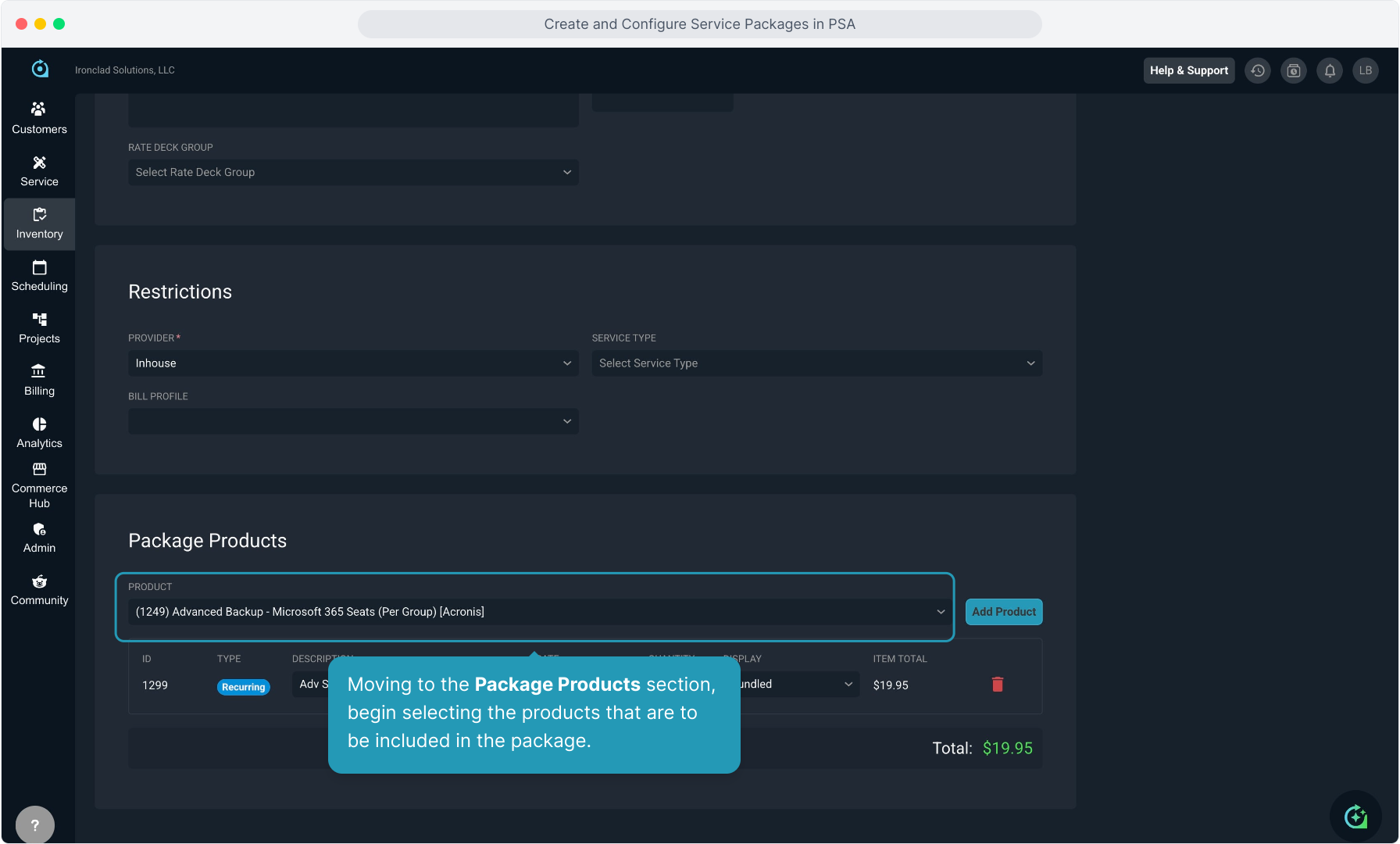
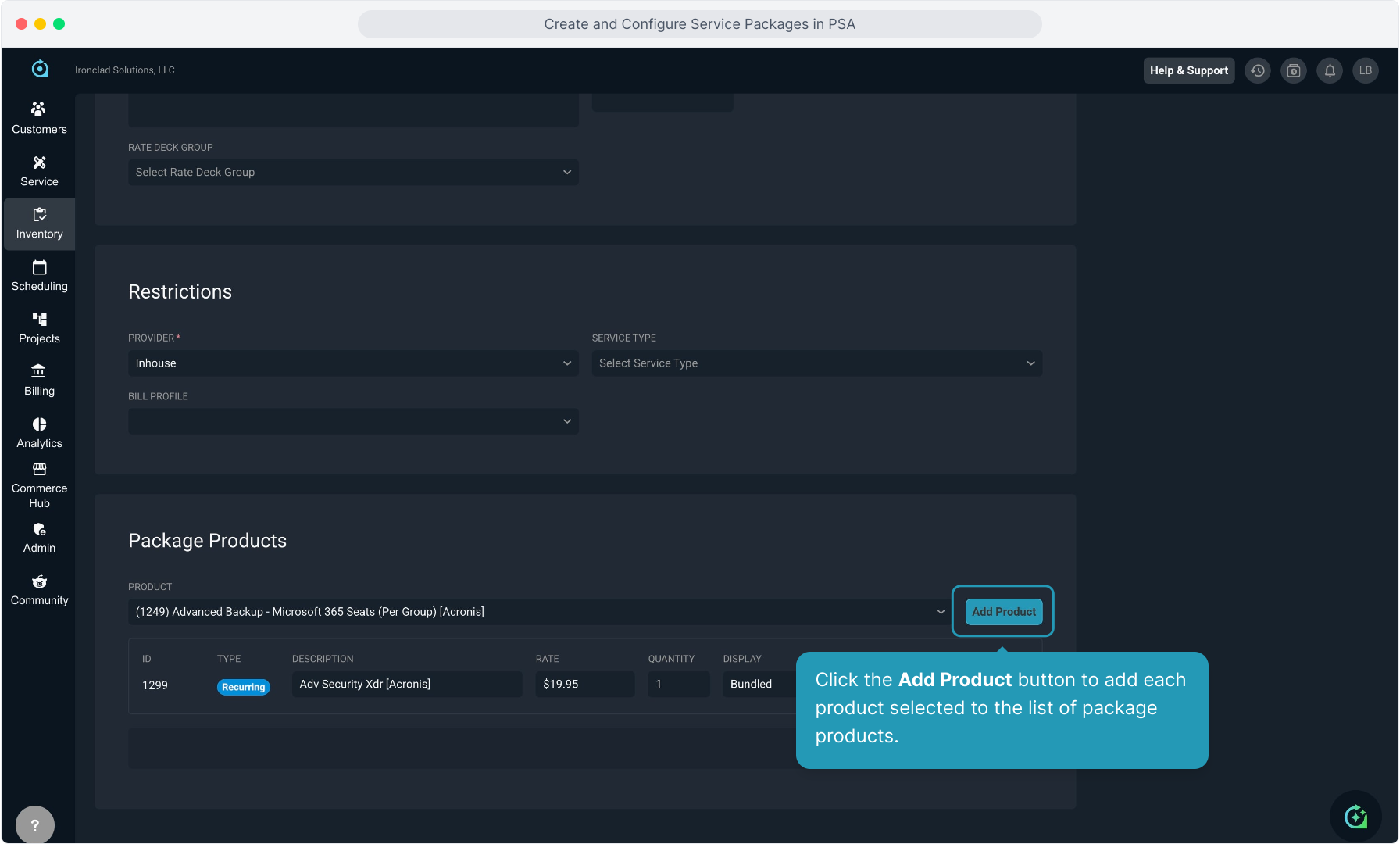
8. Click the Add Product button to add each product selected to the list of package products.
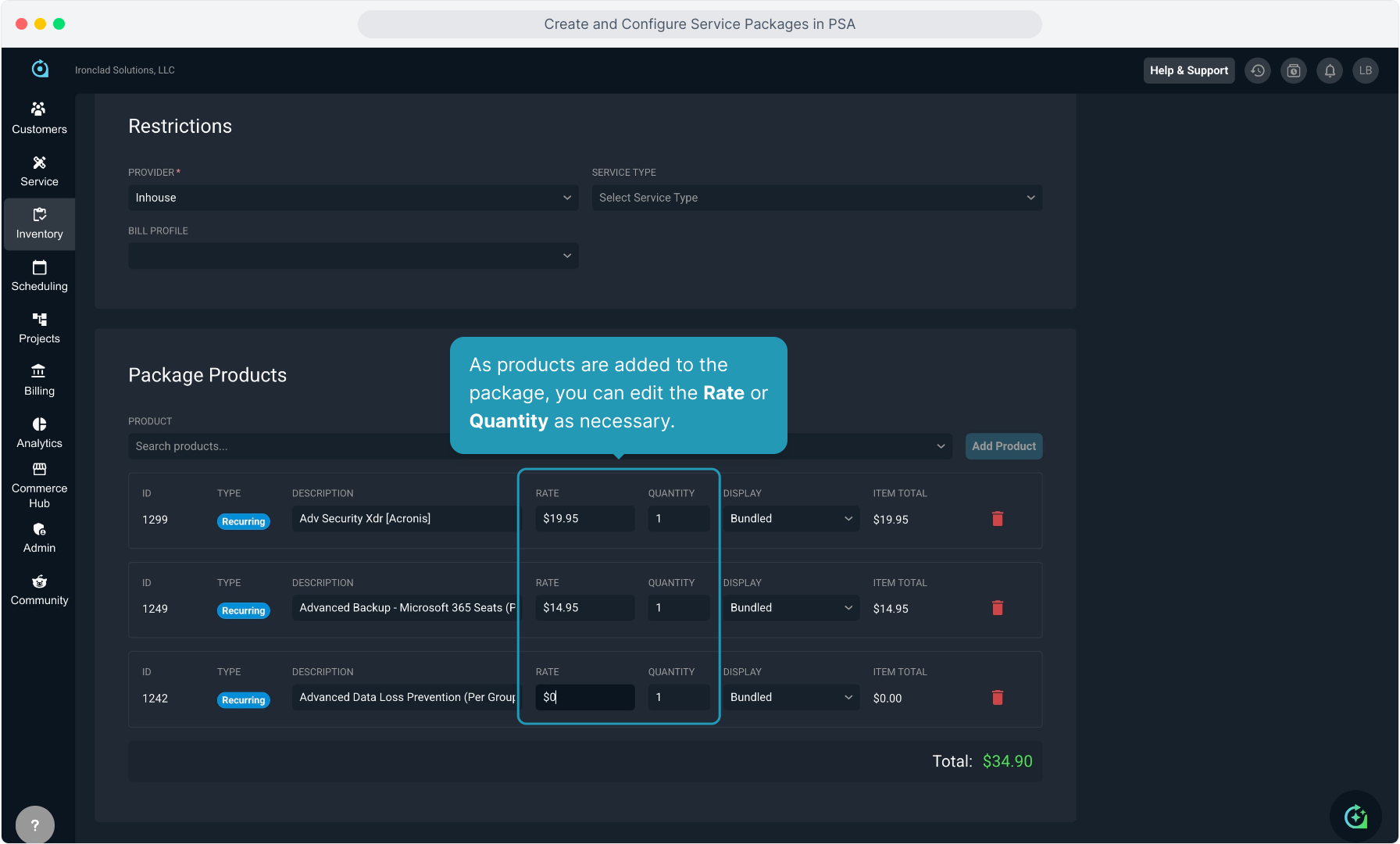
9. As products are added to the package, you can edit the Rate or Quantity as necessary.
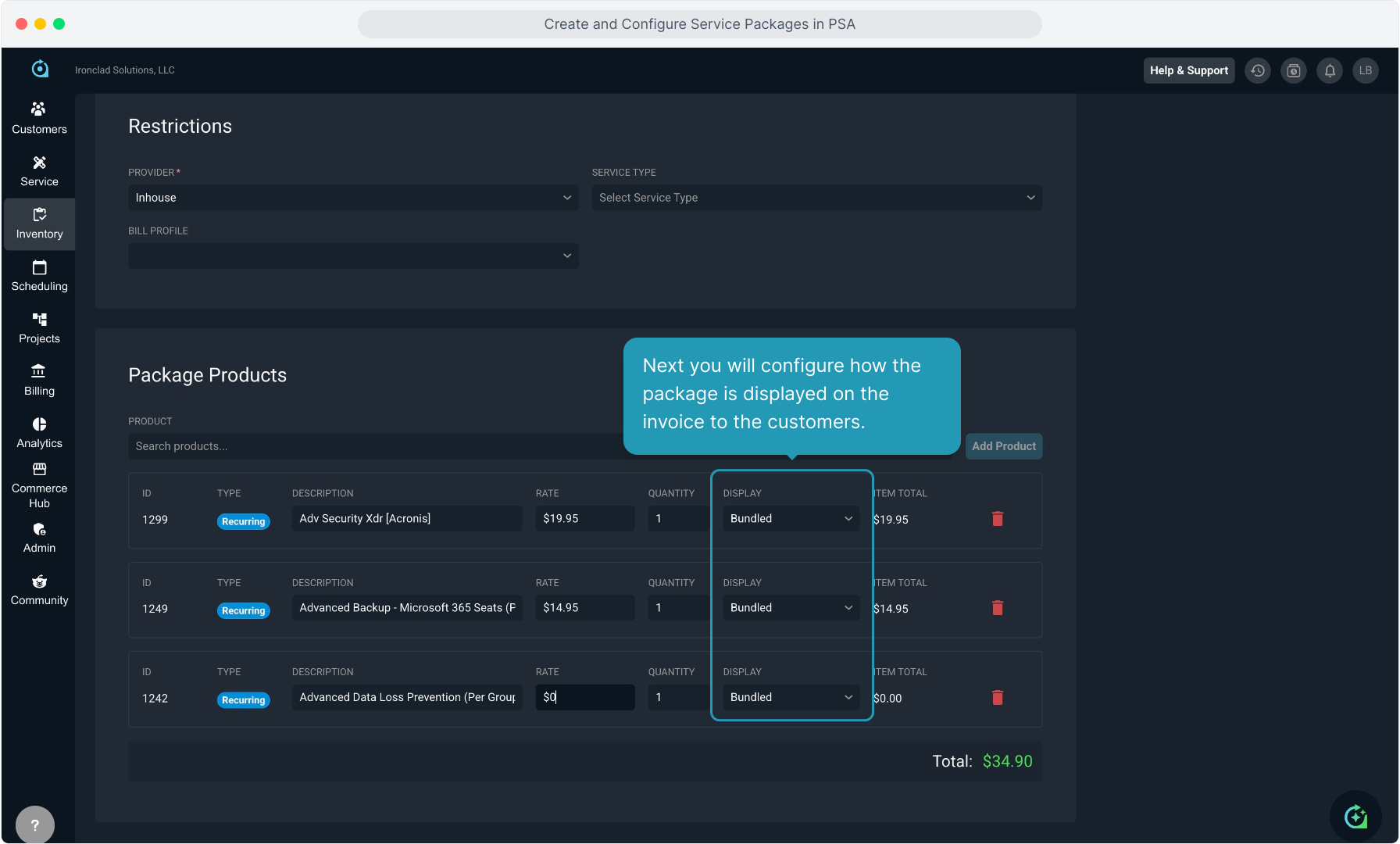
10. Next you will configure how the package is displayed on the invoice to the customers.
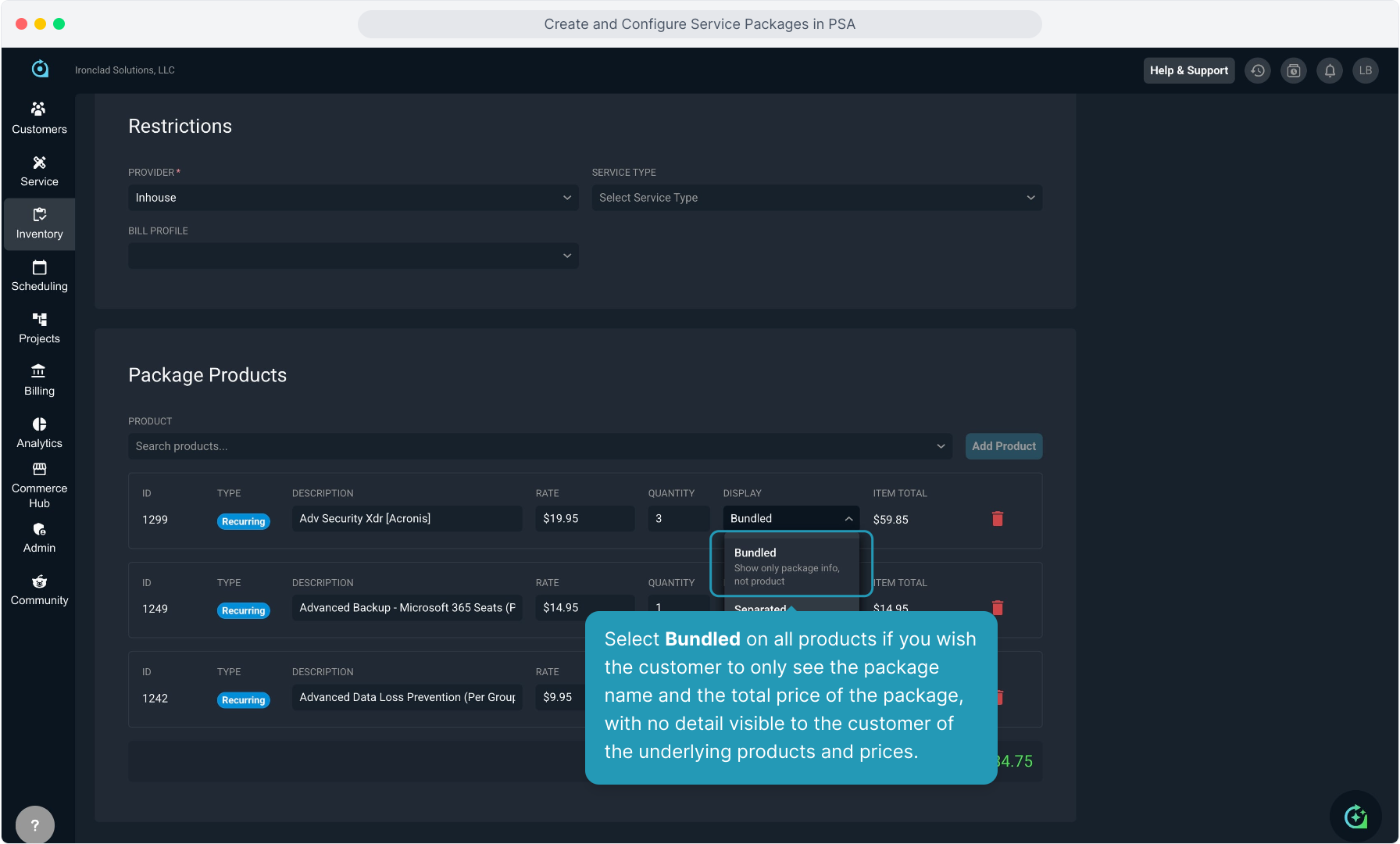
11. Select Bundled on all products if you wish the customer to only see the package name and the total price of the package, with no detail visible to the customer of the underlying products and prices.
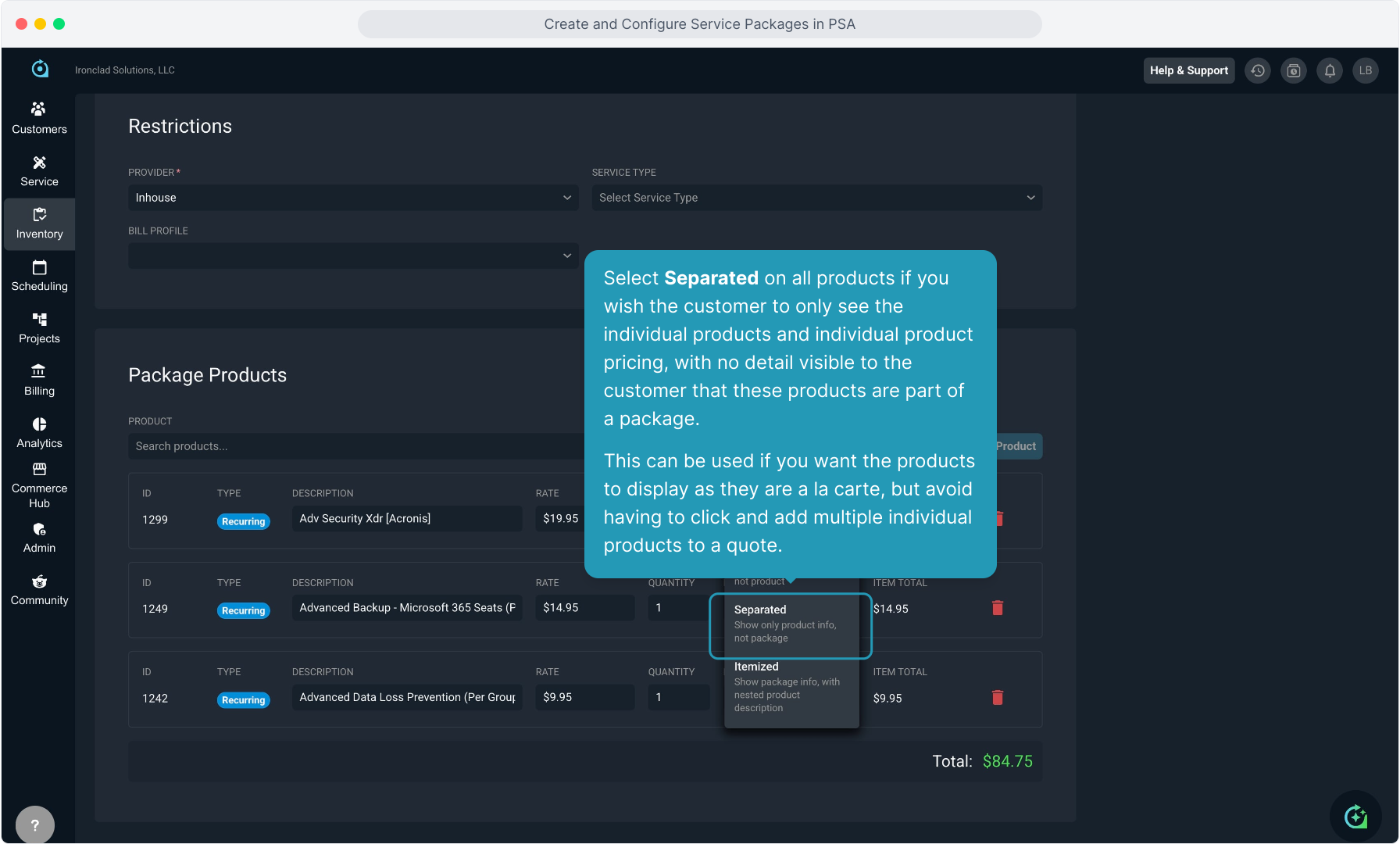
12. Select Separated on all products if you wish the customer to only see the individual products and individual product pricing, with no detail visible to the customer that these products are part of a package.
This can be used if you want the products to display as they are a la carte, but avoid having to click and add multiple individual products to a quote.
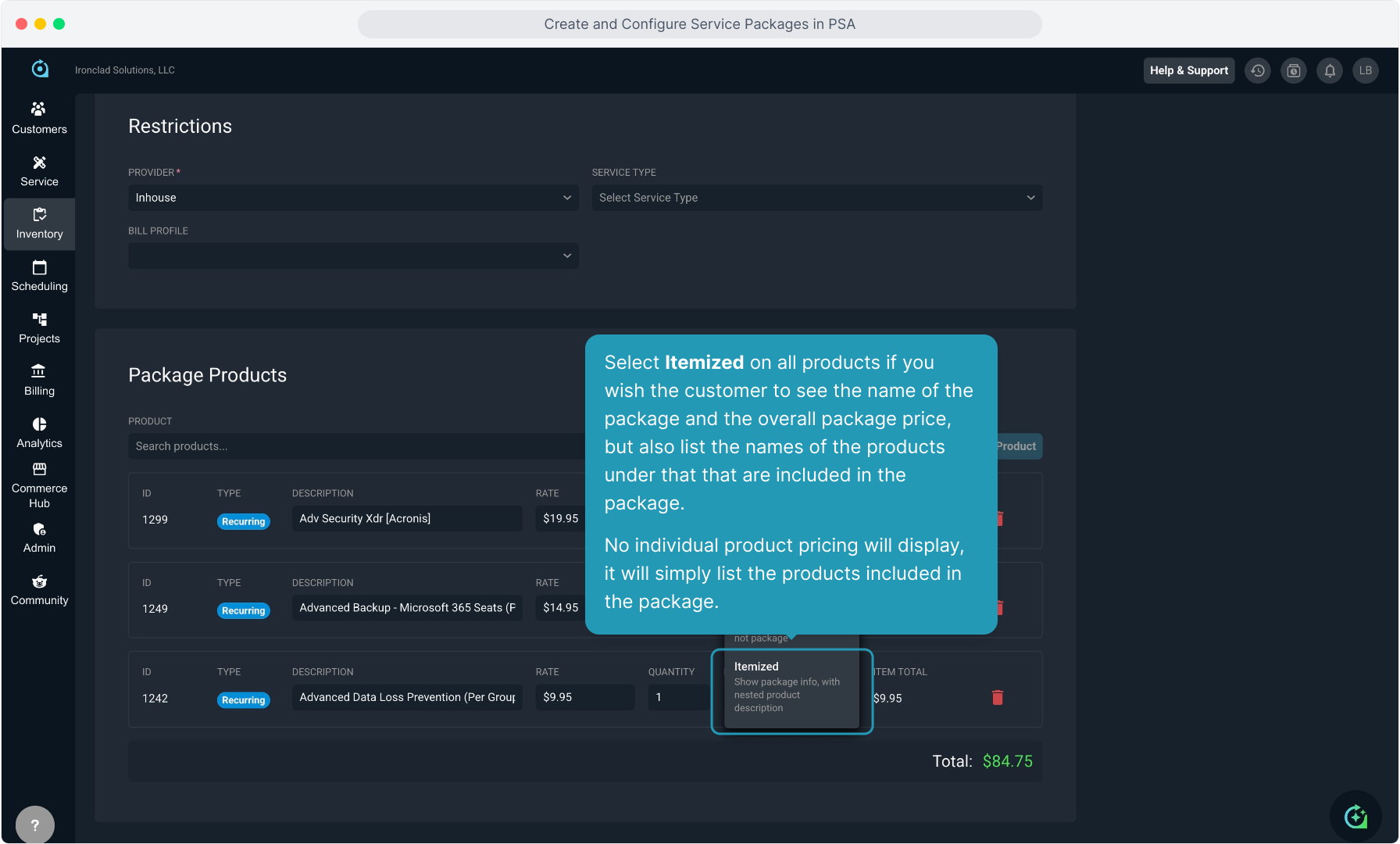
13. Select Itemized on all products if you wish the customer to see the name of the package and the overall package price, but also list the names of the products under that that are included in the package. No individual product pricing will display, it will simply list the products included in the package.
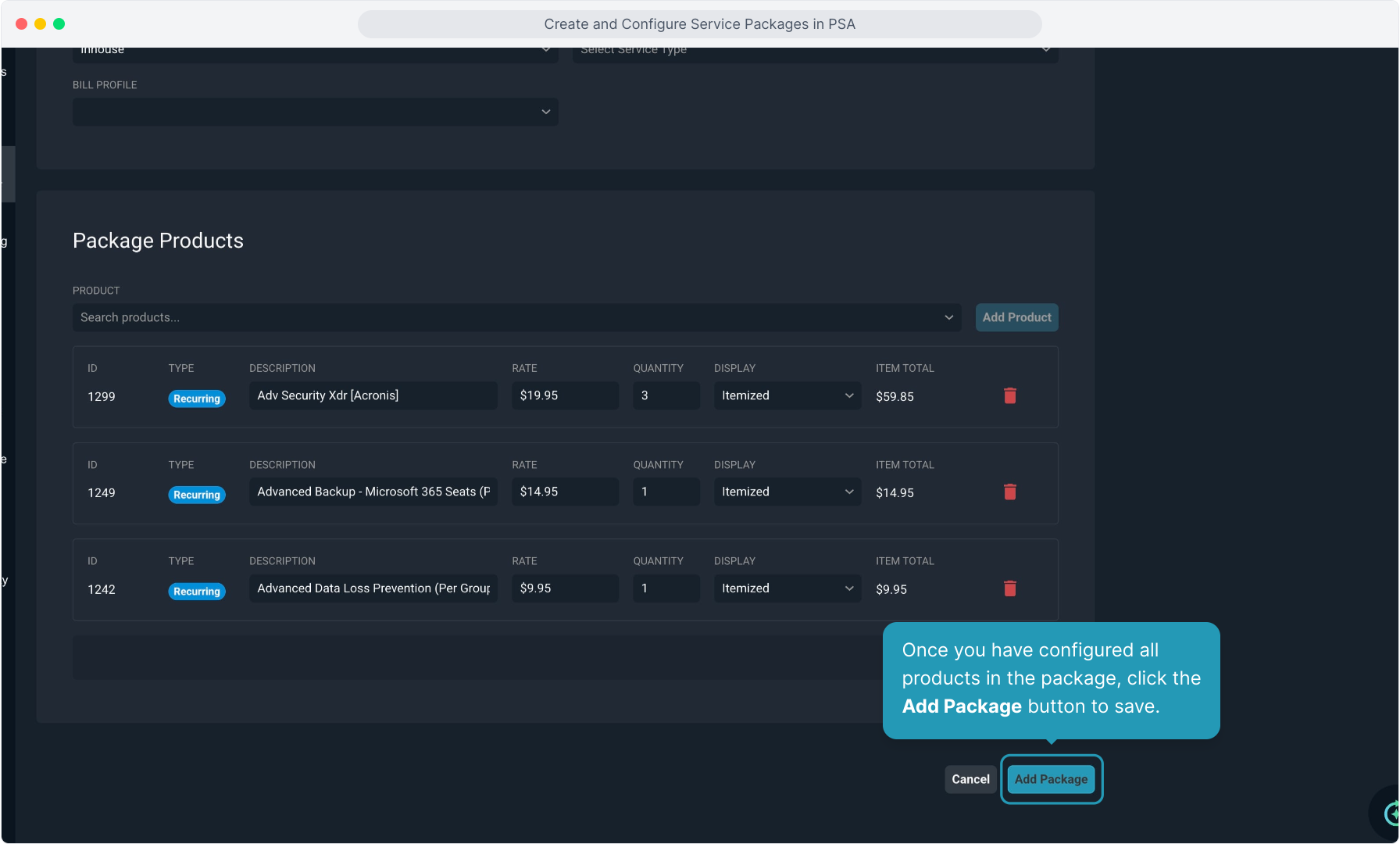
14. Once you have configured all products in the package, click the Add Package button to save.
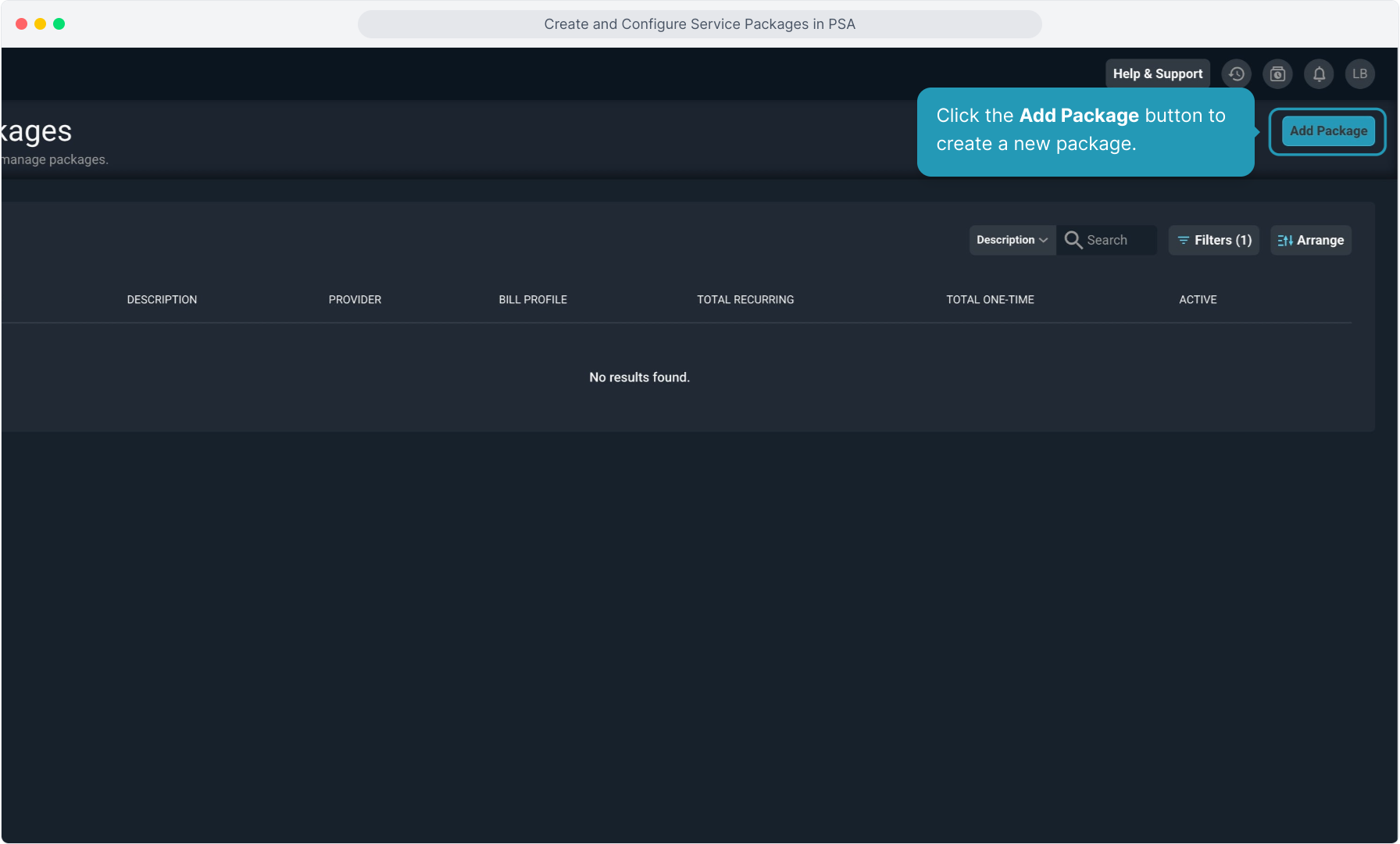
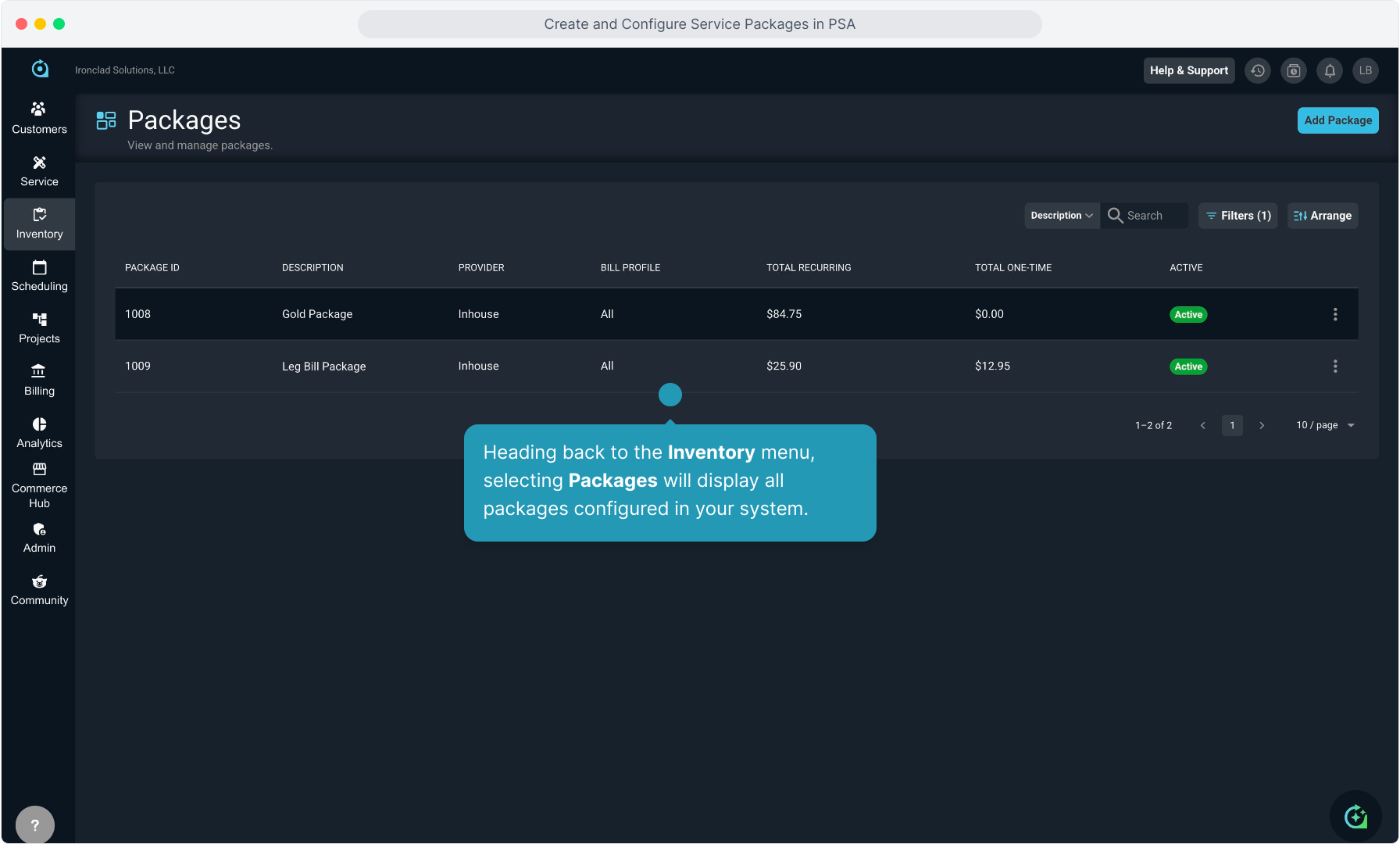
15. Heading back to the Inventory menu, selecting Packages will display all packages configured in your system.
16. Clicking the 3 dot icon on any package allows you to Edit the package or Deactivate the package.