
Customer Profile: Servicing Section - Recurring Schedules Tab
The Recurring Schedules tab in the Servicing section of the customer profile lists the recurring schedules set up for the customer. A recurring schedule automatically creates tickets for the customer on a pattern you set, such as a monthly backup check or a regular maintenance visit.
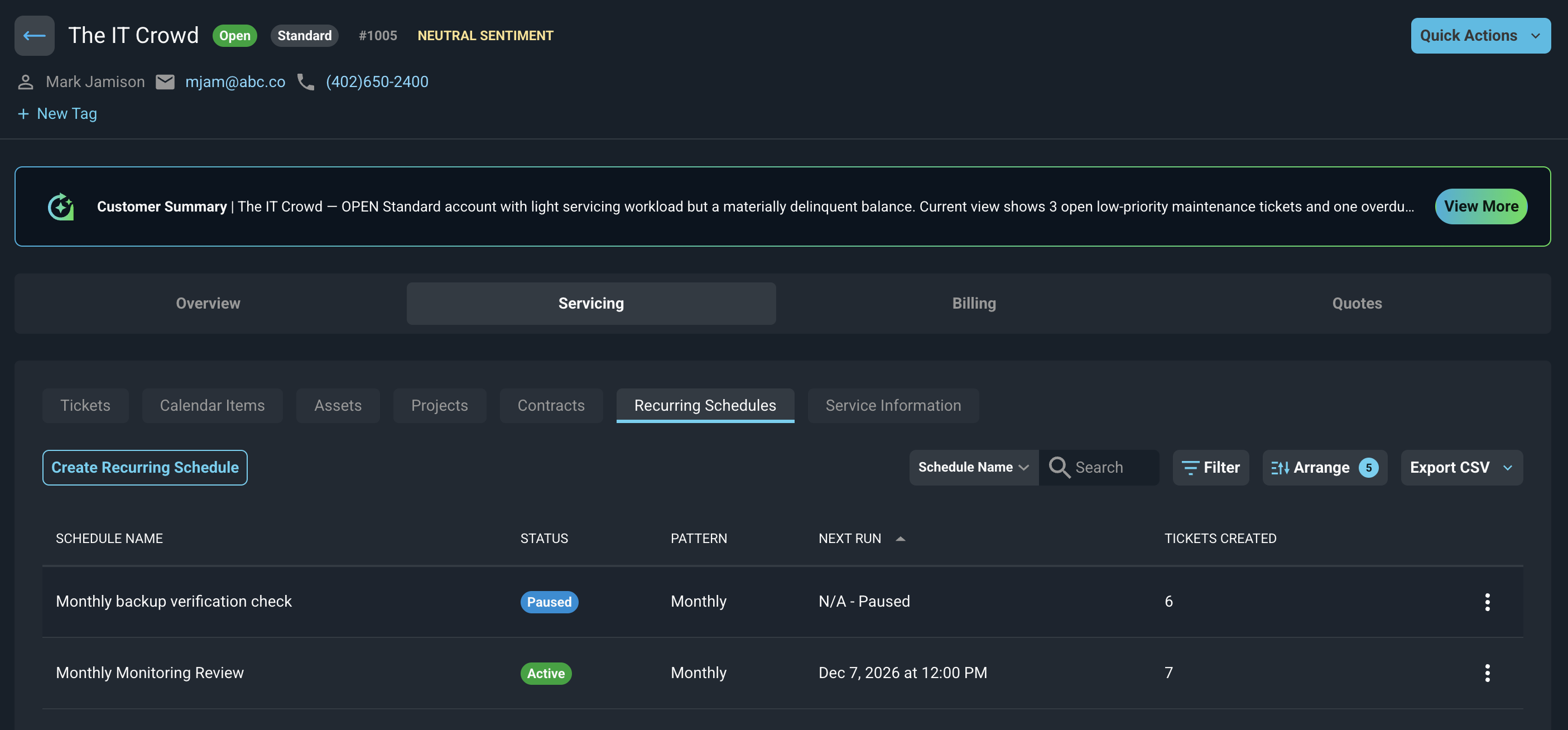
Each column on the Recurring Schedules tab is defined below.
| Label | Definition |
| Schedule Name | Name of the recurring schedule. |
| Status | Status of the schedule, such as Active or Paused. |
| Pattern | How often the schedule runs, such as Monthly. |
| Next Run | Date and time the schedule will next create a ticket. |
| Tickets Created | Number of tickets the schedule has created. |
The following actions are available on the Recurring Schedules tab.
- Create a new recurring schedule by clicking the Create Recurring Schedule button. The setup walks you through four steps: Select Customer, Schedule Pattern, Ticket Details, and Review & Confirm. See the Create Recurring Schedules article for more information.
- Search the schedules displayed on this tab by selecting a column from the dropdown above the grid and entering text in the Search field.
- Show inactive schedules by clicking the Filter button, selecting Show Inactive, and clicking Save.
- Customize which columns display and the order in which they display by clicking the Arrange button and making the desired changes. See the Arrange Columns article for more information.
- Export the schedules to a CSV file by clicking the Export CSV button and selecting Current page or All data.
- Sort the results in the table by clicking the column label in the table header.
- Edit a schedule by clicking the ellipsis at the end of the row and selecting Edit from the menu options.
- Pause a schedule by clicking the ellipsis at the end of the row and selecting Pause from the menu options. Clicking the ellipsis at the end of the row on a Paused schedule allows you to Resume.
- Delete a schedule by clicking the ellipsis at the end of the row and selecting Delete from the menu options.
Recurring schedules are different from recurring services. To see the services billed to the customer on a recurring basis, use the Recurring Services tab in the Billing section. See the Customer Profile: Billing Section - Recurring Services Tab article for more information.
Tabs in the Servicing Section
For information on other tabs in the Servicing section of the customer profile, see the related articles.
- Customer Profile: Servicing Section - Tickets Tab
- Customer Profile: Servicing Section - Calendar Items Tab
- Customer Profile: Servicing Section - Assets Tab
- Customer Profile: Servicing Section - Projects Tab
- Customer Profile: Servicing Section - Contracts Tab
- Customer Profile: Servicing Section - Service Information Tab