
Closing a Ticket with a Resolution
You can configure specific ticket types (or all ticket types) to require a ticket resolution code when closing them if desired. If enabled, the ticket cannot be closed until you complete both the Resolution Code and the Resolution Summary.
| NOTE: Before you can use resolution codes, you will need to configure the resolution codes and then set the requirement for resolution codes for each ticket type you would like to require a resolution for. See the System Settings: System Tables - Ticket article for more information on how to configure this functionality. |
If enabled, when you change a ticket to a closed status, the Close Ticket slide-out opens so you can record how the ticket was resolved. Enter a resolution summary, select a Resolution Code, and optionally use Reviize to polish your notes before closing the ticket. Resolutions are saved with the ticket and can be used for reporting.
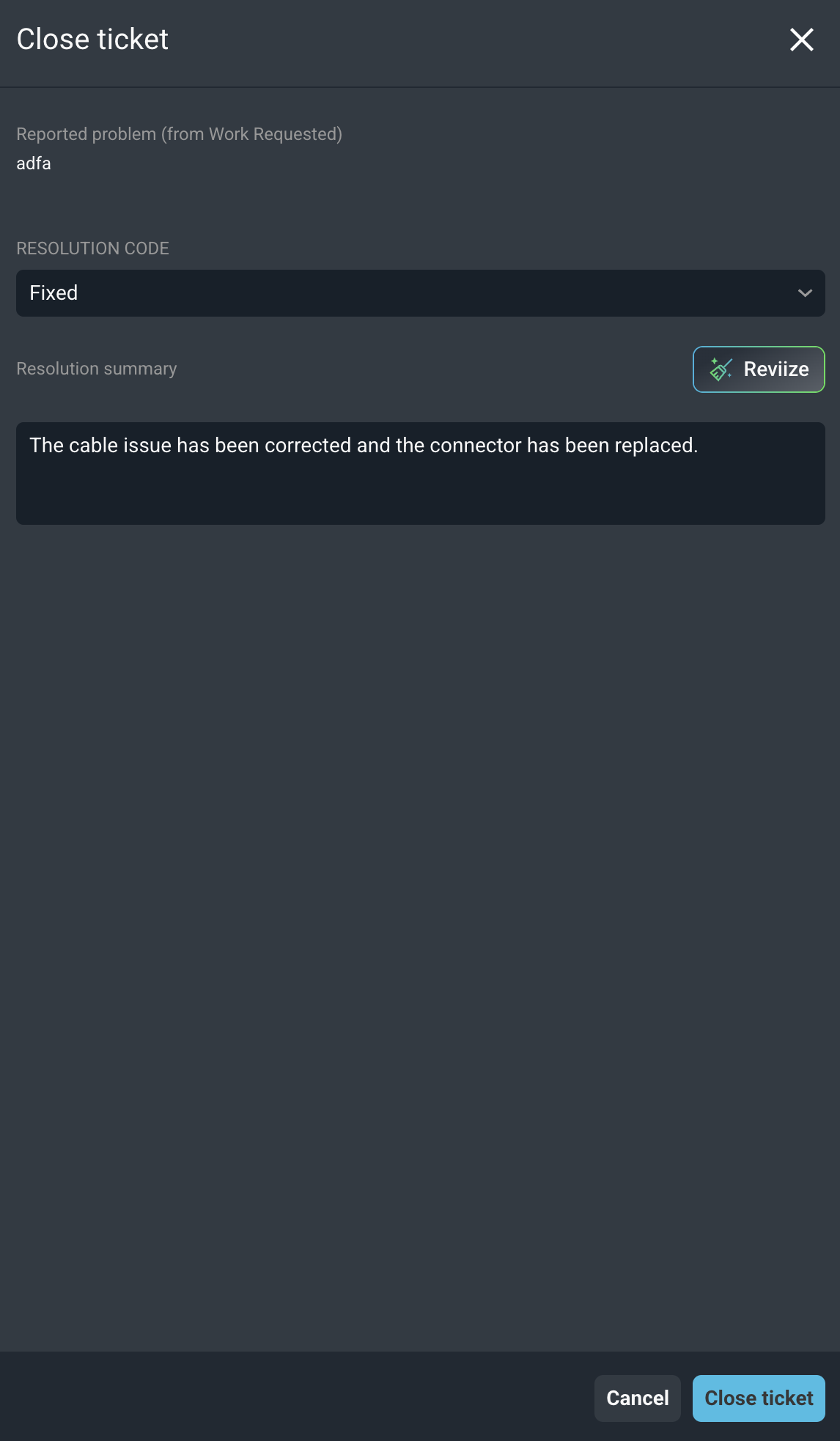
Each field on the Close ticket slide-out is defined below.
| Label | Definition |
|---|---|
| Reported problem (from Work Requested) | The problem originally reported for the ticket, pulled from the Work Requested field. This is for reference and cannot be edited here. |
| Resolution Code | The standardized reason the ticket was resolved, such as Fixed. Only active Resolution Codes appear in the list. |
| Resolution summary | A description of how the ticket was resolved for the customer and for reporting. |
Follow these steps to close a ticket with a resolution.
- Open the ticket.
- Click the Status dropdown and select the Closed status to close the ticket.
- Review the problem shown in the Reported problem (from Work Requested) section.
- Select a code from the Resolution Code dropdown.
- Enter a description of how the ticket was resolved in the Resolution summary field.
- Optionally, click the Reviize button to polish your notes. See the AI-Powered: Reviize Tool article for more information.
- Click the Close ticket button at the bottom to close the ticket and save the resolution. Click Cancel to leave the ticket open without saving.
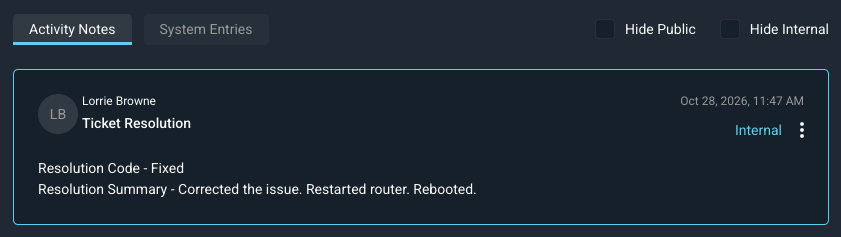
Resolutions are tracked so you can report on how tickets are being resolved. After the ticket is closed, the resolution code and summary display on the Activity Notes tab of the ticket in an Internal note titled Ticket Resolution.
For more information about closing tickets, see the following articles.