
Project Details: Files Tab
The Files tab allows you to link existing quotes to the project for easy reference, giving your team quick access to relevant documents without duplicating or reuploading files.
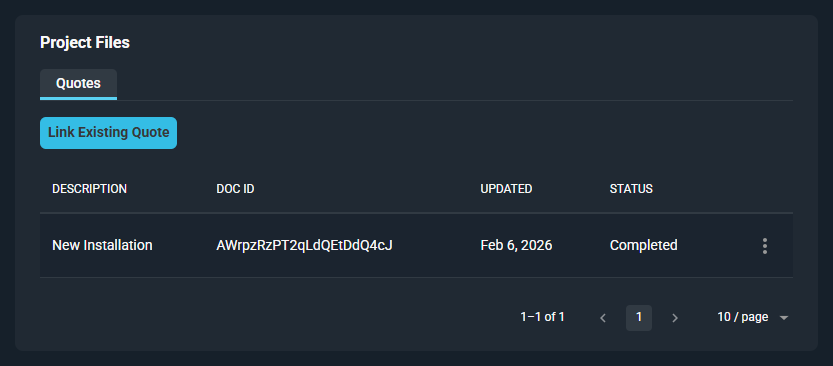
Each field on the tab is defined below.
| No. | Label | Definition |
| 1 | Description | Description of the quote. |
| 2 | Doc ID | System-generated identifier for the quote. |
| 3 | Updated | Date the quote was last updated. |
| 4 | Status | Status of the quote. Status options include Draft, Sent, Viewed, and Completed. The Status updates automatically once a quote has been sent to a customer, viewed by a recipient, and signed by all signers. NOTE: The Status does not update from Viewed to Completed until all signers have added their signatures. |
These actions are available on the tab.
- Link an existing quote to the project by clicking the Link Existing Quote button and selecting the appropriate quote from the Select Quote dropdown.
- Edit a quote that is not in Completed status by clicking the menu icon at the end of the row and selecting Edit from the menu options. See the Managing Quotes article for more information.
- Download a quote as a PDF by clicking the menu icon at the end of the row and selecting Download from the menu options.
- Remove a quote from the project by clicking the menu icon at the end of the row and selecting Unlink from the menu options. This option does not delete the quote from your database.
Areas on the Project Details Screen
For information on the other areas of the Project Details screen, see the related articles.