
Customer Profile: Quotes Section - Quotes Tab
The Quotes tab on the Customer Profile screen contains a list of all quotes on the customer record, displaying major details in the list view, including description, status, and created date. 'Quotes' in Rev.io are internal records used to build and manage pricing for products and services you offer to a customer. A quote contains all of the line items, pricing, addresses, and contacts associated with a potential sale and serves as the working document your team manages throughout the sales process. A proposal, on the other hand, is the customer-facing, signable document sent to the customer for review and approval. One quote can have multiple proposals associated with it, allowing you to send revised versions as the deal evolves without losing the history of previous proposals. See the Customer Profile: Quotes Section - Proposals Tab for more information about proposals.
| NOTE: Once a quote is in a Completed Status (signed by all signers), the system creates a new ticket with all one-time products on the quote and a new contract with all recurring products on the quote. See the View Ticket Details and View Contract Details articles for more information. |
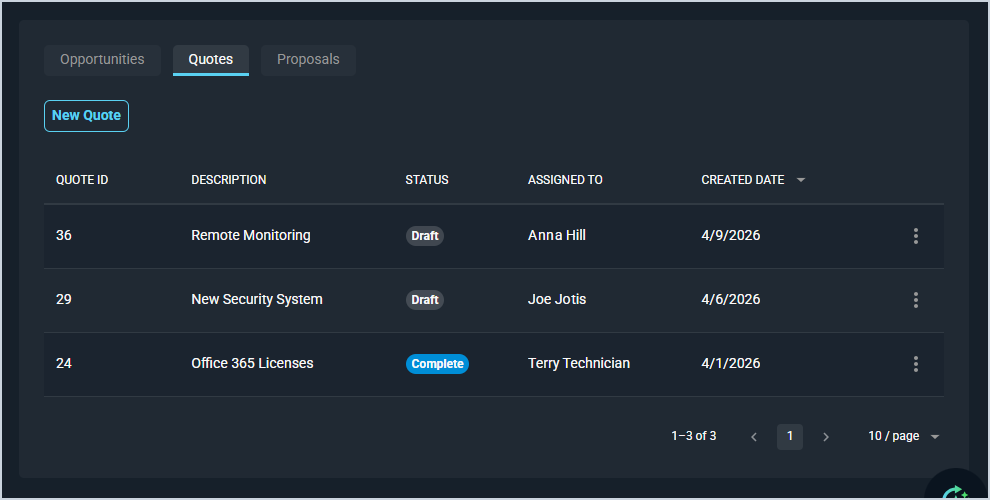
Each field on the Quotes tab is defined below.
| No. | Label | Definition |
| 1 | Quote ID | Numerical identifier for the quote. |
| 2 | Description | Description of the quote. |
| 3 | Status | Status of the quote. Status options include Draft, Sent, Viewed, and Complete. The Status updates automatically once a quote has been sent to a customer, viewed by a recipient, and signed by all signers. NOTE: The Status does not update from Viewed to Completed until all signers have added their signatures. |
| 4 | Assigned To | The user responsible for managing and following up on the quote. |
| 5 | Created Date | Date the quote was created. |
The following actions are available on the Quotes tab.
- Create a new quote for the customer by clicking the New Quote button. See the Managing Quotes article for more information.
- Sort the results in the table by clicking the column label in the table header.
- View the quote to make any changes or additions by clicking the ellipsis at the end of the row and selecting View from the menu options. See the Managing Quotes article for more information.