
SQL Lab: Saved Queries
Any query you write in SQL Lab can be saved and retrieved later. Saved queries appear on the SQL Lab Saved Queries screen, making it easy to maintain a personal library of queries you run regularly. Queries can be created manually in the SQL Lab or by saving a response from the Revii Data Analytics chat window. See the SQL Lab: Query Editor and AI-Powered: Revii Data Analytics articles for more information.
| NOTE: Saved queries are tied to your user account by default. Queries marked as public become visible to all users with SQL Lab access. |
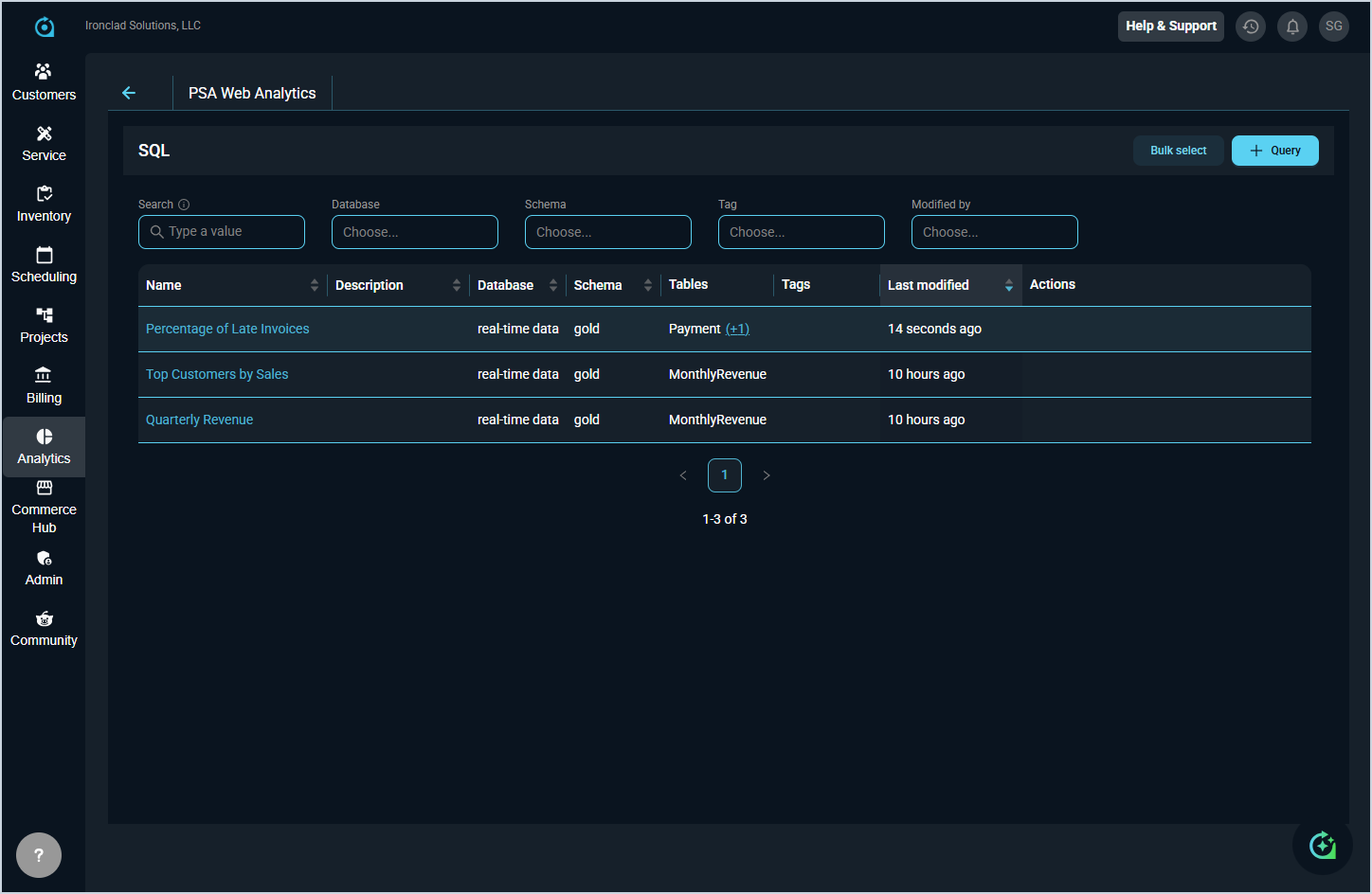
Each field on the Saved Queries list view is defined below.
| No. | Label | Definition |
| 1 | Name | Name of the saved query. |
| 2 | Description | Optional description of the query. |
| 3 | Database | The database the query runs against. |
| 4 | Schema | The schema within the database used by the query. |
| 5 | Tables | The tables referenced in the query. |
| 6 | Tags | Tags added to help categorize the query. |
| 7 | Last Modified | Time period when the query was last modified. |
| 8 | Actions | Hover over the Actions column for a particular row to access available actions for that saved query. |
The following actions are available on the Saved Queries screen.
- Click Bulk Select to enable selecting multiple saved queries to perform bulk actions.
- Add a new query by clicking + Query in the upper right corner to open the query editor. See the SQL Lab: Query Editor article for more information.
- Filter the saved queries displayed on this screen by entering text or selecting specific options in any of the filters above the list. The list updates to display queries matching your filters. NOTE: When entering text in a filter, you must click out of the filter or press the Enter key on your keyboard for the results to update.
- Sort the results in the table by clicking the column label in the table header.
- Open a saved query in the query editor by clicking the query Name.