
Add/Edit Packages
The Add Package and Edit Package screens allow you to create and edit packages in your Rev.io instance. A package is a collection of products bundled together for billing purposes, allowing you to group recurring and one-time charges for your customers.
Package Details
The Package Details section contains the basic identifying information for the package, including how it will appear internally and on customer bills.
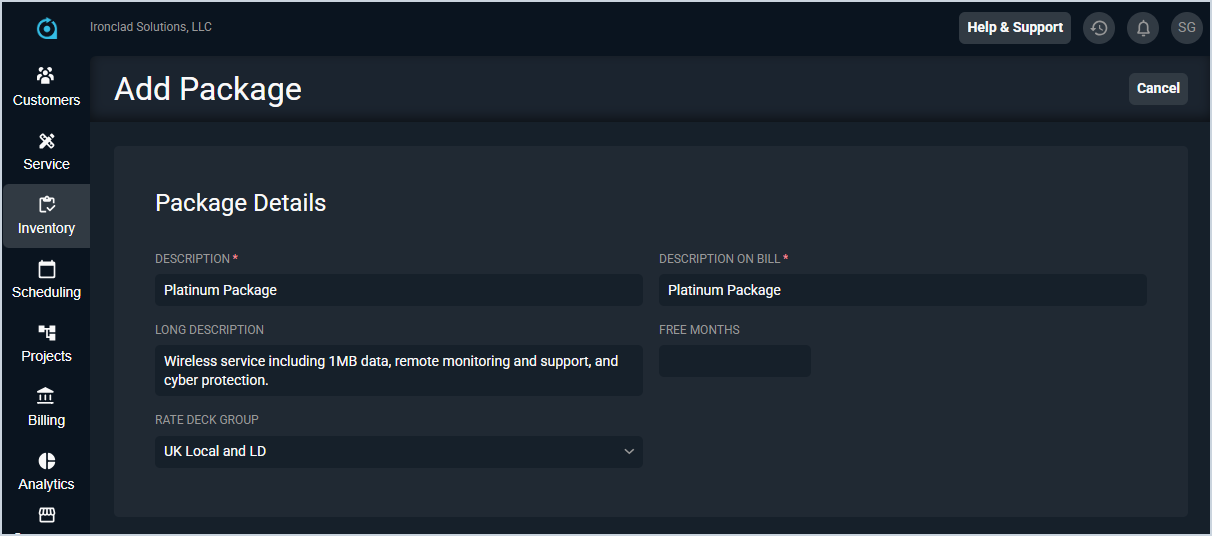
Each field in the Package Details section is defined below.
| No. | Label | Definition |
| 1 | Description | Name or description of the package. |
| 2 | Description on Bill | Description of the package as it will appear on the customer's bill. |
| 3 | Long Description | Extended description of the package for internal reference. |
| 4 | Free Months | Number of free months to apply to the package when it is assigned to a customer. |
| 5 | Rate Deck Group | Rate deck group to associate with the package. |
Restrictions
The Restrictions section defines the provider, service type, and bill profile that the package is associated with, which controls where and how the package can be applied.
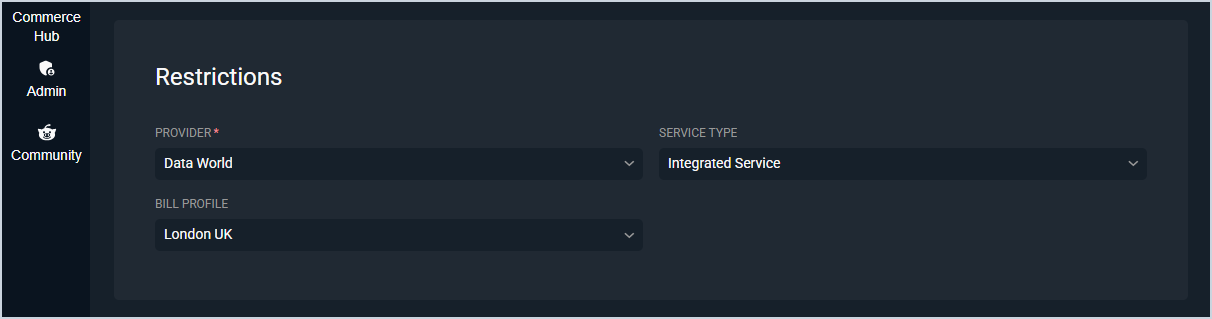
Each field in the Restrictions section is defined below.
| No. | Label | Definition |
| 1 | Provider | Provider the package is associated with. See the Providers List View article for more information about configuring providers. |
| 2 | Service Type | Service type to associate with the package. |
| 3 | Bill Profile | Bill profile to assign to the package. |
Package Products
The Package Products section allows you to add and manage the products included in the package. The one-time and recurring totals for all products in the package are displayed at the bottom of the Package Products section.
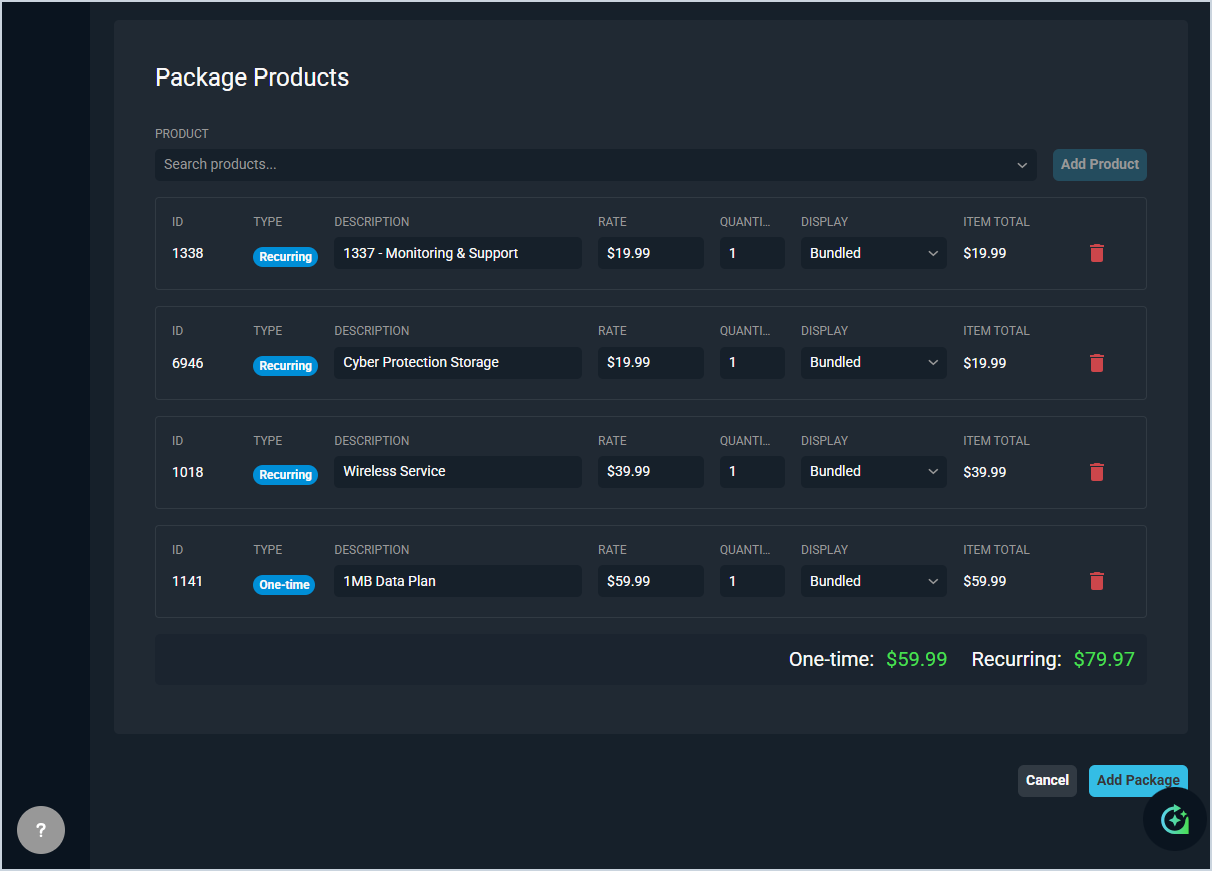
Each product added will display in the list below the search field with the following fields defined.
| No. | Label | Definition |
| 1 | ID | Unique identifier for the product. |
| 2 | Type | Indicates whether the product is a recurring or one-time charge. |
| 3 | Description | Description of the product. |
| 4 | Rate | Rate charged for the product. |
| 5 | Quantity | Quantity of the product included in the package. |
Available Actions
The following actions are available when creating or editing a package.
- Add a product to the package by searching for it in the Product field and clicking the Add Product button.
- Update the Description, Rate, Quantity, or Display for any product directly in the product row.
- Remove a product from the package by clicking the delete icon at the end of the product row.
- Discard your changes and return to the Packages list view by clicking the Cancel button.
- Save the package by clicking the Add Package button.