
Getting Started with Rev.io
Welcome to Rev.io! Rev.io brings sales, service, billing, inventory, projects, and reporting together in one system, so your whole team works from the same customer information. This article introduces the main areas of Rev.io, shows you how to find your way around, and points you to the right place to start.
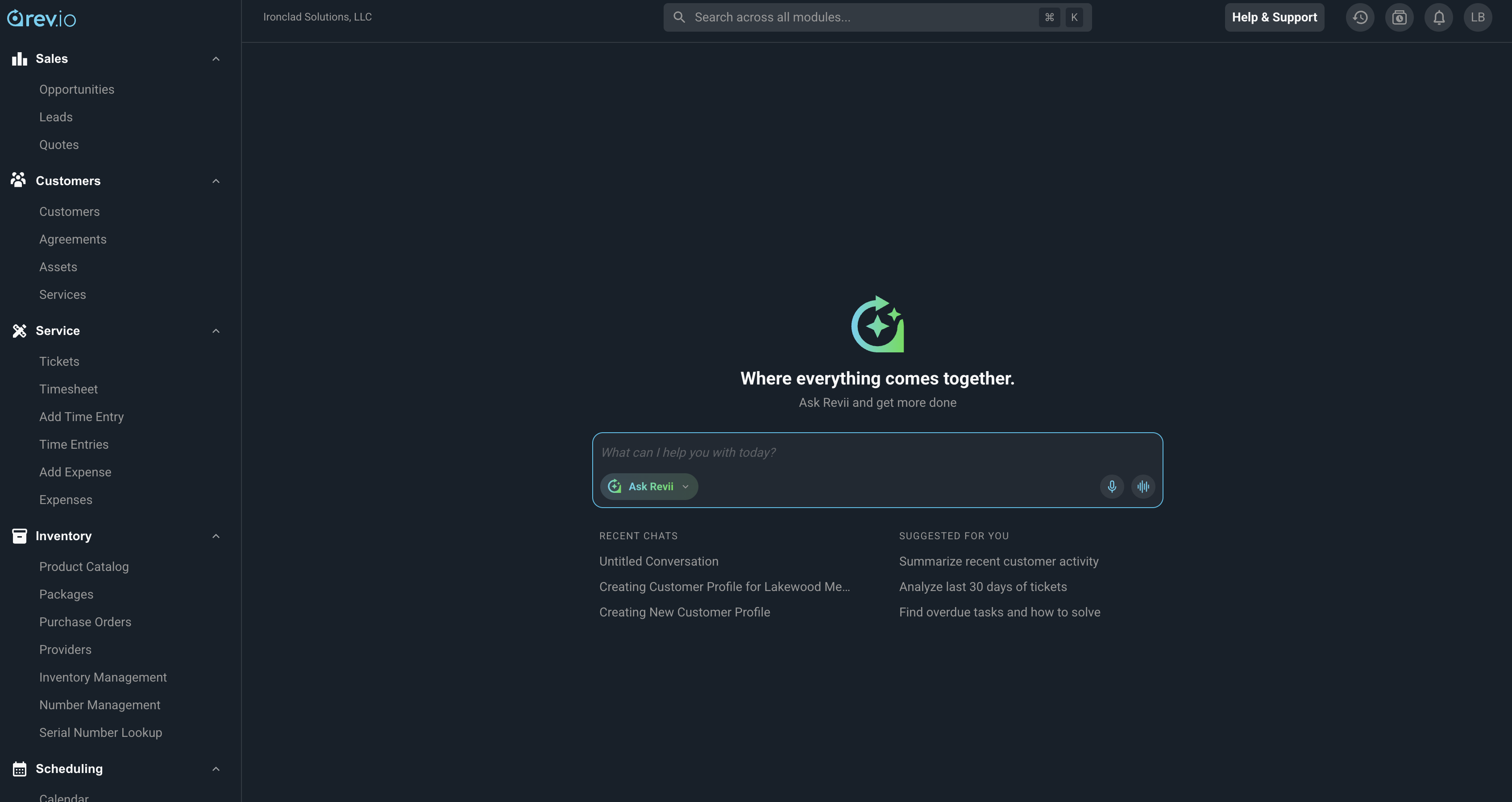
Rev.io is organized into modules, which you open from the sidebar menu on the left side of the screen. You only see the modules your role has permission to use. Each module is described below.
| Module | What you can do |
| Sales | Track leads and opportunities through your sales pipeline and build quotes and proposals for your customers. See the Sales Module Overview article. |
| Customers | Manage customer accounts, contacts, addresses, assets, services, and agreements. The customer profile brings together everything about a customer, including tickets, quotes, invoices, and billing. See the Customer Module Overview article. |
| Service | Create and work tickets, log time and expenses, add parts and labor, and review timesheets. See the Service Module Overview article. |
| Inventory | Manage your product catalog, packages, purchase orders, providers, stock across locations, and serial numbers. See the Inventory Module Overview article. |
| Scheduling | Manage calendars and calendar items, and dispatch technicians from the Dispatch Board. See the Scheduling Module Overview article. |
| Project Management | Organize work that spans multiple tickets, tasks, and phases, and track progress, budget, and billing from start to finish. See the Projects Module Overview article. |
| Billing | Create, email, and print invoices, manage collections, and review unbillable usage. See the Billing Module Overview article. |
| Analytics | View built-in dashboards, explore charts and datasets, and get scheduled reports and alerts by email. See the Analytics Module Overview article. |
| Knowledge Base | Store your team's procedures, troubleshooting guides, and reference documents, which Revii can also use. See the Knowledge Base: Overview article. |
| Admin | Manage users, roles and permissions, user groups, workflows, integrations, and system settings. See the Admin Module Overview article. |
The following tools help you find your way around Rev.io.
- Open a module by clicking its name in the sidebar menu, and then select an area from the sub-menu. You can right-click a sub-menu item to open it in a new browser tab. See the Page Navigation and Layout article.
- Find customers, tickets, and other records from anywhere by clicking the search bar at the top of the screen or pressing Ctrl + K (Cmd + K on a Mac). See the Global Search article.
- Return to tickets and customers you opened recently by clicking the Recently Viewed icon at the top of the screen.
- Choose the page that opens when you log in, set your working hours and email signature, and switch between light and dark themes in your preferences. See the System Settings: My Preferences article.
- Take Rev.io with you by using the Rev.io mobile app to view your calendar, tickets, and customers. See the Rev.io Mobile App Overview article.
Help is always close by. The following resources are available from any screen.
| Resource | How to use it |
| Revii | Click the Revii icon at the bottom of any screen to ask a question in plain language, have Revii complete tasks such as creating a ticket, or explore your data. See the AI-Powered: Revii article. |
| Help Center | Click the question mark icon in the lower left corner of any screen to search help articles, watch training videos, access the full Help Center site, and read release notes. You can also bookmark the Help Center at help.psarev.io. |
| Rev.io Community | Click Community in the sidebar menu to connect with other Rev.io users, share ideas, see product demos, and take role-based training. See the Rev.io Community: Overview article. |
| Help & Support | Click Help & Support at the top of any screen to report an issue or send feedback to the Rev.io team. |
If you are an administrator setting up Rev.io for your company, start with the Onboarding Checklist. It walks you through the required setup in eight steps, from company settings and users to the product catalog, invoice templates, and ticketing. Integrations are not part of the checklist. See the Integrations Library: Overview article to connect Rev.io to the other tools you use.
| TIP: New to Rev.io? Start by setting your preferences, then open a customer profile and look around. Most of your daily work, from tickets to quotes to invoices, starts from the customer. |
For more information about getting started, see the following articles.
Onboarding Checklist
Page Navigation and Layout
Video Training Library Overview
How-To Guides Overview