
Inventory Views: Matrix
The Inventory Management screen displays all products with inventory tracking enabled and provides a detailed view of your stock levels. It shows totals by product and by location, including quantities on hand, reserved, available, and on order. You can click any cell in the table to perform actions such as transferring inventory between locations or adjusting quantities. For products with serial number tracking, you can also add or remove serial numbers as needed. To open it, click Inventory in the sidebar menu and select Inventory Management. The Matrix tab displays by default.
| NOTE: For products to display in this matrix, they must have the Requires Inventory Management option set on the product Admin tab. See the Product Details: Admin Tab article for more information. |
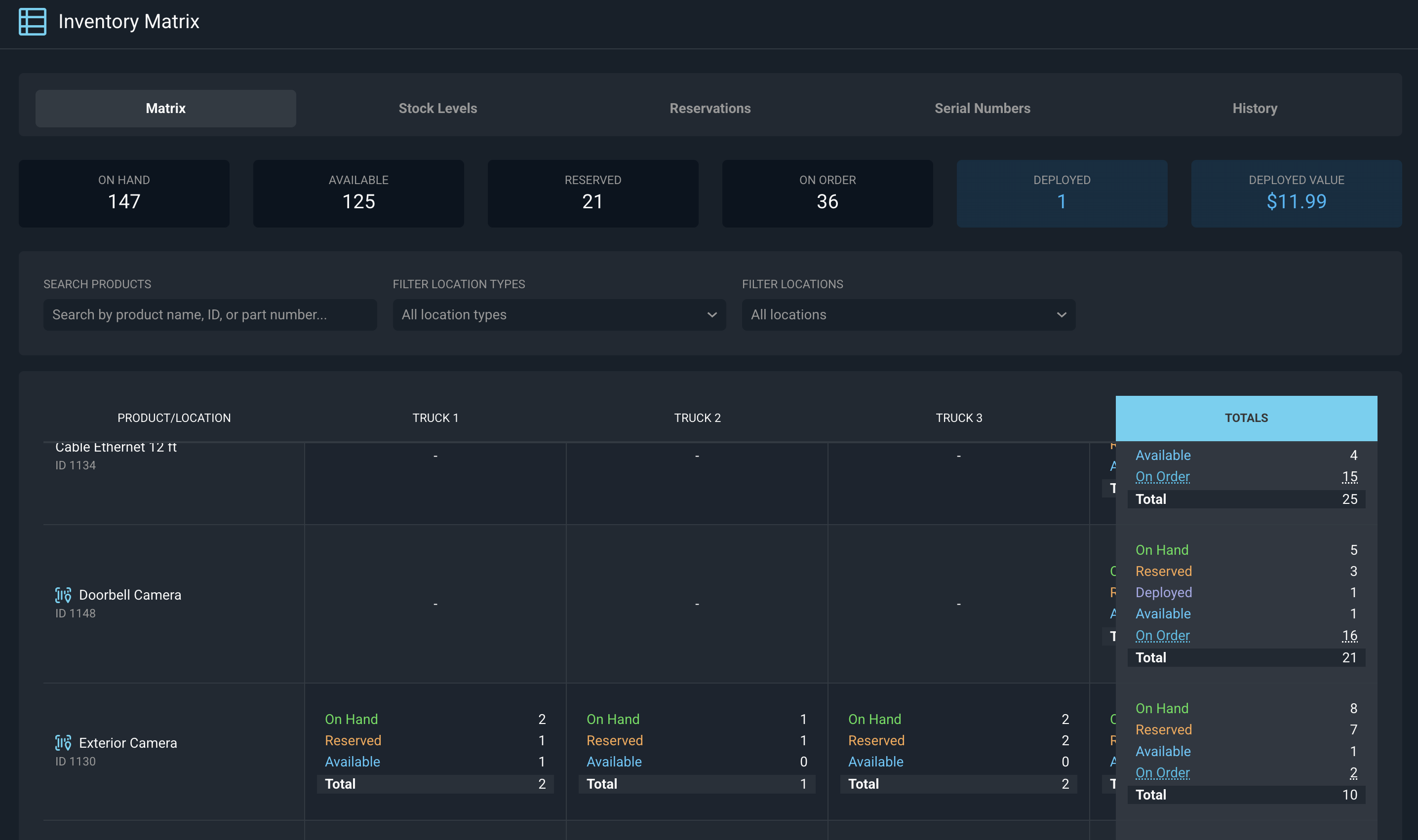
Each field on the Inventory Management matrix is defined below.
| Label | Definition |
| Product | Name of the product. NOTE: For products to display in this list, they must have Requires Inventory Management set on the product Admin tab. See the Product Details: Admin Tab article for more information. If the product also has Requires Serial Number Tracking set, a yellow serial number icon displays next to the Product name on this screen. |
| <Locations> | Name of each location configured in your instance. See the System Settings: System Tables - Inventory Management article for more information on configuring Location options. |
| Totals (column) | Total quantity of each product on hand, reserved, available, and on order. |
| On Hand | Total quantity of the product on hand. |
| Reserved | Total quantity of the product that is reserved for use on tickets. |
| Available | Total quantity of the product available (not reserved). |
| On Order | Total quantity of the product on outstanding purchase orders. |
| Totals (row) | Total quantity at each location of on hand, reserved, available, and on order products. |
These actions are available on the Inventory Management matrix.
- Switch to the Inventory Management Reservations list view by clicking the Reservations tab at the top of the screen. See the Inventory Views: Reservations article for more information.
- Switch to the Stock Levels view by clicking the Stock Levels tab. See the Inventory Views: Stock Levels article for more information.
- Switch to the Inventory Management Serial Numbers list view by clicking the Serial Numbers tab. See the Inventory Views: Serial Numbers article for more information.
- Switch to the history of inventory actions by clicking the History tab. See the Inventory History article for more information.
- Search the products displayed on this view by entering text in the Search Products field. The list view updates to display only products matching your search.
- Show only certain locations by filtering by location type or by individual location, and clear the filters when you want to see every location again.
- For non-serialized products:
- Transfer inventory from one location to another by clicking a cell in the table that contains stock and choosing the Transfer Inventory action.
- Increase or decrease the available quantity of a product by clicking any cell in the table and choosing the Adjust Inventory action.
- For serialized products:
- Increase or decrease the available quantity of a product by clicking any serialized cell in the table and using the Add Serials or Remove Serials tabs.
- Transfer inventory from one location to another by clicking any serialized cell and using the Transfer tab.
- Adjust the cost for products, one serial number at a time, by clicking a cell in the table that contains serialized stock and using the Change Cost tab.