
Add/Edit Opportunities
The Create Opportunity modal and Edit Opportunity screen allow you to create and edit opportunities in your Rev.io instance. Opportunities can be created from the Opportunities list view by clicking the Add Opportunity button, or directly from a customer's Opportunities tab. When editing an existing opportunity, a visual stage progression indicator at the top of the screen shows the current position of the deal in the sales pipeline.
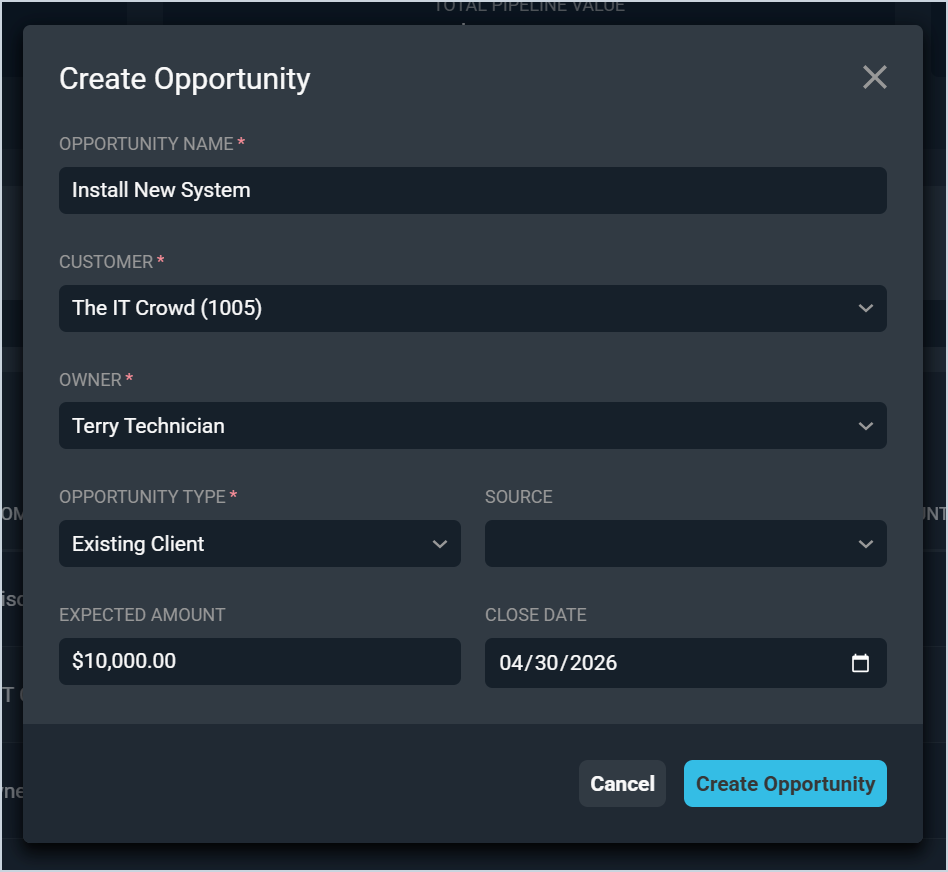
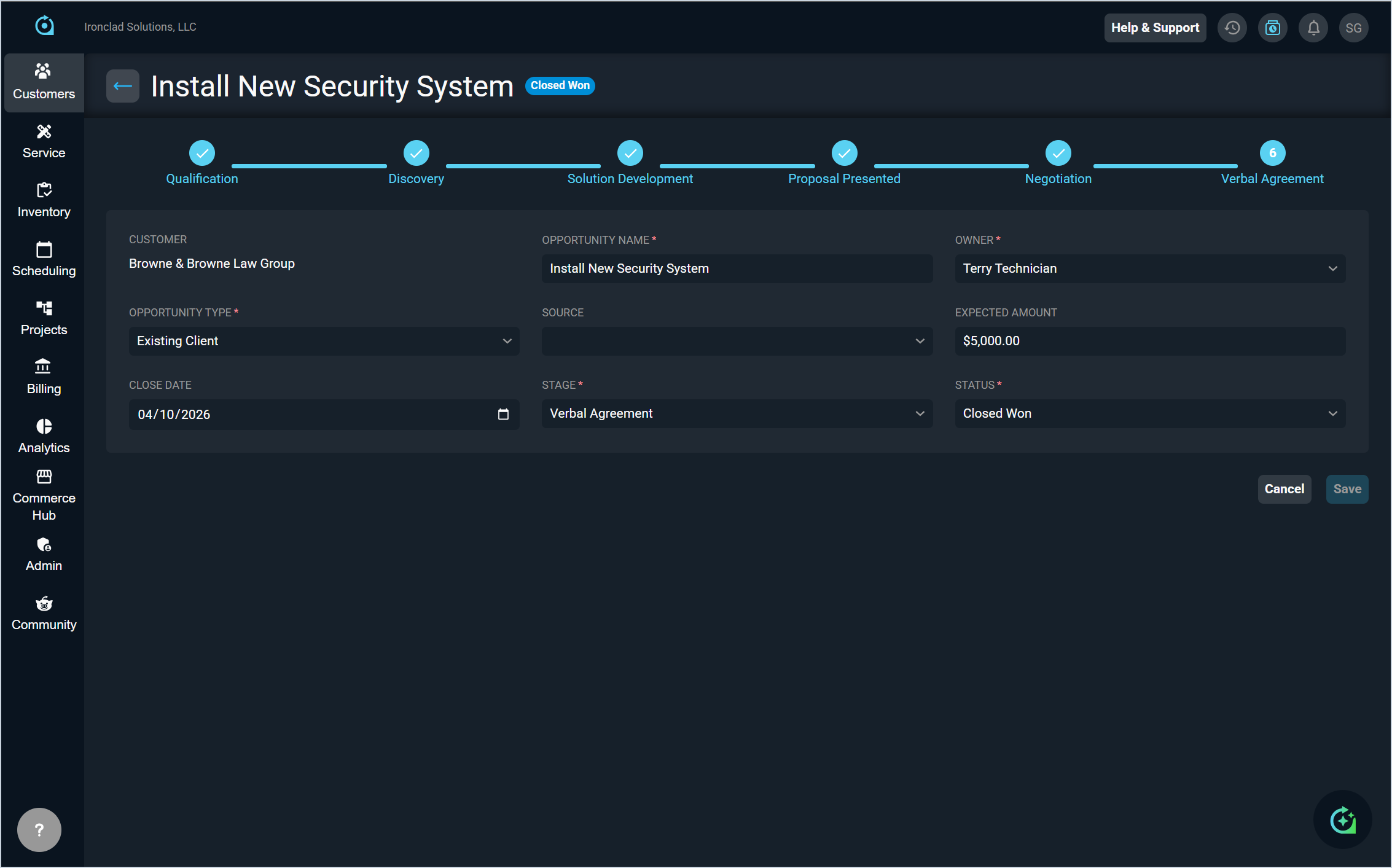
Each field on the Create Opportunity and Edit Opportunity screens is defined below.
| No. | Label | Definition |
| 1 | Opportunity Name | Name of the opportunity. |
| 2 | Customer | The customer account associated with the opportunity. |
| 3 | Owner | The user responsible for managing the opportunity. |
| 4 | Opportunity Type | The type of opportunity. Default Opportunity Type options include Existing Client or New Prospect. See the System Settings: System Tables - Opportunities article for more information on configuring Opportunity Type options. |
| 5 | Source | The source or origin of the opportunity. Source options can be configured in the Opportunity Sources section on the Opportunities tab in the System Tables. See the System Settings: System Tables - Opportunities article for more information on configuring Source options. |
| 6 | Expected Amount | The estimated value of the opportunity in dollars. |
| 7 | Close Date | The target date for closing the opportunity. |
| 8 | Stage | The current stage of the opportunity in the sales process. Default Stage options include Qualification, Discovery, Solution Development, Proposal Presented, Negotiation, and Verbal Agreement. See the System Settings: System Tables - Opportunities article for more information on configuring Sales Stages options. |
| 9 | Status | The current status of the opportunity. Status options include Open, Closed Won, and Closed Lost. See the System Settings: System Tables - Opportunities article for more information on configuring Opportunity Status options. |
The following actions are available on the Create Opportunity and Edit Opportunity screens.
- Discard your changes and close the screen by clicking the Cancel button.
- Save a new opportunity by clicking the Create Opportunity button.
- Save changes to an existing opportunity by clicking the Save button.