
Inventory Views: Serial Numbers
The Serial Numbers tab on the Inventory Management screen displays a complete list of all serialized inventory items in your instance, along with their current status, location, product details, and cost. This view allows you to quickly search and filter across all serialized stock in a single place.
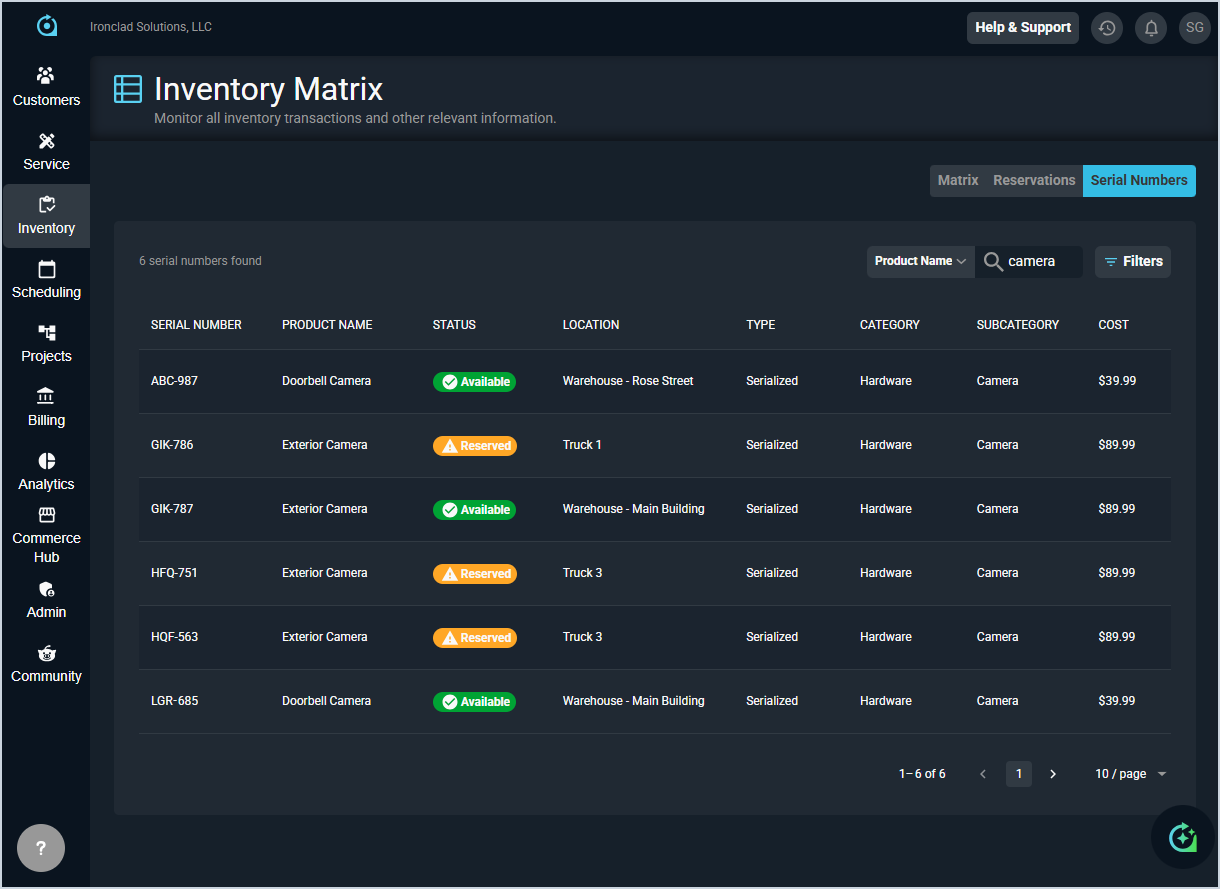
Each field on the Serial Numbers tab is defined below.
| No. | Label | Definition |
| 1 | Serial Number | The serial number of the inventory item. |
| 2 | Product Name | The name of the product associated with the serial number. |
| 3 | Status | The current status of the item. Status options include Available and Reserved. |
| 4 | Location | The current location of the item, such as a warehouse or vehicle. |
| 5 | Type | The product type associated with the item. |
| 6 | Category | The category assigned to the product. |
| 7 | Subcategory | The subcategory assigned to the product. |
| 8 | Cost | The cost of the item at the time it was received into inventory. |
These actions are available on the Serial Numbers tab.
- Switch to the Inventory Management Matrix by clicking the Matrix option above the grid. See the Inventory Views: Matrix article for more information.
- Switch to the Inventory Management Reservations list view by clicking the Matrix option above the grid. See the Inventory Views: Reservations article for more information.
- Search the serial numbers displayed on this tab by selecting a column from the dropdown and entering text in the Search field. The list updates to display only items matching your search.
- Filter the serial numbers displayed on this tab by clicking the Filters button.
- Sort the results in the table by clicking the column label in the table header.
- View more details for a serialized item, including its movement history, by clicking anywhere in the item's row. See the View Serial Number Details: Inventory & Product Details and View Serial Number Details: Movement History articles for more information.