
Project Details: Work Tab
The Work tab centralizes the actionable items for a project, allowing you to create and link tasks and tickets in one place. From this view, you can easily associate related work with the project and track progress as tasks and tickets move forward. This ensures all project-related activity stays connected and easy to manage.
List View
The List view shows a grid of all tasks and tickets linked to the project.
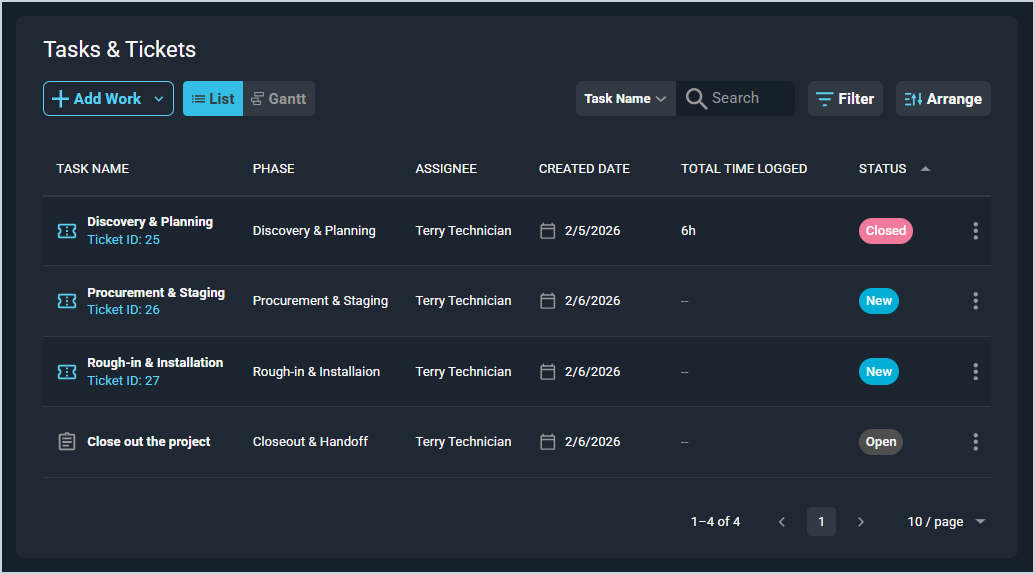
Each field on the Work tab list view is defined below.
| No. | Label | Definition |
| 1 | Task Name | Name of the task or ticket. |
| 2 | Phase | Name of the phase assigned to the task or ticket. |
| 3 | Assignee | Name of the tech in the Assigned To field on the task or the Primary Tech on the ticket |
| 4 | Created Date | Date the task or ticket was created. |
| 5 | Total Time Logged | Total number of hours logged for the ticket. This column is not applicable for tasks. |
| 6 | Status | Status of the ticket or the Action set on the task. |
These actions are available on the List view.
- Add or link a task or ticket to the project by clicking the Add Work button. See the Add/Edit Project Work article for more information.
- Edit a task in the list view by clicking the menu icon at the end of the row and selecting Edit from the menu options. See the Add/Edit Project Work article for more information.
- View more details for a ticket by clicking the Ticket ID link in the row or by clicking the menu icon at the end of the row and selecting View Details from the menu options. See the View Ticket: Details article for more information.
- Remove a task or ticket from the project by clicking the menu icon at the end of the row and selecting Unlink from Project from the menu options. This option does not delete the task or ticket from your database.
Gantt View
The Gantt view shows a visual representation of the phases, tasks, and tickets planned for the project.
| NOTE: At this time, tickets and tasks display according to their Created Date and do not display with the phase where they are assigned. Additionally, the completion percentage on the bar representing the |
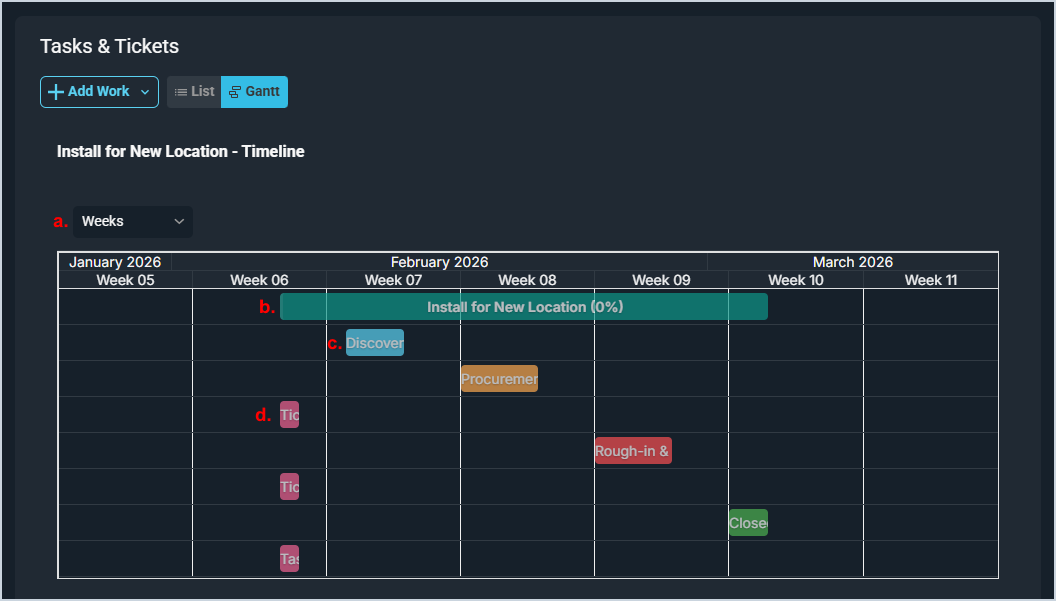
Each field on the Work tab Gantt view is defined below.
| Area | Label | Definition |
| a. | Time Increment | Click to select the time increment for the Gantt view. Increment options include Days, Weeks, and Months. |
| b. | Project | Bar representing the duration of the entire project. NOTE: The completion percentage displayed on this bar does not update to reflect the completion of the project at this time. |
| c. | Phases | Bars representing the duration of different phases for the project. |
| d. | Tickets & Tasks | Bars representing the Created Date for tickets and tasks linked to the project. |
These actions are available on the Gantt view.
- Edit the project, phase, ticket, or task by double-clicking the respective bar in the Gantt view, making the desired changes, and clicking the Save button.
Areas on the Project Details Screen
For information on the other areas of the Project Details screen, see the related articles.