
View Project: Stage
The stage panel on the right side of the project screen allows you to view additional details for the project progress and team associated with the project.
| Basic information for the project displays on the main Project Details screen. See the View Project: Details article for more information. |
Whether or not the stage displays on the project details screen is controlled by the Show the Stage/Hide the Stage icon in the top toolbar.
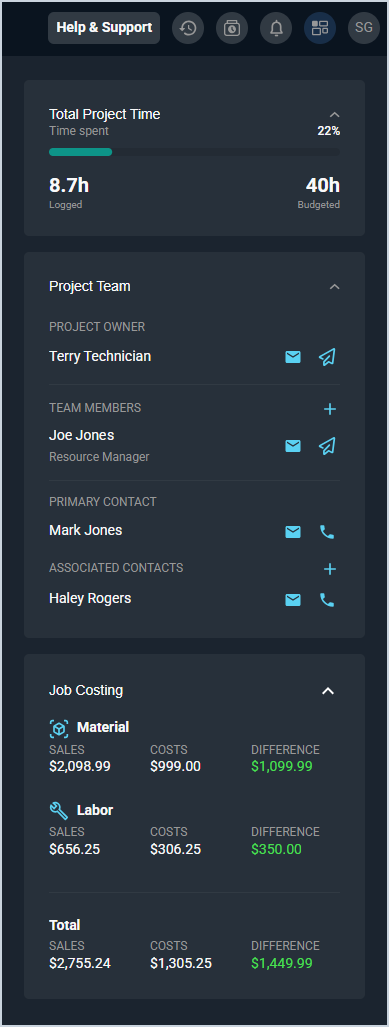
Each field on the project stage is defined below.
| No. | Label | Definition |
| Total Project Time | ||
| 1 | <Progress> | Percentage of the project completed. |
| 2 | Logged | Number of hours logged for the project. |
| 3 | Budgeted | Number of hours budgeted for the project. |
| Project Team | ||
| 4 | Project Owner | Name of the user who owns the project in your Rev.io instance. |
| 5 | Team Members | Name of the users associated with the project in your Rev.io instance. |
| 6 | <Primary Contact> | Primary contact on the customer account for the project. |
| 7 | <Associated Contacts> | Additional contacts on the customer account for the project. |
| Job Costing | ||
The Job Costing section includes the following categories:
| ||
| 8 | Sales | Sales amount for material, labor, or total charges on the ticket. |
| 9 | Costs | Material, labor, or total costs associated with the project. |
| 10 | Difference | Difference between material, labor, or total sales and costs on the ticket. A positive value indicates profit; a negative value indicates a loss. |
These actions are available on the project stage.
- Collapse or expand the Stage side panel by clicking the Stage icon in the top toolbar.
- Add a new team member to the project by clicking the plus icon by the Team Members heading, selecting the desired User, and specifying their Member Role. Once a Team Lead has been assigned to the project, you cannot remove them unless you assign another Team Lead.
- Contact any member of the project team by clicking the email icon or phone icon next to their name.
- Access basic information for the project on the main Project Details screen. See the View Project: Details article for more information.