
Add/Edit Leads
The Add Lead modal and Edit Lead screen allow you to create and update lead records in the Sales module. Only the Lead Name is required to save a lead. All other fields can be filled in as more information becomes available.
To add a new lead, click Add Lead from the Lead List view. To edit an existing lead, open the lead record and click Edit Lead.
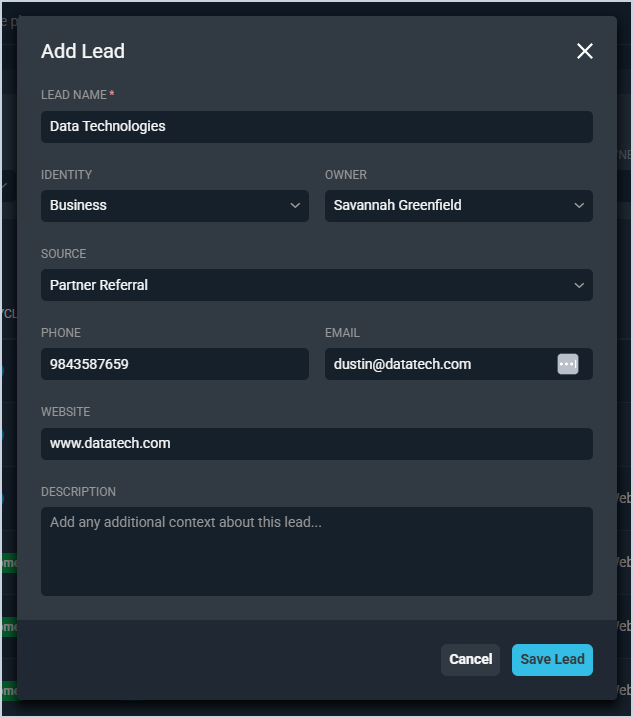
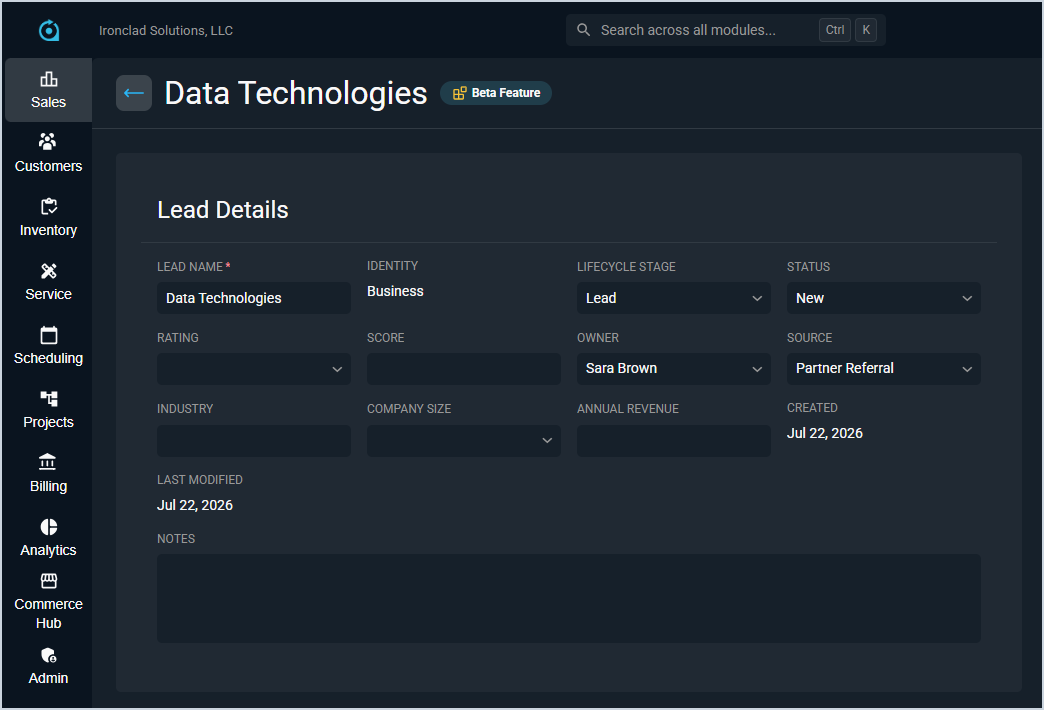
Each field on the Add Lead and Edit Lead screens is defined below.
| No. | Label | Definition |
|---|---|---|
| 1 | Lead Name | Name of the lead. This can be a person's name or a business name. |
| 2 | Identity | Indicates whether the lead is a Business or Residential prospect. |
| 3 | Lifecycle Stage | Current lifecycle stage of the lead. Defaults to Lead when a new lead is created. |
| 4 | Status | Current status of the lead, such as New or Working. |
| 5 | Rating | Indicates the lead's engagement level, such as Hot, Warm, or Cold. |
| 6 | Score | Numerical score representing the likelihood that the lead will close. |
| 7 | Owner | User assigned as the owner of this lead. |
| 8 | Source | Source from which the lead originated, such as Partner Referral. Lead sources are configured in System Tables and share the same list used for opportunities. |
| 9 | Industry | Industry of the lead. |
| 10 | Company Size | Size of the lead's company. |
| 11 | Annual Revenue | Annual revenue of the lead's company. |
| 12 | Phone | Primary phone number for the lead. |
| 13 | Primary email address for the lead. | |
| 14 | Website | Website for the lead. |
| 15 | Description/Notes | Additional context or notes about the lead. |