
Lead List View
The Lead List view displays all leads across your Rev.io instance, giving your sales team a dedicated place to track and manage prospective customers. A 'lead' in Rev.io is a CRM record representing a prospect you are working to convert into a billable customer. Leads allow your team to track the progress of a sales relationship from initial capture through to conversion, including key details such as the owner, source, rating, and lifecycle stage.
Leads can be created directly from the Lead List view and require only a name. Additional information can be filled in as it becomes available. Leads that have been converted to a customer are marked with a Customer lifecycle stage badge and remain visible in the list for historical reference.
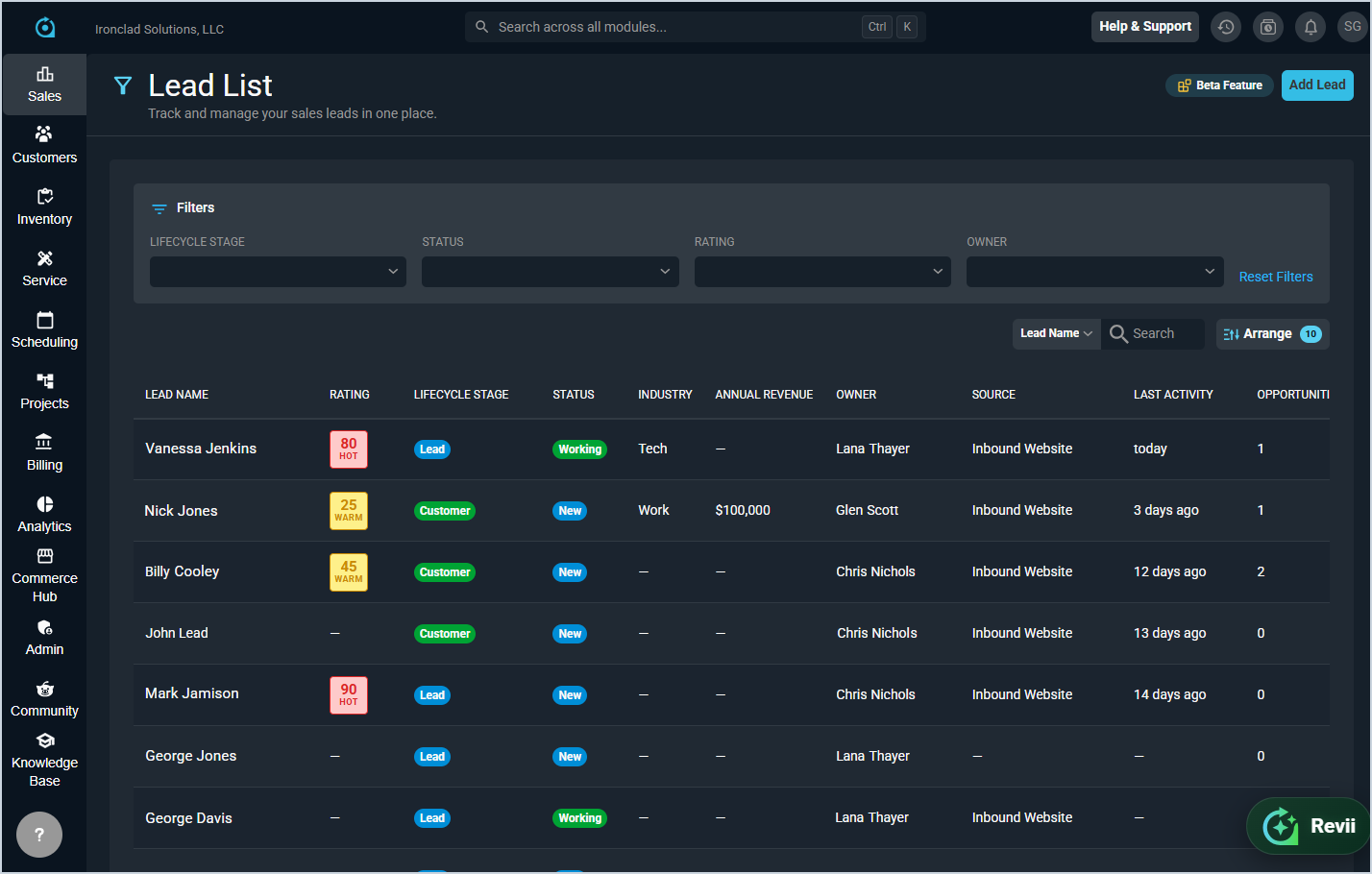
Each field on the Lead List view is defined below.
| No. | Label | Definition |
|---|---|---|
| 1 | Lead Name | Name of the lead. |
| 2 | Rating | Engagement level of the lead, displayed as a color-coded score badge. Rating options include Hot, Warm, and Cold. |
| 3 | Lifecycle Stage | Current lifecycle stage of the lead. Leads that have been converted to a customer display a Customer badge. |
| 4 | Status | Current status of the lead, such as New or Working. |
| 5 | Industry | Industry of the lead. |
| 6 | Annual Revenue | Annual revenue of the lead's company. |
| 7 | Owner | User assigned as the owner of the lead. |
| 8 | Source | Source from which the lead originated, such as Inbound Website. |
| 9 | Last Activity | Date of the most recent activity recorded on the lead. |
| 10 | Opportunities | Number of opportunities associated with the lead. |
The following actions are available on the Lead List view.
- Add a new lead by clicking the Add Lead button at the top of the screen. See the Add/Edit Leads article for more information.
- Filter the leads displayed by selecting options from the Lifecycle Stage, Status, Rating, and Owner filters. Click Reset Filters to clear all active filters.
- Search the leads displayed by entering text in the Search field.
- Customize which columns display in the list view and the order in which they display by clicking the Arrange button. See the Arrange Columns article for more information.
- Sort the results in the table by clicking the column label in the table header.
- View more details for a lead by clicking the row. See the View Lead Details article for more information.