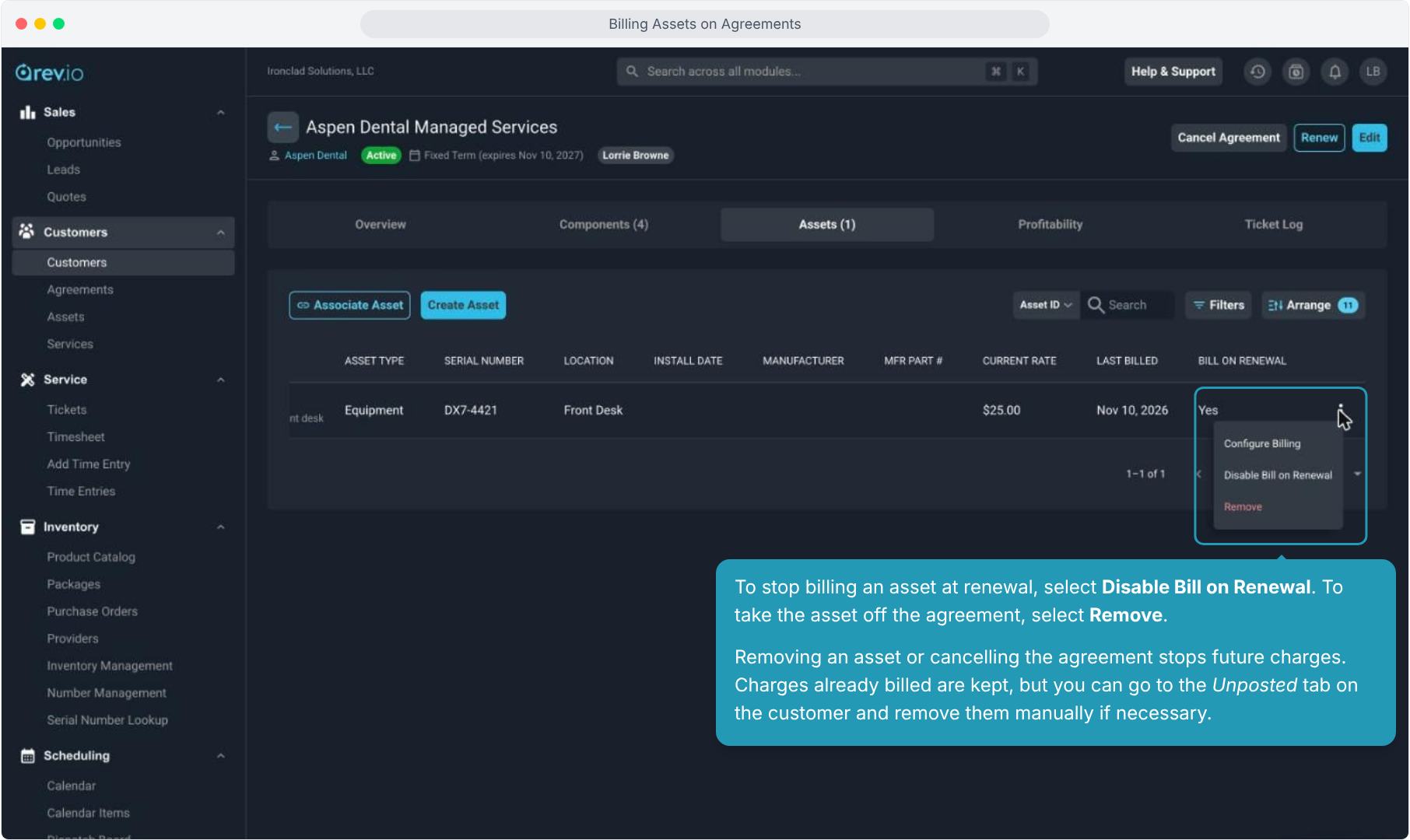
How To Guide: Billing Assets on an Agreement
1. Introduction
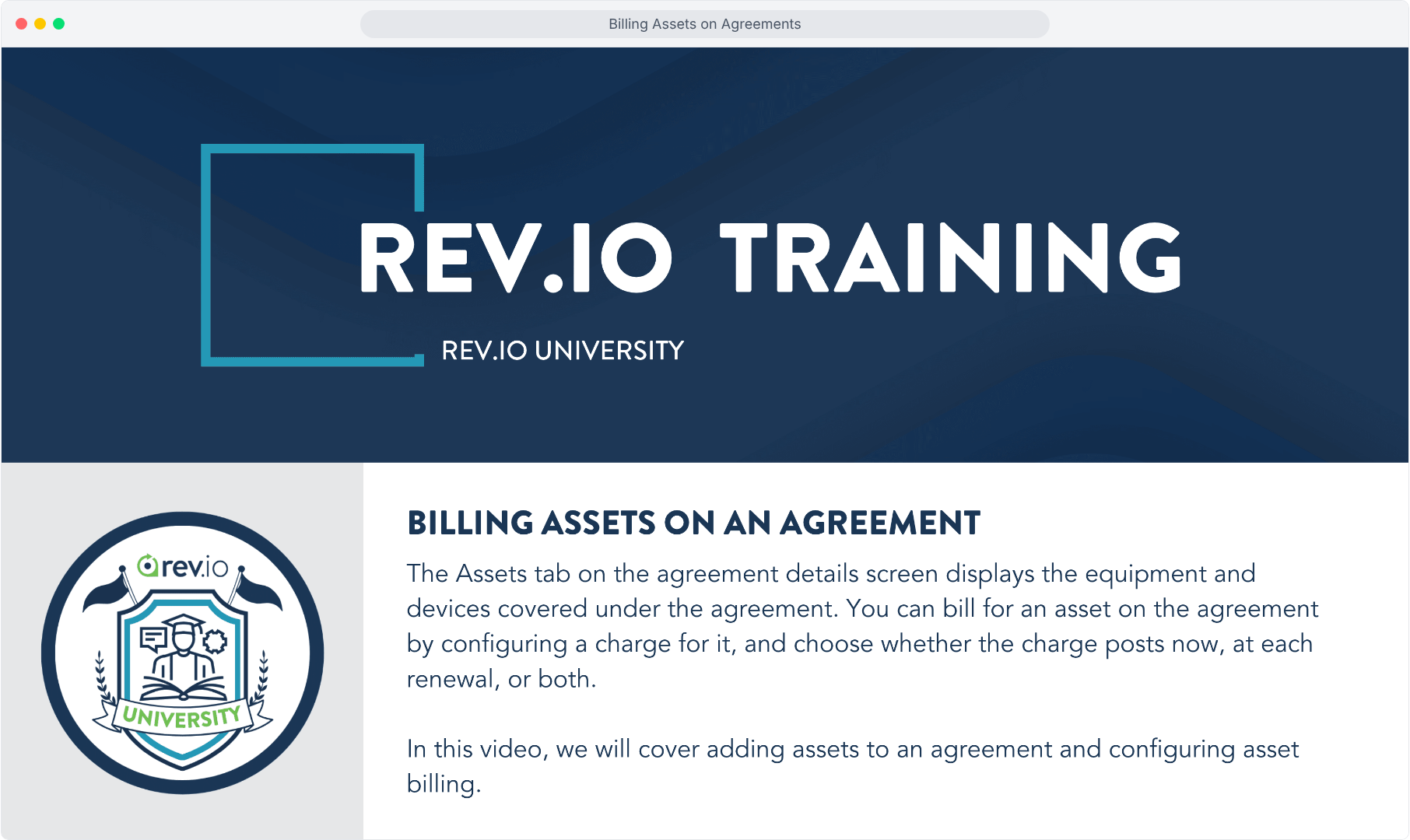
2. Open the agreement and click the Assets tab. Click Associate Asset to add an asset the customer already has, or Create Asset to add a new one.
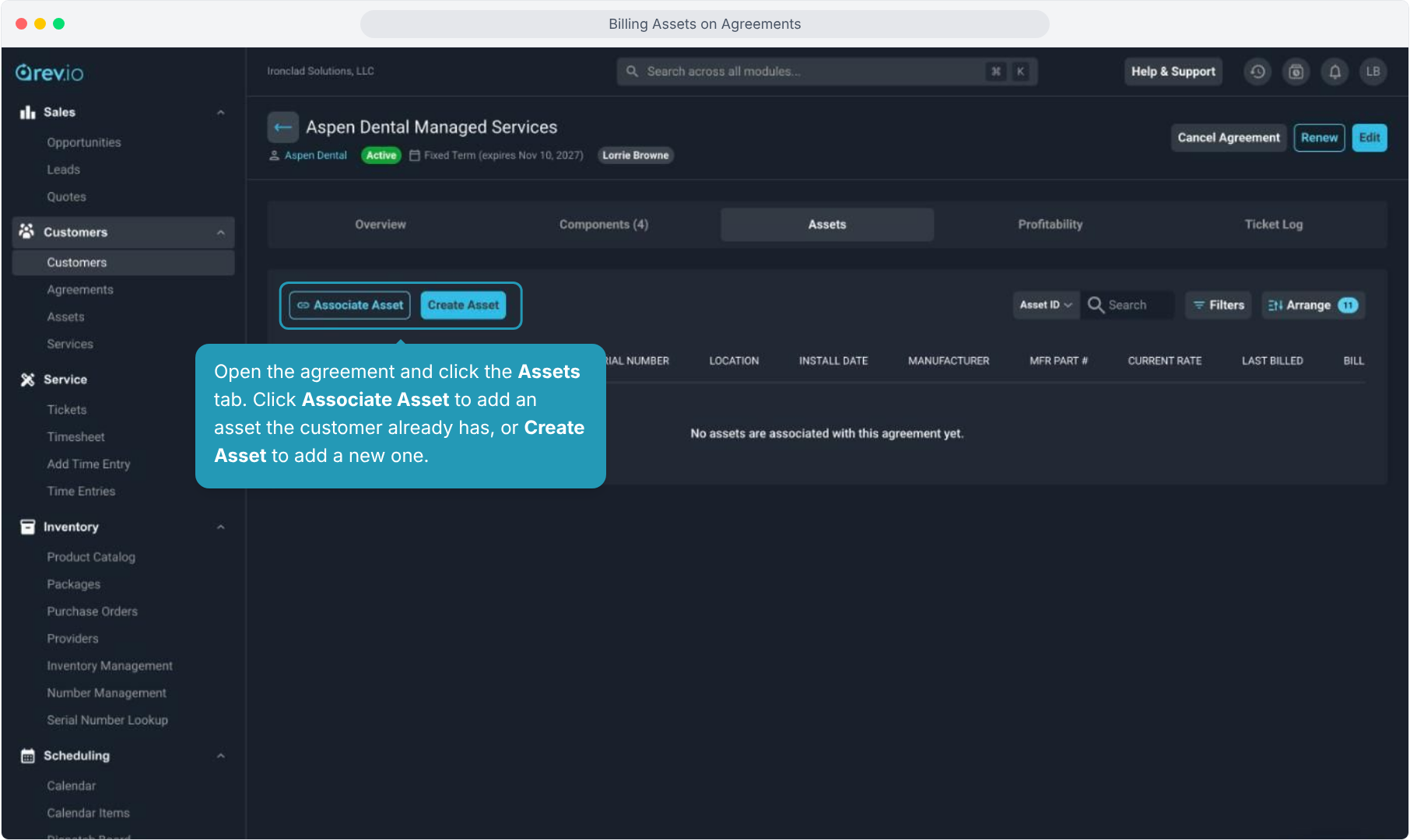
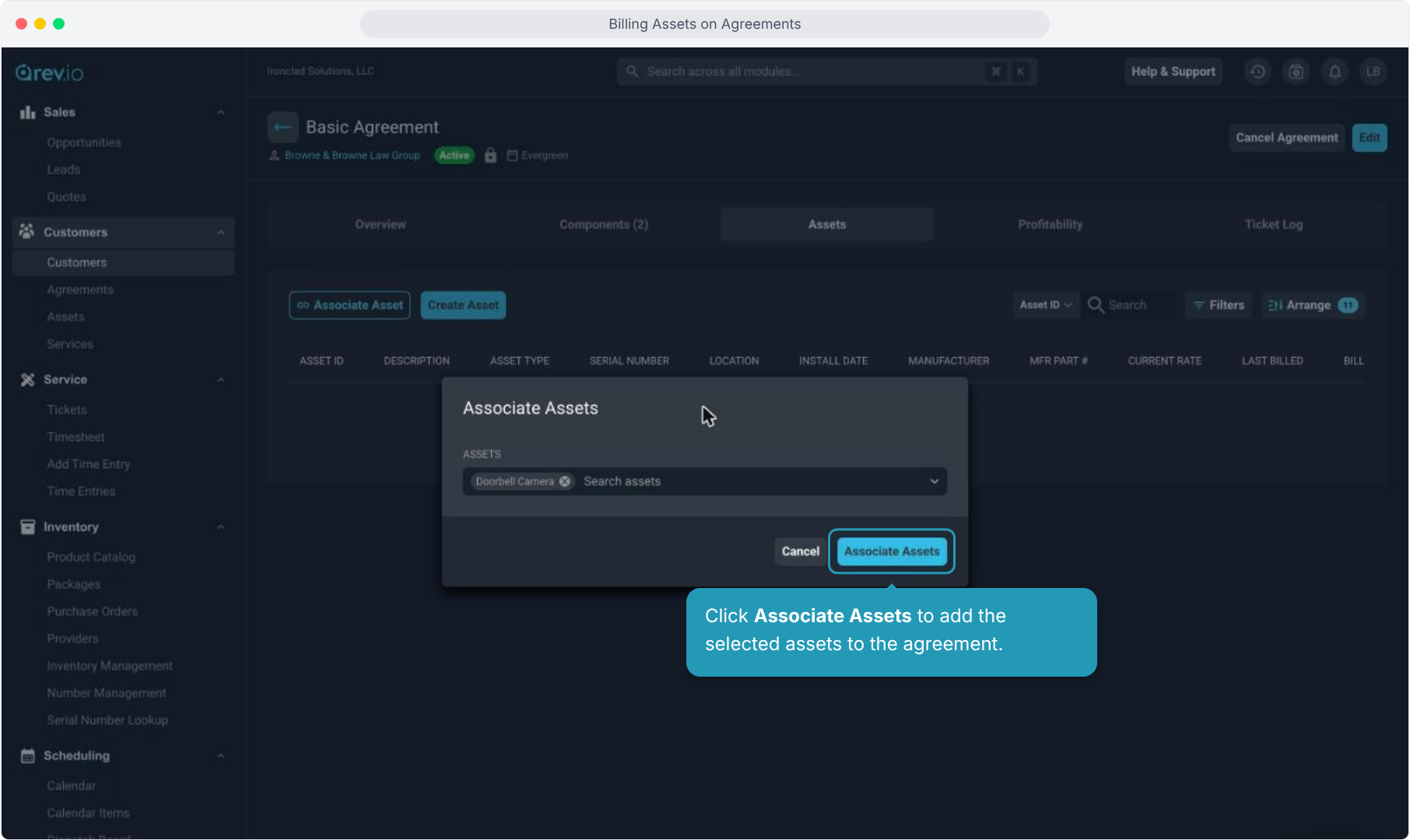
3. When you click Associate Asset, choose one or more of the customer's assets from the list.
4. Click Associate Assets to add the selected assets to the agreement.
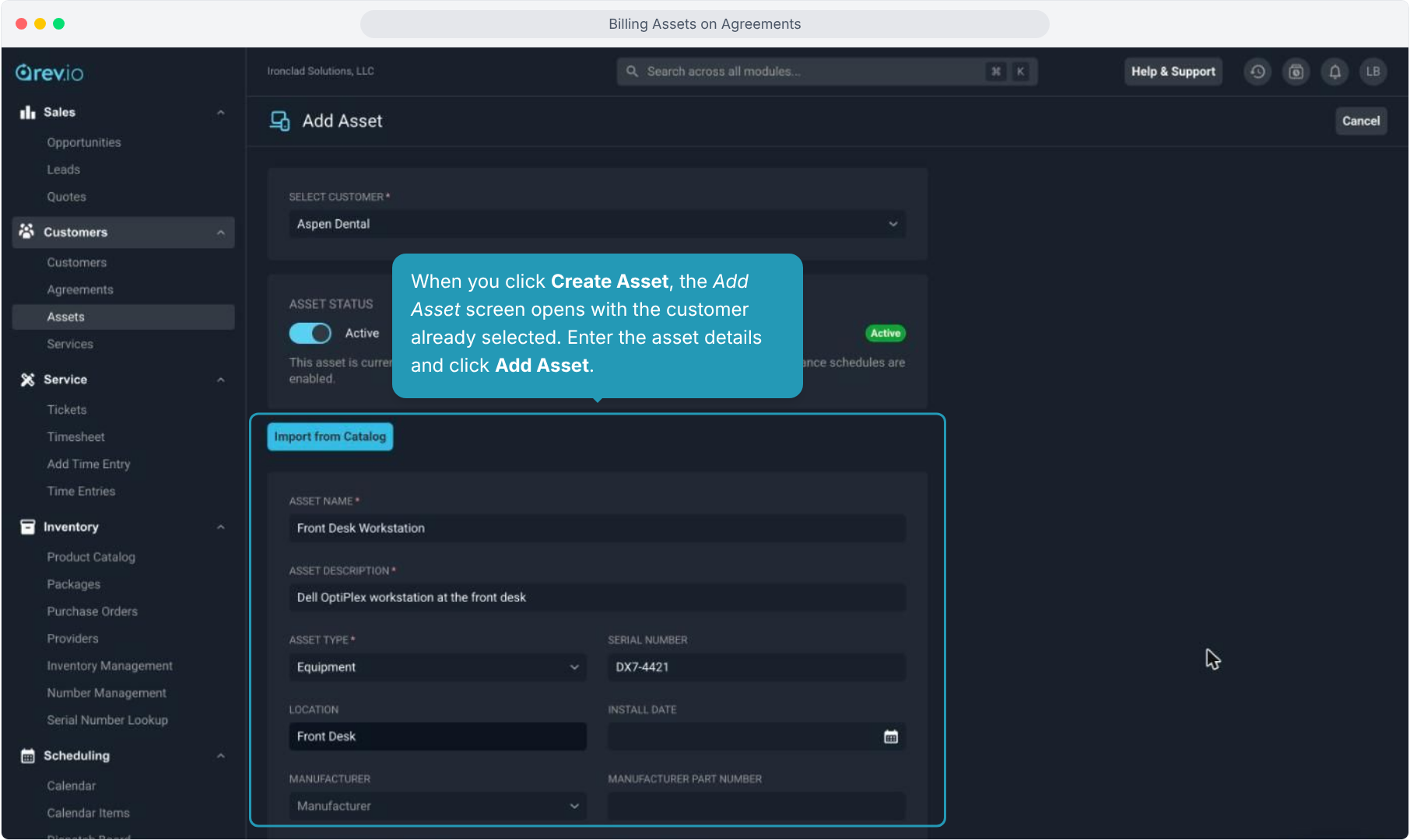
5. When you click Create Asset, the Add Asset screen opens with the customer already selected. Enter the asset details and click Add Asset.
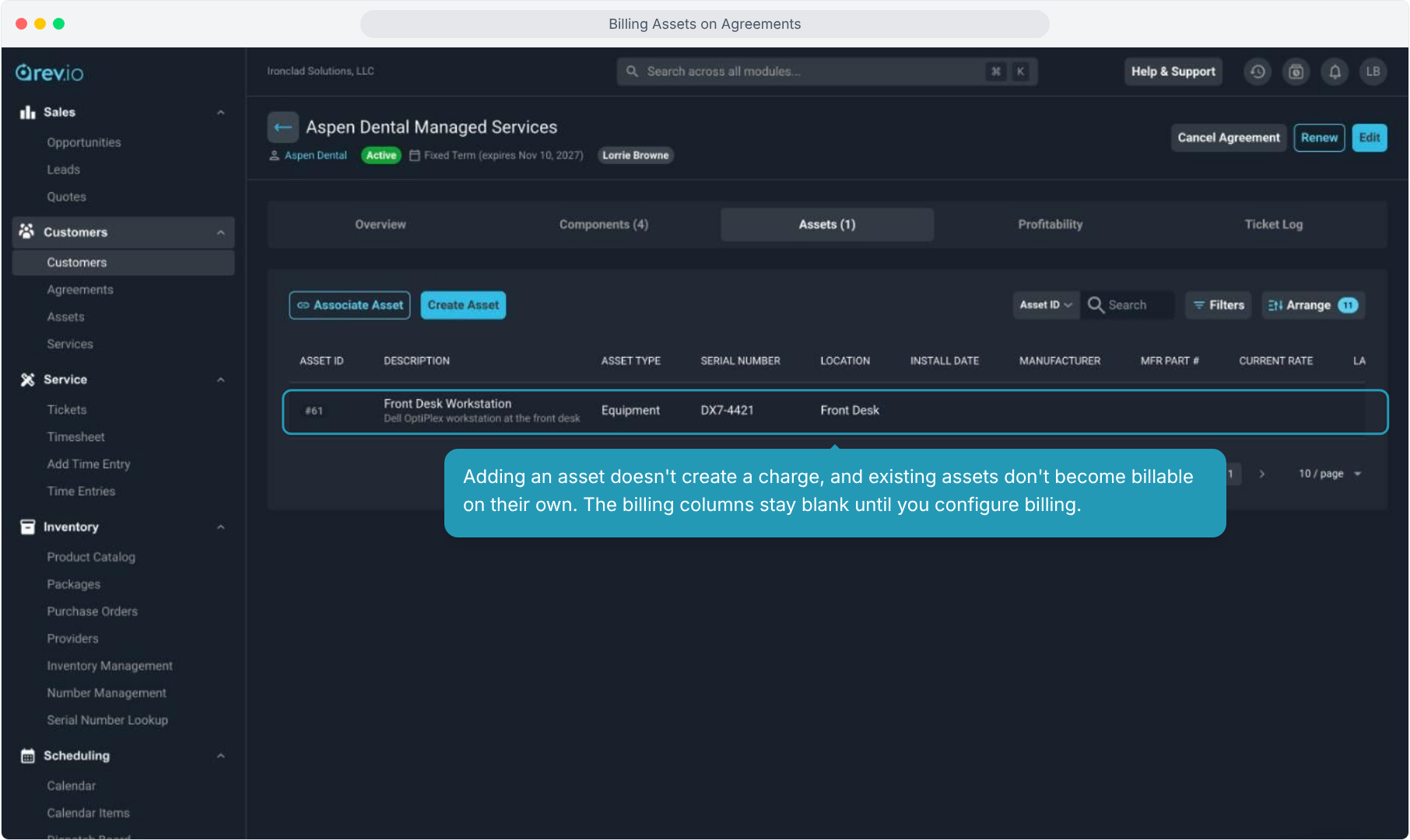
6. Adding an asset doesn't create a charge, and existing assets don't become billable on their own. The billing columns stay blank until you configure billing.
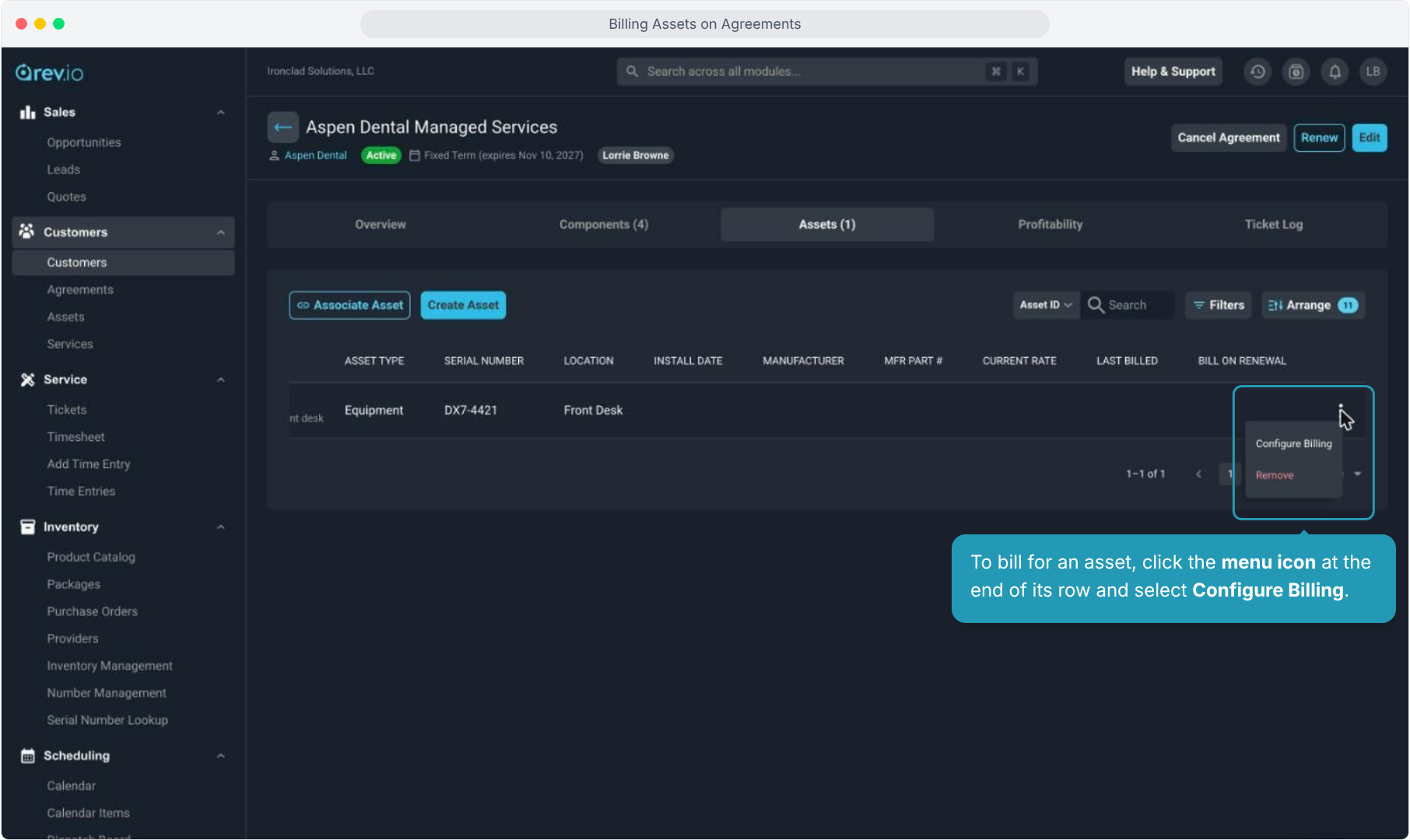
7. To bill for an asset, click the menu icon at the end of its row and select Configure Billing.
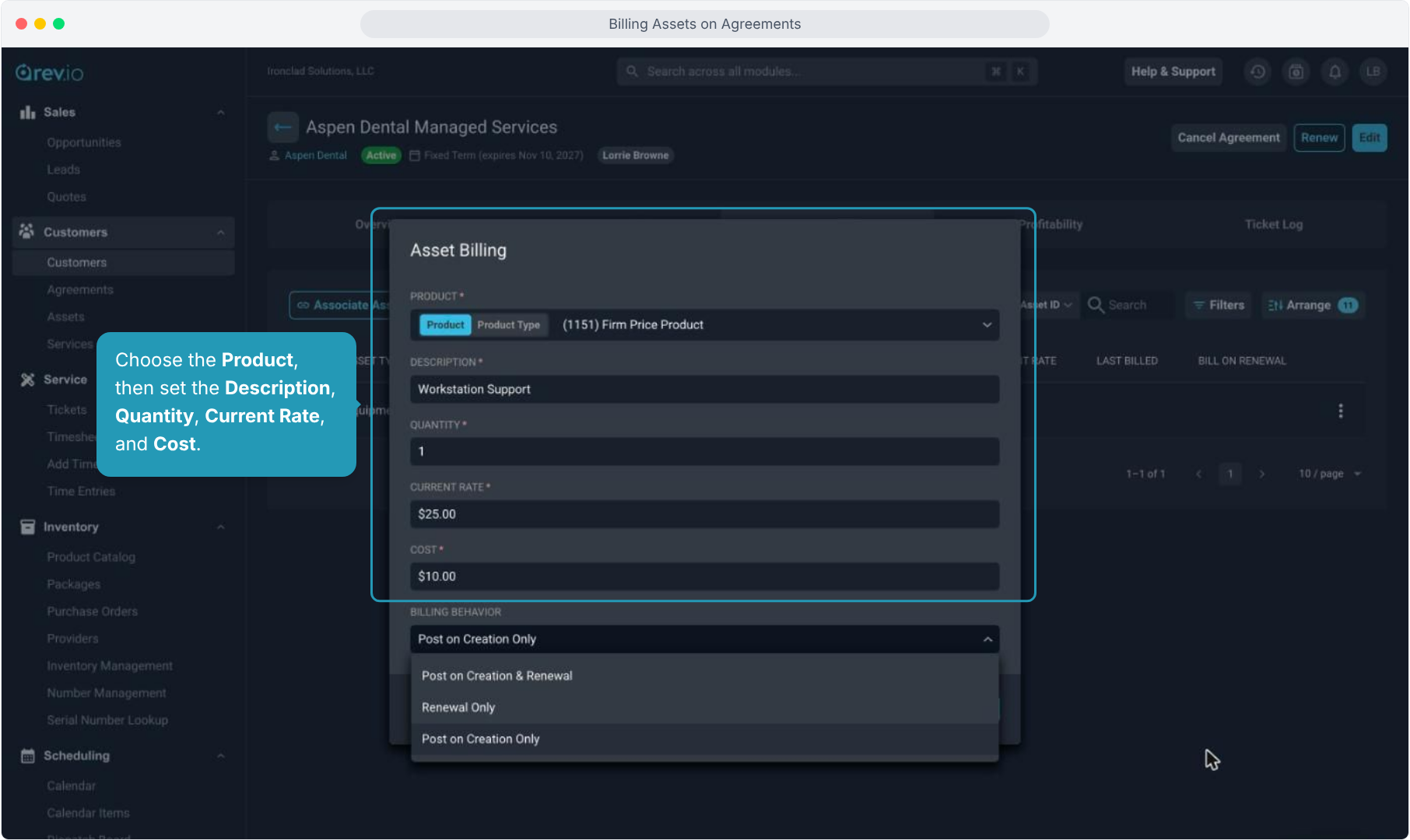
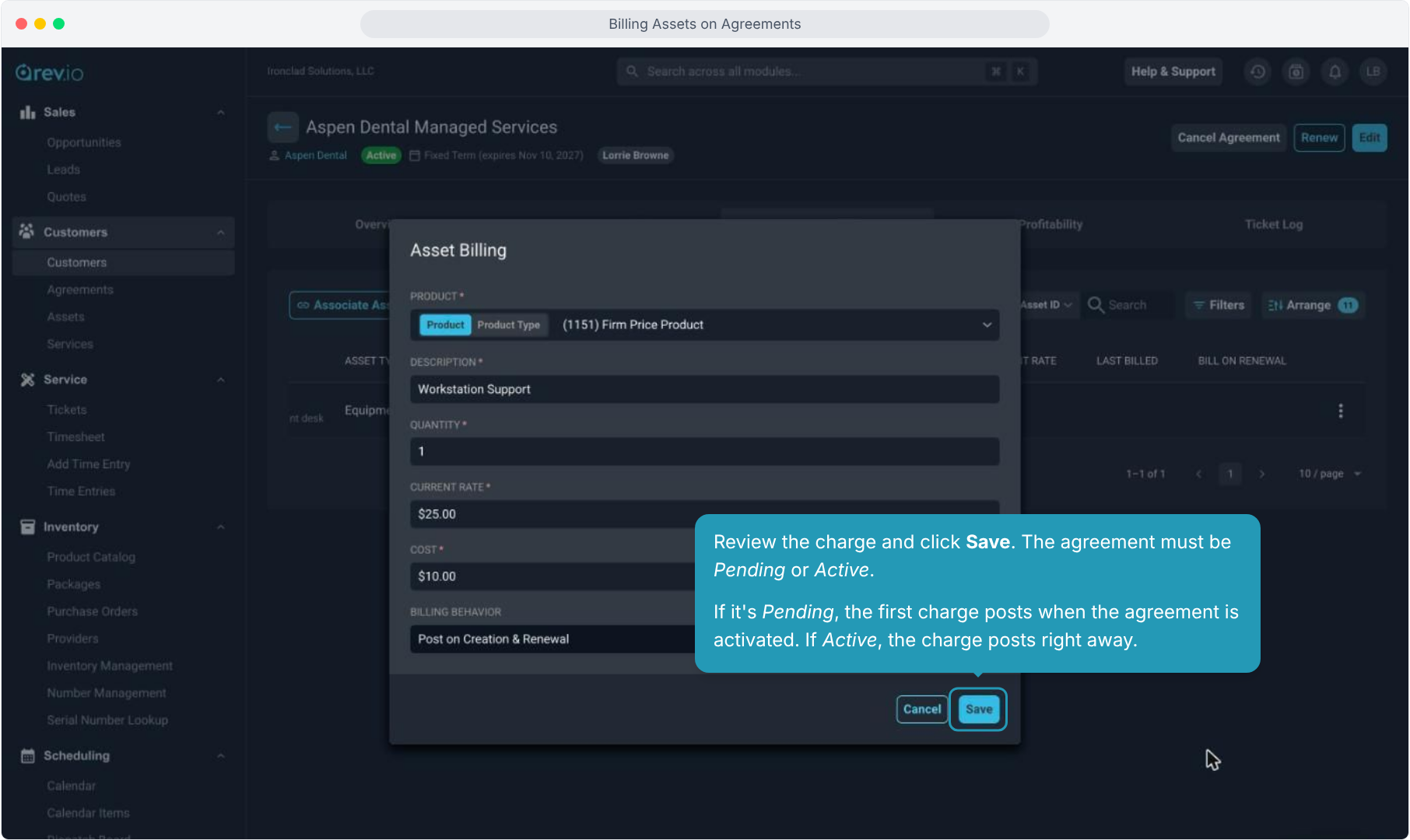
8. Choose the Product, then set the Description, Quantity, Current Rate, and Cost.
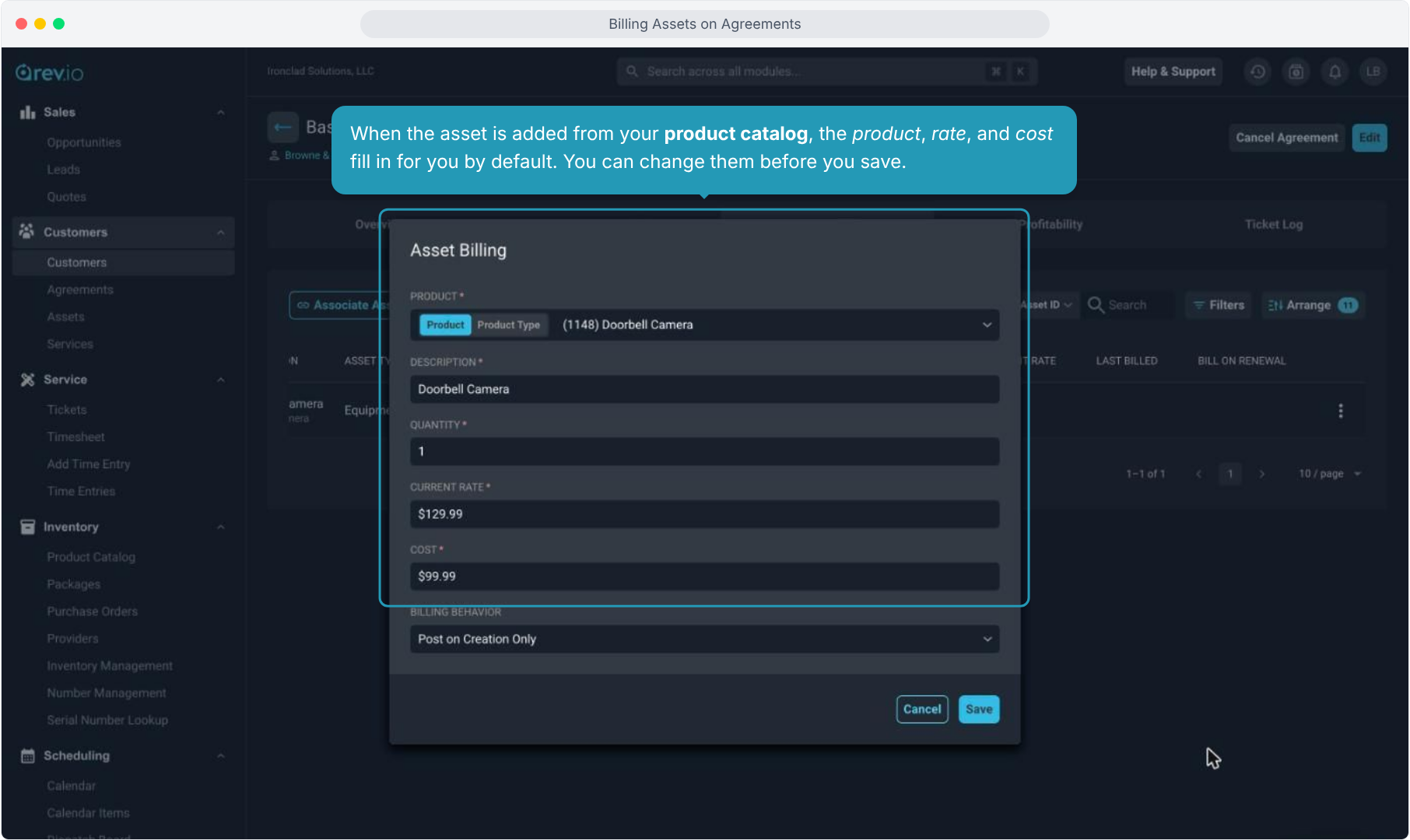
9. When the asset is added from your product catalog, the product, rate, and cost fill in for you by default. You can change them before you save.
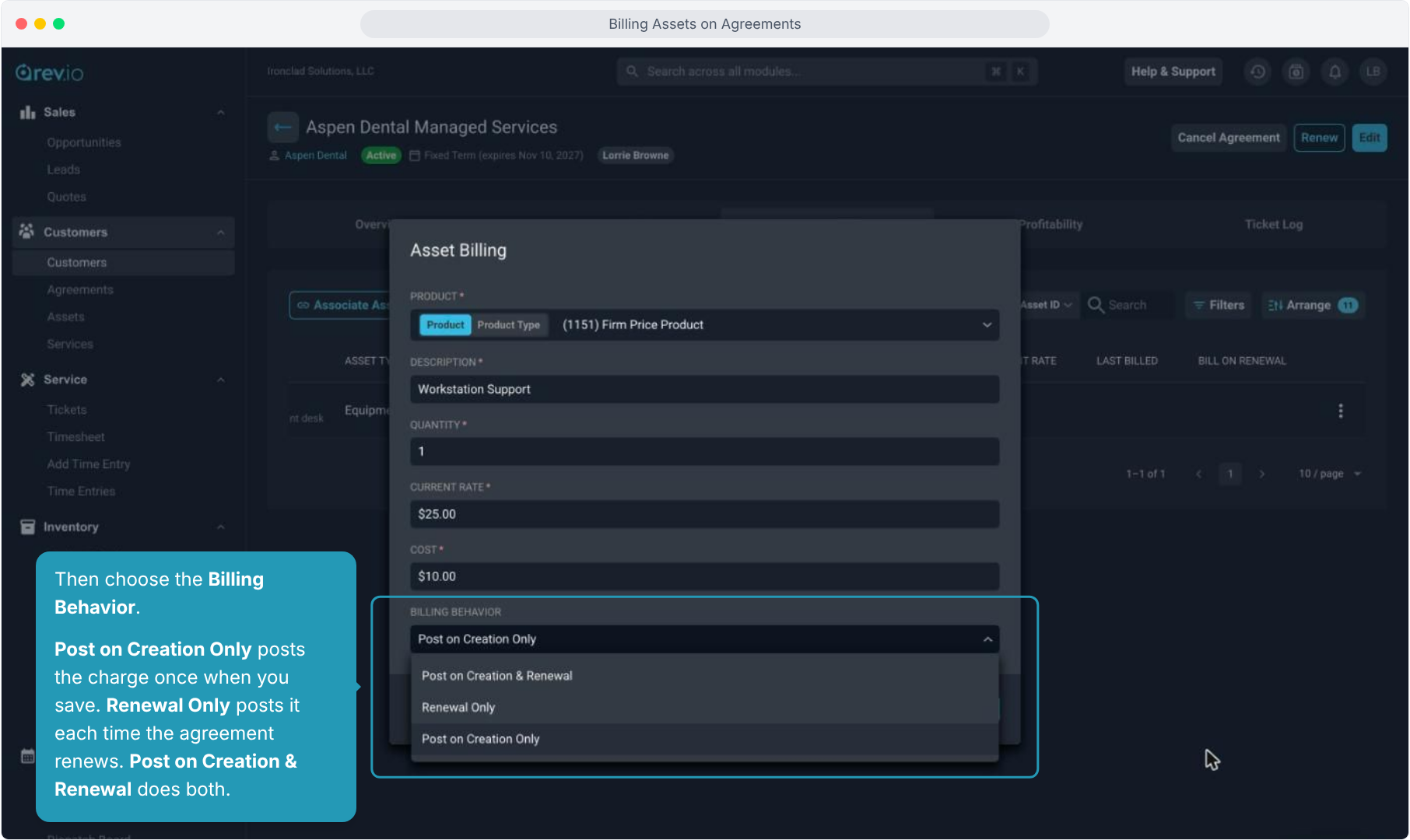
10. Then choose the Billing Behavior.
Post on Creation Only posts the charge once when you save. Renewal Only posts it each time the agreement renews. Post on Creation & Renewal does both.
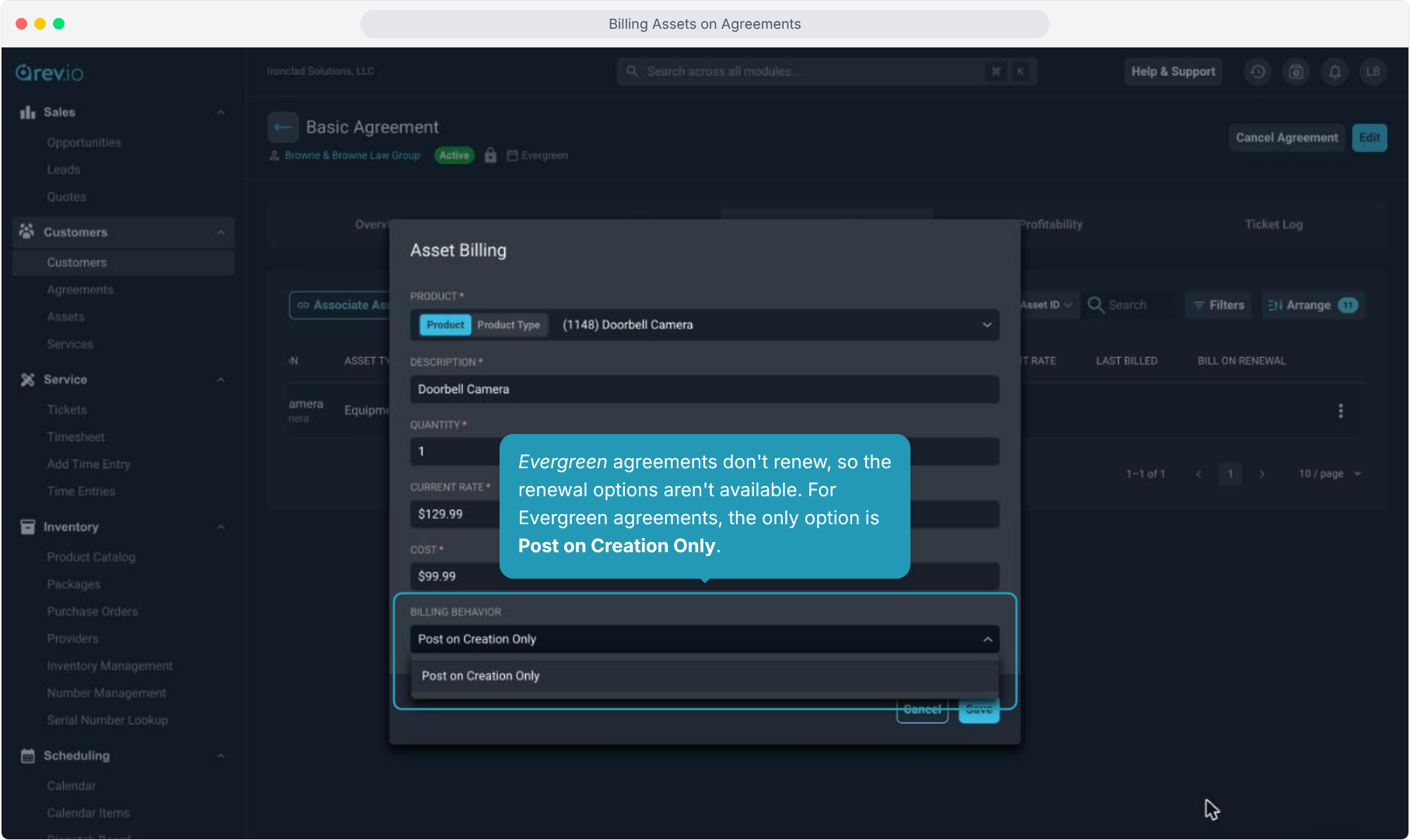
11. Evergreen agreements don't renew, so the renewal options aren't available. For Evergreen agreements, the only option is Post on Creation Only.
12. Review the charge and click Save. The agreement must be Pending or Active.
If it's Pending, the first charge posts when the agreement is activated. If Active, the charge posts right away.
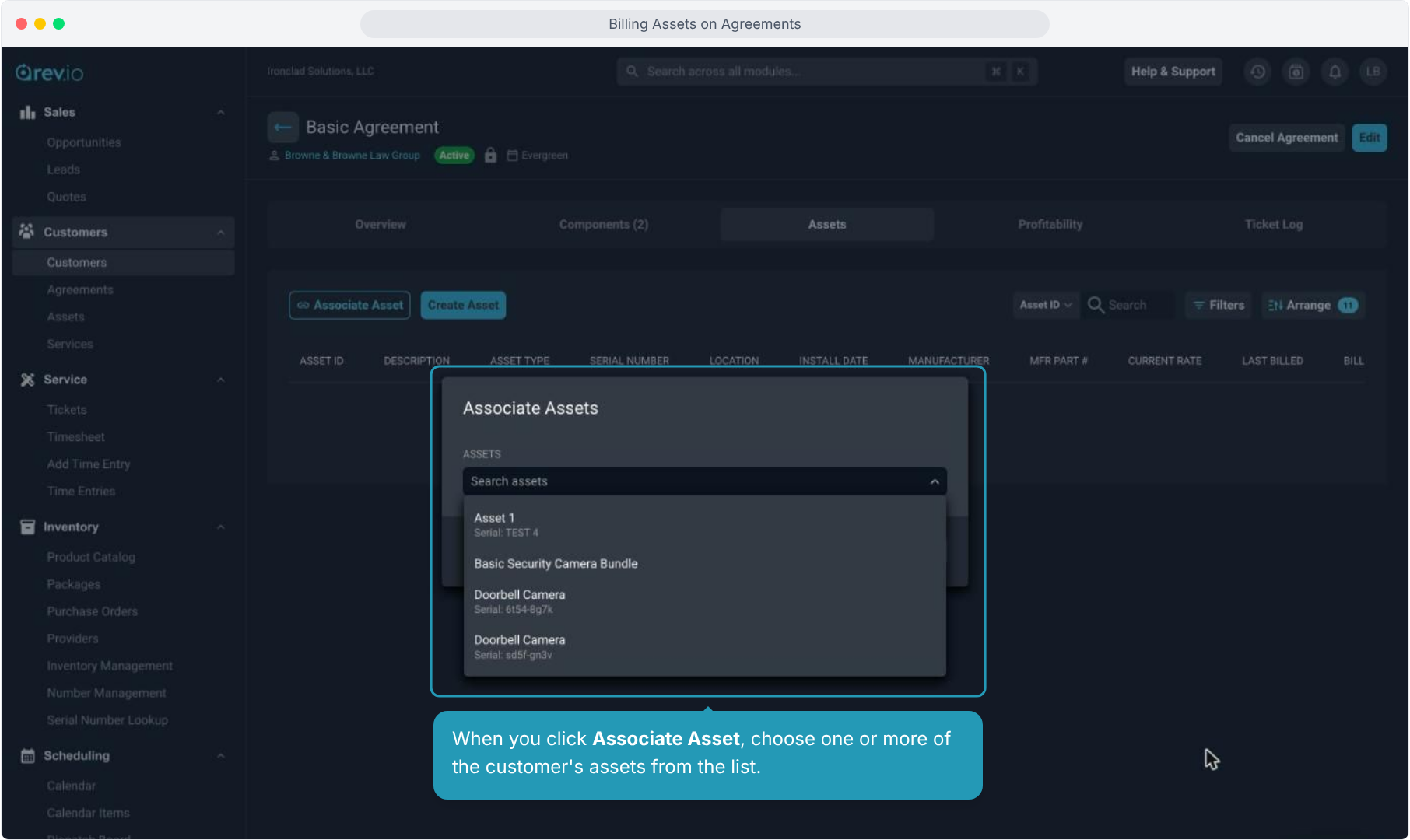
13. The asset now shows its Current Rate, the date it was Last Billed, and whether it will Bill on Renewal.
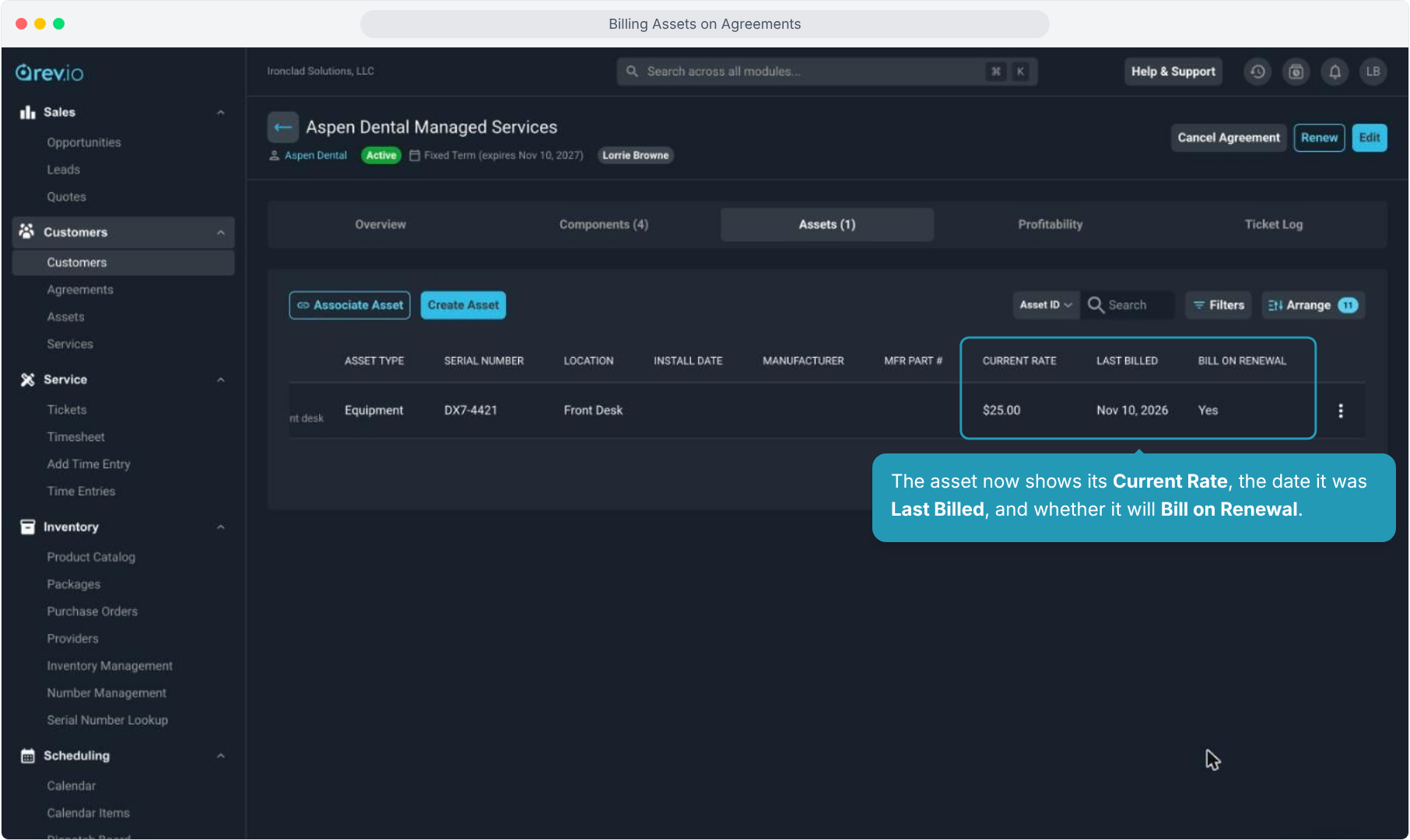
14. To stop billing an asset at renewal, select Disable Bill on Renewal. To take the asset off the agreement, select Remove.
Removing an asset or cancelling the agreement stops future charges. Charges already billed are kept, but you can go to the Unposted tab on the customer and remove them manually if necessary.