Adding Services, Products, and Packages to Quotes
When building a quote in Rev.io, the Products and Services section is where you define exactly what you're offering a customer. This includes the services that form the basis of the quote as well as any additional products or packages you want to include. Here's how to manage that section from start to finish.
| NOTE: Always make changes to products and services directly on the quote record in Rev.io rather than inside the proposal document. The proposal is generated from the quote, so editing it directly can cause the two to fall out of sync. Making changes at the quote level and using the Sync option is the best way to keep everything accurate and consistent. |
Adding a Service
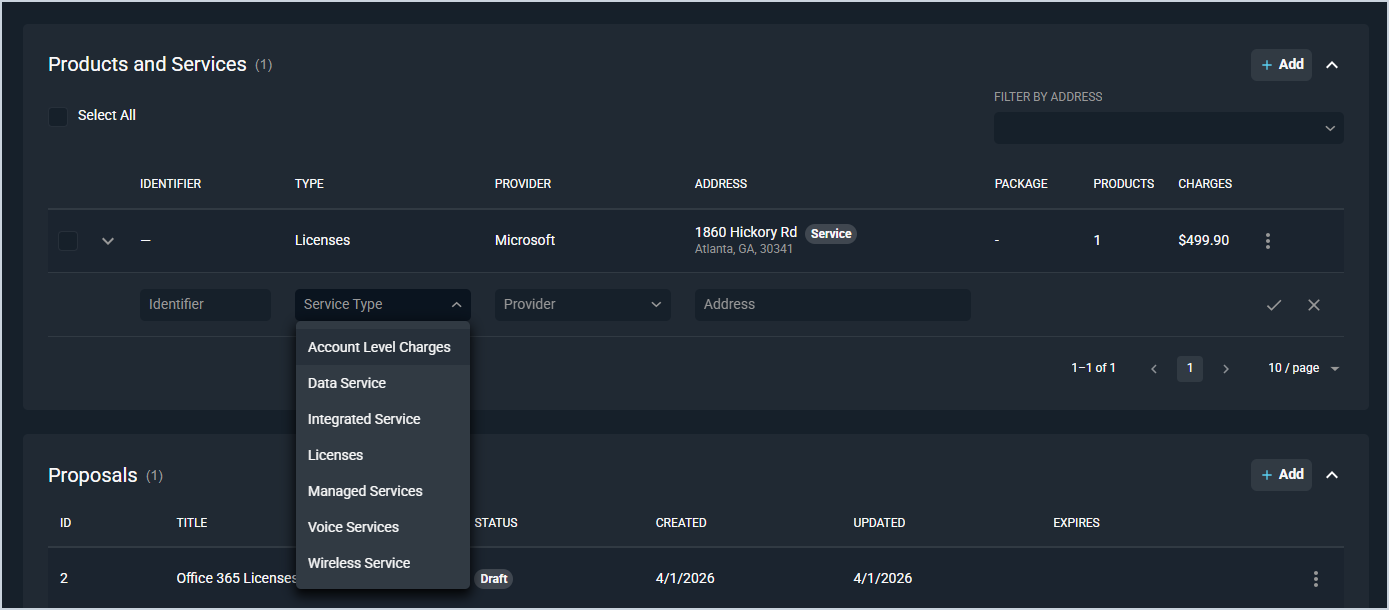
Every quote starts with a service, which represents the type of offering you're providing to the customer. When adding a service to a quote, you'll assign it a Service Type, a Provider, and an Address.
The Identifier field is used for telecom billing to store the associated telephone number. For most quotes, this field can be left blank, as the telephone number is typically not yet available at this stage in the process.
Service Types categorize the nature of the service being offered. Examples include Data Service, Voice Services, Managed Services, Wireless Service, and Licenses. These types are configured by your administrator in advance, so the options you see in the dropdown reflect what your organization has set up. See the System Settings: Billing Config article for more information.
The Provider field identifies who is delivering the service, and the Address ties the service to a specific customer location. Together, these three fields give the service its context within the quote. See the Providers List View article for more information about managing providers in Rev.io.
Once a service is added, products can be attached to it, and it will appear in the Products and Services section of the quote record alongside any associated charges.
Adding Products and Packages
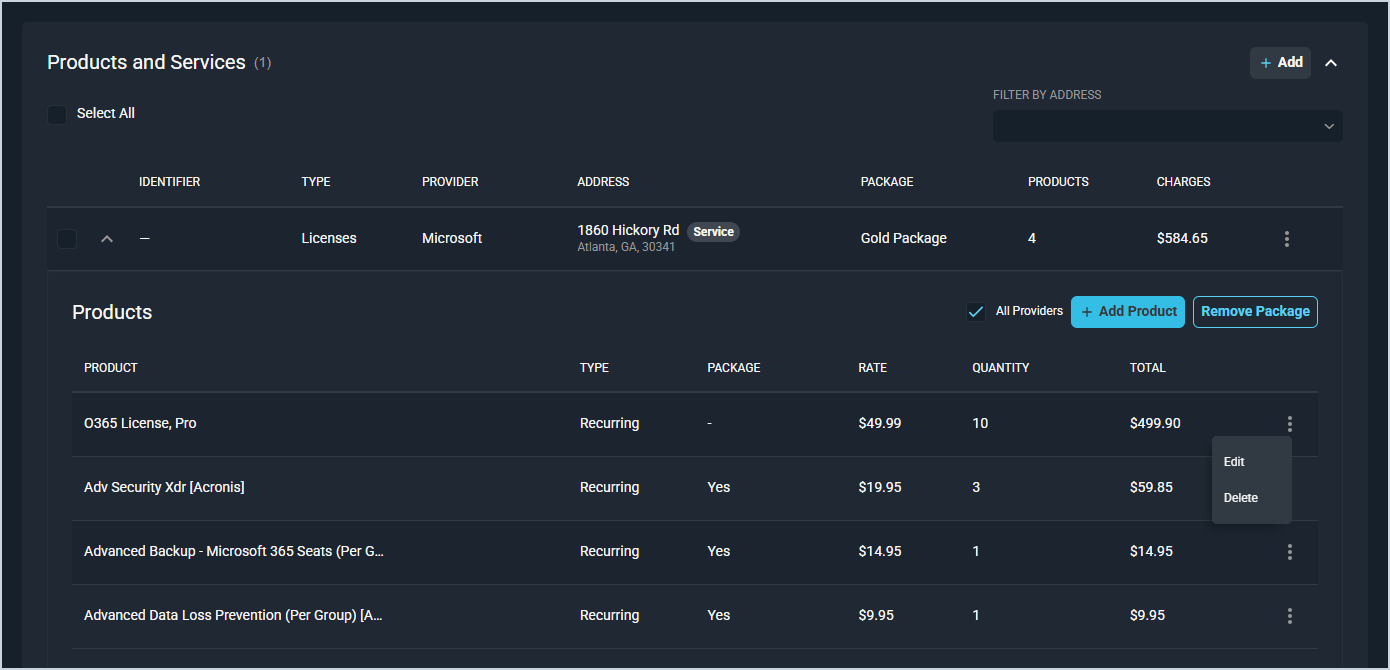
Once your service is in place, you can add products and packages to the quote. Products appear in a list under the service they belong to, displaying each item's name, type, rate, quantity, and total charge.
Adding Individual Products
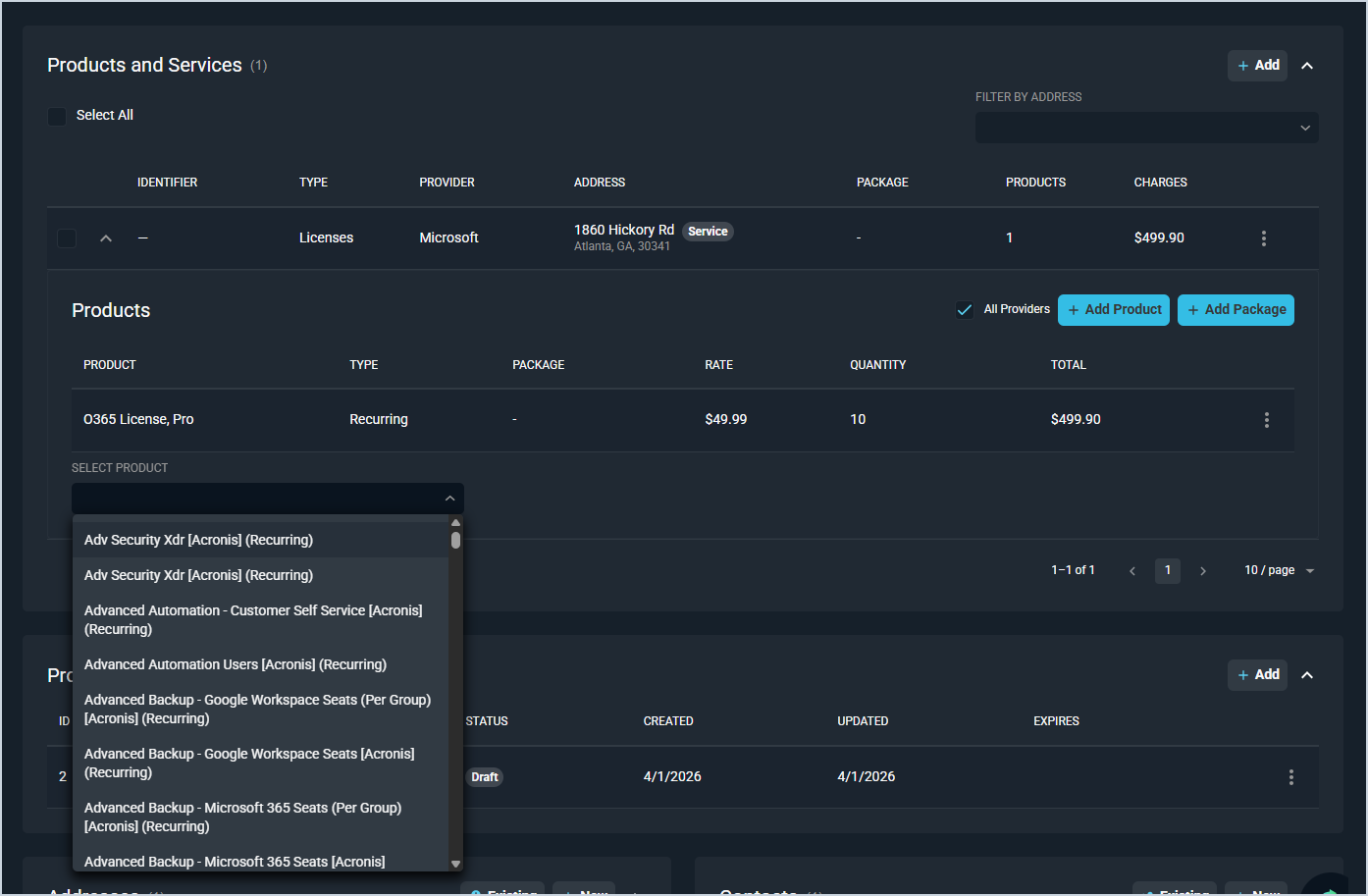
To add a product individually, click the Add Product button and select the item from the dropdown. Repeat this for each additional product you want to include.
Adding a Package
Packages are pre-configured bundles of products set up in the Inventory module. To add a package, click the Add Package button and select from the available options. When a package is applied, all of the products included in it are automatically added to the product list alongside any individually added products. Products that came from a package are indicated in the Package column, while individually added products show a dash in that column.
While a quote can only have one package at a time, you can adjust the quantity of the package on the service. Changing the quantity of the package changes the quantity of each underlying product automatically.
If you need to swap packages or remove the bundled products altogether, click the Remove Package button to clear all package-associated products from the quote in one action. Individually added products are not affected when a package is removed.
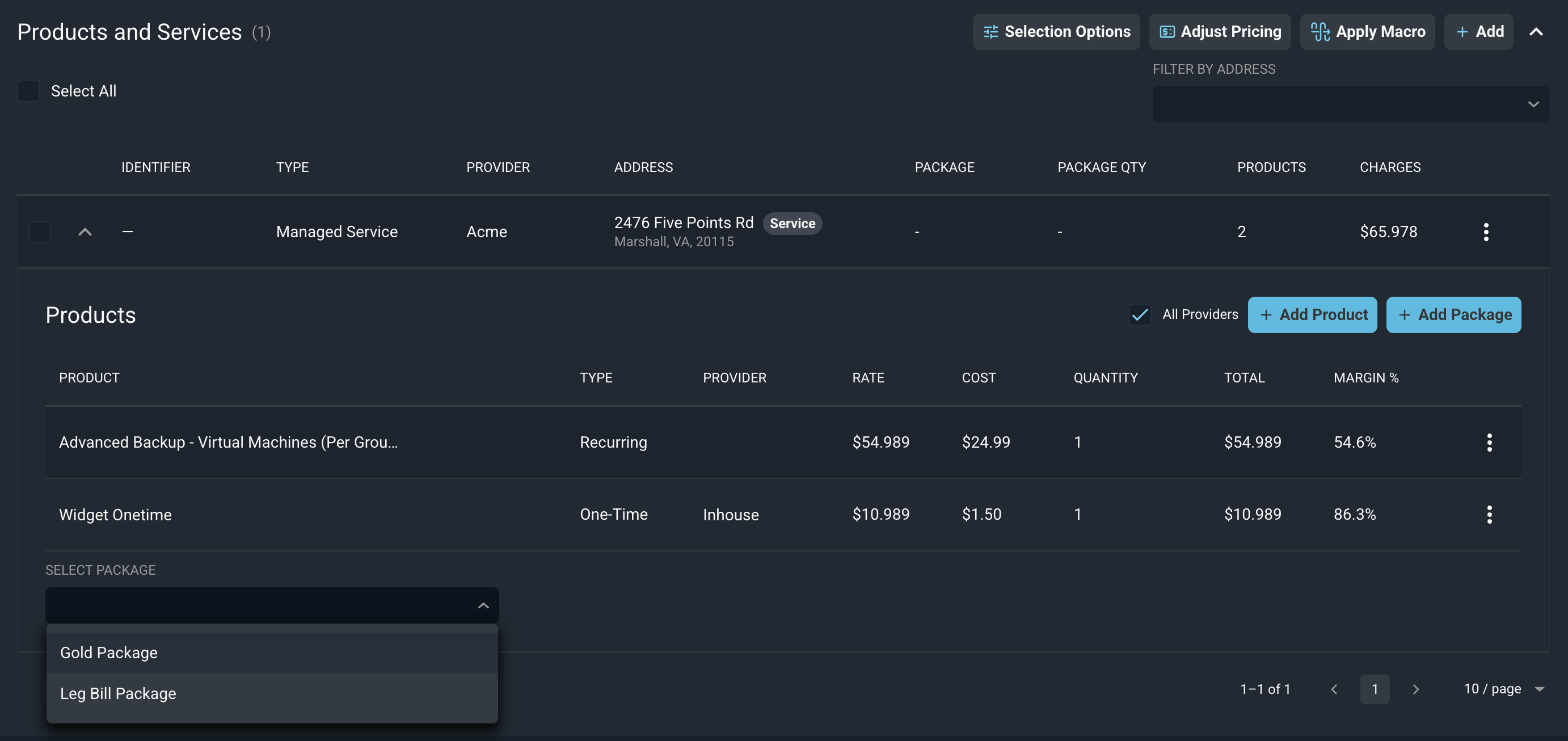
The list of products for each service shows the Cost and Margin % for every product, so you can see how profitable each item is as you build the quote. See the Understanding Quote Profitability article for more information.
Editing Rate and Quantity
After adding a product, you can adjust its rate or quantity to reflect the specifics of the deal. Click the ellipsis menu next to the product and select Edit to make your changes. This applies to both individually added products and products that were added as part of a package.
If you make changes to products or services after a proposal has already been attached to the quote, remember to click the Sync option to push your updates into the proposal document.

To apply a markup or markdown to the price or cost of several products at once, use the Adjust Pricing button in the Products and Services section. See the Adjusting Quote Pricing article for more information.
Removing Products and Services
If a product or service no longer belongs on a quote, you can remove it directly from the quote record in Rev.io. Click the ellipsis menu next to the item you want to remove and select the remove or delete option. If you want to remove all products associated with a package at once, click the Remove Package button to clear them in a single action without affecting any individually added products. As with edits, any removals made after a proposal has been attached will need to be synced to keep the proposal document up to date.