
Customer Profile: Overview Section - Addresses Tab
The Addresses tab on the customer profile displays all addresses associated with the customer record. From this tab, you can add new addresses and manage existing ones.
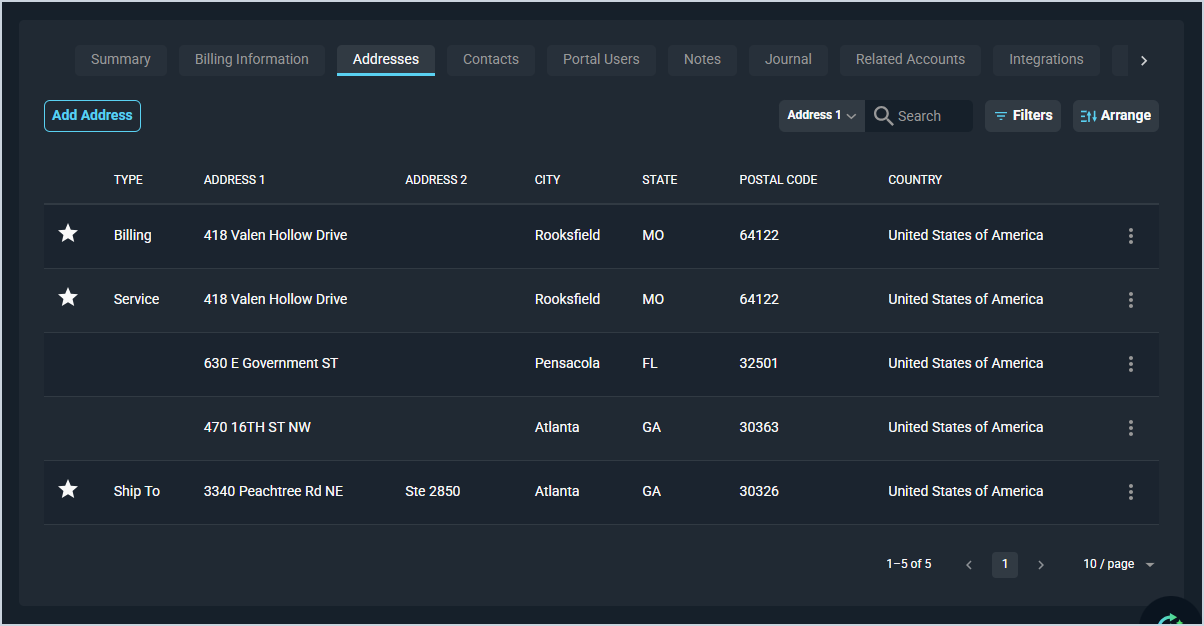
Each field on the Addresses tab is defined below.
| No. | Label | Definition |
| 1 | Type | Type of address, such as Billing, Service, or Ship To. |
| 2 | Address 1 | Primary address line. |
| 3 | Address 2 | Secondary address line, such as a suite or unit number. |
| 4 | City | City associated with the address. |
| 5 | State | State or province associated with the address. |
| 6 | Postal Code | ZIP or postal code associated with the address. |
| 7 | Country | Country associated with the address. |
The following actions are available on the Addresses tab.
- Add a new address to the customer record by clicking the Add Address button.
- Set an address as the default for its type by clicking the Star icon at the start of the address row.
- Search the addresses by selecting a column from the dropdown and entering text in the Search field.
- Filter the addresses displayed by clicking the Filters button and selecting the desired filter criteria.
- Customize which columns display in the list view and the order in which they display by clicking the Arrange button. See the Arrange Columns article for more information.
- Sort the results in the table by clicking the column label in the table header.
- Edit or delete an address by clicking the ellipsis at the end of the address row and selecting from the available menu options.
Tabs in the Overview Section
For information on other tabs in the Overview section of the Customer Profile screen, see the related articles.
- Customer Profile: Overview Section - Summary Tab
- Customer Profile: Overview Section - Billing Information Tab
- Customer Profile: Overview Section - Contacts Tab
- Customer Profile: Overview Section - Portal Users Tab
- Customer Profile: Overview Section - Journal Tab
- Customer Profile: Overview Section - Related Accounts Tab