
Agreements List View
The Agreements List view displays all agreements across your Rev.io instance, giving your team a centralized place to view and manage customer agreements. It is accessible by clicking Customers in the sidebar menu and selecting Agreements.
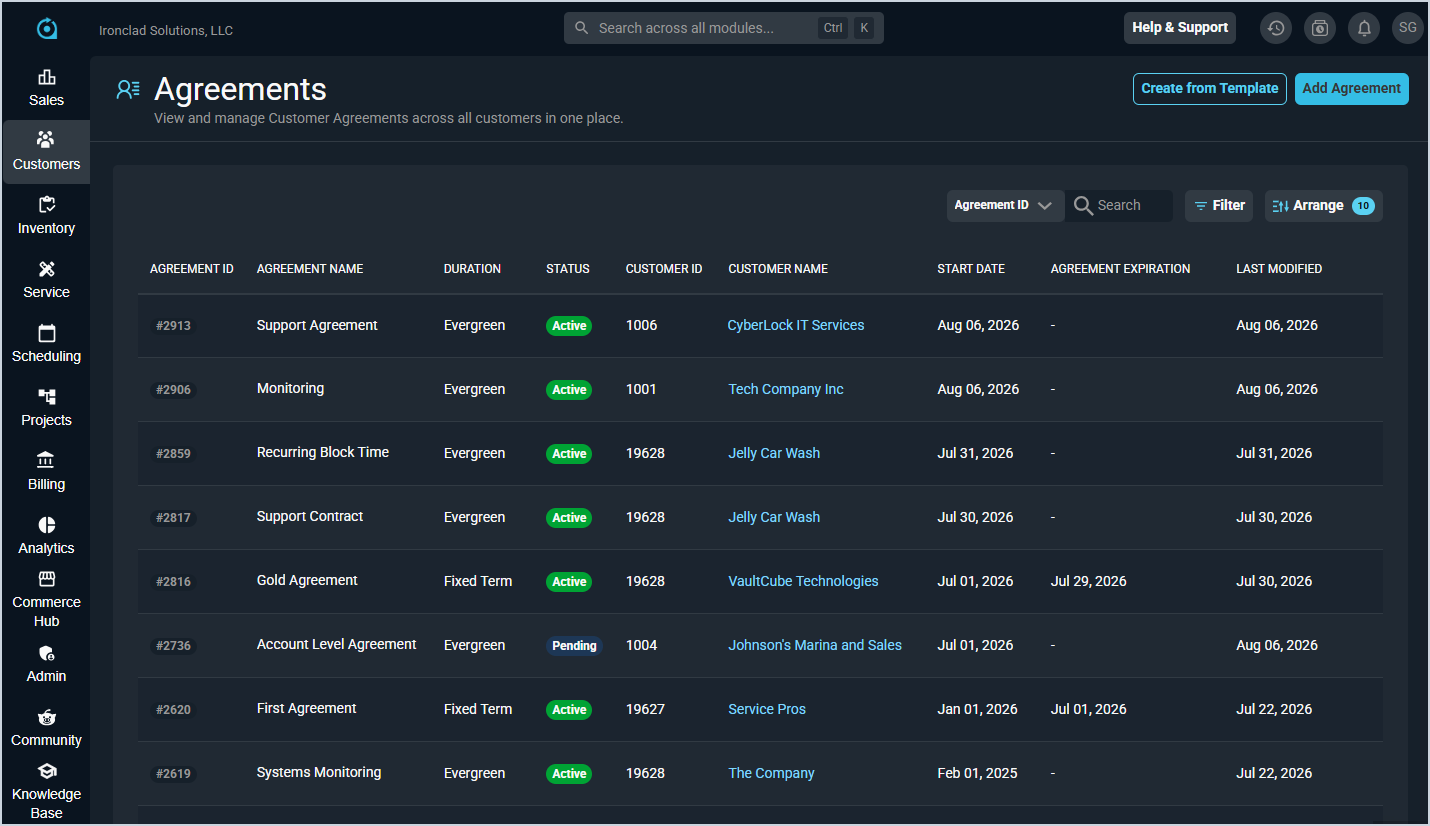
Each column in the Agreements List view is defined below.
| No. | Label | Definition |
|---|---|---|
| 1 | Agreement ID | Unique numerical identifier for the agreement. |
| 2 | Agreement Name | Name of the agreement. |
| 3 | Duration | Duration type of the agreement, such as Evergreen. |
| 4 | Status | Current status of the agreement, such as Active, Pending, or Cancelled. |
| 5 | Customer ID | Unique numerical identifier for the customer the agreement belongs to. |
| 6 | Customer Name | Name of the customer the agreement belongs to. |
| 7 | Term Status | Current term status of the agreement, such as Initial Term. |
| 8 | Start Date | Date the agreement begins. |
| 9 | Agreement Expiration | Date the agreement expires, if applicable. |
| 10 | Last Modified | Date the agreement was last modified. |
The following actions are available on the Agreements List view.
- Create a new agreement by clicking Add Agreement in the upper right. See the Add/Edit Agreements article for more information.
- Create a new agreement from a template by clicking Create from Template. See the Add/Edit Agreements article for more information.
- Search for a specific agreement by entering text in the Search field.
- Filter the list by clicking the Filter button.
- Customize which columns display in the list and the order in which they display by clicking the Arrange button. See the Arrange Columns article for more information.
- Sort the list by clicking a column label in the table header.
- Open an agreement by clicking its row in the list.
- Edit, lock, or unlock an agreement by clicking the ellipsis at the end of the row and selecting the appropriate option.