
Dispatch Board: Ticket Board Tabs
Tabs on the Dispatch Board let you view the tickets from your saved ticket boards without leaving the screen. Each tab you add shows the tickets from a board you choose and the technicians from the user groups you select. To open the Dispatch Board, click Scheduling in the sidebar menu and select Dispatch Board.
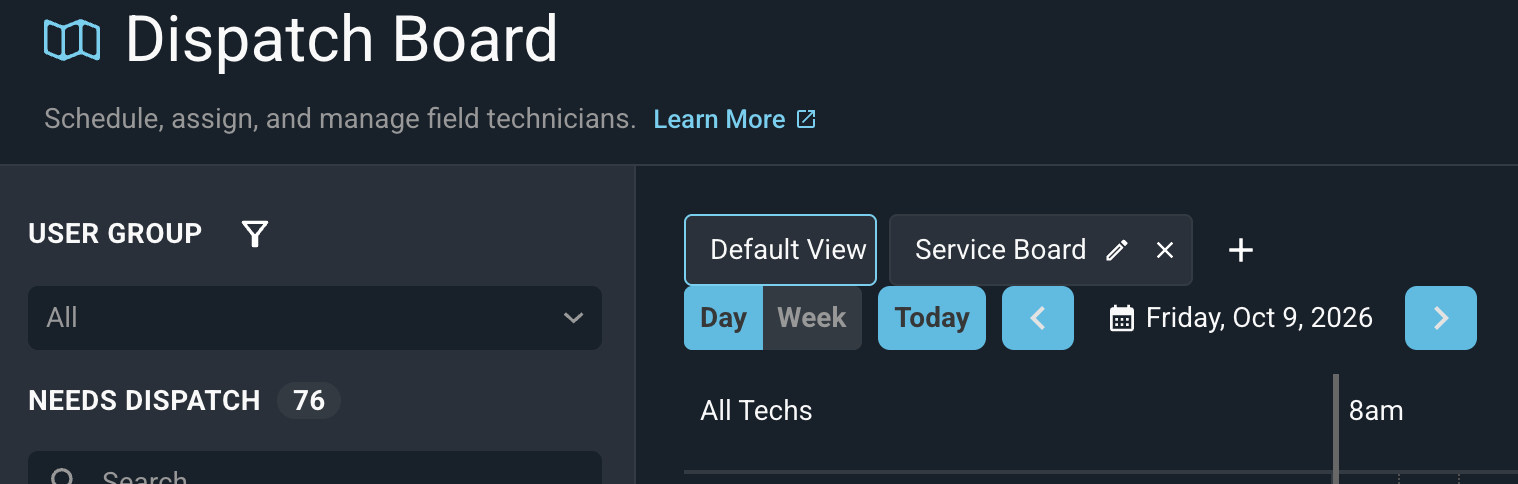
Each part of the tab bar is defined below.
No. | Label | Definition |
|---|---|---|
1 | Default View | The standard Dispatch Board view. This tab is always available. |
2 | Board tabs | One tab for each ticket board you have added. The active tab shows the tickets from that board and the technicians from the user groups you selected for it. Click the pencil icon to edit the tab, or the X to remove it. |
3 | + | Opens the Ticket Board dialog so you can add a ticket board as a new tab. |
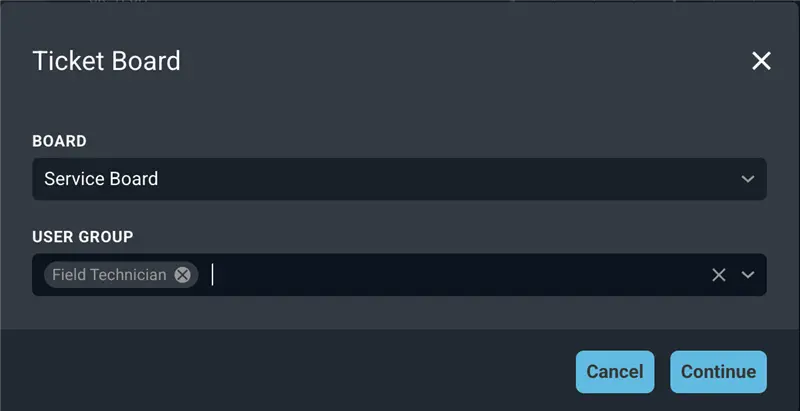
To add a board, click the + icon to open the Ticket Board dialog screen. Each field on the Ticket Board dialog is defined below.
No. | Label | Definition |
|---|---|---|
1 | Board | The ticket board to add as a tab. The board you choose controls which tickets appear. Only boards that have the Display on Dispatch Board option turned on are listed. |
2 | User Group | One or more user groups to include in the tab. The groups you choose control which technicians appear on the timeline. |
These actions are available for ticket board tabs.
- Add a ticket board as a tab by clicking the + button, selecting a board from the Board dropdown, selecting one or more user groups from the User Group dropdown, and clicking the Continue button.
- Switch between views by clicking a tab.
- Edit a tab by clicking the pencil icon on the tab.
- Remove a tab by clicking the X on the tab. The board is not deleted, and you can add it again at any time.
NOTE: A ticket board only appears in the Board dropdown if the Display on Dispatch Board option was turned on when the board was created. See the Creating Ticket Boards article for more information. |
Related Articles