
Convert Lead to Customer
The Convert Lead to Customer modal allows you to convert a lead record into a billable customer account. The modal prompts you to confirm or complete any information required by the customer record that may be missing from the lead. Once converted, the lead record is locked and remains in the Lead List view for historical reference. All opportunities and quotes associated with the lead transfer to the new customer record.
To convert a lead, open the lead record and click Convert to Customer. Once you've completed the required fields below, click Convert to Customer to complete the conversion, or Cancel to discard the changes and return to the lead record.
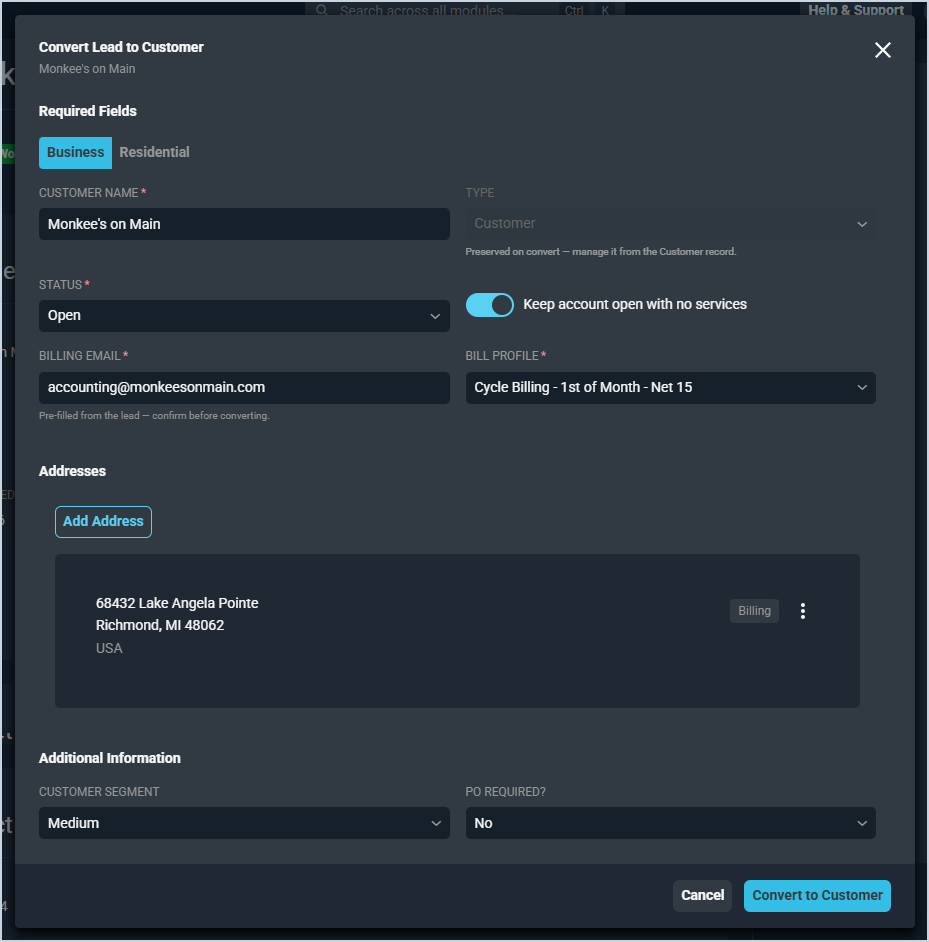
Required Fields Section
The Required Fields section displays the fields that must be completed before the lead can be converted. Fields that were captured on the lead record are pre-filled and should be confirmed before converting.
Select Business or Residential to indicate the type of customer being created.
Each field in the Required Fields section is defined below.
| No. | Label | Definition |
|---|---|---|
| 1 | Customer Name | Name of the customer record to be created. Pre-filled from the lead name. |
| 2 | Type | Type of the customer record. Preserved on convert and managed from the customer record after conversion. |
| 3 | Status | Status to assign to the customer account upon conversion. |
| 4 | Keep Account Open with No Services | When enabled, keeps the customer account open even if no active services are present. Enable this option if the account should remain open before services are added after conversion. |
| 5 | Billing Email | Billing email address for the customer. Pre-filled from the lead record. Confirm before converting. |
| 6 | Bill Profile | Bill profile to assign to the customer record. |
Addresses Section
The Addresses section displays any addresses associated with the lead. At least one address is required to convert a lead to a customer. Add an address by clicking Add Address if one is not already present.
Additional Information Section
The Additional Information section displays any custom fields required by the customer record that were not captured on the lead. Complete all required fields before converting.
NOTE: The fields displayed in this section vary depending on the custom fields configured as required for customer records in your instance.