
Creating Purchase Orders from Stock Levels
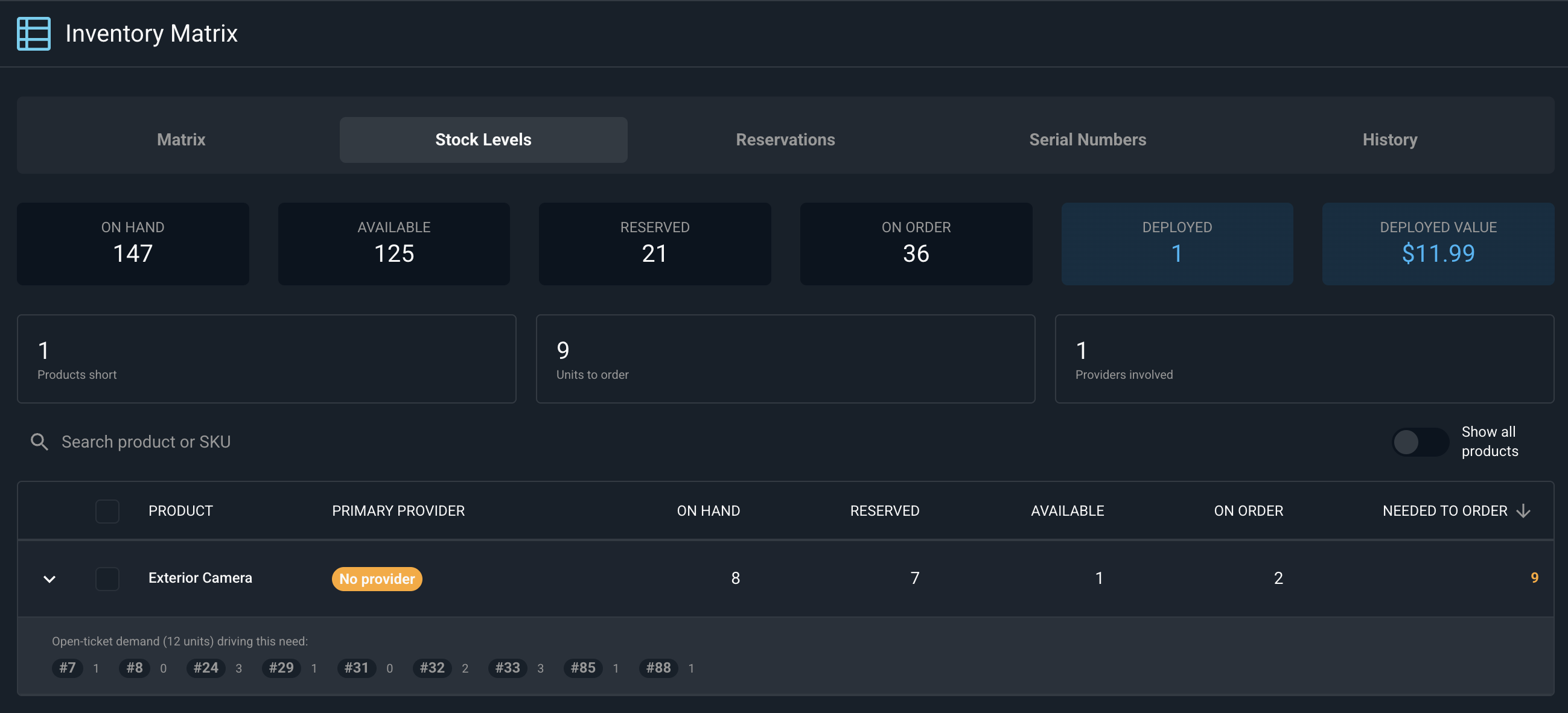
You can create purchase orders directly from the Stock Levels tab for the products your tickets need. Select the products you want to order, review the recommended quantities, and Rev.io groups them into one purchase order for each provider. To get started, click Inventory in the sidebar menu, select Inventory Management, and click the Stock Levels tab.
The recommended quantity for each product displays in the Needed to Order column. See the Inventory Views: Stock Levels article for more information about how it is calculated and what each column shows.
To review the tickets behind a recommendation, click the arrow at the start of the product’s row. The Open-ticket demand section lists each ticket number followed by the number of units that ticket needs.
Follow these steps to create purchase orders from the Stock Levels tab.
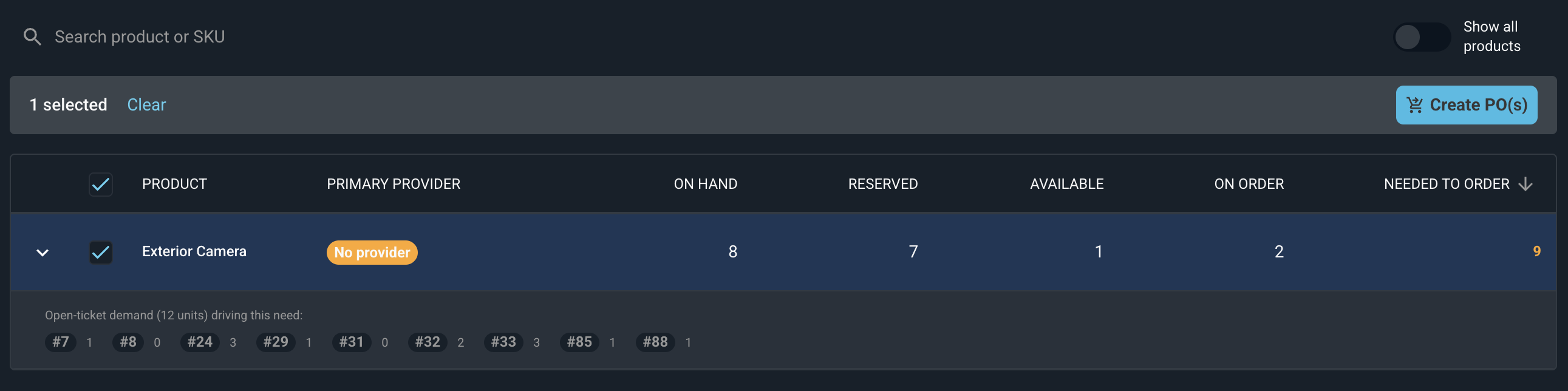
- Select the products you want to order by clicking the checkbox at the start of each row. To select the whole list, click the checkbox in the header row. The number of products selected displays above the list.
- Click the Create PO(s) button. The Create purchase orders window opens.
- For any products listed under Parts with no primary provider, select a provider from the Provider dropdown, or click Order later to leave the product off the purchase orders for now.
- Review the quantity in the QTY field for each product and change it if needed.
- Click the Create purchase orders button. The number on the button shows how many purchase orders will be created.
The Create purchase orders window groups your selection into one purchase order per provider. If the same product is needed on several tickets, it is combined into a single line on the purchase order, and each ticket’s share is still tracked.
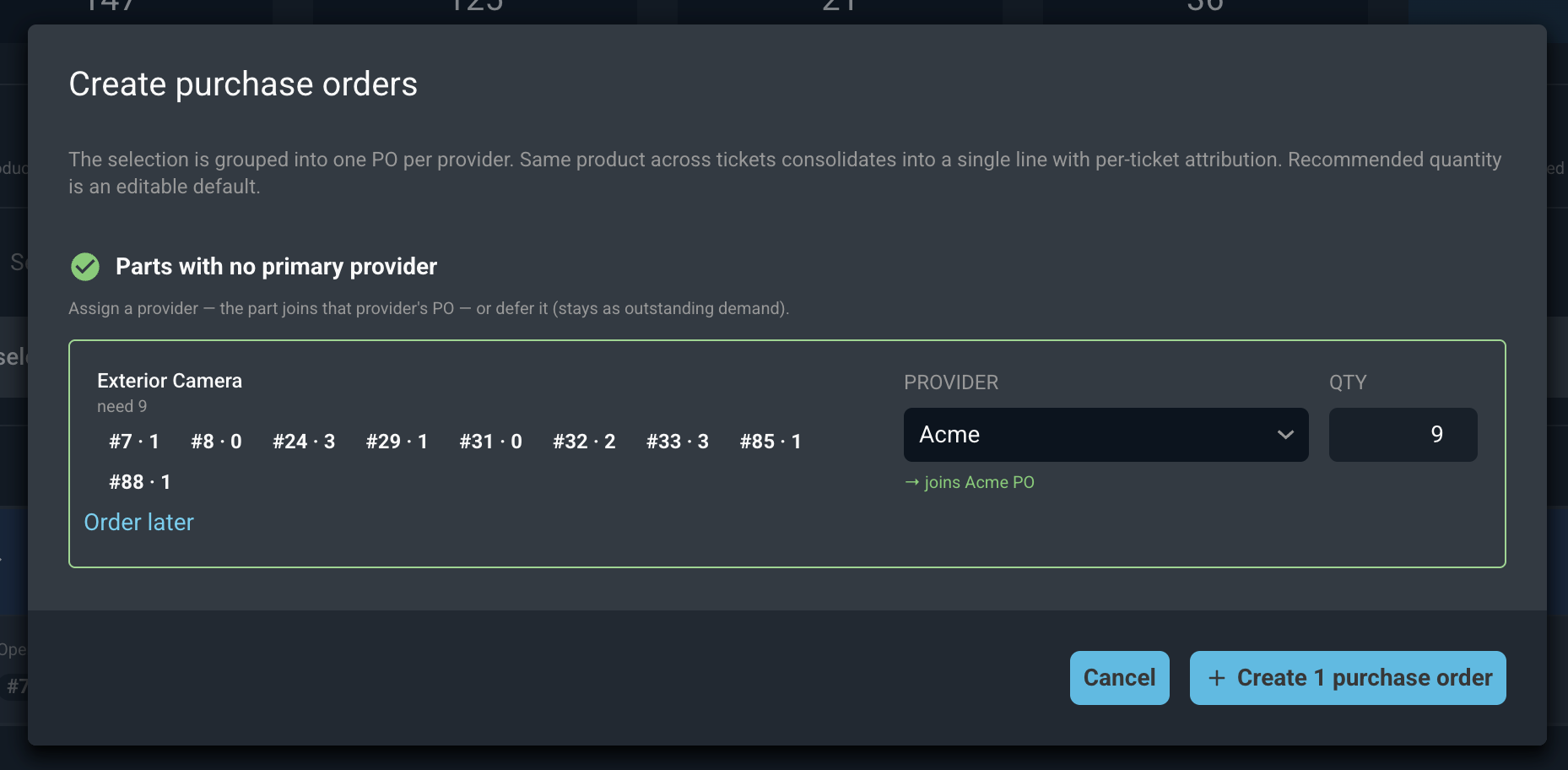
Each field in the Create purchase orders window is defined below.
| Label | Definition |
| Provider | Provider to order the product from. When you select a provider, the product is added to that provider’s purchase order. This field displays for products in the Parts with no primary provider section. |
| QTY | Quantity of the product to order. This field defaults to the recommended quantity, and you can change it. |
| NOTE: Products you defer by clicking Order later are not added to a purchase order. They stay as outstanding demand, so you can order them later. |
These actions are available in the Create purchase orders window.
- Assign a provider to a product with no primary provider by selecting one from the Provider dropdown.
- Defer a product by clicking Order later below it.
- Create the purchase orders by clicking the Create purchase orders button.
- Close the window without creating any purchase orders by clicking the Cancel button.
For more information about inventory and purchase orders, see the following articles.
Inventory Views: Stock Levels
Inventory Management: Overview
Purchase Order List View
Create/Edit Purchase Orders