
Adding Proposals to Quotes
Once a quote is built out with the appropriate products and services, the next step is adding a proposal. A proposal is the customer-facing document you send for review and approval. It is generated from the quote and can include variables, signature fields, and a formatted layout based on a pre-configured template.
| NOTE: Always make changes to products and services directly on the quote record in Rev.io rather than inside the proposal document. The proposal is generated from the quote, so editing it directly can cause the two to fall out of sync. Making changes at the quote level and using the Sync option is the best way to keep everything accurate and consistent. |
Adding a Proposal
To add a proposal to a quote, navigate to the Proposals section of the quote record and click the Add button. The Create Proposal window opens. Enter a title for the proposal and select a template from the available options. See the Proposal Templates List View article for more information on managing templates. Once you click the Create button, Rev.io will confirm with a pop-up that the proposal was created and synced successfully.
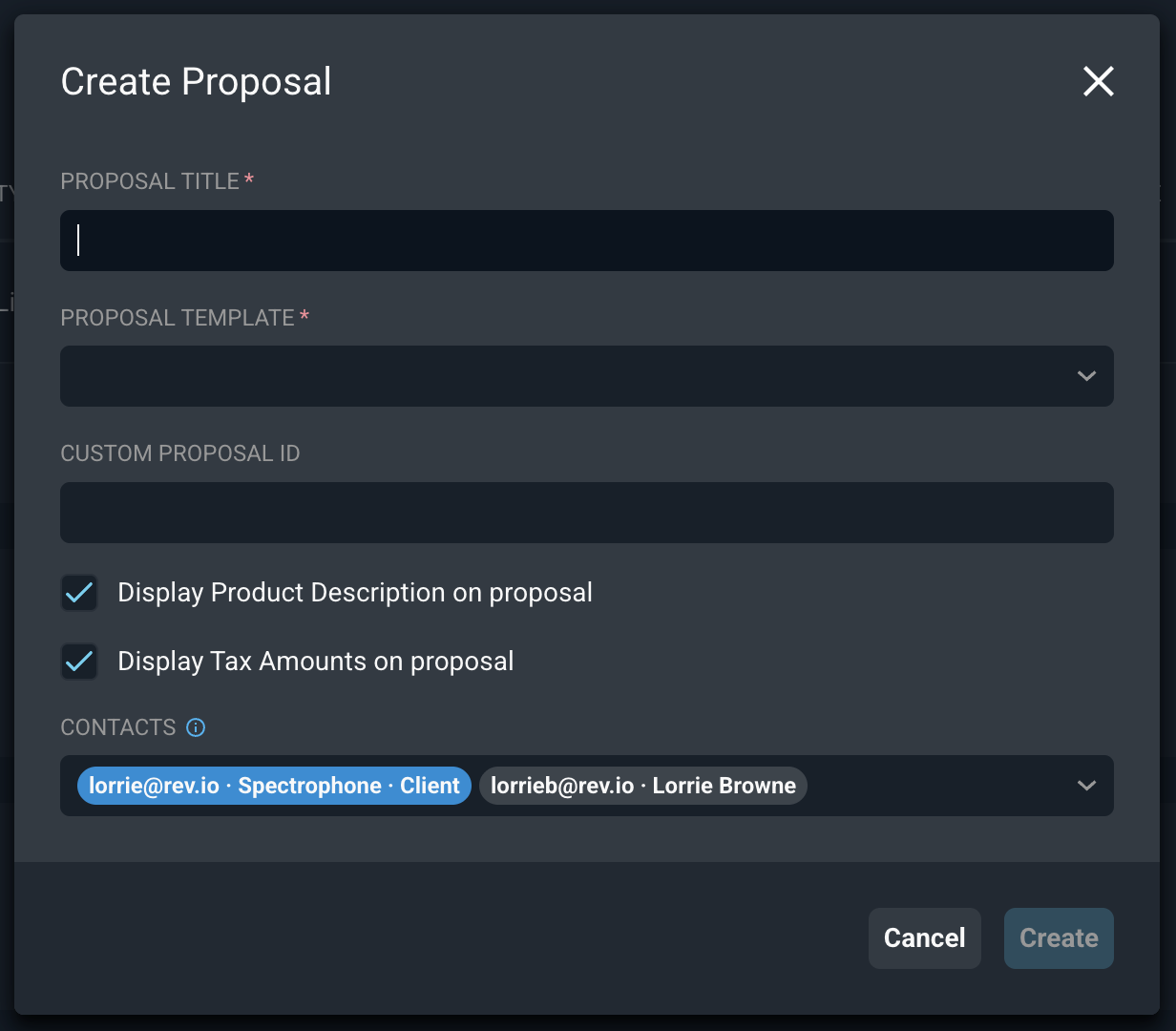
Each field on the Create Proposal window is defined below.
| Label | Definition |
| Proposal Title | Title of the proposal. |
| Proposal Template | Template the proposal is built from. See the Proposal Templates List View article for more information on managing templates. |
| Custom Proposal ID | Optional custom identifier for the proposal. |
| Display Product Description on proposal | Check this option to show each product's description on the proposal. This option is checked by default. |
| Display Tax Amounts on proposal | Check this option to show tax amounts on the proposal, both next to the product line items and in the total. Uncheck it to hide tax from both areas. This option is checked by default. |
| Contacts | Contacts on the proposal. Click a contact to assign a role. |
These actions are available on the Create Proposal window.
- Create the proposal by completing the fields above and clicking the Create button.
- Close the window without creating a proposal by clicking the Cancel button.
Configuring Variables and Signature Fields
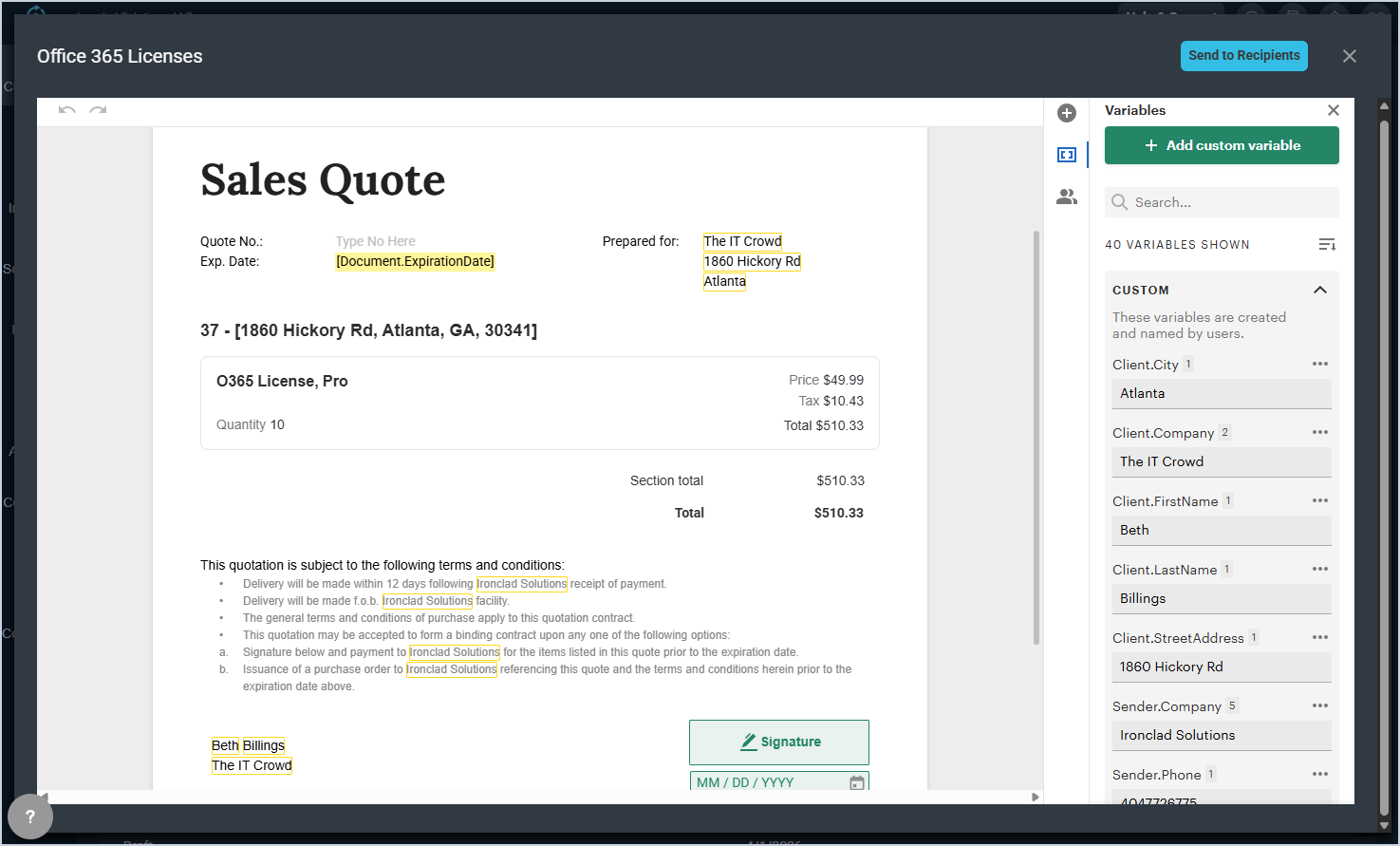
After the proposal is created, open it to review and configure the document. From the proposal editor, you can update any variables included in the template and assign signature fields to the appropriate contacts.
Recipient fields are automatically populated from the contact information on the quote, including first name, last name, email, and phone number. You can select from existing contacts instead of manually entering recipient details, and any auto-populated fields can be edited before finalizing.
The quote builder block within the document will already reflect the products and services added to the quote, so the pricing and line items should be ready to review without additional setup.
Reviewing and Closing the Proposal
Once you have finished reviewing the document and confirming that variables and signature fields are configured correctly, simply close the proposal to return to the quote details screen. There is no need to manually save before closing, as changes are saved automatically.
Syncing Changes to the Proposal
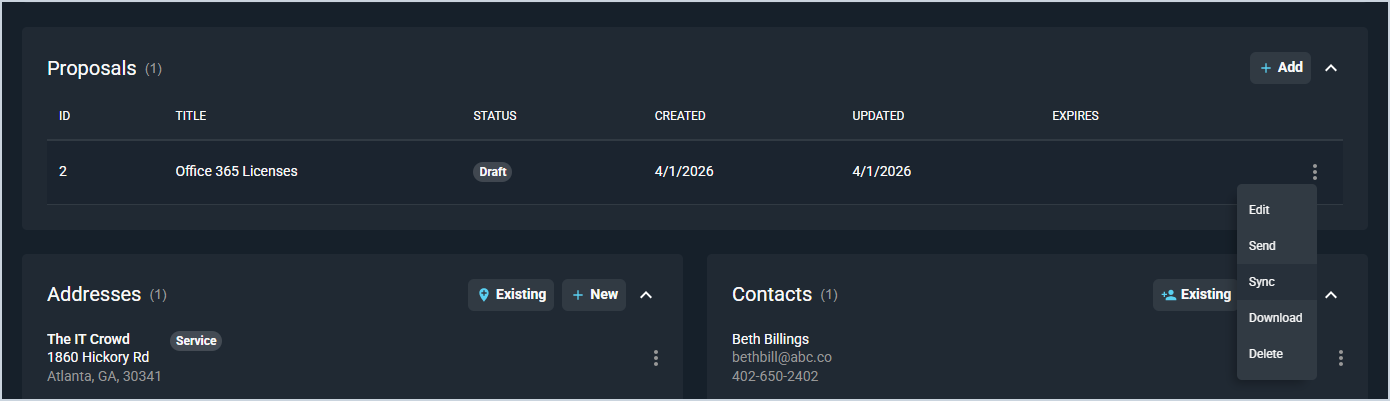
If you make any changes to the products or services on the quote after the proposal has been created, those changes are not automatically reflected in the proposal document. To update the proposal with the latest information, click the Sync option on the quote record. Always make changes directly on the quote in Rev.io rather than inside the proposal editor. Editing the proposal directly can cause it to fall out of sync with the quote, so the recommended workflow is to update the quote first and then sync.
Sending a Proposal to Recipients
Once your proposal is configured and ready to go, you can send it directly to your customer for review and signing. To do so, either click the ellipsis at the end of the proposal row and select Send from the menu options, or open the proposal and click the Send to Recipients button in the proposal editor. For a walkthrough of the sending process, see the Adding Proposal Recipients and Sending Proposals to Recipients articles.