
Ticket Details: Items Serviced Tab
The Items Serviced tab on the Ticket Details screen contains a list of the customer's assets being serviced on the ticket. 'Assets' in Rev.io are items the customer owns or leases that you service or monitor. These items can include physical equipment, like PCs, laptops, and monitors; digital licenses, like Office 365, Pax8, and Acronis; and telecom assets, like telephone numbers and SIM cards. You can also add and remove assets on the ticket directly from the tab without being directed to another screen.
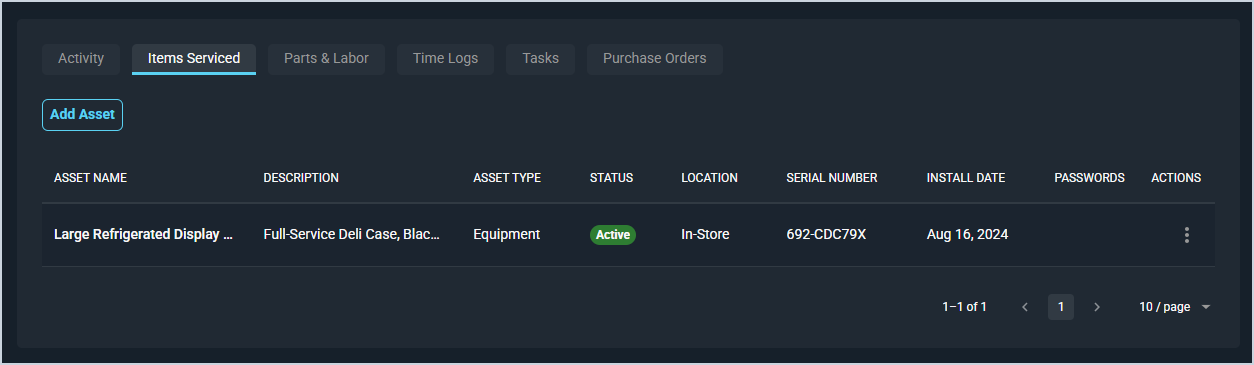
Each field on the Items Serviced tab is defined below.
| No. | Label | Definition |
| 1 | Asset Name | Name of the asset. |
| 2 | Description | Description of the asset. |
| 3 | Asset Type | Type for the asset. |
| 4 | Status | Status of the asset. |
| 5 | Location | Location of the asset. |
| 6 | Serial Number | Serial number for the asset. |
| 7 | Install Date | Date of installation for the asset. |
These actions are available on the Items Serviced tab.
- Add an asset to the ticket by clicking the Add Asset button in the upper portion of the tab. See the Add Assets to Tickets article for more information.
- Sort the results in the table by clicking the column label in the table header.
- Delete the asset from the ticket by clicking the ellipsis at the end of the row and selecting Delete from the menu options. NOTE: This action removes the action from the ticket but does not remove it from the customer or your instance.
Areas on the Ticket Details Screen
For information on other areas of the Ticket Details screen, see the related articles.