
Create Ticket Boards
Ticket boards are saved configurations that you can open from the Tickets list view. When you create a board, you can also choose to display it on the Dispatch Board, where it can be added as a tab. To find your boards, click Service in the sidebar menu and select Tickets.
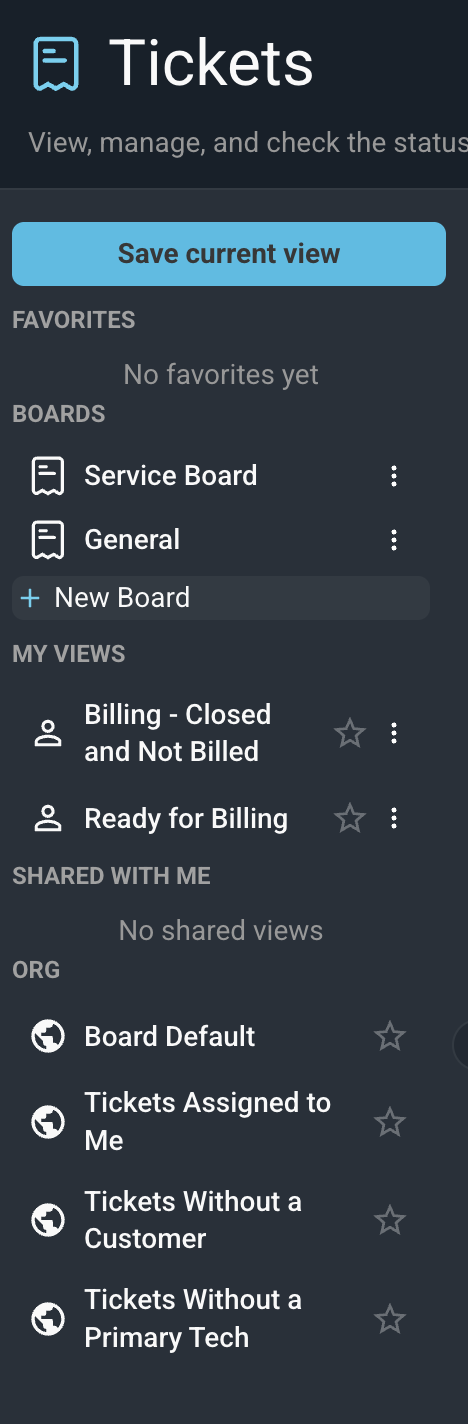
The left side of the Tickets list view organizes your saved configurations. Each section is defined below.
| Label | Definition |
| Favorites | Saved views that you have marked as favorites. |
| Boards | The ticket boards available to you. Click a board to open it as a tab above the ticket list. Click + New Board to create a new board. |
| My Views | Views you have saved from the ticket list. |
| Shared With Me | Views that other users have shared with you. |
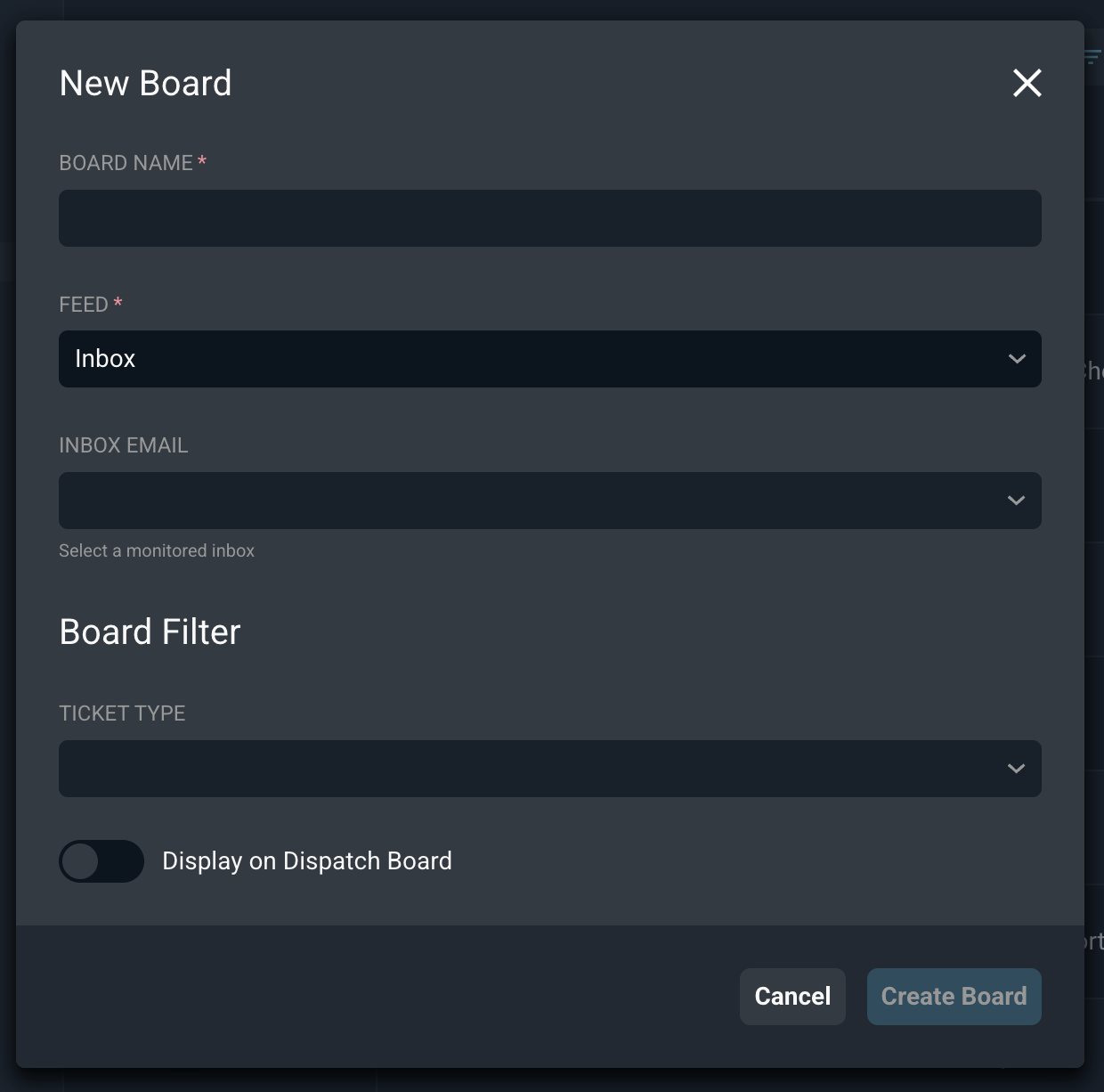
Each field on the New Board dialog is defined below.
| Label | Definition |
| Board Name | Name of the board. |
| Feed | The source of tickets for the board. Options are Inbox and Manual. |
| Inbox Email | The monitored inbox that feeds tickets to the board. This field displays when Feed is set to Inbox. |
| Ticket Type | Displays in the Board Filter section when Feed is set to Inbox. Limits the board to tickets from the inbox that have the selected ticket type. Leave blank to include tickets of any type. |
| Display on Dispatch Board | Turn this option on to make the board available to add as a tab on the Dispatch Board. |
Follow these steps to create a ticket board.
- Click Service in the sidebar menu and select Tickets.
- Click + New Board in the Boards section.
- Enter a name in the Board Name field and select an option from the Feed dropdown.
- If you selected Inbox, select the Inbox Email. Optionally, select a Ticket Type in the Board Filter section.
- To make the board available on the Dispatch Board, turn on the Display on Dispatch Board option.
- Click the Create Board button to save the board, or click Cancel to close the dialog without saving.
After you create the board, it appears in the Boards section and as a tab above the ticket list. If you turned on Display on Dispatch Board, you can add it as a tab on the Dispatch Board. See the Dispatch Board: Ticket Board Tabs article for more information.
You can use one inbox to feed several boards by giving each board a different Ticket Type filter. Each ticket is placed on the board whose filter matches the ticket type it receives when it is created. The ticket type comes from the first of the following that is set.
- The ticket type set on the monitored inbox.
- The default ticket type set on the customer's account.
- The default ticket type set in the Service category on the System Settings screen.
| NOTE: To split one inbox across several boards, leave the ticket type blank on the monitored inbox. If the inbox assigns a ticket type, every ticket from that inbox receives that type. |
Other actions are available for each board by clicking the three-dot menu next to its name, such as editing or deleting a board.
For more information about ticket boards, see the following articles.
Ticket List View
Dispatch Board: Ticket Board Tabs
Dispatch Board: Overview
Creating Tickets from Incoming Emails