
QuickBooks Desktop Web Connector: Overview
The QuickBooks Desktop Web Connector connects Rev.io to your QuickBooks Desktop company file through QuickBooks Web Connector, a free tool from Intuit. Once it is set up, Rev.io posts invoices, payments, item costs, and purchase orders into QuickBooks for you, with no CSV files or third-party import tools. When QuickBooks is missing a customer, item, or vendor, Rev.io can create it for you after you approve it.
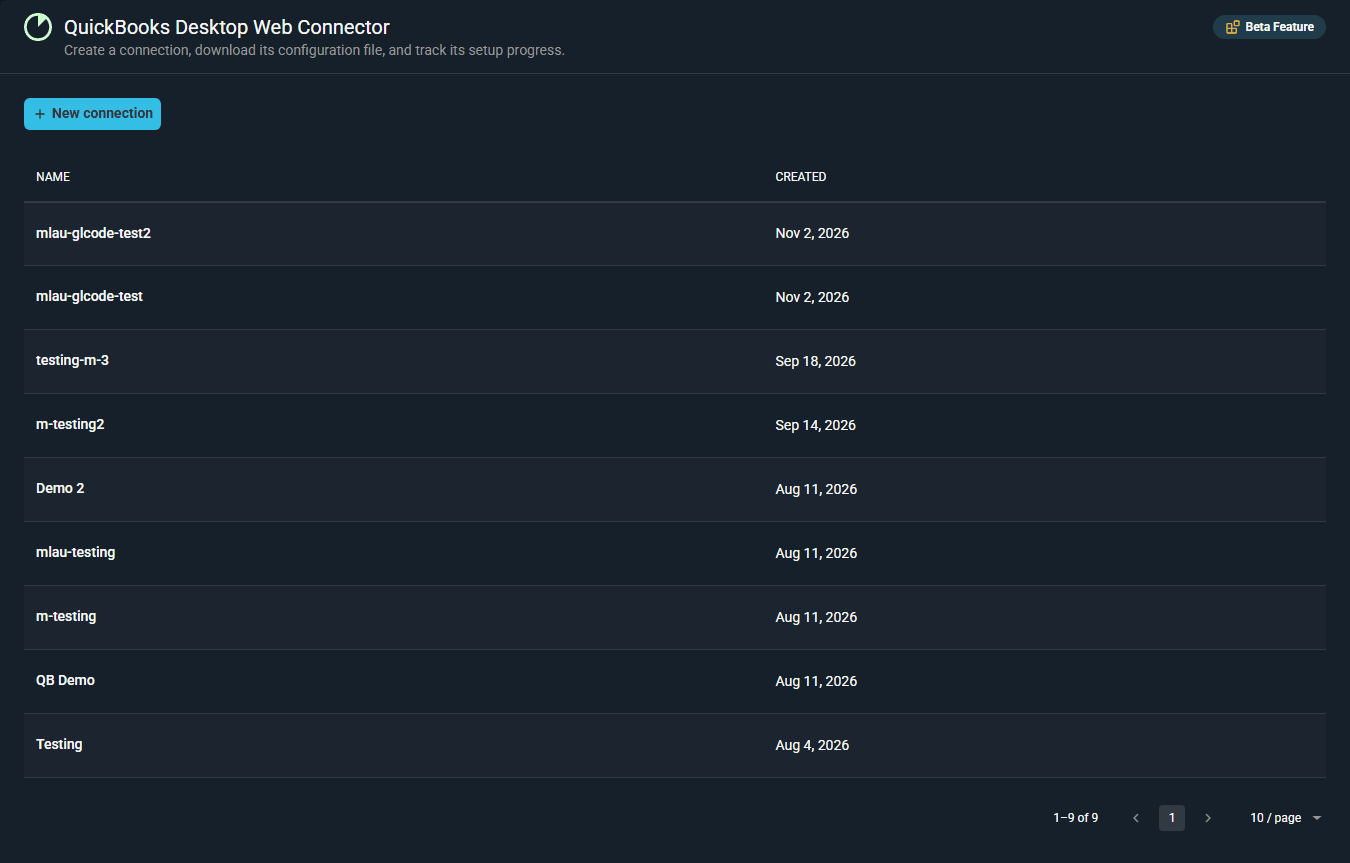
To get there, click Admin, then Bulk Tools, and click Set up on the QuickBooks Desktop Web Connector card. This is a beta feature. The QuickBooks Desktop Web Connector page lists your connections and the date each one was created. Click New connection to create one, or click a connection name to open it.
| NOTE: The QuickBooks Desktop Web Connector is separate from the QuickBooks Desktop Export, which creates CSV files for Transaction Pro Importer. See the QuickBooks Desktop Export: Overview article for that option. |
Before you start
Confirm the following are in place before you create a connection.
- QuickBooks Desktop installed on a Windows PC, with your company file. QuickBooks Desktop for Mac is not supported because it has no Web Connector.
- QuickBooks Web Connector. It is usually installed with QuickBooks. If it is not, it is a free download from Intuit.
- Access to Bulk Tools in Rev.io. If you don't see the QuickBooks Desktop Web Connector card, contact support.
- For first-time setup only, QuickBooks open in single-user mode and signed in as an admin.
| IMPORTANT: QuickBooks Desktop and the PC it runs on must be on and running for every sync. The Web Connector talks to QuickBooks locally on that machine. |
How it works
Data moves in two directions, and each tab on a connection shows which direction it covers.
- QuickBooks Desktop to Rev.io: Rev.io reads your QuickBooks customer list, item list, vendor list, and chart of accounts. Nothing in QuickBooks changes.
- Rev.io to QuickBooks Desktop: Rev.io posts invoices, payments, and purchase orders into QuickBooks, and creates the customers, items, and vendors you approve. This is the only direction that changes your QuickBooks file.
Three rules protect your books.
- Nothing posts to QuickBooks until you build and review a queue.
- Nothing is created in QuickBooks without your approval.
- Nothing is sent twice. You can build the same date range again at any time without creating duplicates.
Connection tabs
Each connection has the following tabs.
| Label | Definition |
| Overview | Setup steps for QuickBooks Web Connector, the synced customer and item counts, and settings cards such as the Payment deposit account and Default expense account. |
| GL Item Map | Maps each Rev.io GL code to a QuickBooks item, so invoice lines with that GL code post to that item. |
| GL to GL Mapping | Maps each Rev.io GL code to a QuickBooks income account. Used to pre-fill the income account when Rev.io creates an item in QuickBooks. |
| Product Type Map | Maps each Rev.io product type to a QuickBooks item type, Service or Non-Inventory, for items Rev.io creates. |
| Tax Jurisdiction Map | Sets a different QuickBooks sales tax item for customers in a specific state. |
| Invoice Queue | Builds and tracks the invoices posted to QuickBooks. |
| Customer Reconciliation | Matches Rev.io customers to QuickBooks customers, or creates missing customers in QuickBooks. |
| Product Matching | Links specific Rev.io products to specific QuickBooks items, or creates missing items in QuickBooks. |
| Payment Queue | Builds and tracks the payments posted to QuickBooks. |
| Create Queue | Tracks every customer, item, and vendor you approved for creation in QuickBooks. |
| Vendor Matches | Matches Rev.io providers to QuickBooks vendors, or creates missing vendors in QuickBooks. |
| Purchase Order Queue | Builds and tracks the purchase orders posted to QuickBooks. |
Current limitations
- Data flows from Rev.io to QuickBooks only. Changes made in QuickBooks don't sync back to Rev.io.
- Credit memos don't sync.
- Receiving against purchase orders happens in QuickBooks, not Rev.io.
- QuickBooks Desktop and its PC must be running for every sync.
- Rev.io never edits or deletes existing QuickBooks records. It posts new transactions and creates only what you approve, plus cost updates on matched items when item cost sync is on.
Set up and use the connection in this order.
QuickBooks Desktop Web Connector: Creating a Connection
QuickBooks Desktop Web Connector: Mapping Items, Customers, and Tax
QuickBooks Desktop Web Connector: Posting Invoices
QuickBooks Desktop Web Connector: Posting Payments
QuickBooks Desktop Web Connector: Creating Customers and Items in QuickBooks
QuickBooks Desktop Web Connector: Sending Purchase Orders
QuickBooks Desktop Web Connector: Troubleshooting