How To Guide: Inventory Management - Bulk Updating Products
1. Introduction
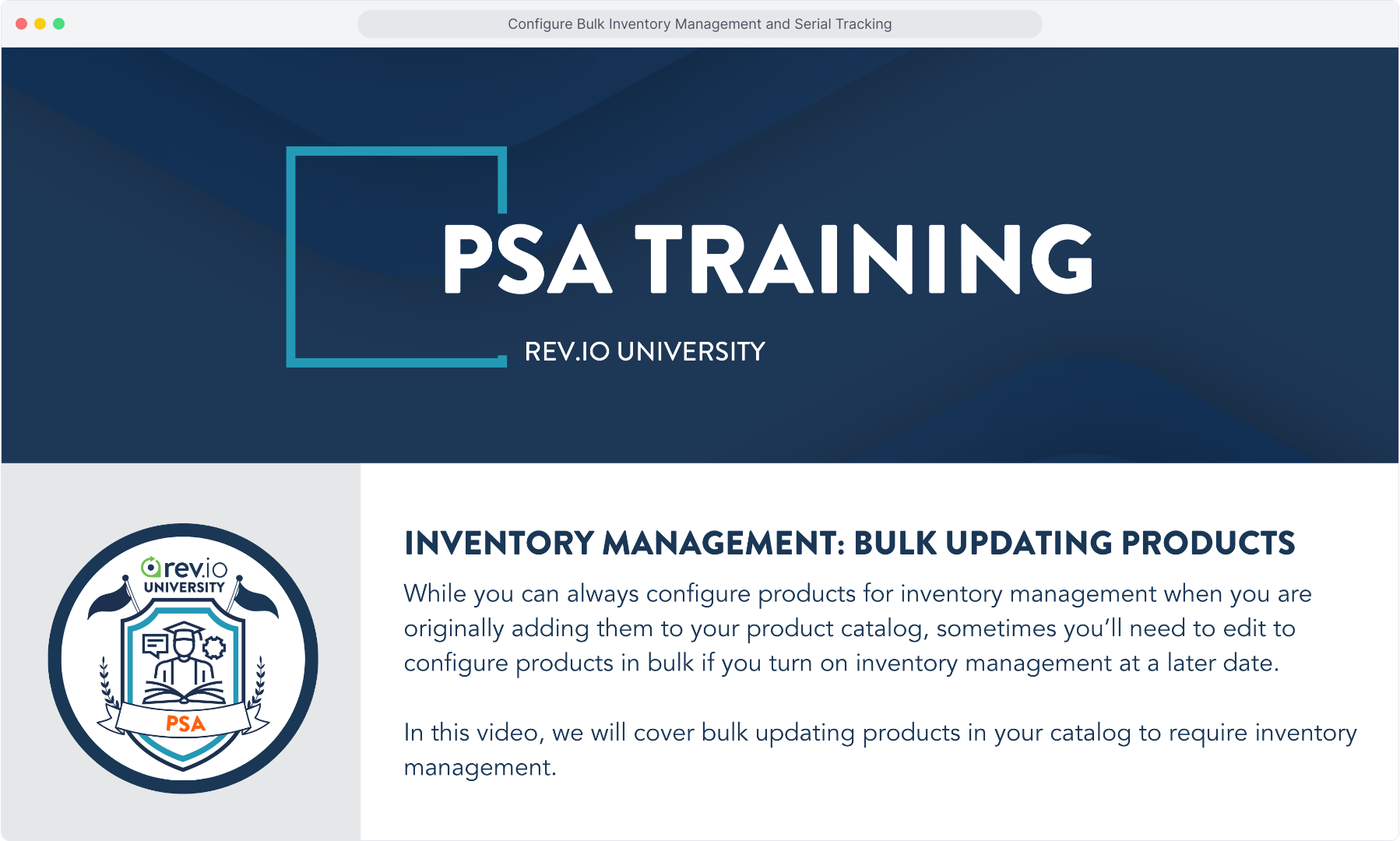
2. From the Inventory main menu, click Product Catalog.
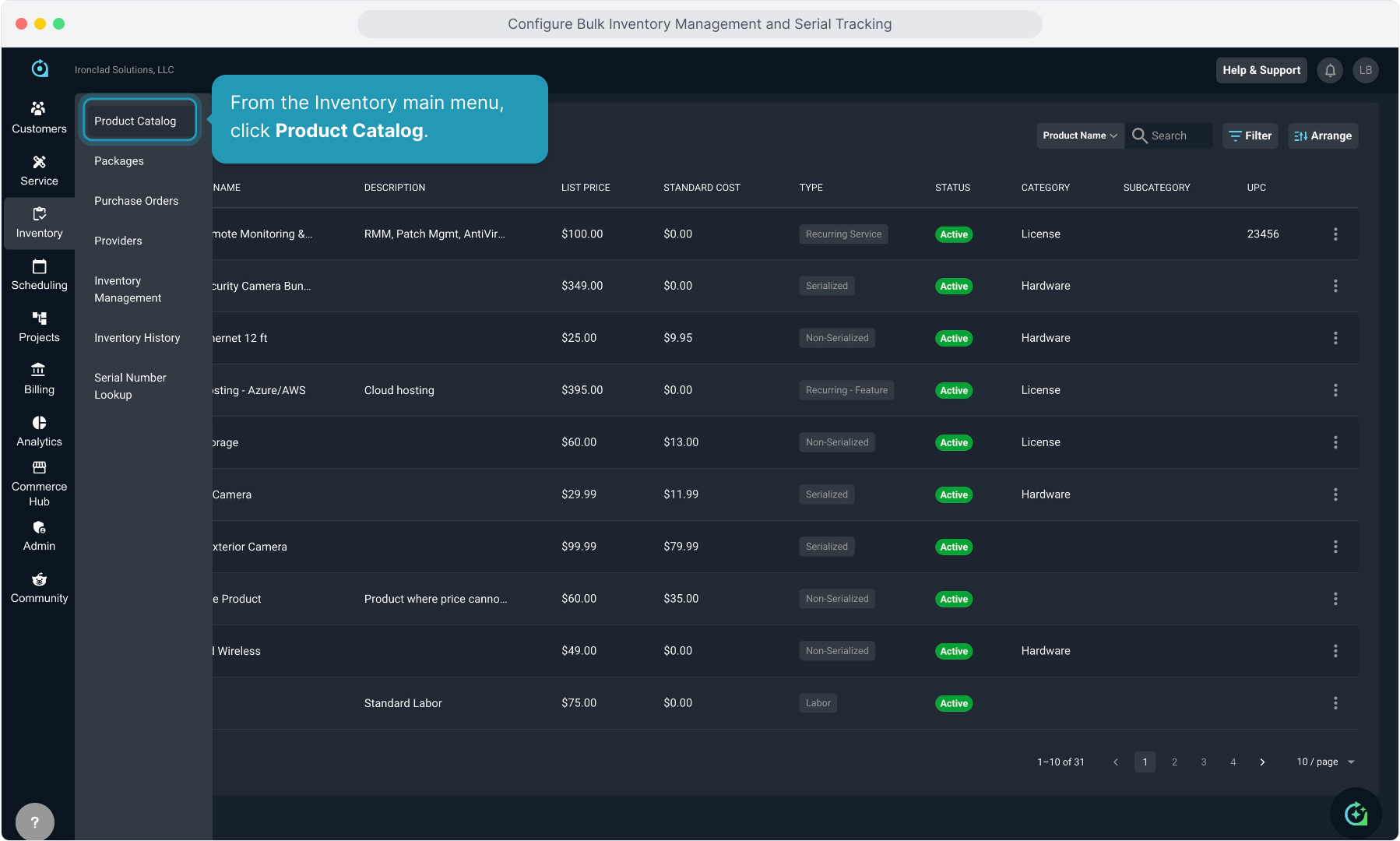
3. You'll notice a Bulk Action button that is grayed out. It will become available once you select the first product you wish to update.
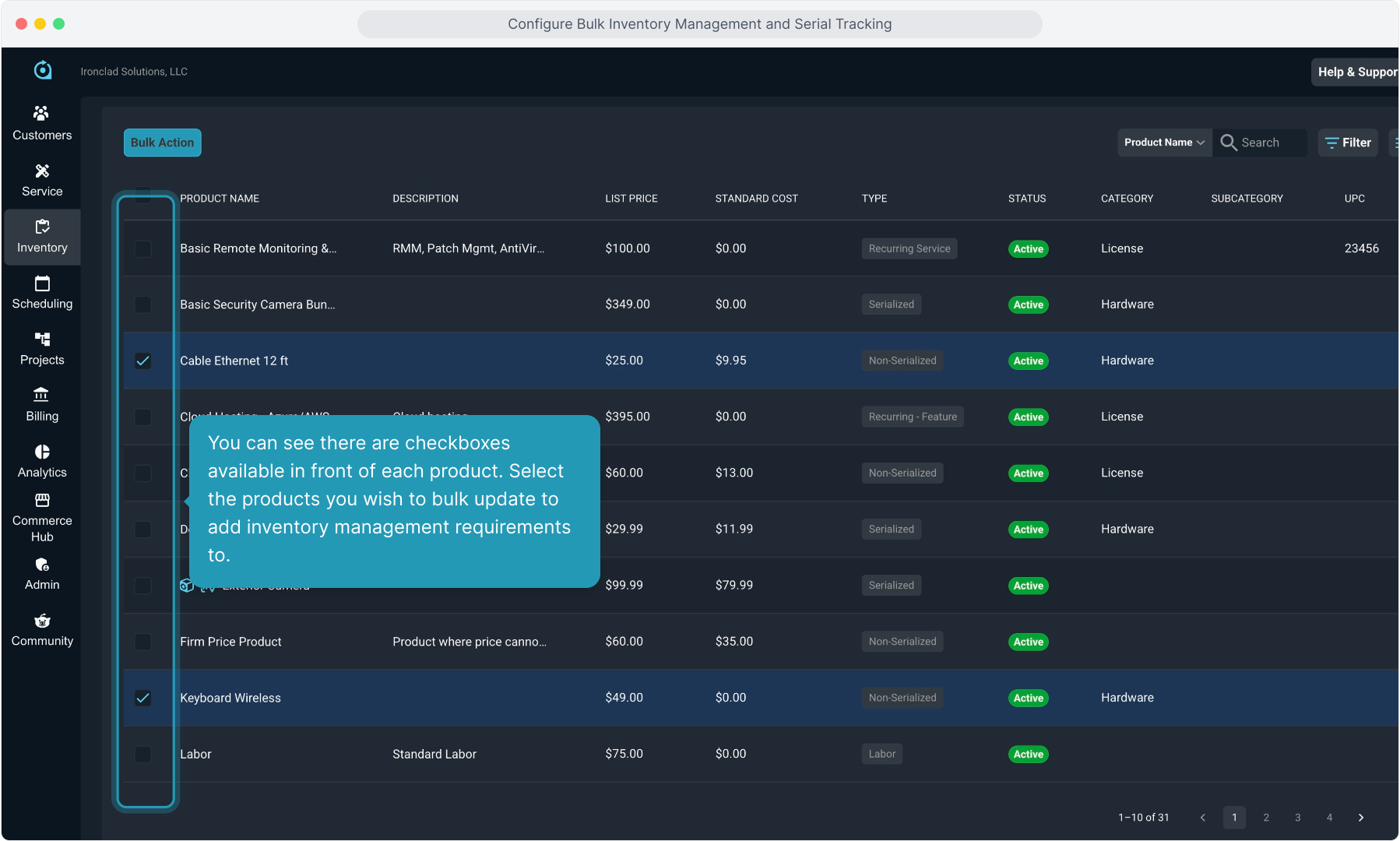
4. You can see there are checkboxes available in front of each product. Select the products you wish to bulk update to add inventory management requirements to.
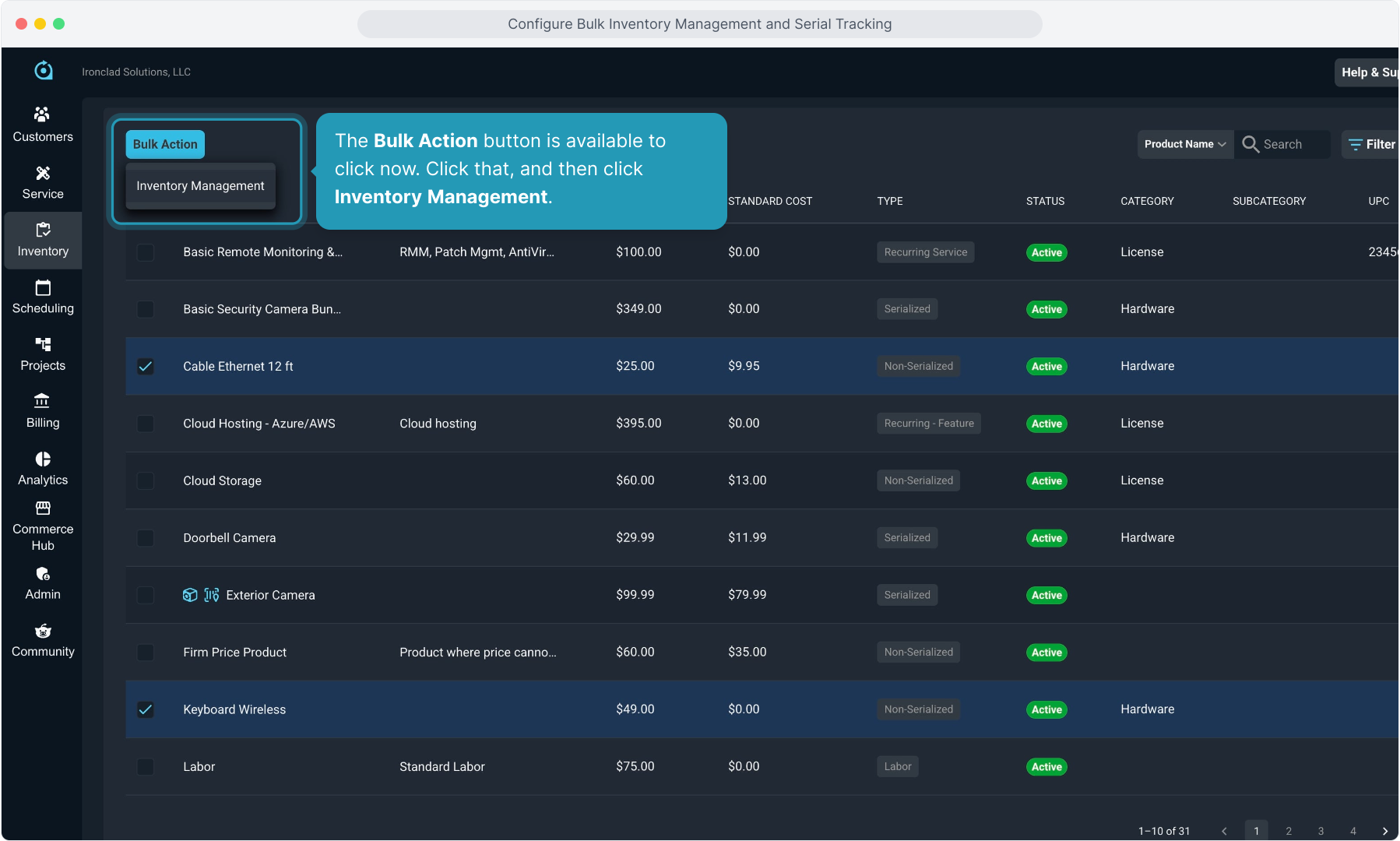
5. The Bulk Action button is available to click now. Click that, and then click Inventory Management.
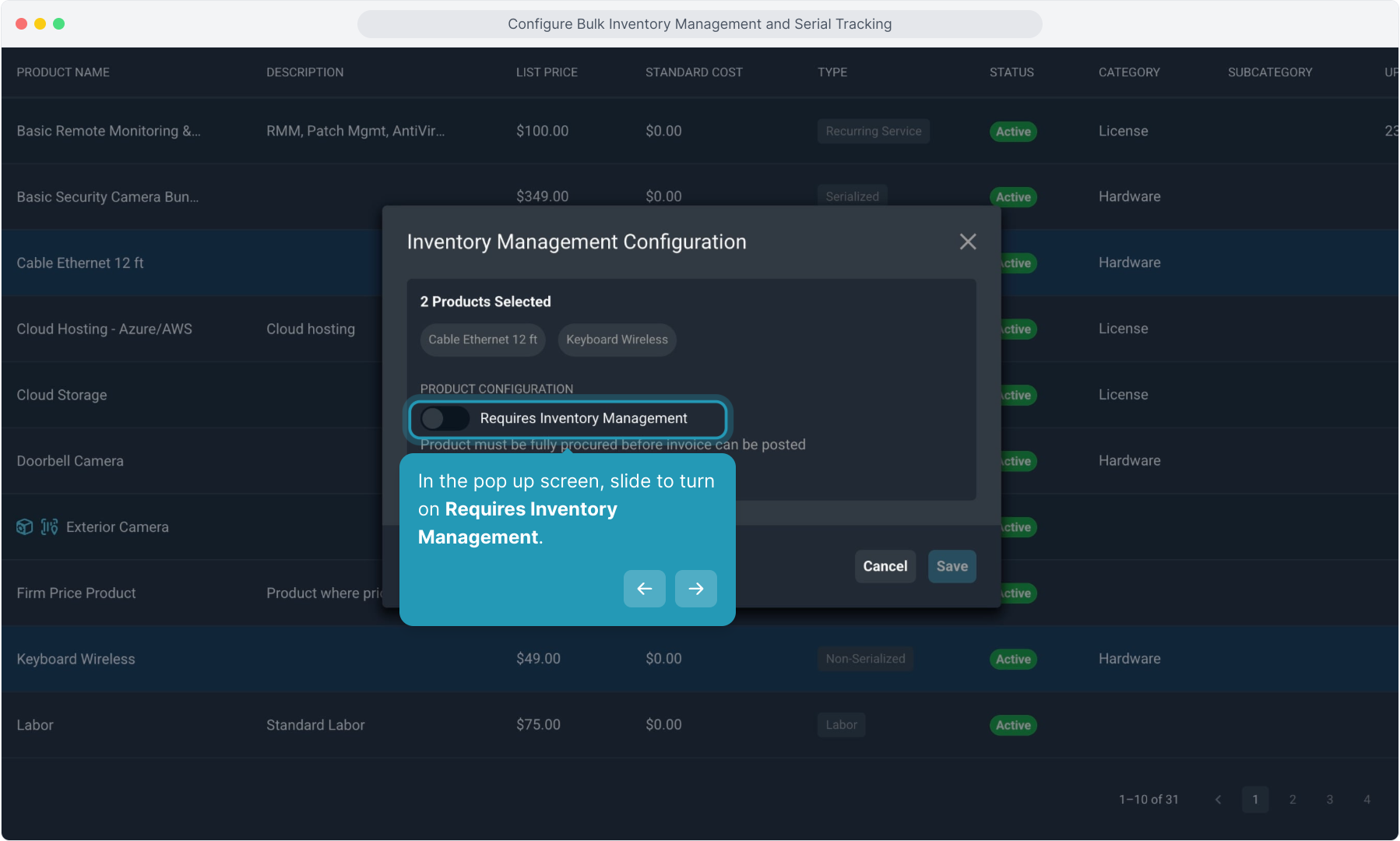
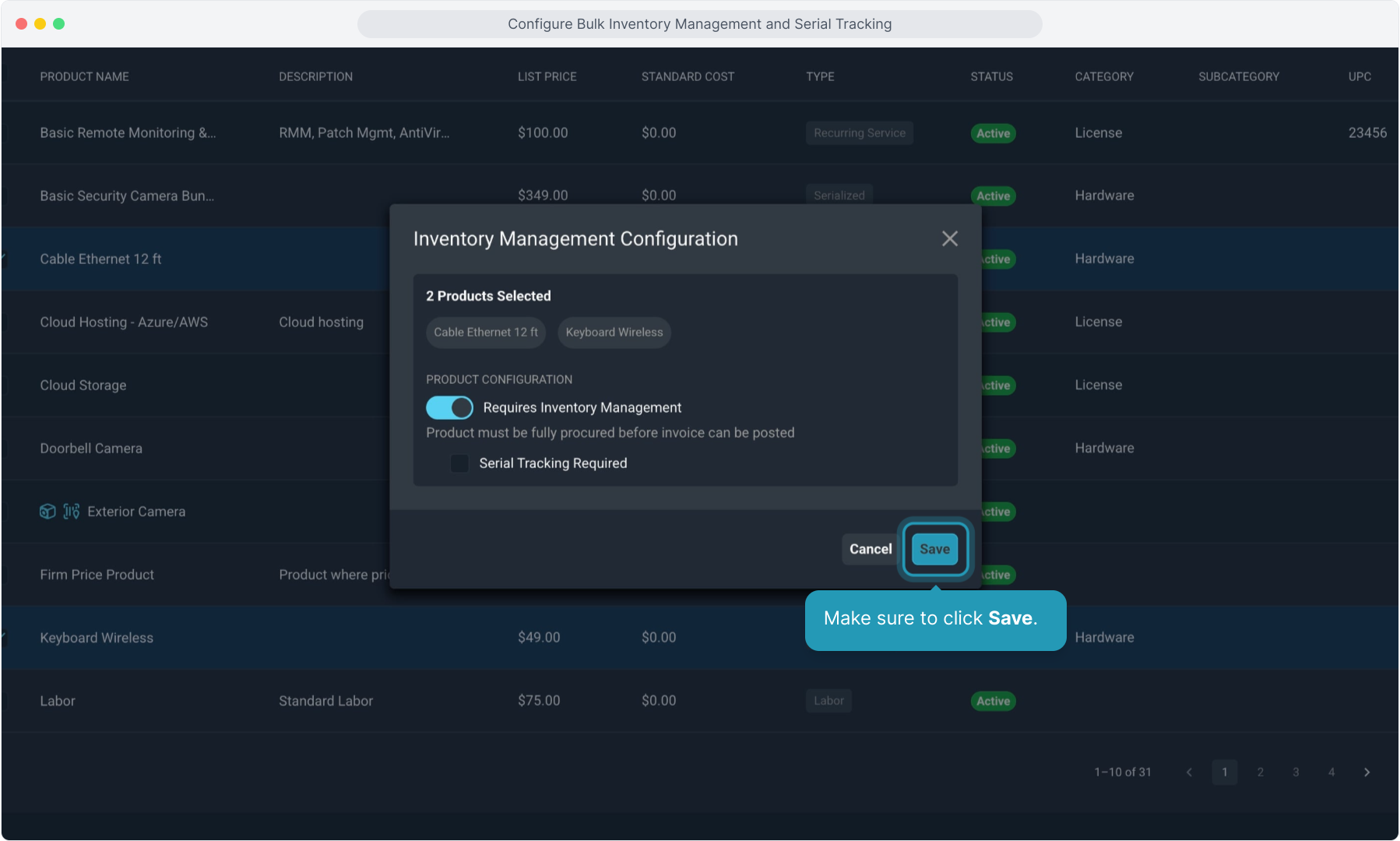
6. In the pop up screen, slide to turn on Requires Inventory Management.
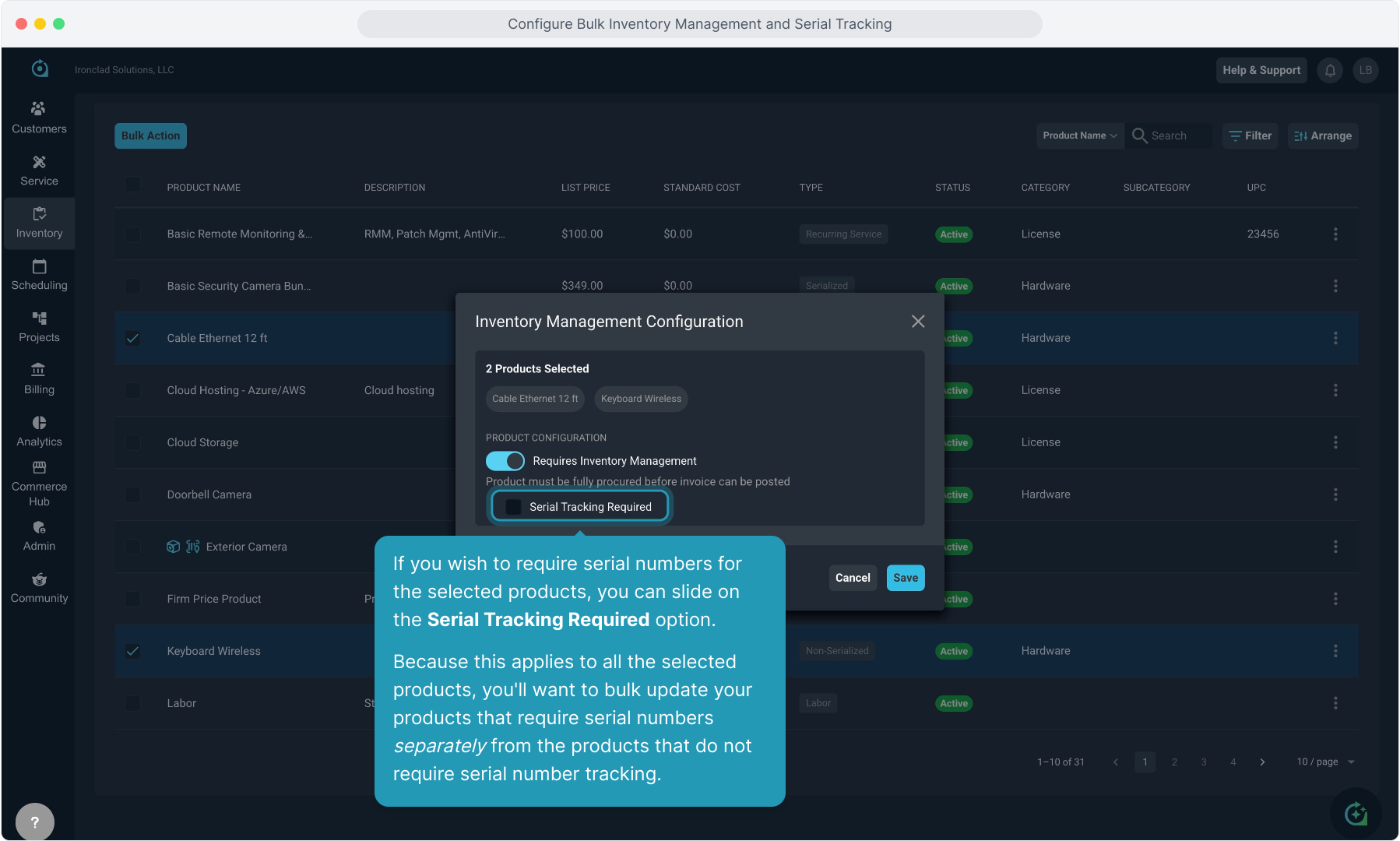
7. If you wish to require serial numbers for the selected products, you can slide on the Serial Tracking Required option.
Because this applies to all the selected products, you'll want to bulk update your products that require serial numbers separately from the products that do not require serial number tracking.
8. Make sure to click Save.
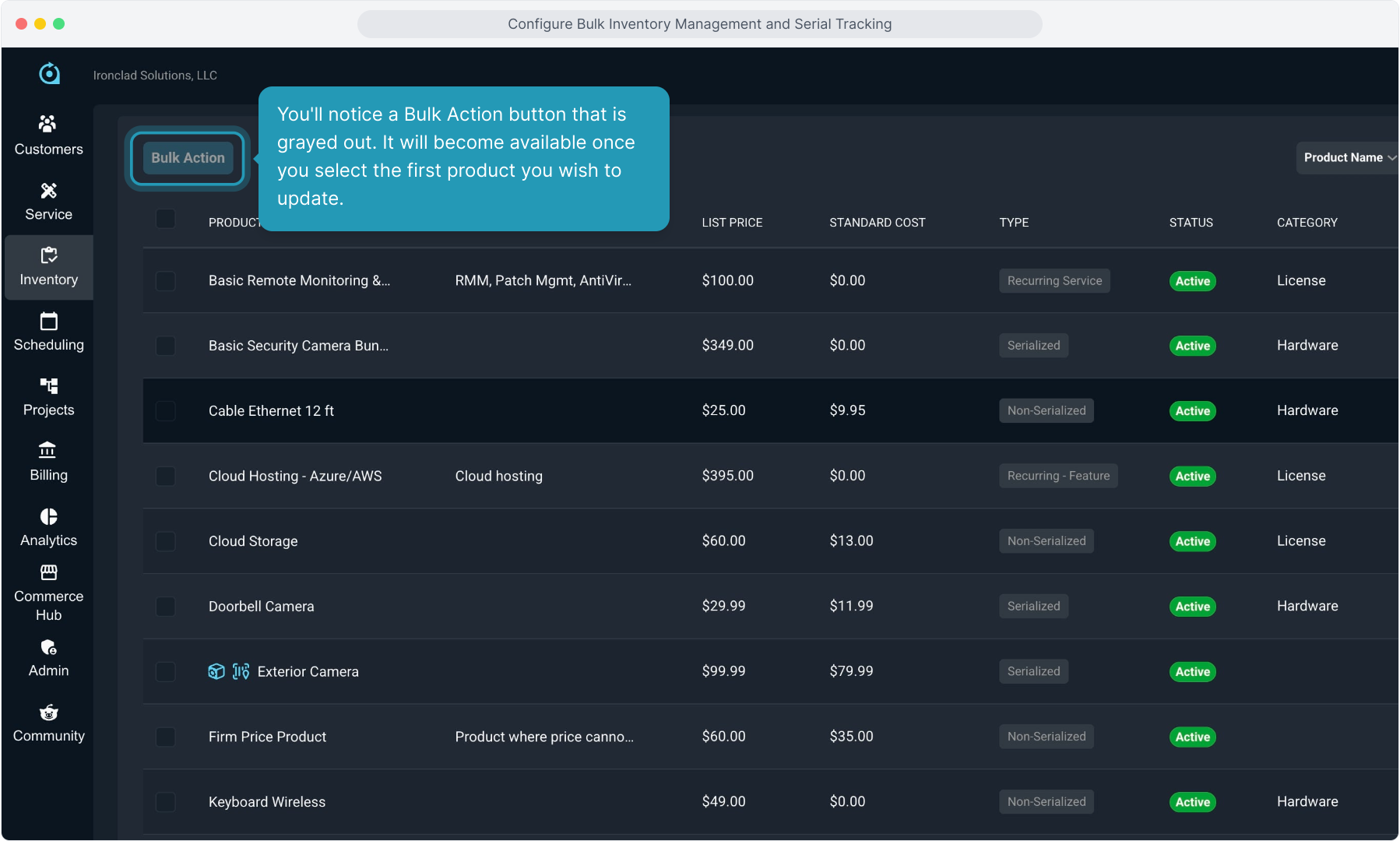
9. The products will then display the icon indication if they have inventory management enabled.
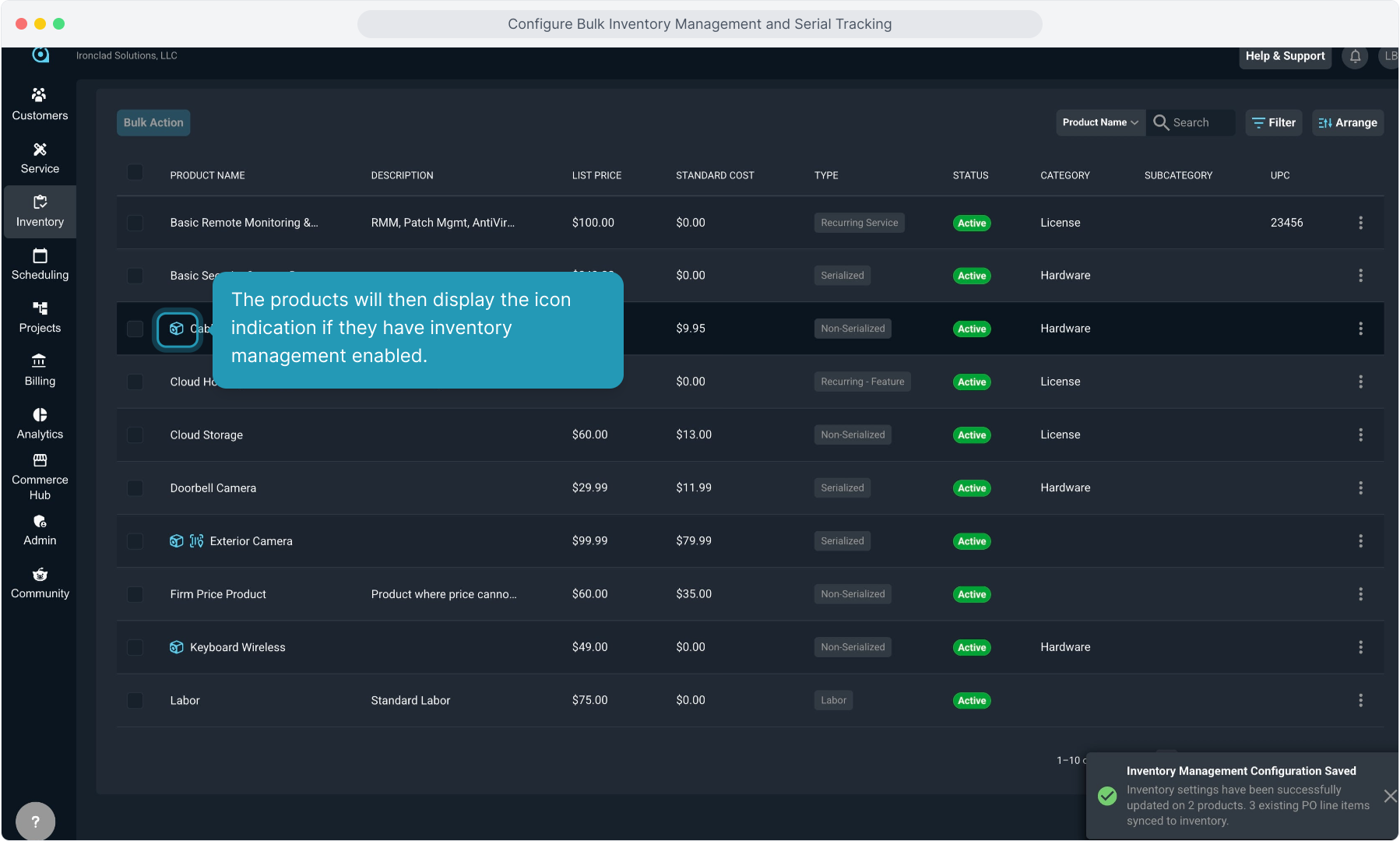
10. Or if they have inventory management AND serial number tracking enabled.