
Add/Edit Sends
A send emails a chart or dashboard on a schedule. For example, a send can email you a list of open tickets that have no tech assigned at 8:00 AM every weekday, so you know what needs attention as soon as you start your day. To add a send, click Analytics in the sidebar menu, select Signal & Send, click the Sends tab, and click + Send.
Before you add a send, make sure a chart or dashboard exists that shows the information you want, such as a table of unassigned tickets.
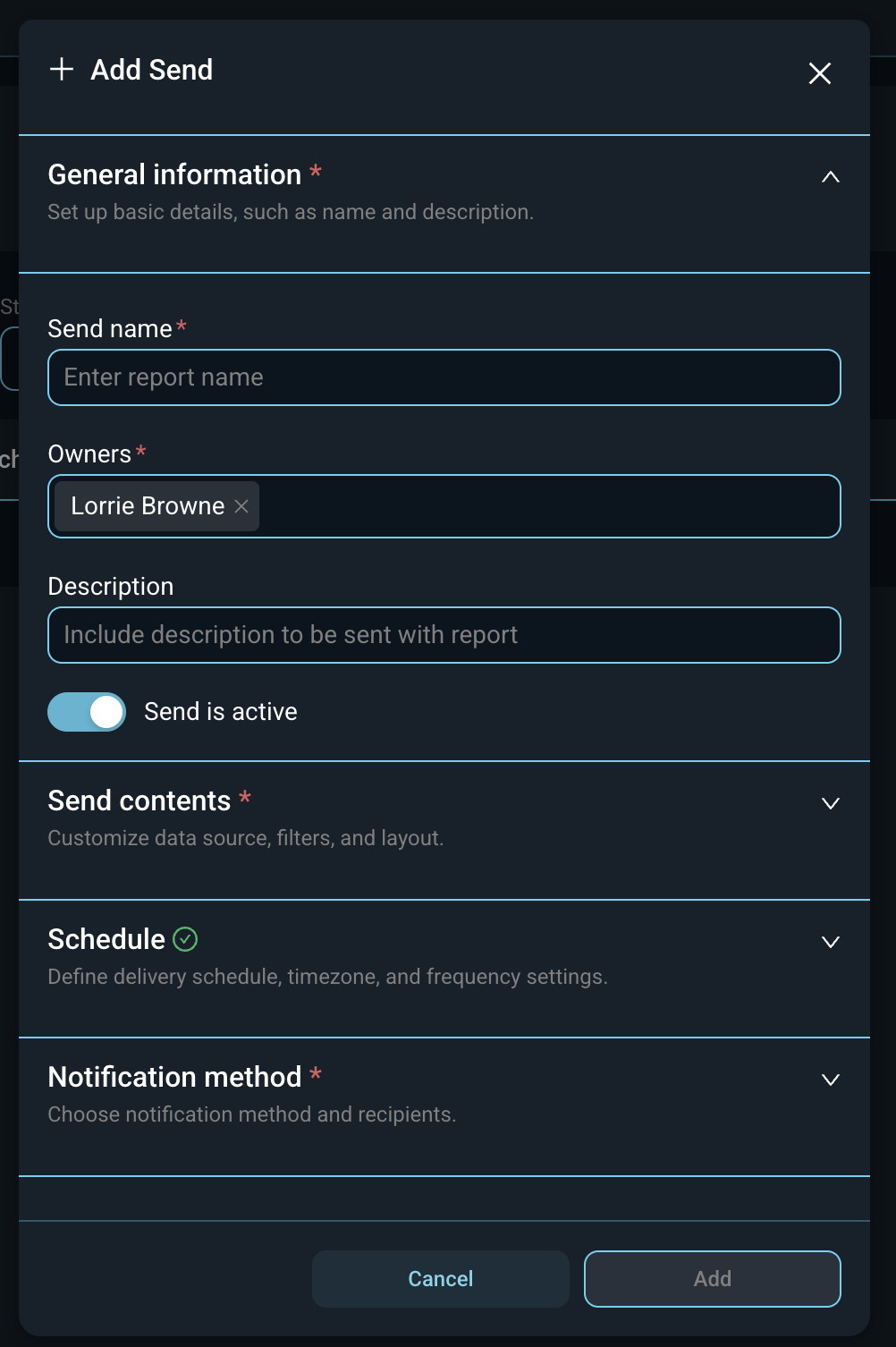
The Add Send window is organized into four sections. Click a section name to expand or collapse it.
Each field in the General information section is defined below.
| Label | Definition |
| Send name | Name of the send. |
| Owners | Users who own the send. You are added as an owner by default. |
| Description | Description of the send. The description is included in the email. |
| Send is active | Turn this toggle on to have the send run on its schedule. Turn it off to pause it. |
Each field in the Send contents section is defined below. This section sets what is included in the email.
| Label | Definition |
| Content type | Whether the email includes a Dashboard or a Chart. |
| Select dashboard | Dashboard to include in the email. Displays when Content type is Dashboard. When Content type is Chart, this field is Select chart. |
| Content format | Format of the content in the email. For a dashboard, options include Send as PNG and Send as PDF. For a chart, options include Send as PNG, Send as CSV, and Send as PDF. A table chart can also be sent as text in the body of the email. |
| Select tab | Dashboard tab to include, if the dashboard has tabs. Displays for dashboards only. |
| Screenshot width | Custom width of the image in pixels. |
| Ignore cache when generating report | Check this option to pull fresh data each time instead of using saved results. |
Each field in the Schedule section is defined below.
| Label | Definition |
| Schedule type | How the schedule is set. Options include Recurring (every) and CRON Schedule. |
| Schedule | How often it runs and at what time, such as every day at 8:00. |
| Timezone | Time zone used for the schedule. |
| Log retention | How long the run history is kept, such as 90 days. |
Each field in the Notification method section is defined below.
| Label | Definition |
| Notification Method | How the notification is delivered. Email is the only method available at this time. |
| Email subject name (optional) | Subject line for the email. |
| Email recipients | Email addresses that receive the notification. Separate addresses with a comma or semicolon. Click Add CC Recipients or Add BCC Recipients to copy others. |
Click Add to save the send, or click Cancel to close the window without saving. The Add button is available once the required fields are completed.
For more information about signals and sends, see the following articles.