
✨AI-Powered: Revii Data Analytics
Revii Data Analytics is Rev.io's AI analyst embedded directly in Rev.io, designed to help you explore and understand your data using natural language. It allows you to ask analytical questions and receive accurate, data-driven answers grounded in your system data. This experience is ideal when you need insights, trends, or summaries across larger sets of information.
Revii Data Analytics is focused on reading and analyzing data, not taking actions. It excels at calculations and totals, percentages and comparisons, grouping and aggregating data, and identifying trends across time or customers. Results can be reviewed directly in the chat and downloaded when available. You can ask questions such as
- “What was our total revenue last quarter?”
- “Show me the top customers by sales.”
- “How many tickets were created this month by type?”
- “What percentage of invoices were paid late?”
To use Revii Data Analytics, click the Revii icon at the bottom of any screen in Rev.io, click the Ask Revii button in the lower left corner of the chat window, select the Revii Data Analytics experience, and type your question using natural language. Revii will return a data-driven response based on your system data.
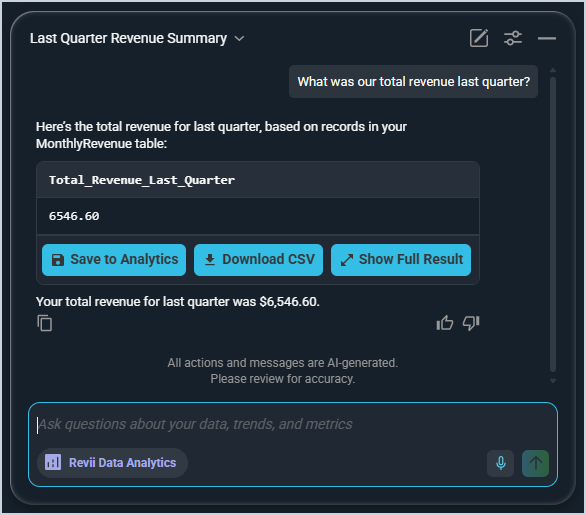
The following actions are available in the Revii Data Analytics chat interface.
- Resize the chat window by hovering over the top left corner of the chat window and clicking and dragging the corner of the window.
- Return to a previous conversation by selecting it from the list of past chats using the dropdown on the left side of the window.
- Start a new conversation at any time by clicking the New Chat icon in the upper right corner of the chat window.
- Edit your AI voice chat preferences by clicking the settings icon in the upper right corner of the chat window.
- Minimize the chat window by clicking the minus icon in the upper right corner of the chat window.
- Save your question as a SQL query in the Analytics module by clicking the Save to Analytics button.
- Download the response as a .CSV file by clicking the Download CSV button.
- View the response in a full table by clicking the Show Full Result button.
- Copy a response for use in other areas of the application by clicking the copy icon in the bottom left corner of the response.
- Provide feedback to help the AI model improve by clicking the thumbs up or thumbs down icons in the bottom right corner of the response.
- Switch to the classic Ask Revii mode by clicking the Revii Data Analytics button in the lower left corner of the chat window and selecting the Ask Revii option. See the AI-Powered: Ask Revii article for more information.
- Speak to Revii with your microphone by clicking the Dictate or Voice Mode icons in the lower right corner of the chat window.
| NOTE: Revii Data Analytics is best for insights, reporting, and data exploration. If you ask it to perform an action such as creating a ticket, it will guide you to switch to Ask Revii instead. See the AI-Powered: Ask Revii article for more information. |