ADI Global Distribution Integration: Configuration
NOTE: An authorized user account is required to run this integration. To support better security and audit visibility, we recommend creating a dedicated "service account" user. When configuring this integration, sign in using the service account rather than your personal user account to ensure that audit logs reflect the service account running the integration instead of the user who originally installed it.
Complete the steps below to configure the ADI Global Distribution integration.
NOTE: Before starting the configuration steps below, be sure you have completed the required prerequisite steps. See the ADI Global Distribution Integration: Prerequisites article for more information.
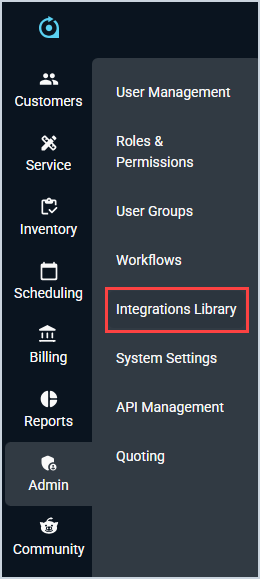
Click Admin on the sidebar menu and select Integrations Library.
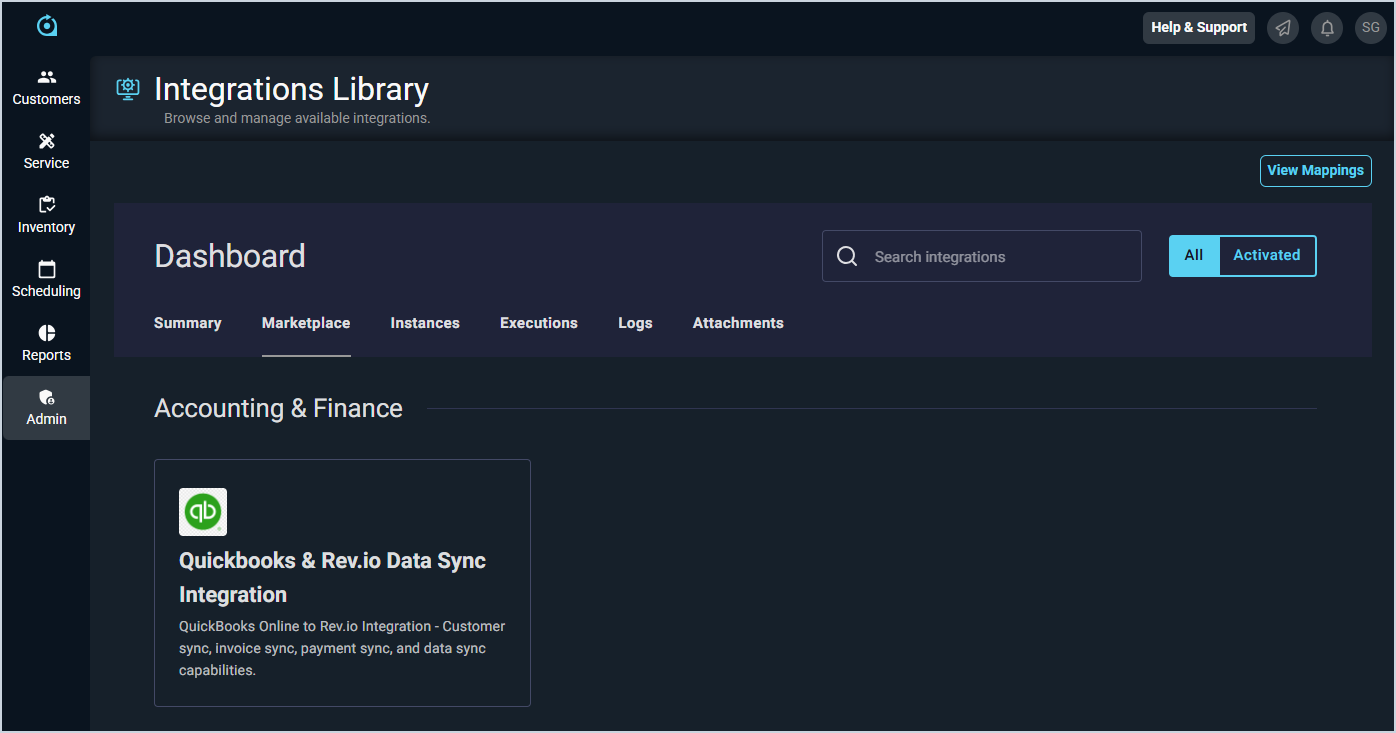
Click the Marketplace tab.
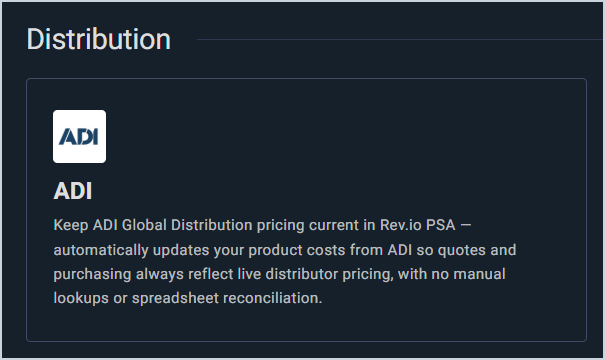
Locate and select the ADI integration in the Distribution section.
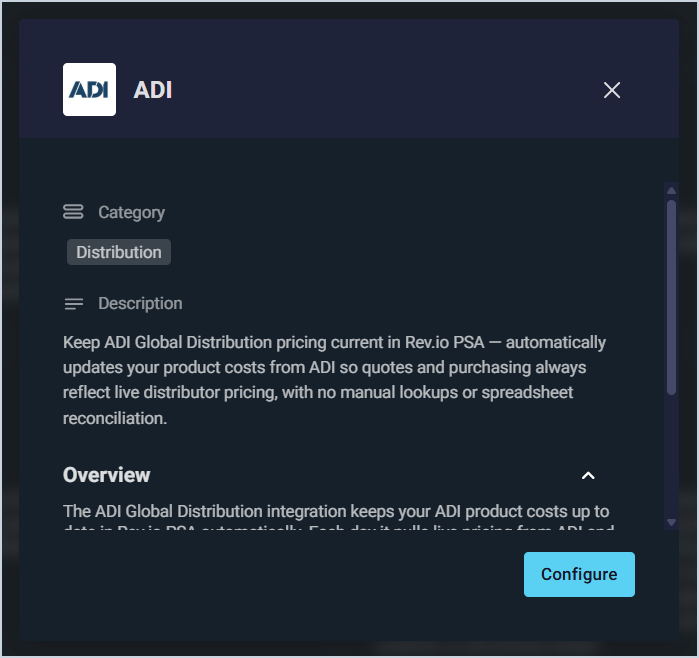
Click the Configure button.
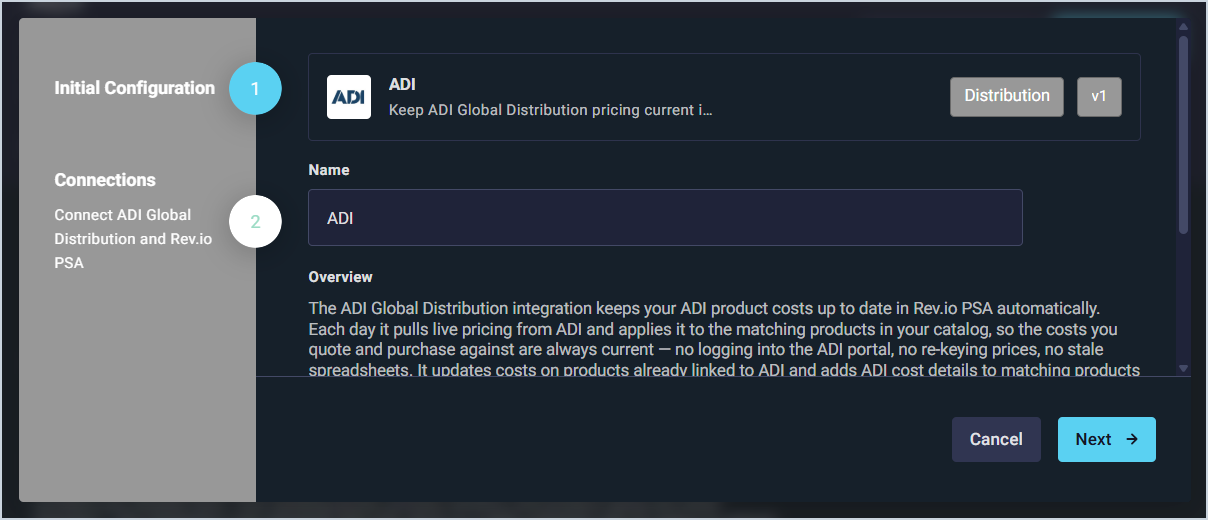
The Initial Configuration section is automatically populated. Click the Next button.
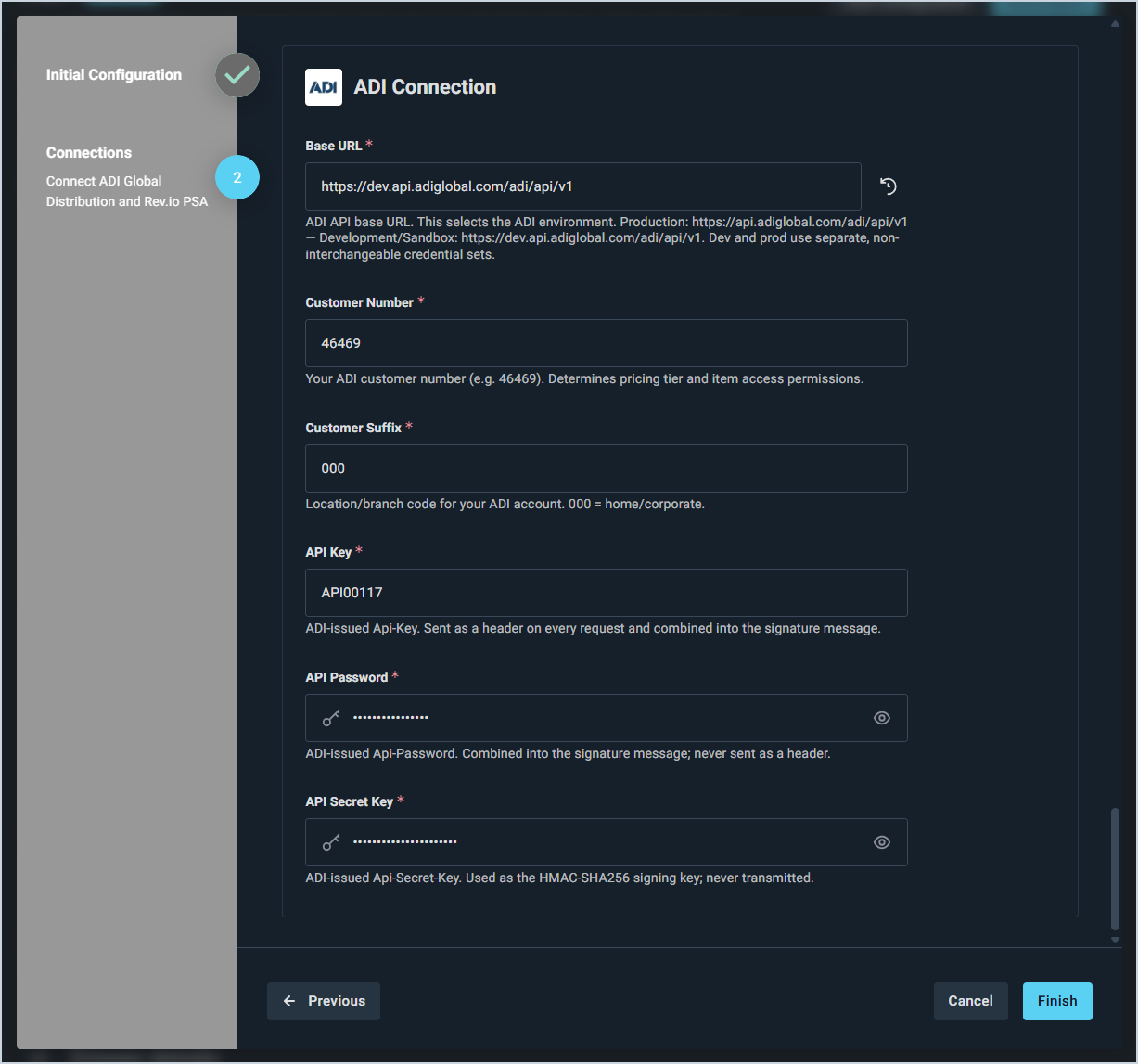
In the ADI Connection section, enter your ADI Customer Number, Customer Suffix, API Key, API Password, and API Secret Key. For the Base URL, leave the default value for production use. Only change this if ADI has provided sandbox credentials and instructed you to use their development environment. Note that production and development environments use separate, non-interchangeable credential sets. Click the Finish button.
Once the integration is connected, it will run its initial cost sync, updating costs on the Purchasing tab for products in your catalog that already have ADI Global Distribution listed as a vendor. For products without an existing ADI vendor entry, the integration will cross-reference your product catalog by Manufacturer Part Number and automatically add ADI as a new vendor row when a match is found.