
Add Assets to Tickets
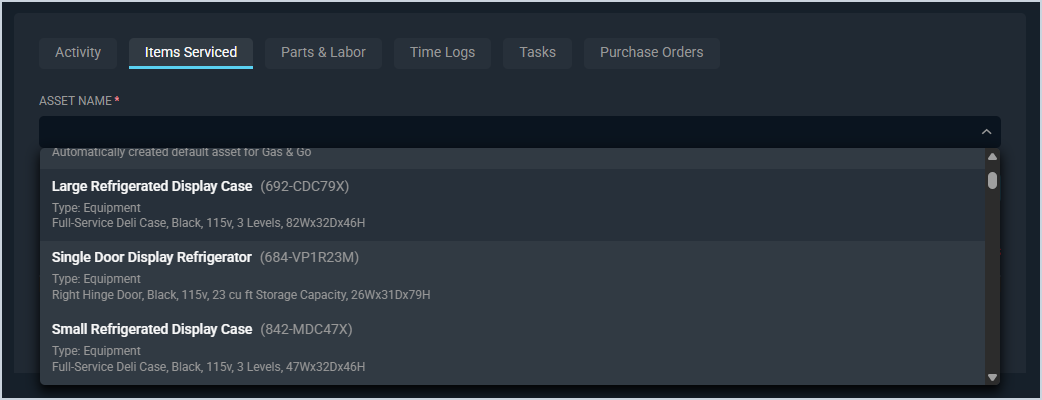
The Items Serviced tab on the Ticket Details screen allows you to add items the customer owns or leases that you service or monitor to the ticket directly from the tab without being directed to another screen. From the Items Serviced tab, click the Add Asset button, select the Asset Name from the dropdown, and click the Add to Ticket button to add assets to the ticket.
These actions are available on the Items Serviced tab.
- Add a new asset to the ticket by clicking the Add to Ticket button and selecting the desired asset.
- View previously entered assets in the lower portion of the tab. See the Ticket Details: Items Serviced Tab article for more information.