
Workflows: Visual Map
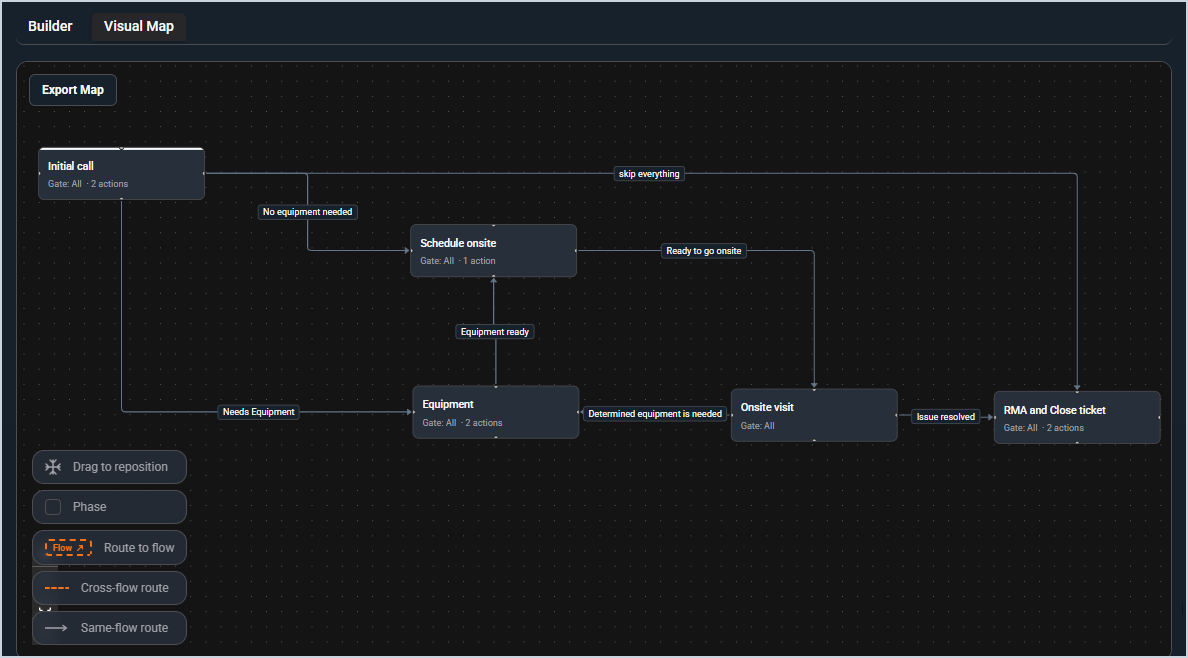
The Visual Map is a diagram view of a flow that displays all of its phases and routes in a visual layout. As you build out your flow in the Flow Builder, the Visual Map generates automatically to reflect the structure of your flow. You can then rearrange the layout to make it easier to read and share with your team.
| NOTE: The Visual Map is a read-only view of your flow. Phases, actions, and routes cannot be added, edited, or deleted from the Visual Map. To make changes to your flow, see the Create/Edit Flows article. |
Reading the Visual Map
The Visual Map displays each phase as a card connected by labeled arrows that represent the routes between them. Each phase card displays the phase name, the gate logic setting, and the number of actions in that phase. The current structure of your flow is reflected automatically as you add phases, actions, and routes in the Flow Builder.
The map includes a legend in the bottom left corner that identifies the following elements.
- Drag to reposition: Indicates that phase cards can be clicked and dragged to reposition them on the canvas.
- Phase: Represents a phase in the flow.
- Route to flow: Represents a route that points to a phase within the same or a different flow.
- Cross-flow route: Represents a route that leads to a phase in a different flow, displayed as a dashed orange arrow.
- Same-flow route: Represents a route that leads to a phase within the same flow, displayed as a solid arrow.
Rearranging the Visual Map
The Visual Map is an open canvas that can be scrolled and panned in any direction as your flow grows. Phase cards can be dragged and dropped anywhere on the canvas to create a layout that accurately represents how the flow works. The connecting arrows between phases update automatically as you reposition cards.
Rearranging the map does not affect the flow itself. Changes to the map layout are for visual clarity only and have no impact on the order of phases or the logic of routes in the Flow Builder.
Exporting the Visual Map
Once you have arranged the map the way you want it, you can export it for use outside of Rev.io by clicking the Export Map button at the top of the Visual Map view.