
Task List View
The Task List View displays all tasks across your Rev.io instance, allowing you to view and manage tasks logged against tickets, customers, and projects. The Task List View is accessible from the Scheduling module in the sidebar.
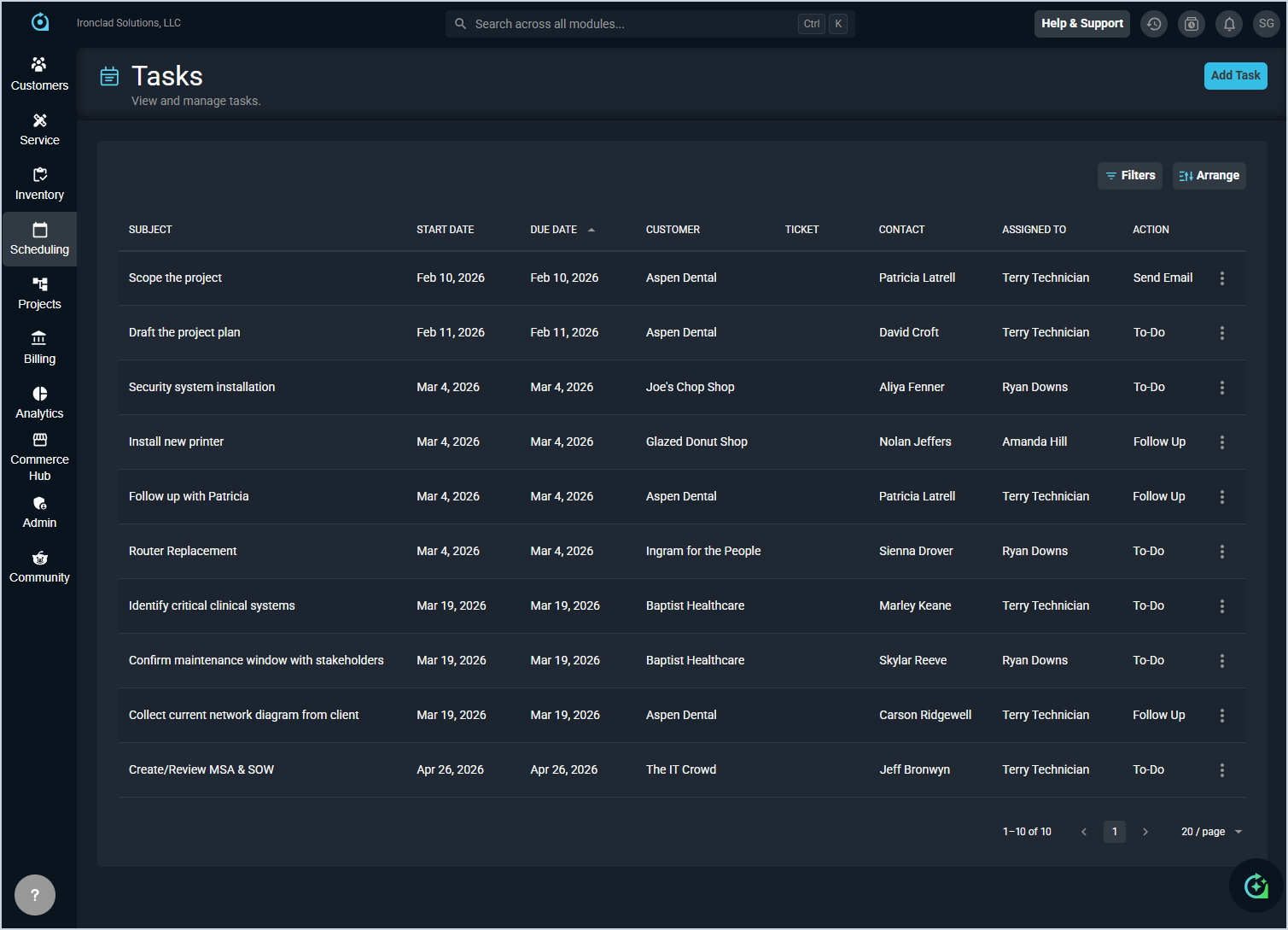
Each field in the Task List View is defined below.
| No. | Label | Definition |
| 1 | Subject | Subject of the task. |
| 2 | Start Date | Date the task is scheduled to start. |
| 3 | Due Date | Date the task is due. |
| 4 | Customer | Customer associated with the task. |
| 5 | Ticket | Ticket associated with the task, if applicable. |
| 6 | Contact | Contact associated with the task. |
| 7 | Assigned To | User assigned to the task. |
| 8 | Action | Action type associated with the task. |
The following actions are available on the Task List View.
- Add a new task by clicking the Add Task button. See the Create/Edit Calendar Items article for more information.
- Filter the tasks displayed by clicking the Filters button and selecting the desired filter criteria.
- Customize which columns display in the list view and the order in which they display by clicking the Arrange button. See the Arrange Columns article for more information.
- Sort the results in the table by clicking the column label in the table header.
- Edit a task by clicking the ellipsis at the end of the row and selecting Edit.
- Mark a task as complete by clicking the ellipsis at the end of the row and selecting Mark Complete.
- Delete a task by clicking the ellipsis at the end of the row and selecting Delete.