
Importing Addresses to Quotes
You can add many addresses to a quote at once by importing a CSV or Excel file. Rev.io matches the columns in your file to address fields, checks each row for errors and possible duplicates, and lets you fix or skip rows before the addresses are added to the quote. To start, open the quote and click Import in the Addresses section. The Import Addresses panel opens.
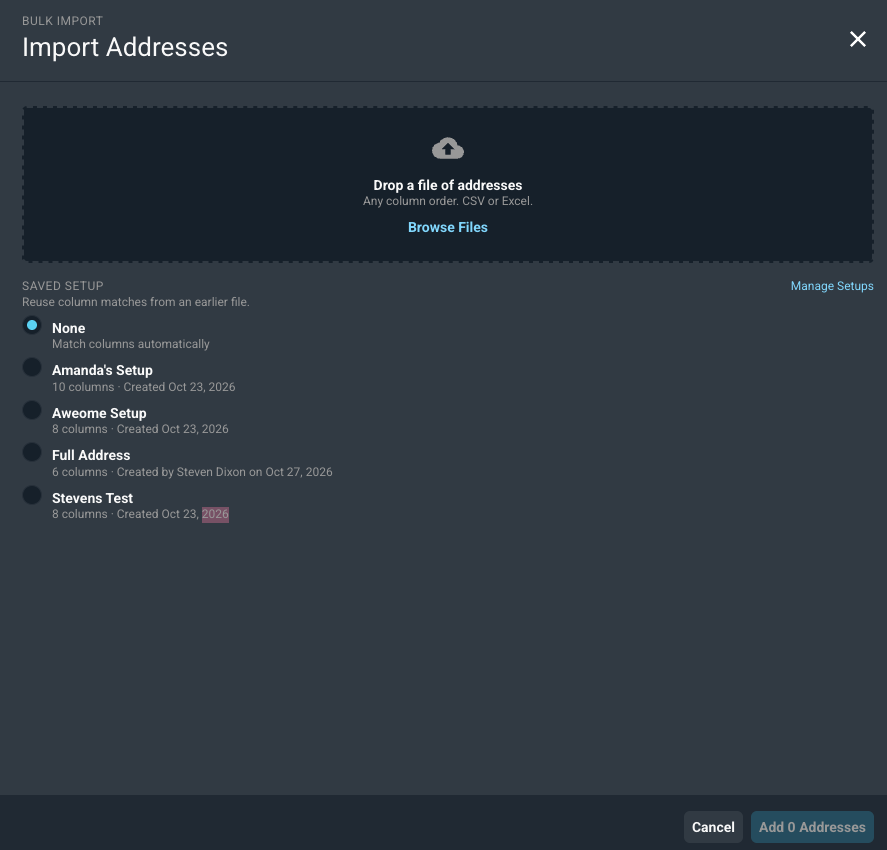
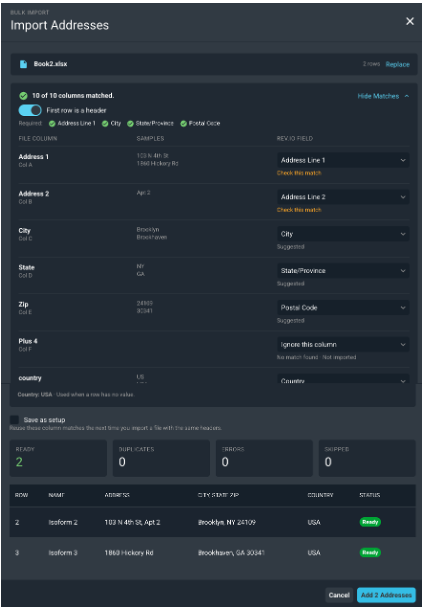
Follow these steps to import addresses to a quote.
- Open the quote and click Import in the Addresses section.
- Under Saved Setup, select a saved setup to reuse its column matches, or leave None selected to match columns automatically.
- Drag your file into the upload area, or click the upload area to browse for the file.
- Review the column matches. For each column in your file, select the matching field from the Rev.io Field dropdown, or select Ignore this column to leave it out. Turn off the First row is a header toggle if your file does not have a header row.
- Optionally, select Save as setup to reuse these column matches the next time you import a file with the same headers.
- Review the totals at the top of the panel and work through the items listed under To Check. See the actions below for more information.
- Click the Add Addresses button at the bottom of the panel. The button shows the number of addresses that are ready, such as Add 201 Addresses.
- Review the results on the Import Complete screen and click Done.
The totals at the top of the panel are defined below.
| Label | Definition |
| Ready | Number of rows that are ready to be added to the quote. |
| Duplicates | Number of rows that repeat an address found earlier in the file, already on the quote, or already on the customer account. |
| Errors | Number of rows with missing or invalid information, such as a missing postal code. |
| Skipped | Number of rows you chose to leave out of the import. |
These actions are available while reviewing an import.
- Fix rows with errors by clicking Fix next to the issue, entering the missing or corrected values in the Fix Rows window, and clicking Apply. Select Skip on a row to leave it out.
- Apply a suggested correction to every row with the same issue by clicking the suggestion button, such as Change to TX, which replaces a spelled-out state name with its code.
- Skip every row with the same issue by clicking Skip All next to the issue.
- Review possible duplicates by clicking Review. In the Review Possible Duplicates window, select Keep or Skip for each row, or click Keep All or Skip All, and then click Done.
- Show or hide the column matches by clicking Show Matches or Hide Matches.
- Upload a different file by clicking Replace next to the file name.
- Close the panel without adding any addresses by clicking Cancel.
| NOTE: Rows that still have errors, and possible duplicates you have not kept or skipped, are held back and are not added to the quote. |
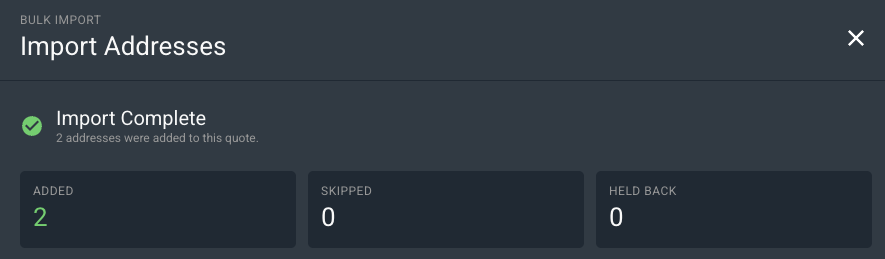
The results on the Import Complete screen are defined below.
| Label | Definition |
| Added | Number of addresses added to the quote. |
| Skipped | Number of rows you chose to leave out. |
| Held Back | Number of rows that were not added because they still had errors or were duplicates with no decision. |
To correct held-back rows, click Download Held-Back Rows on the Import Complete screen. The file lists each row with the reason it was held back. Correct the rows and import that file.
Saved setups store the column matches for a file format you import often, so you do not have to match the columns each time. To manage your setups, click Manage Setups on the Import Addresses panel. On the Saved Setups screen, click + New Setup to create a setup, or click the menu icon at the end of a setup’s row to manage it. You can also save a setup during an import by selecting Save as setup.
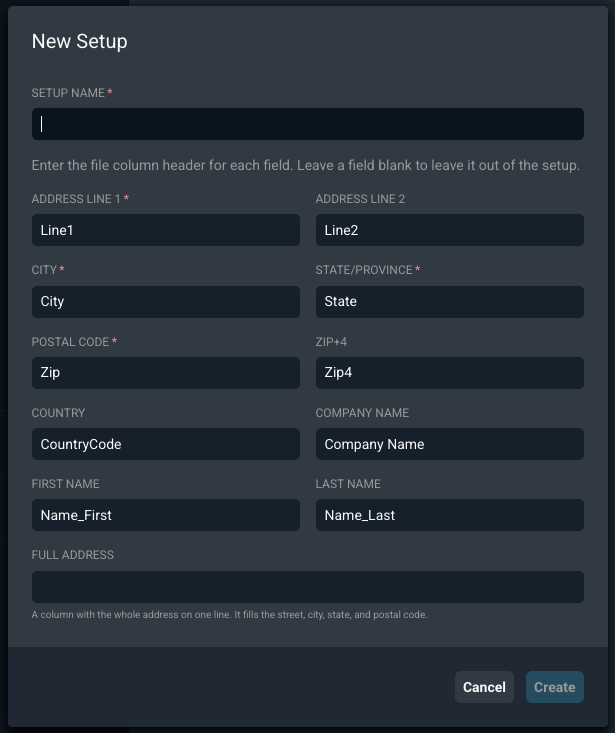
Each field on the New Setup window is defined below. Enter the column header from your file for each field, and leave a field blank to leave it out of the setup. Fields marked with an asterisk must be completed.
| Label | Definition |
| Setup Name | Name of the setup. |
| Address Line 1 | Column header for the first line of the street address. |
| Address Line 2 | Column header for the second line of the street address, such as a suite number. |
| City | Column header for the city. |
| State/Province | Column header for the state or province. |
| Postal Code | Column header for the postal code. |
| Zip+4 | Column header for the four-digit ZIP code extension. |
| Country | Column header for the country. |
| Company Name | Column header for the company name. |
| First Name | Column header for the first name of the contact at the address. |
| Last Name | Column header for the last name of the contact at the address. |
| Full Address | Column header for a column that holds the whole address on one line. Rev.io fills in the street, city, state, and postal code from it. |
Click Create to save the setup, or click Cancel to close the window without saving.
For more information about quotes, see the following articles.