
Packages List View
The Packages list view displays every package in your database. A 'package' in Rev.io is a collection of products grouped together for billing purposes, allowing you to bundle recurring and one-time charges for your customers. The Packages list view allows you to create, view, and manage packages across your instance.
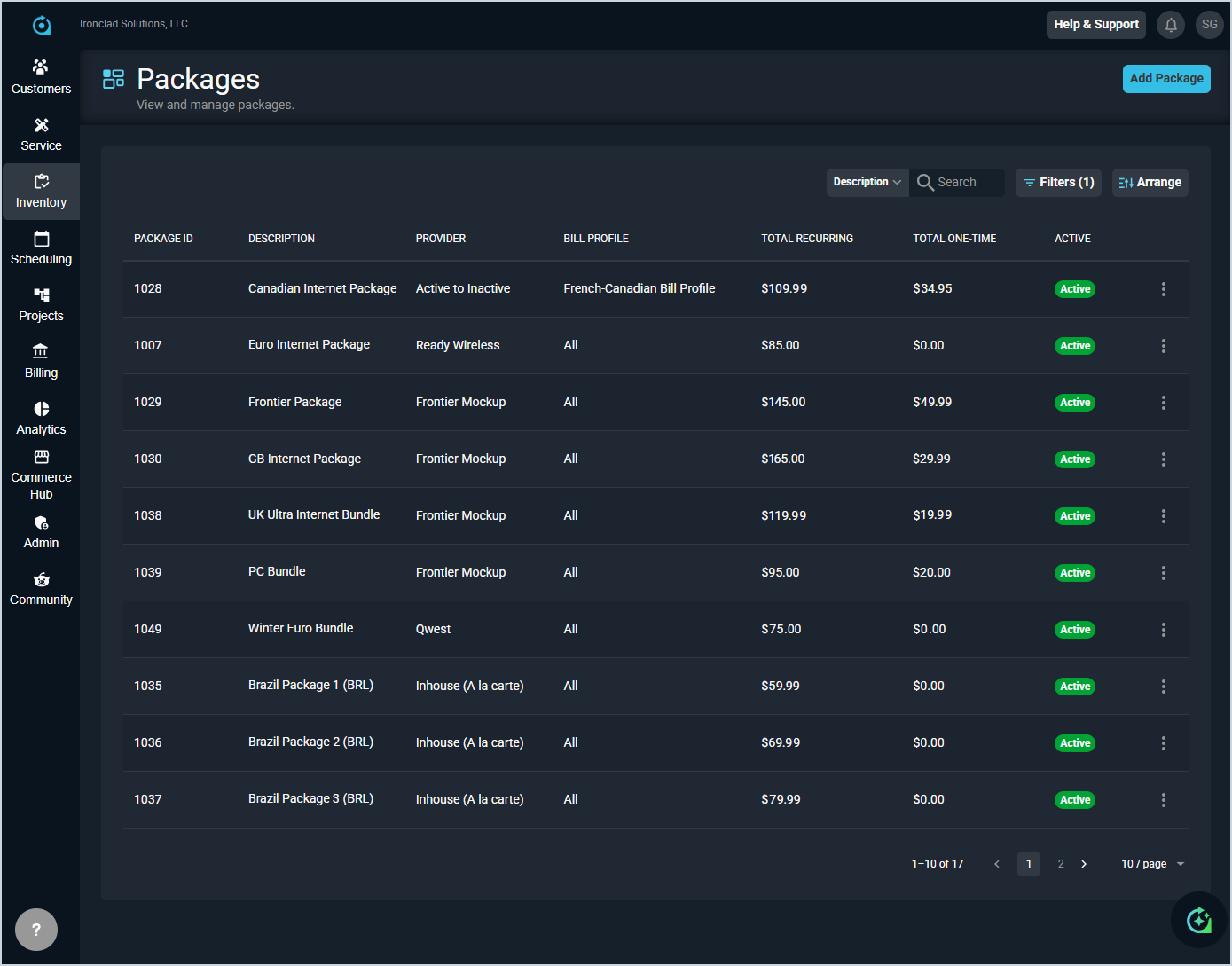
Each field on the Packages list view is defined below.
| No. | Label | Definition |
| 1 | Package ID | Unique numerical identifier for the package. |
| 2 | Description | Description of the package. |
| 3 | Provider | Provider associated with the package. |
| 4 | Bill Profile | Bill profile assigned to the package. |
| 5 | Total Recurring | Total recurring charges included in the package. |
| 6 | Total One-Time | Total one-time charges included in the package. |
| 7 | Active | Status of the package. Status options include Active and Inactive. |
These actions are available on the Packages list view.
- Add a new package by clicking the Add Package button at the top of the screen. See the Add/Edit Packages article for more information.
- Search the packages displayed on this view by selecting a column from the dropdown above the grid and entering text in the Search field. The list view updates to display records matching your search in the column you selected.
- Filter the packages displayed on this view by clicking the Filters button above the grid.
- Customize which columns display in the list view and the order in which they display by clicking the Arrange button and making the desired changes. See the Arrange Columns article for more information.
- Sort the results in the table by clicking the column label in the table header.
- Edit the package by clicking the ellipsis at the end of the row and selecting Edit from the menu. See the Add/Edit Packages article for more information.
- Deactivate the package by clicking the ellipsis at the end of the row and selecting Deactivate from the menu options.