How To Guide: Disconnecting Products and Packages
1. Introduction
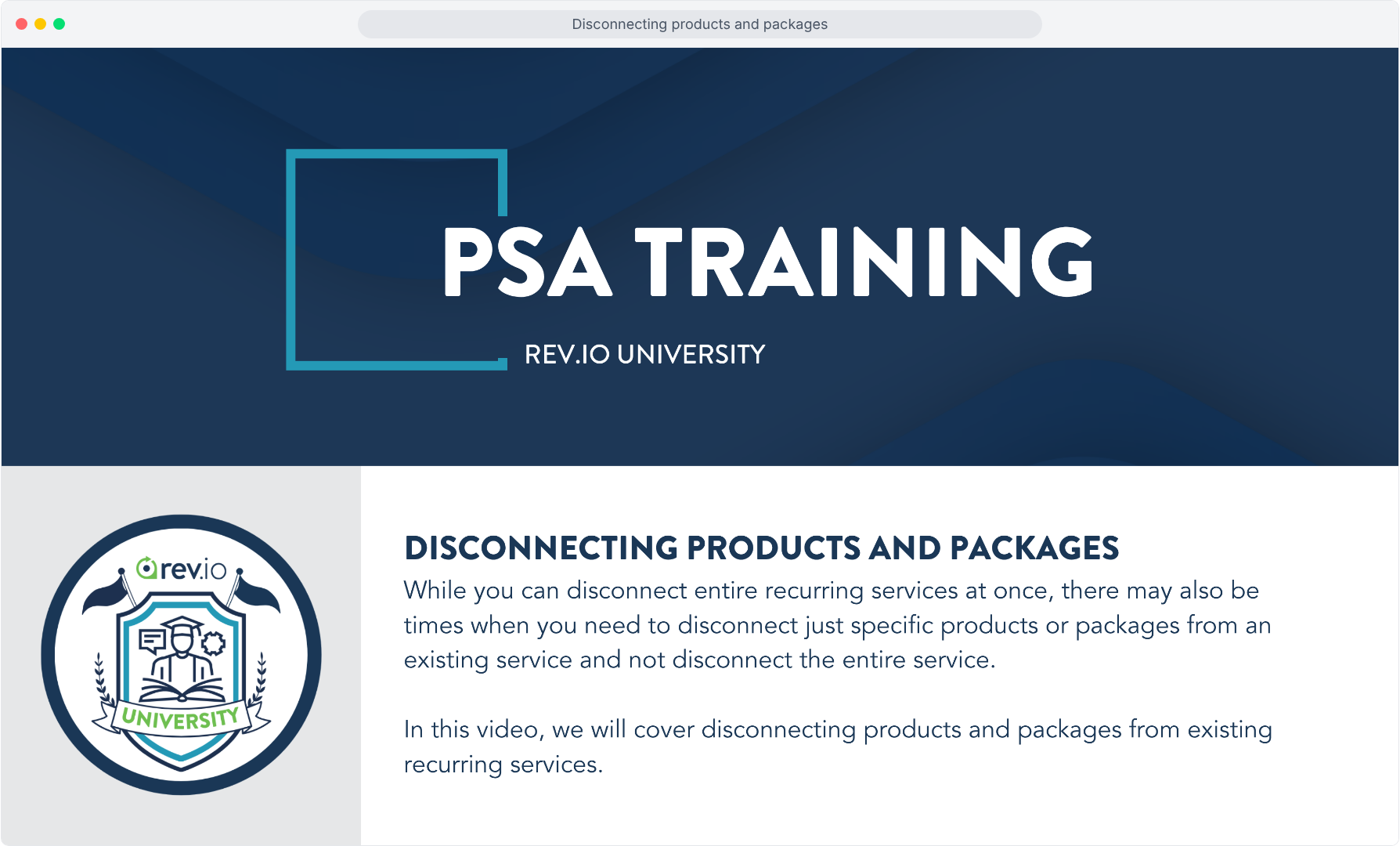
2. In the Billing section of a customer account, click on the Recurring Services tab.
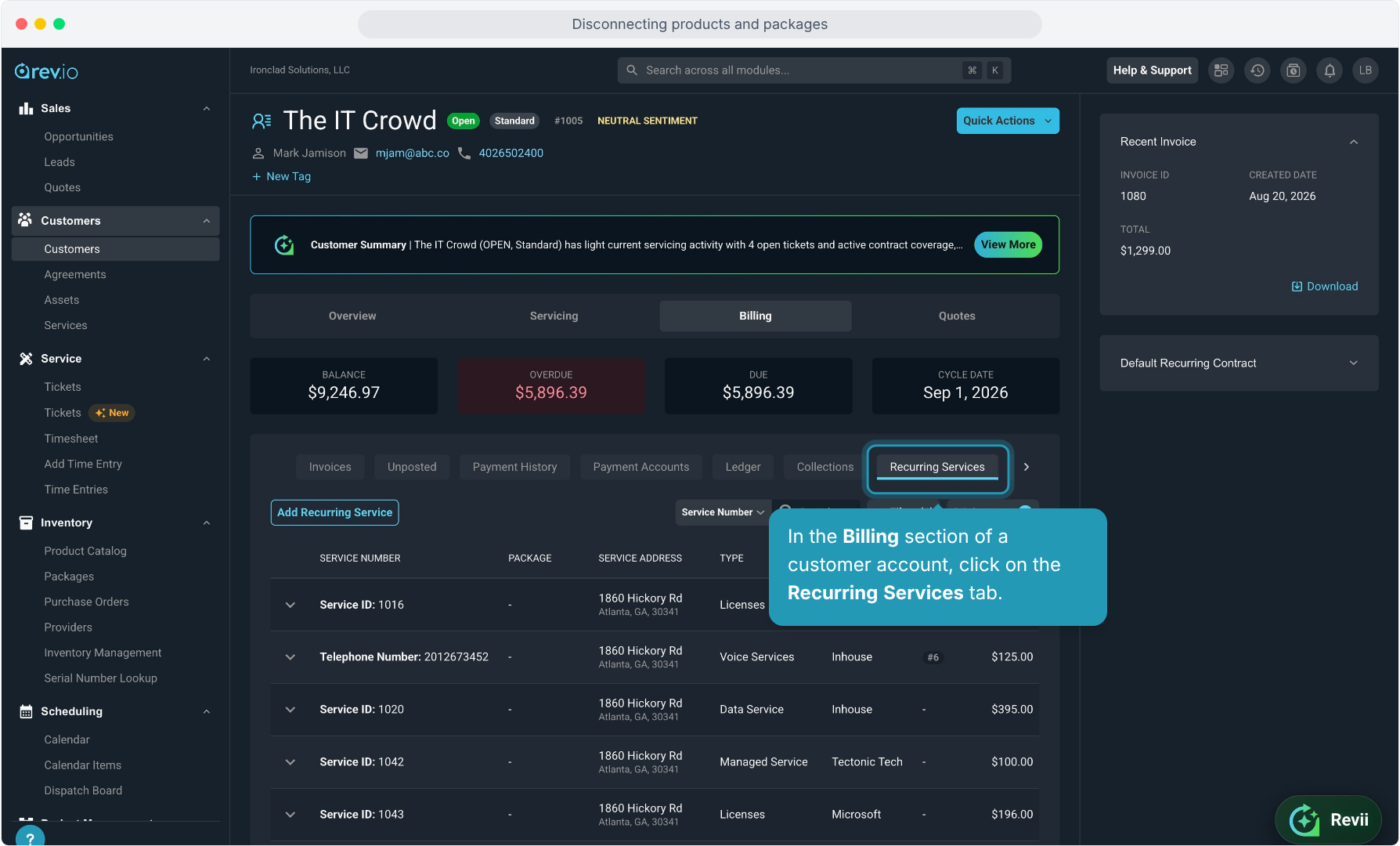
3. To view the products on a service, click the down arrow icon.
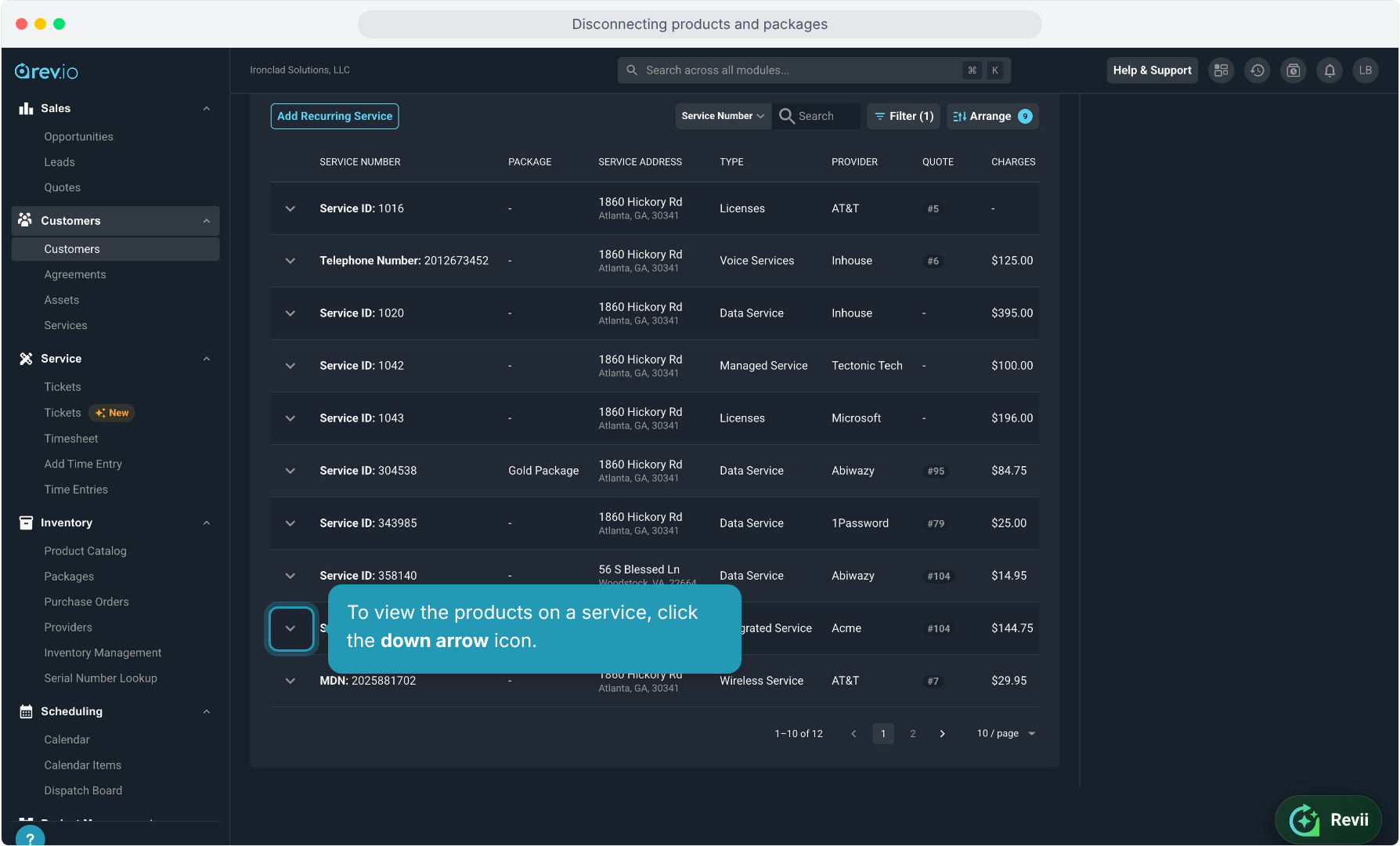
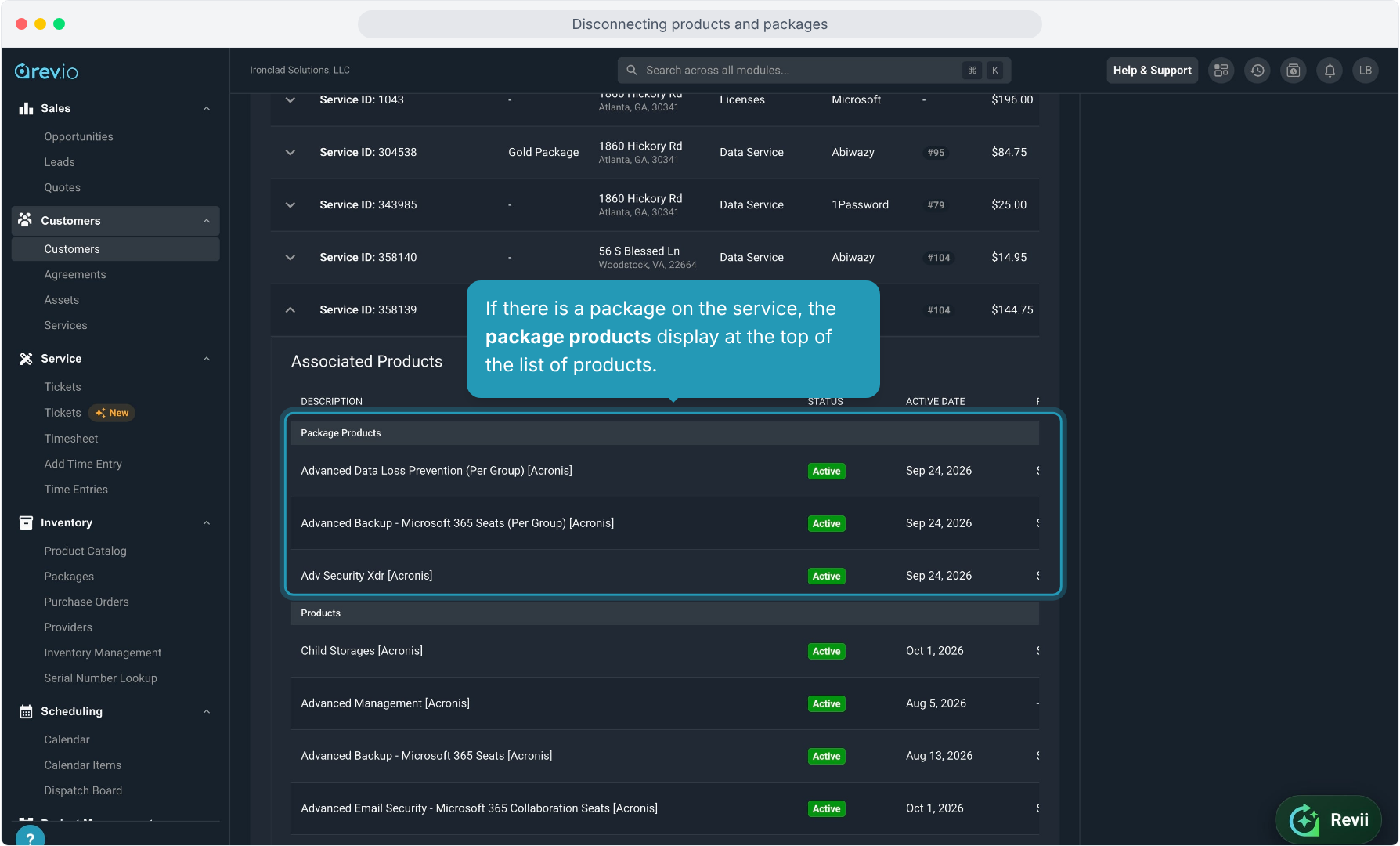
4. If there is a package on the service, the package products display at the top of the list of products.
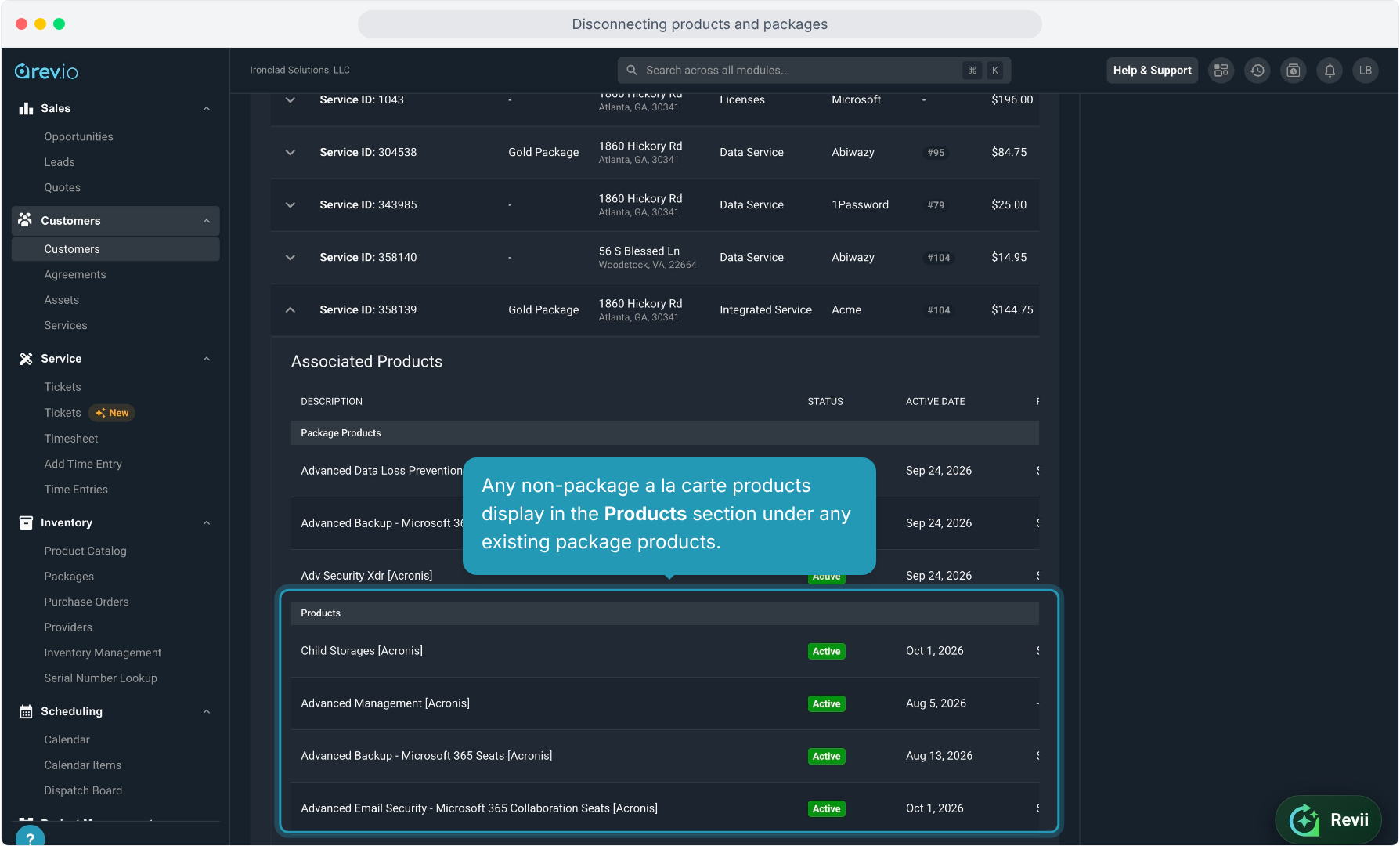
5. Any non-package a la carte products display in the Products section under any existing package products.
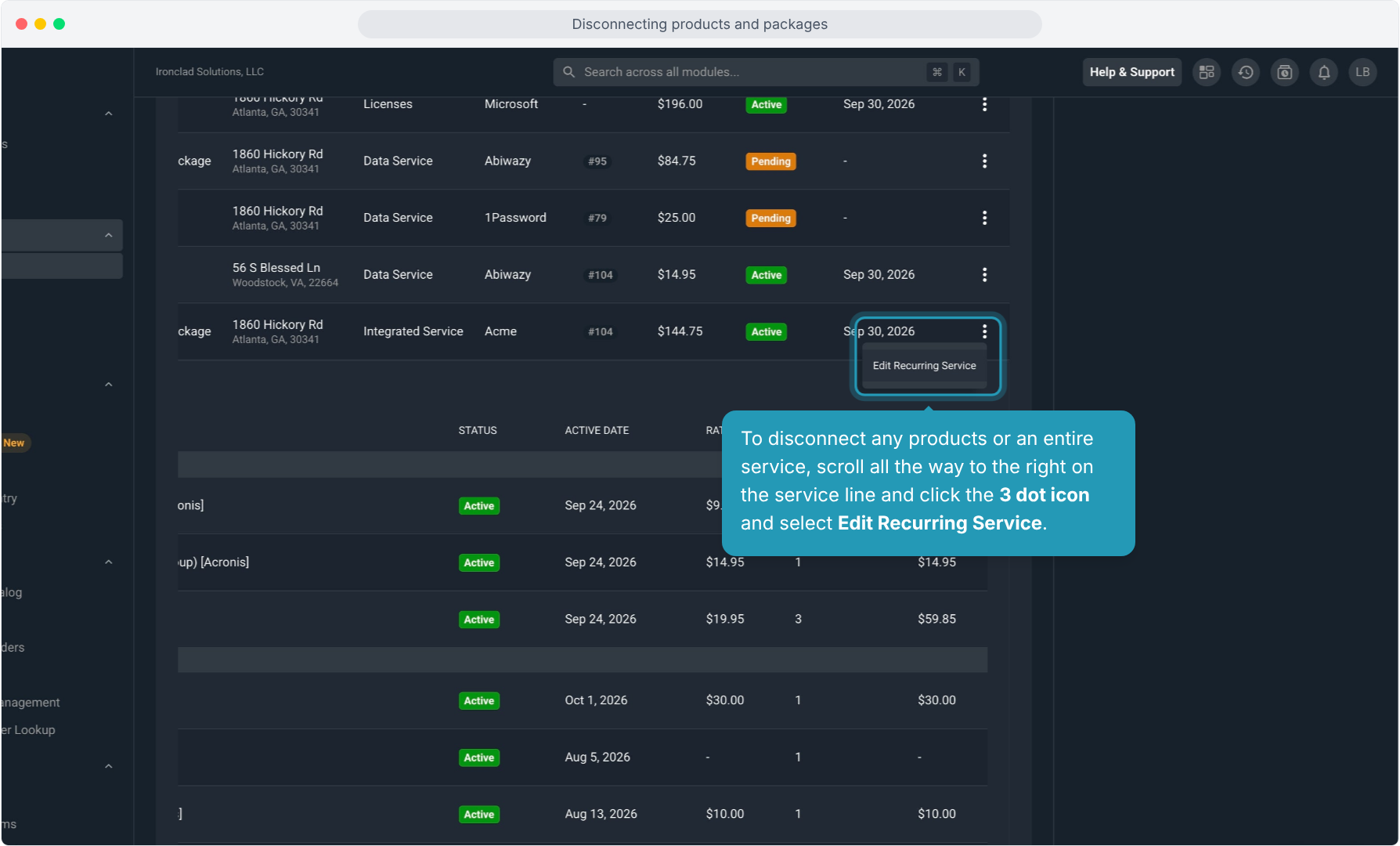
6. To disconnect any products or an entire service, scroll all the way to the right on the service line and click the 3 dot icon and select Edit Recurring Service.
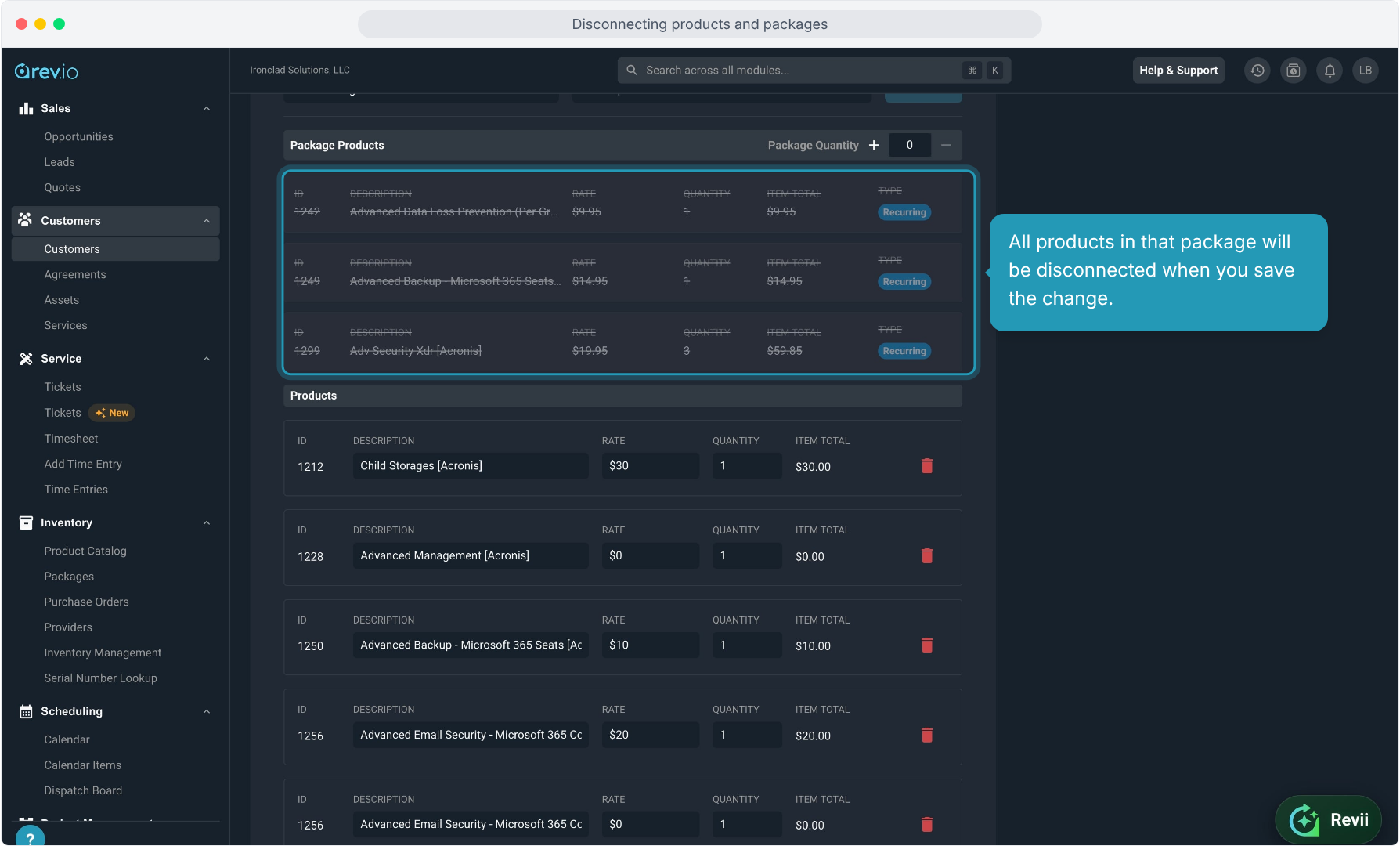
7. For packages, you cannot delete individual package products. You can remove a package by adjusting the Package Quantity to zero.
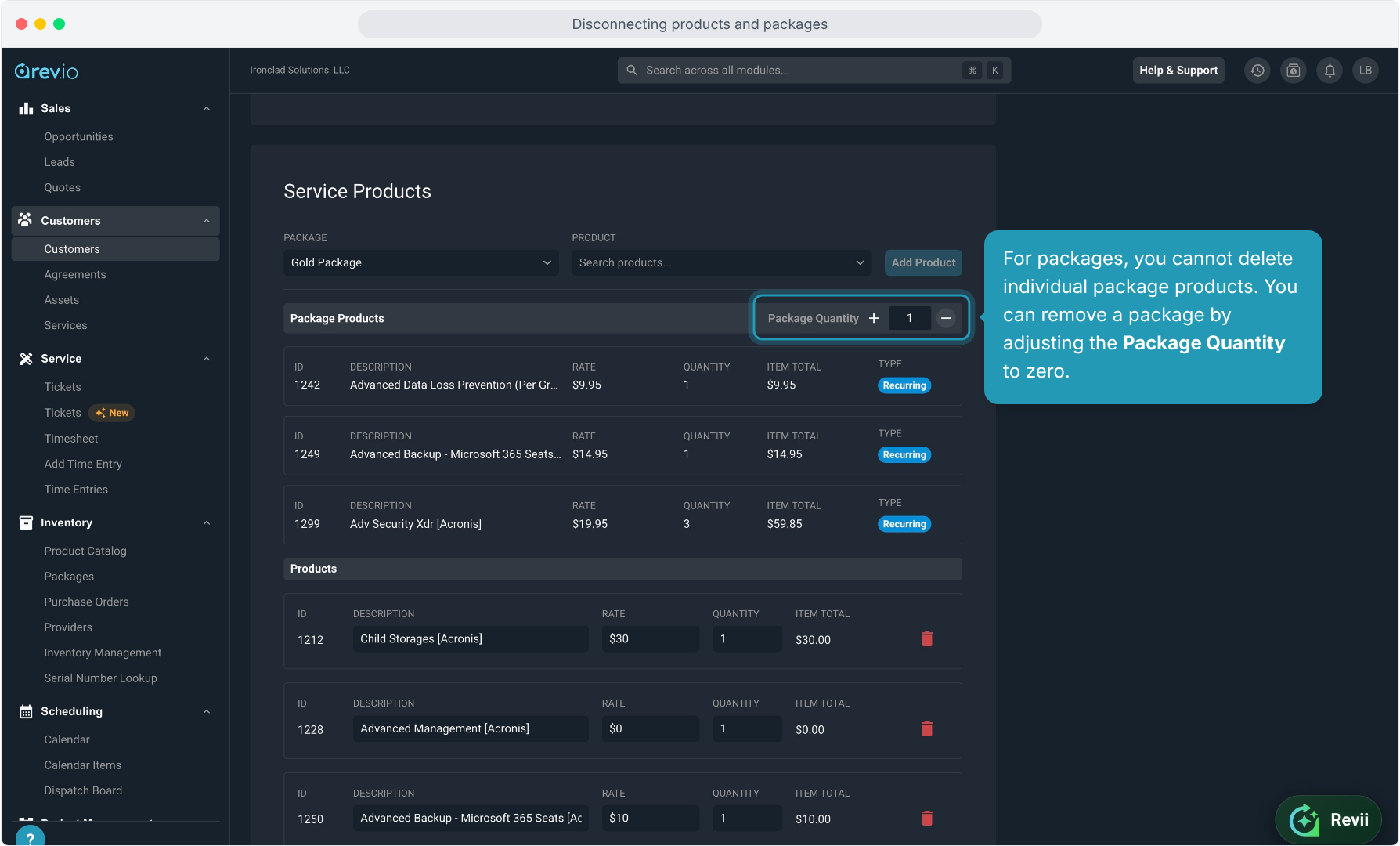
8. All products in that package will be disconnected when you save the change.
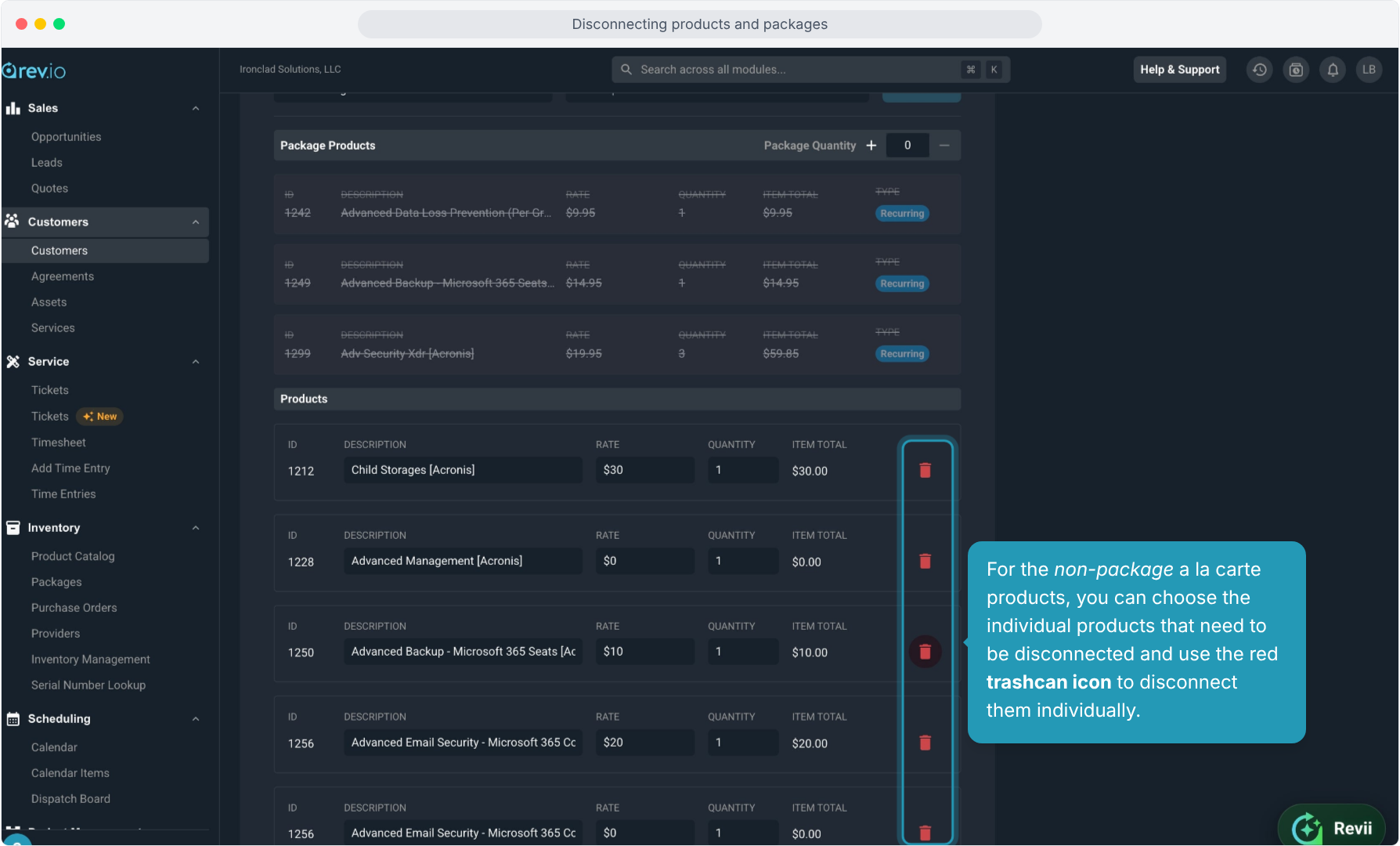
9. For the non-package a la carte products, you can choose the individual products that need to be disconnected and use the red trashcan icon to disconnect them individually.
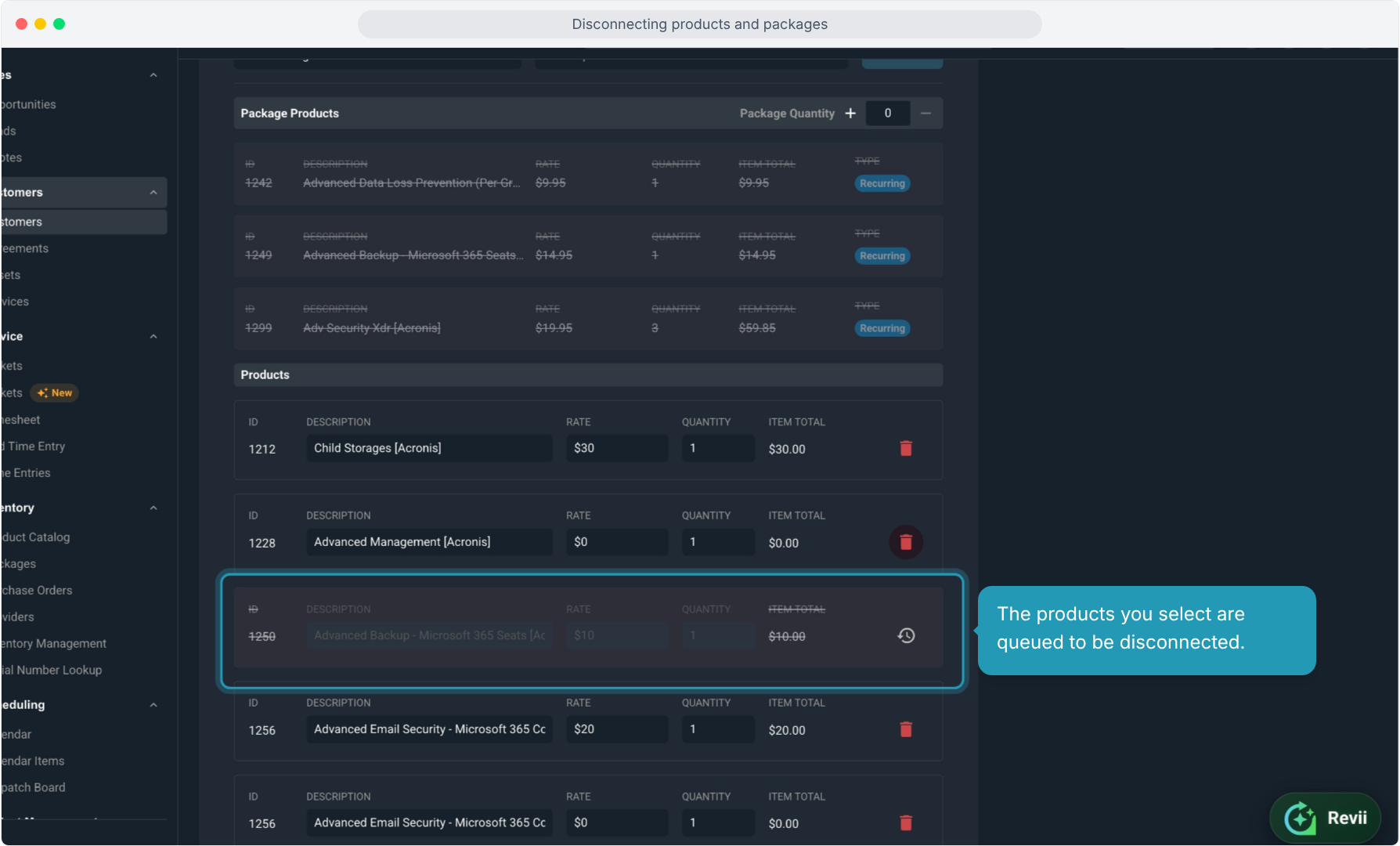
10. The products you select are queued to be disconnected.
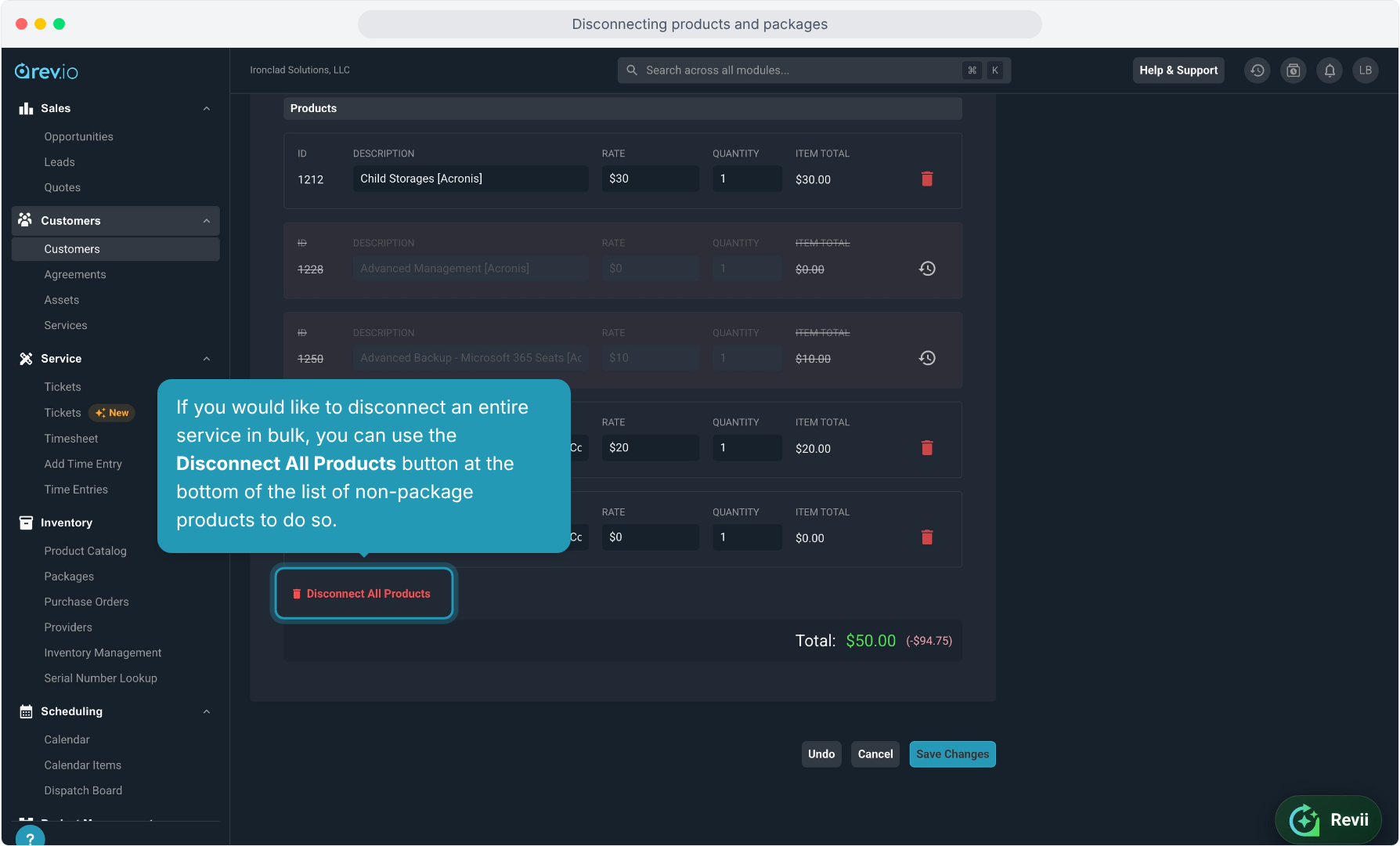
11. If you would like to disconnect an entire service in bulk, you can use the Disconnect All Products button at the bottom of the list of non-package products to do so.
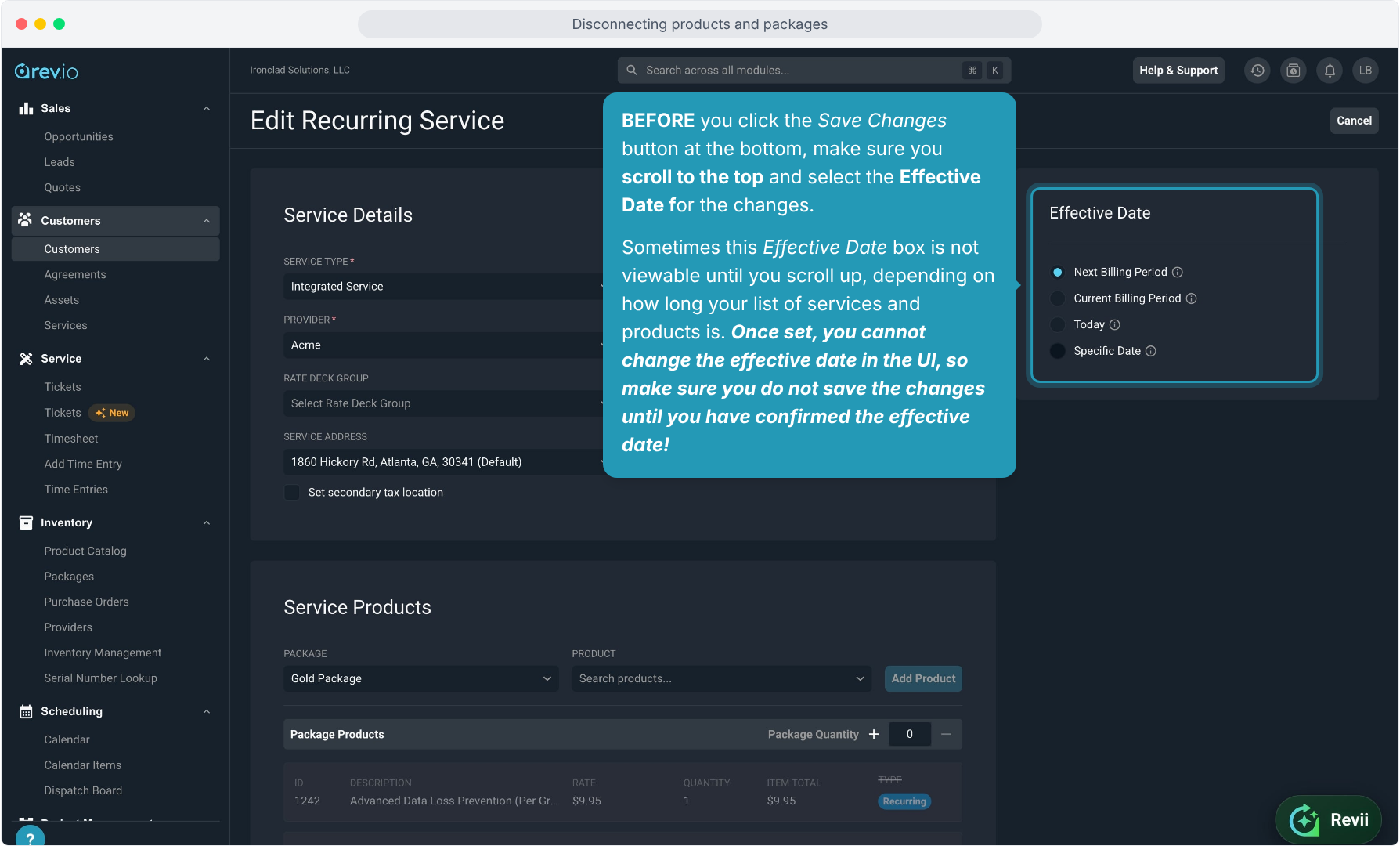
12. BEFORE you click the Save Changes button at the bottom, make sure you scroll to the top and select the Effective Date for the changes.
Sometimes this Effective Date box is not viewable until you scroll up, depending on how long your list of services and products is. Once set, you cannot change the effective date in the UI, so make sure you do not save the changes until you have confirmed the effective date!
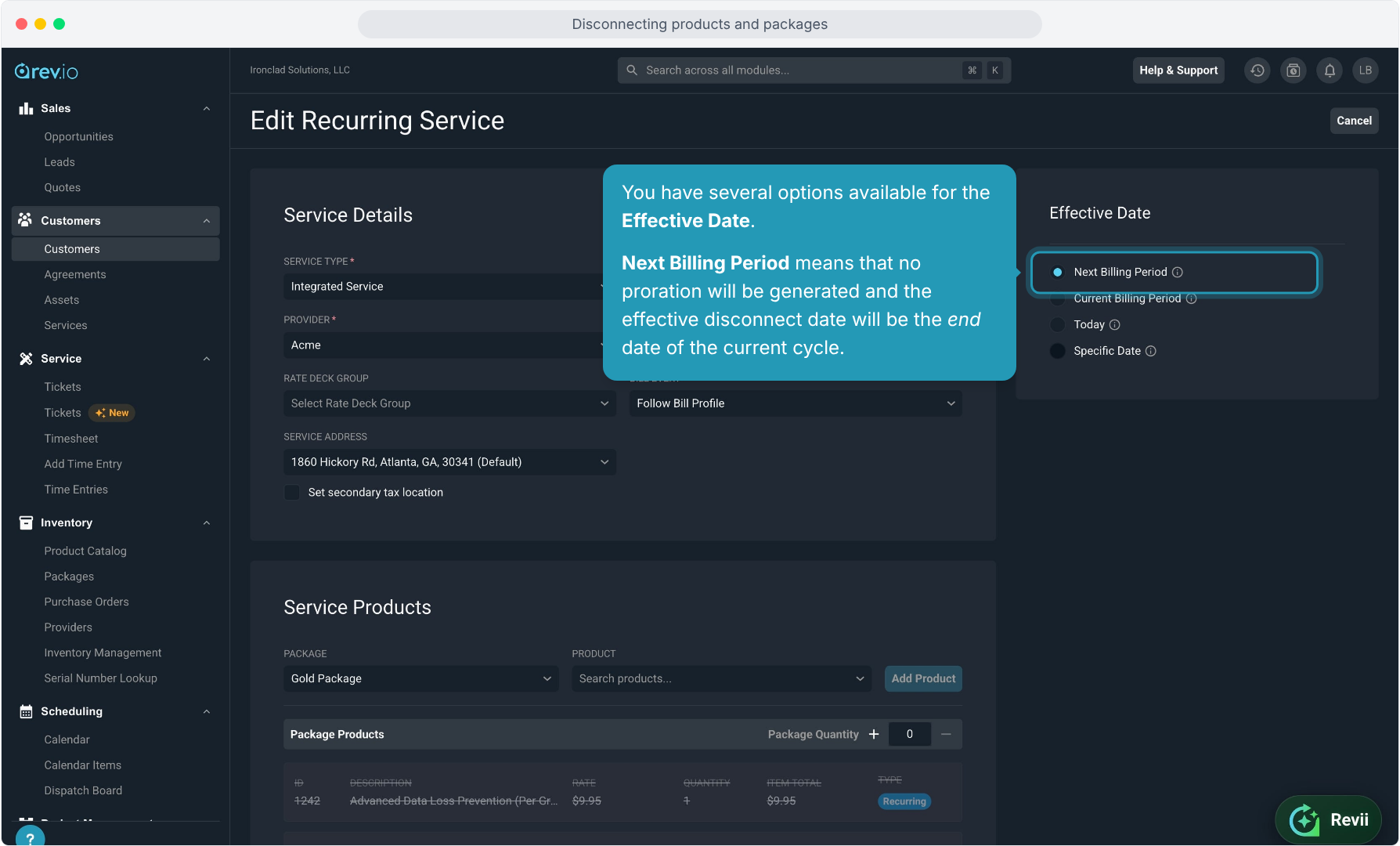
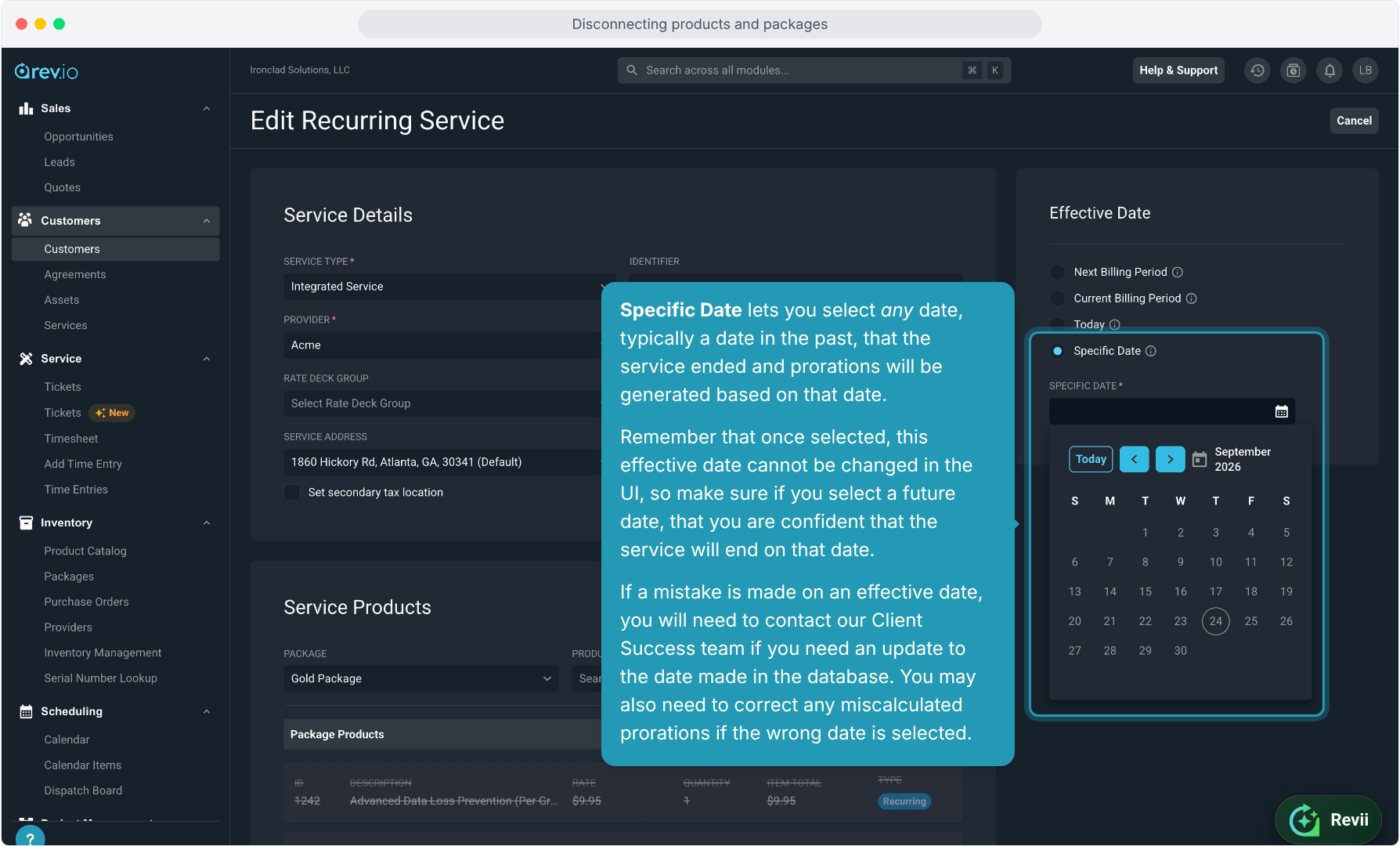
13. You have several options available for the Effective Date.
Next Billing Period means that no proration will be generated and the effective disconnect date will be the end date of the current cycle.
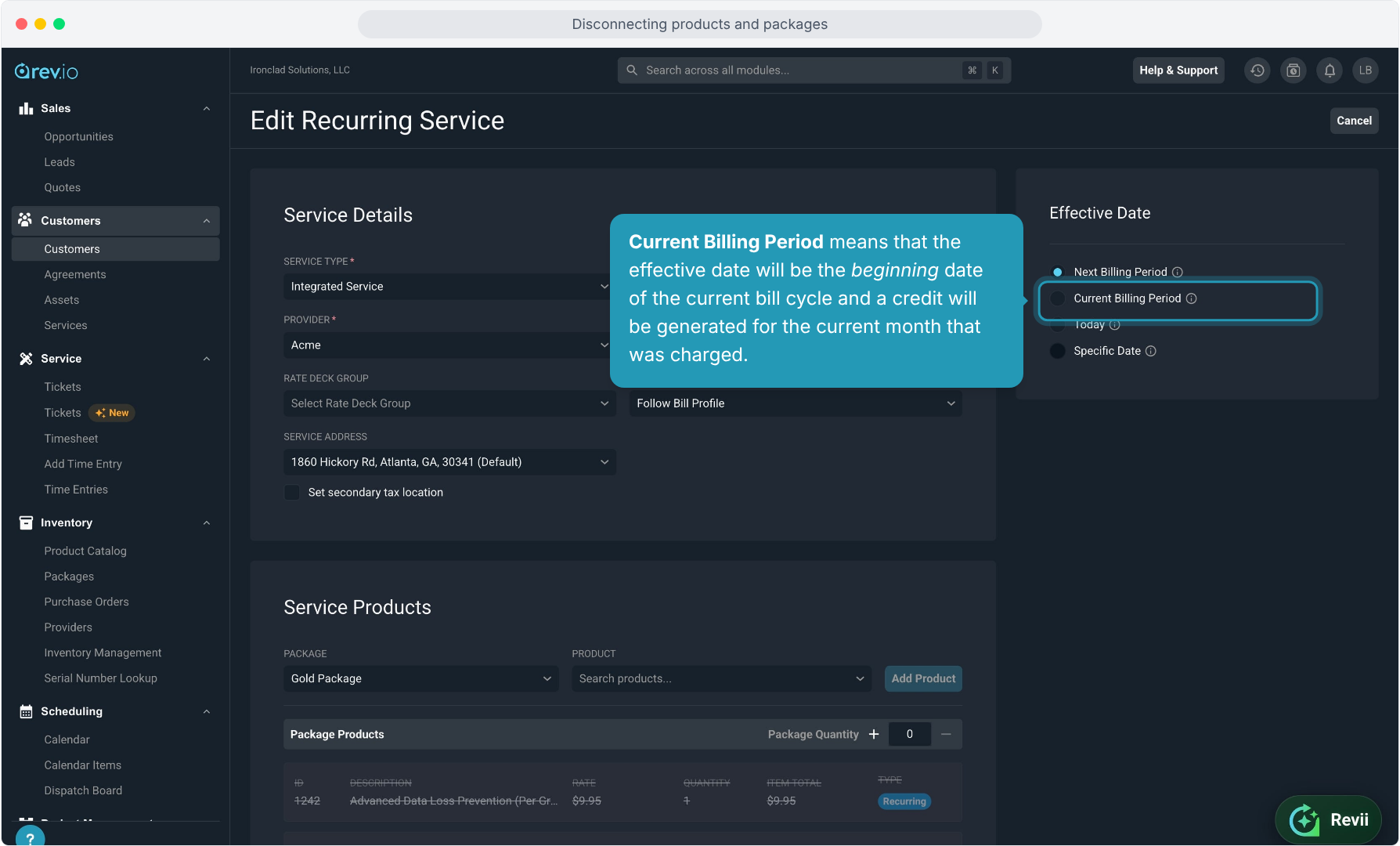
14. Current Billing Period means that the effective date will be the beginning date of the current bill cycle and a credit will be generated for the current month that was charged.
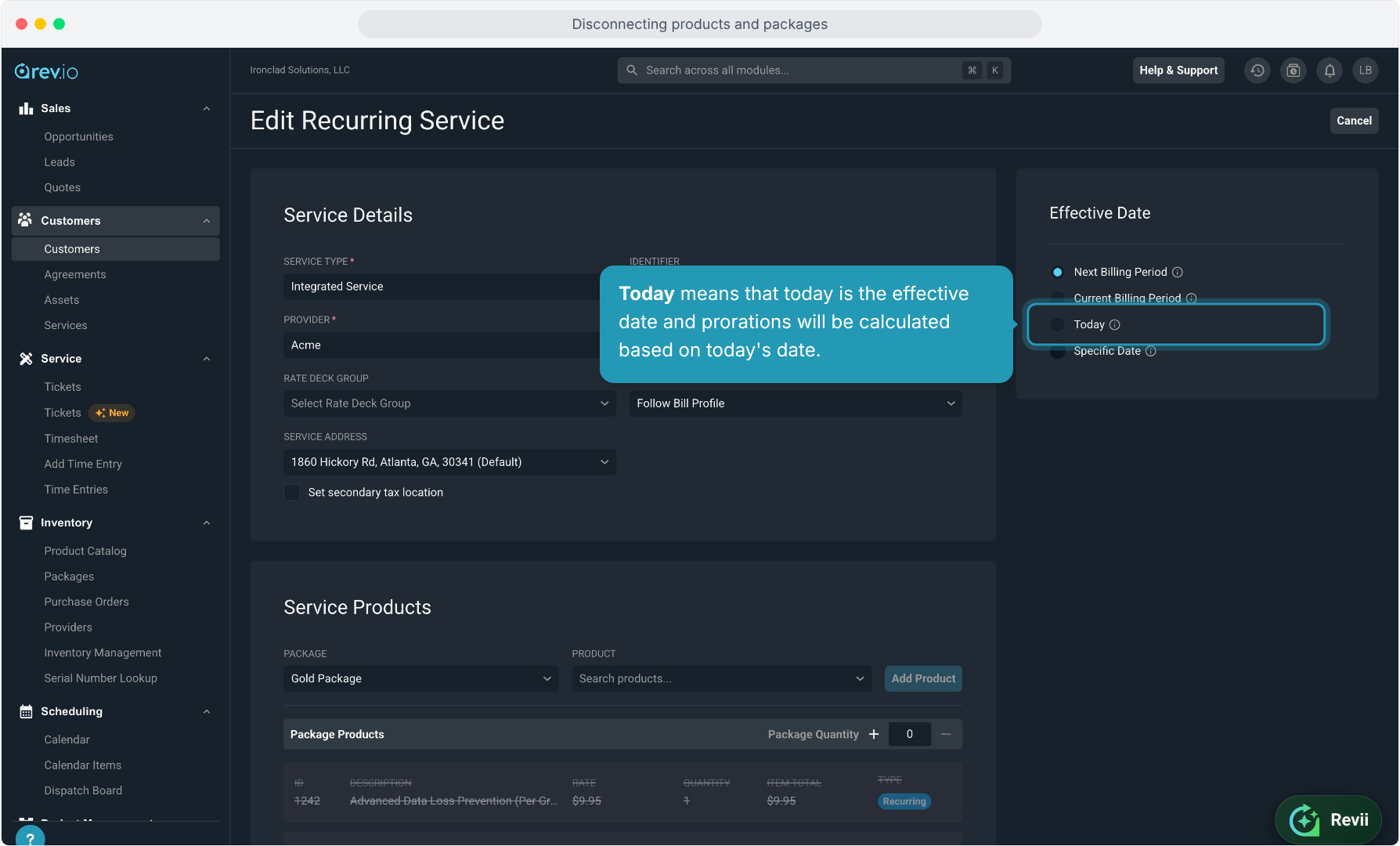
15. Today means that today is the effective date and prorations will be calculated based on today's date.
16. Specific Date lets you select any date, typically a date in the past, that the service ended and prorations will be generated based on that date.
Remember that once selected, this effective date cannot be changed in the UI, so make sure if you select a future date, that you are confident that the service will end on that date.
If a mistake is made on an effective date, you will need to contact our Client Success team if you need an update to the date made in the database. You may also need to correct any miscalculated prorations if the wrong date is selected.
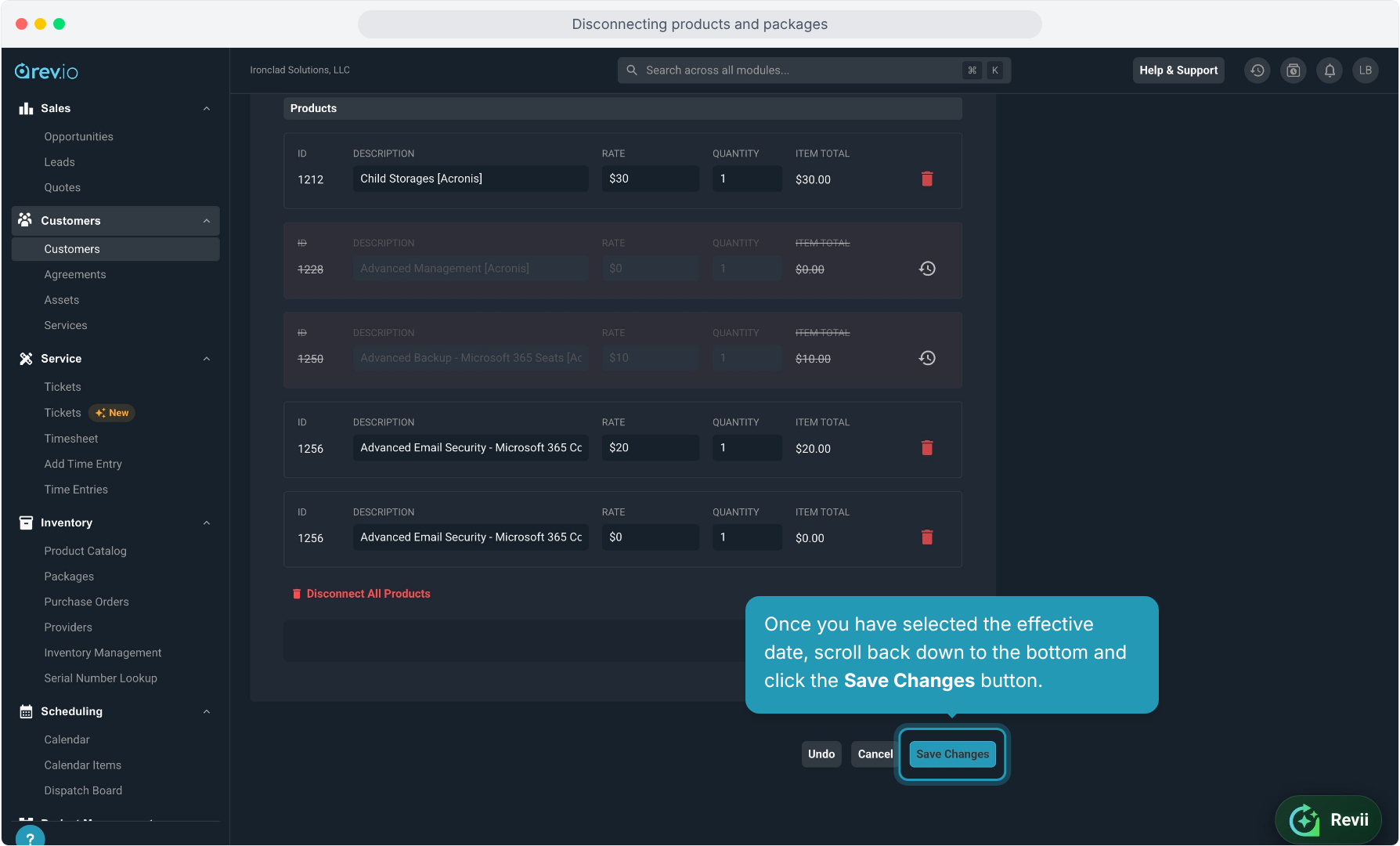
17. Once you have selected the effective date, scroll back down to the bottom and click the Save Changes button.
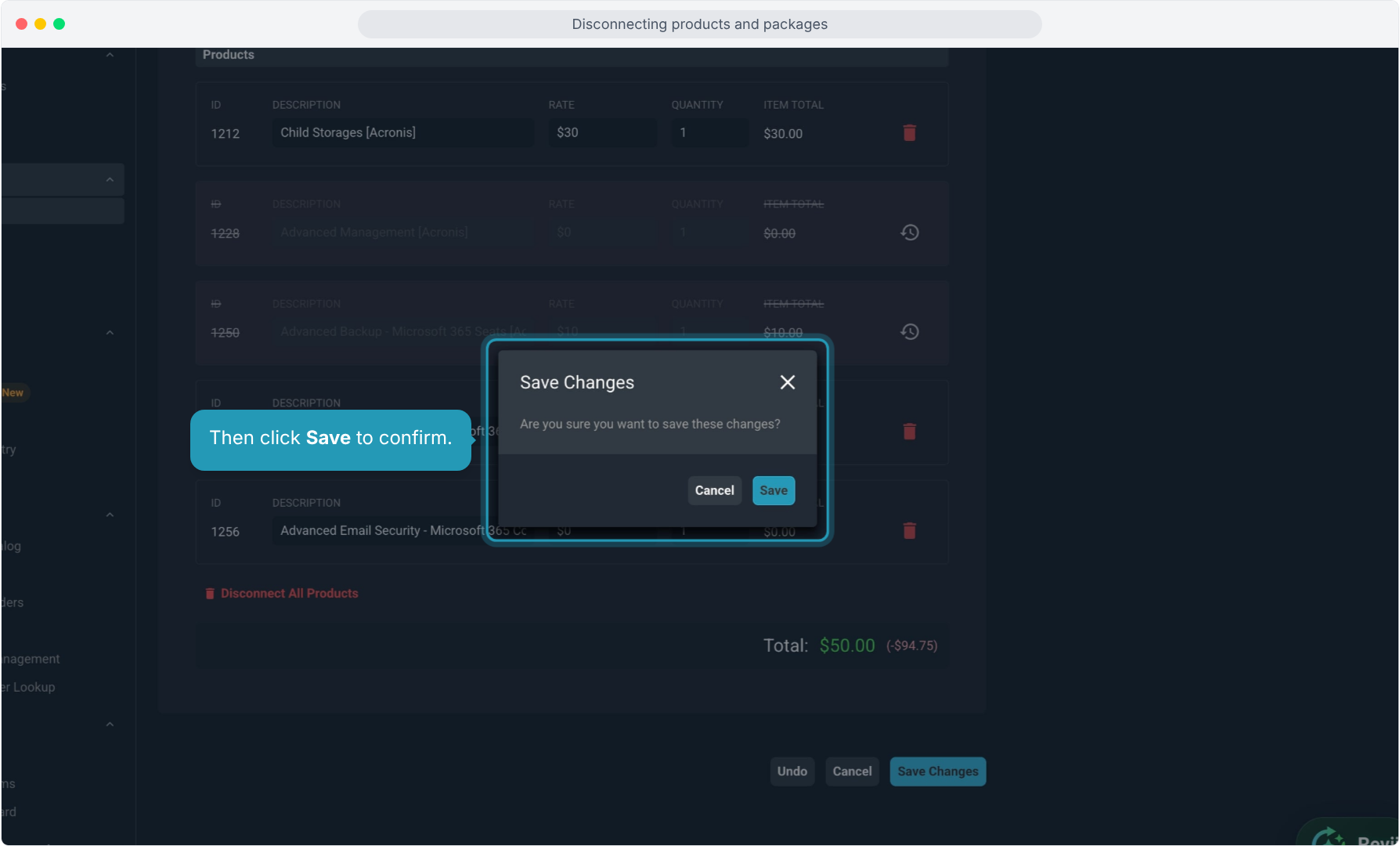
18. Then click Save to confirm.
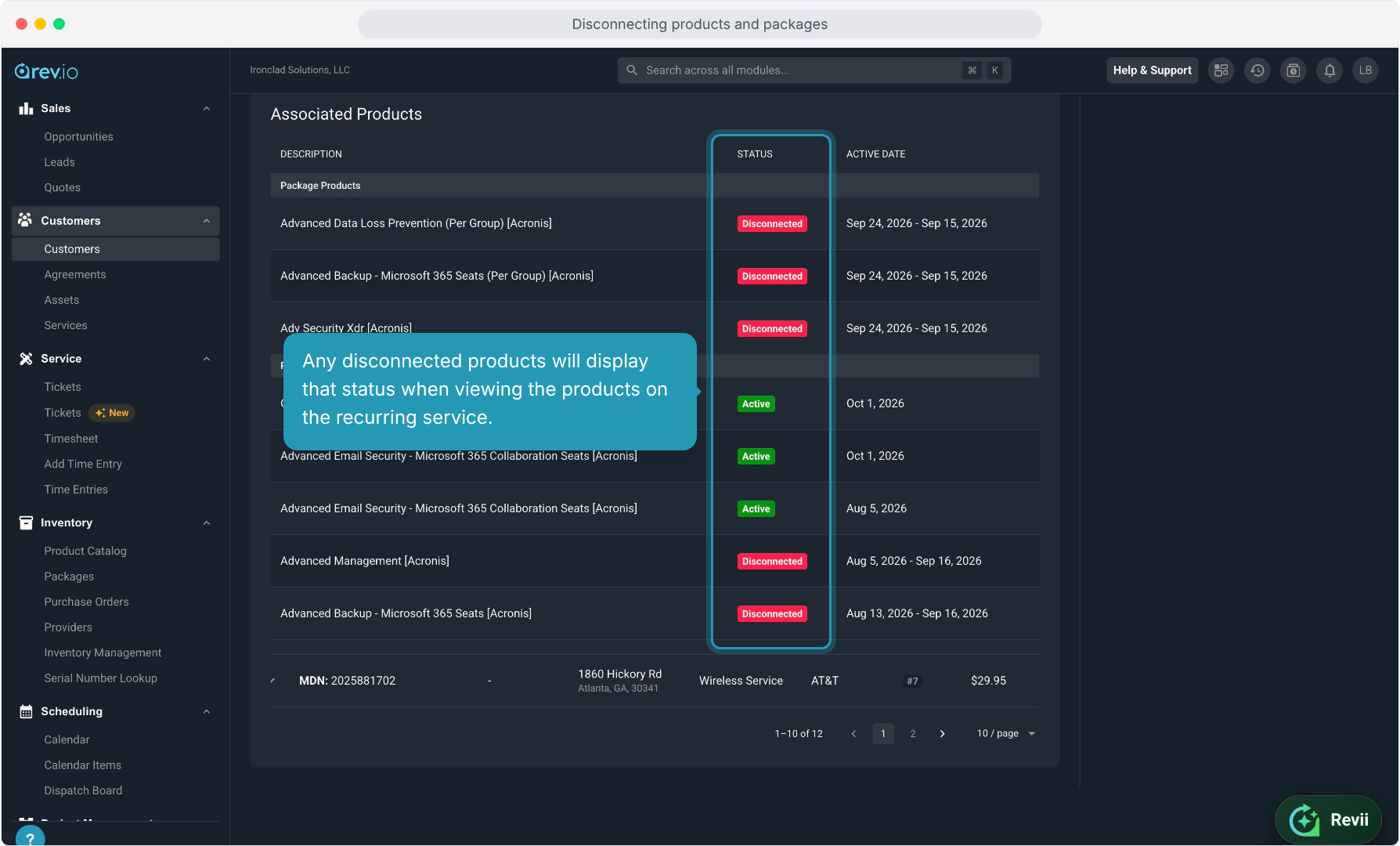
19. Any disconnected products will display that status when viewing the products on the recurring service.
20. Bonus Tip! Adding products and packages to an existing active service without an order or a quote can also be accomplished in a similar manner.
Search for the package or product at the top of the list of existing products and then click Add Product. Make sure to set the correct effective date in the same way so proration will be calculated correctly.