
Customer Profile: Billing Section - Collections Tab
The Collections tab in the Billing section of the customer profile provides visibility into that customer’s collections activity and current status. From this tab, you can review which collection steps have been applied and track past collection actions taken on the account. This tab helps you understand where the customer stands in the collections process and download the activity as a .CSV file when needed.
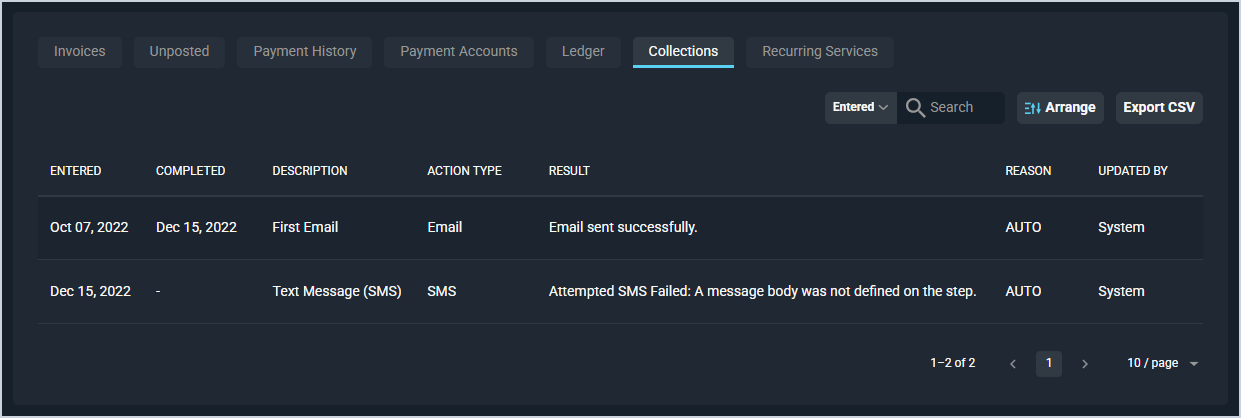
Each field on the Collections tab is defined below.
| No. | Label | Definition |
| 1 | Entered | Date the collection step was entered. |
| 2 | Completed | Date the collection step was completed. |
| 3 | Description | Description of the collection step entered on the collections template. See the Add/Edit Collection Templates article for more information. |
| 4 | Action Type | Type of collection step action taken for the customer account. Action Type options include Letter, Email, Phone Call, SMS, Suspend Two Way, Suspend One Way, Block LD, Disconnect, and Manual. |
| 5 | Result | Indicates whether the collection step action was taken successfully or not. |
| 6 | Reason | Indicates whether the customer entered the collection step automatically or manually. Auto is currently the only option available. |
| 7 | Updated By | Indicates whether the collection step was updated by a specific user or the system. System is currently the only option available. |
The following actions are available on the Collections tab.
- Search the records displayed on this tab by selecting a column from the dropdown above the grid and entering text in the Search field. The list view updates to display records matching your search in the column you selected.
- Customize which columns display in the list view and the order in which they display by clicking the Arrange button and making the desired changes. See the Arrange Columns article for more information.
- Export information on this tab by clicking the Export CSV button.
- Sort the results in the table by clicking the column label in the table header.
Tabs in the Billing Section
For information on other tabs in the Billing section of the Customer Profile screen, see the related articles.
- Customer Profile: Billing Section - Invoices Tab
- Customer Profile: Billing Section - Unposted Tab
- Customer Profile: Billing Section - Payment History Tab
- Customer Profile: Billing Section - Payment Accounts Tab
- Customer Profile: Billing Section - Ledger Tab
- Customer Profile: Billing Section - Recurring Services Tab