
Creating Tickets from Forwarded Email
You can create tickets from a support mailbox in Gmail, Microsoft 365, or another email provider by forwarding its email to an address that Rev.io creates for you. Rev.io does not need access to read the mailbox, and your mailbox credentials are not stored in Rev.io. To set it up, go to Admin > System Settings > Email, open the Support Inboxes tab, and find the Forwarding Addresses section. You need the System Settings permission.
| NOTE: Each mailbox uses either the monitored inbox or forwarding. Existing monitored inboxes are not changed. See the Creating Tickets from Incoming Emails article for more information about the monitored inbox. |
Follow these steps to set up email forwarding.
- Go to Admin > System Settings > Email and open the Support Inboxes tab.
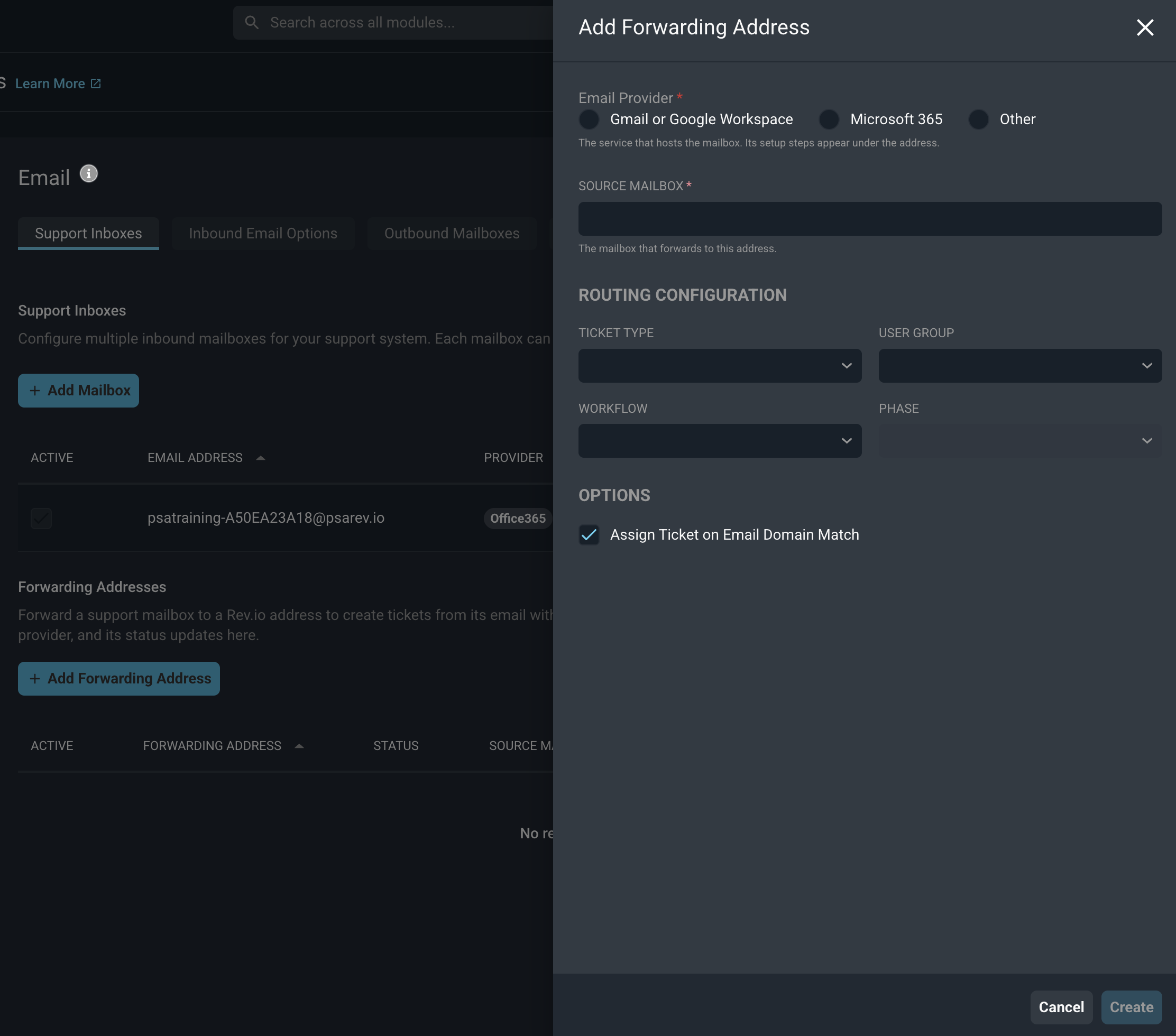
- In the Forwarding Addresses section, click Add Forwarding Address.
- Select the Email Provider and the Source Mailbox.
- Choose the ticket routing in the Routing Configuration section and any settings in the Options section. See the field definitions below.
- Click Create. Rev.io generates the address to forward to, and the setup steps for your email provider appear under the address.
- In your email provider, create a rule that forwards your support mailbox to the generated address.
- Return to Rev.io and check the Status column in the Forwarding Addresses section. When the status shows Verified, forwarded email creates tickets.
Each field in the Add Forwarding Address panel is defined below.
| Label | Definition |
| Email Provider | The service that hosts the mailbox: Gmail or Google Workspace, Microsoft 365, or Other. Its setup steps appear under the address. |
| Source Mailbox | The mailbox that forwards to this address. |
| Ticket Type | Type assigned to tickets created from this address. |
| User Group | User group assigned to tickets created from this address. |
| Workflow | Workflow applied to tickets created from this address. |
| Phase | Workflow phase for tickets created from this address. Phase can be selected only after a workflow is chosen. |
| Assign Ticket on Email Domain Match | When checked, tickets are matched to customers by the domain of the sender’s email address. |
Click Create to save the forwarding address, or click Cancel to close the panel without saving.
Each setup status is defined below.
| Label | Definition |
| Waiting for setup | Rev.io has not received any email from your provider yet. |
| Confirmation received | Your provider sent a confirmation message to the forwarding address. For Gmail, the confirmation link displays on screen so you can approve the forwarding. |
| Verified | Forwarding is working and email sent to the address creates tickets. |
| IMPORTANT: Microsoft 365 blocks forwarding to outside addresses by default. An administrator must allow external forwarding in the outbound anti-spam policy before forwarding will work. |
Forwarded email keeps its original content, attachments, and inline images. If the same email is delivered more than once, only one ticket is created.
To keep customer replies on the original ticket, include Ticket ID: {{ticketId}} in the subject of your workflow emails. The mailbox that sends those emails must also forward to your generated address.
If you delete a forwarding address, also remove the forwarding rule in your email provider. Email forwarded to a deleted address does not create tickets.
For more information about creating tickets from email, see the following articles.
Creating Tickets from Incoming Emails
System Settings: Email Settings