
Workflows: Flow Builder
The Flow Builder tab displays all flows configured in your instance. Flows are structured processes made up of phases and actions that can be assigned to tickets to guide your team through the steps required to complete the work.
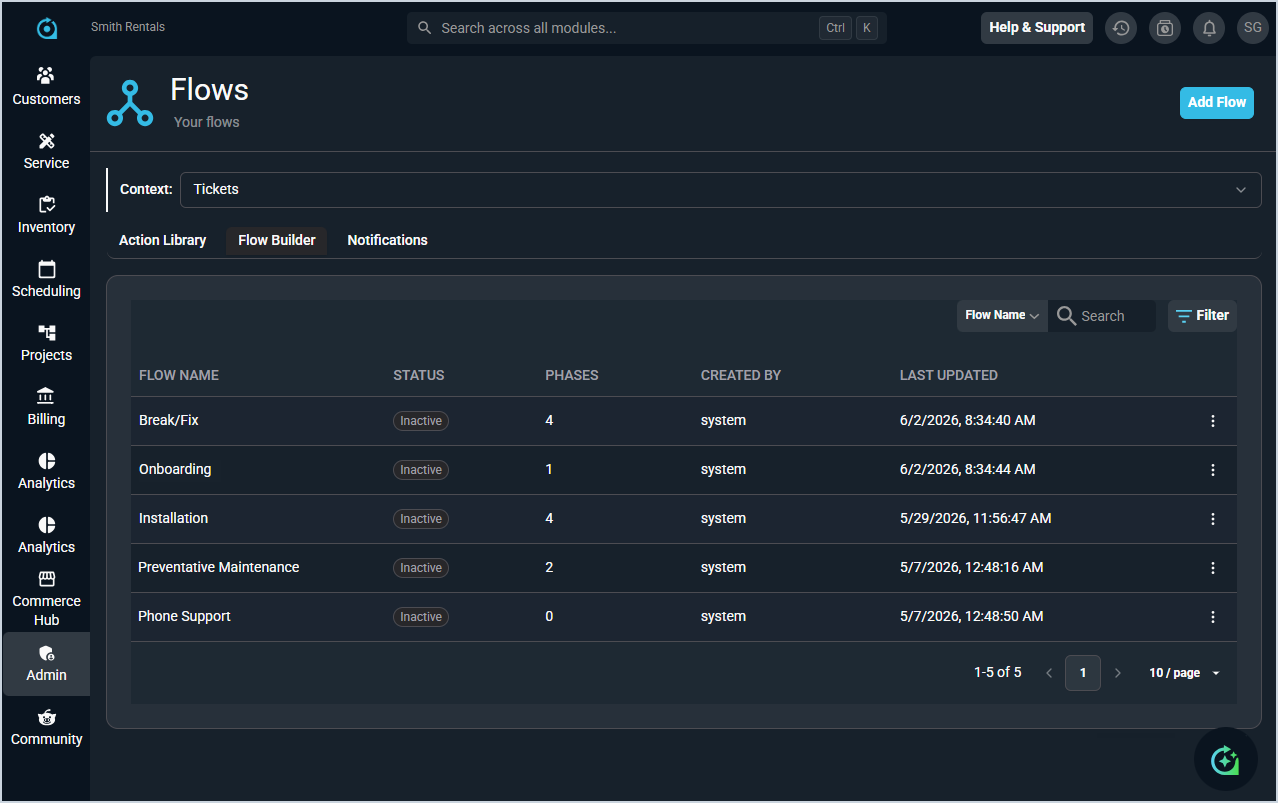
Each field on the Flow Builder tab is defined below.
| No. | Label | Definition |
| 1 | Flow Name | Name of the flow. |
| 2 | Status | Current status of the flow. Status options include Active and Inactive. |
| 3 | Phases | Number of phases configured in the flow. |
| 4 | Created By | User who created the flow. Currently, system displays for all flows. |
| 5 | Last Updated | Date and time the flow was last updated. |
The following actions are available on the Flow Builder tab.
- Create a new flow by clicking the Add Flow button. See the Create/Edit Flows article for more information.
- Search for a flow by selecting a column from the dropdown and entering text in the Search field.
- Filter the flows displayed by clicking the Filter button and selecting the desired filter criteria.
- Sort the results in the table by clicking the column label in the table header.
- View a flow by clicking the ellipsis at the end of the row and selecting View.
- Export a flow by clicking the ellipsis at the end of the row and selecting Export.
- Edit a flow by clicking the ellipsis at the end of the row and selecting Edit. See the Create/Edit Flows article for more information.
- Activate or deactivate a flow by clicking the ellipsis at the end of the row and selecting Activate or Deactivate.