
Create Recurring Schedules
A recurring schedule automatically creates a ticket for a customer on a pattern you set, such as a monthly backup check or a quarterly maintenance visit. To create one, open the customer profile, click the Servicing tab, open the Recurring Schedules tab, and click the Create Recurring Schedule button.
The setup has four steps: Select Customer, Schedule Pattern, Ticket Details, and Review & Confirm. Click Next to move to the next step and Previous to go back. As you work, the Schedule Preview panel on the right shows the customer, the schedule pattern, and the dates of the next scheduled tickets.
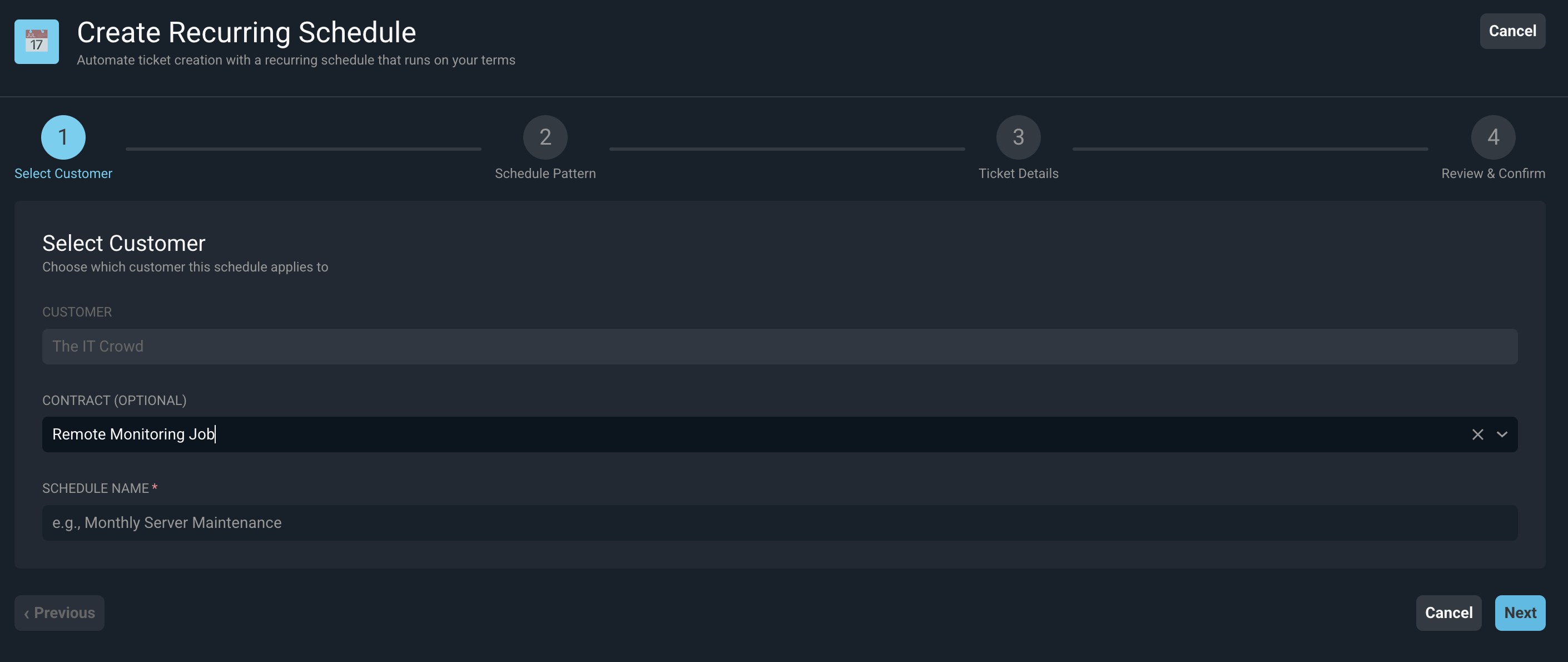
Each field in the Select Customer step is defined below.
| Label | Definition |
| Customer | Customer the schedule applies to. This is filled in for you when you start from the customer profile. |
| Contract (Optional) | Contract to link to the schedule, if one applies. |
| Schedule Name | Name of the schedule, such as Monthly Server Maintenance. |
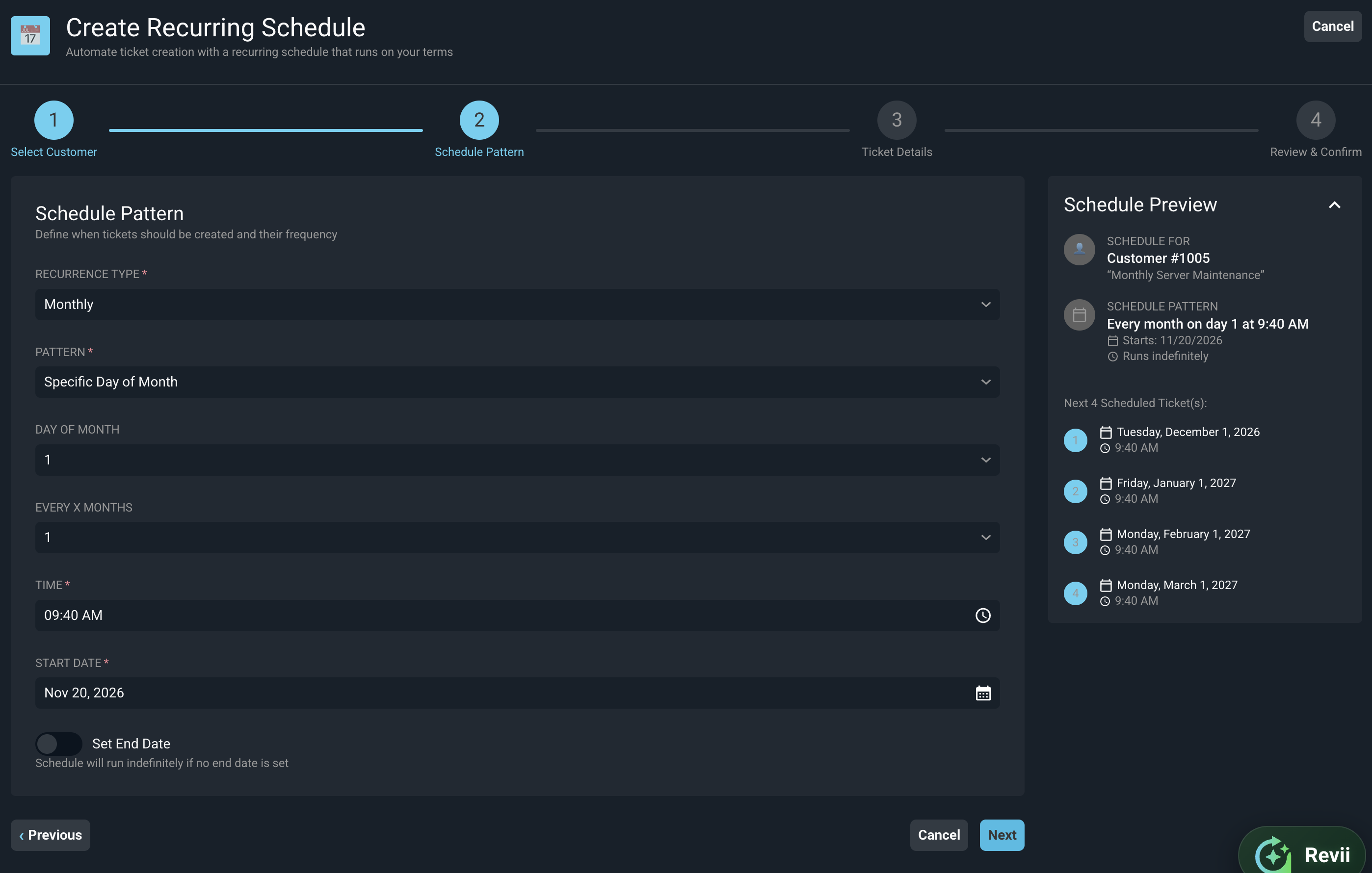
Each field in the Schedule Pattern step is defined below. The fields that display depend on the Recurrence Type and Pattern you select.
| Label | Definition |
| Recurrence Type | How often the schedule runs. Recurrence Type options include Daily, Weekly, Monthly, Quarterly, Yearly, and Custom. |
| Every X Days | Number of days between tickets. This field displays for the Daily Recurrence Type. |
| Days of Week | Days of the week the schedule runs. This field displays for the Weekly Recurrence Type. |
| Pattern | How the day is chosen for Monthly, Quarterly, and Yearly schedules. Pattern options include Specific Day of Month and Day of Week. |
| Start Month | Month the quarterly schedule starts. This field displays for the Quarterly Recurrence Type. |
| Month | Month the schedule runs. This field displays for the Yearly Recurrence Type. |
| Day of Month | Day of the month the schedule runs, such as 1. This field displays for the Specific Day of Month Pattern. |
| Week of Month | Week of the month the schedule runs, such as 1st. This field displays for the Day of Week Pattern. |
| Day of Week | Day of the week the schedule runs, such as Monday. This field displays for the Day of Week Pattern. |
| Every X Months | Number of months between tickets. This field displays for the Monthly Recurrence Type. |
| Add Date | Specific dates the schedule runs. This field displays for the Custom Recurrence Type. |
| Time | Time of day the ticket is created. |
| Start Date | Date the schedule starts. |
| Set End Date | Turn on to set a date for the schedule to stop. The schedule runs indefinitely if no end date is set. |
| End Date | Date the schedule stops. This field displays when Set End Date is turned on. |
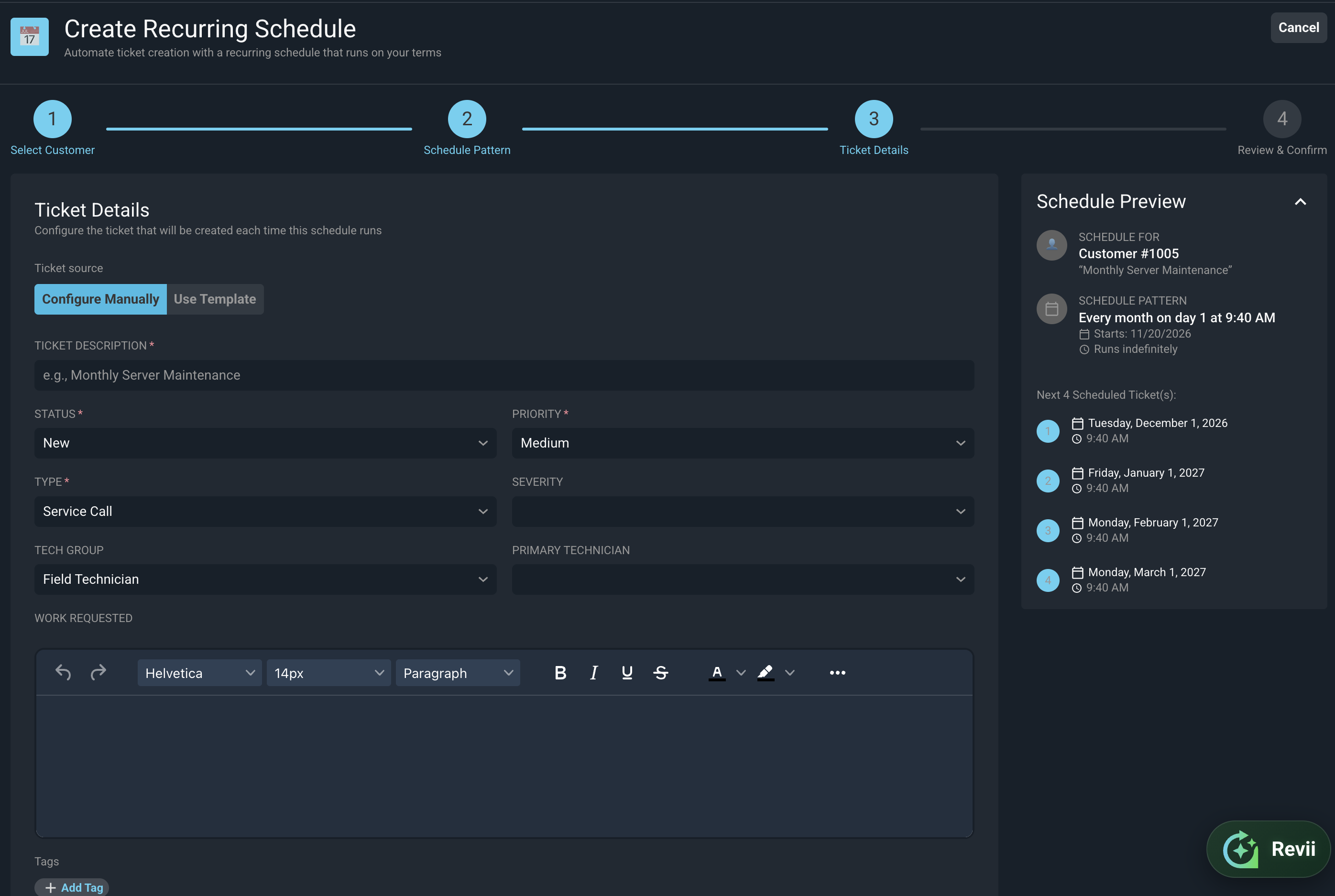
Each field in the Ticket Details step is defined below. These are the details of the ticket that is created each time the schedule runs. Choose Configure Manually to enter the ticket details yourself, or Use Template to fill them in from a new ticket template.
| Label | Definition |
| Ticket Source | Where the ticket details come from. Options include Configure Manually and Use Template. |
| Ticket Template | New ticket template used to create the ticket. This field displays when you select Use Template. See the Add/Edit New Ticket Templates article for more information. |
| Ticket Description | Description of the ticket, such as Monthly Server Maintenance. |
| Status | Status of the ticket when it is created. |
| Priority | Priority of the ticket. |
| Type | Type of ticket. |
| Severity | Severity of the ticket. |
| Tech Group | User group assigned to the ticket. |
| Primary Technician | Technician assigned to the ticket. |
| Work Requested | Work to be done on the ticket. |
| Tags | Tags applied to the ticket. Click Add Tag to add a tag. |
The Review & Confirm step shows the customer, the schedule pattern, a preview of the ticket, and the dates of the next four scheduled tickets. Review the details, then click Activate Schedule. The schedule is activated right away, and tickets are created automatically according to the schedule. You can pause or change the schedule at any time from the Recurring Schedules tab.
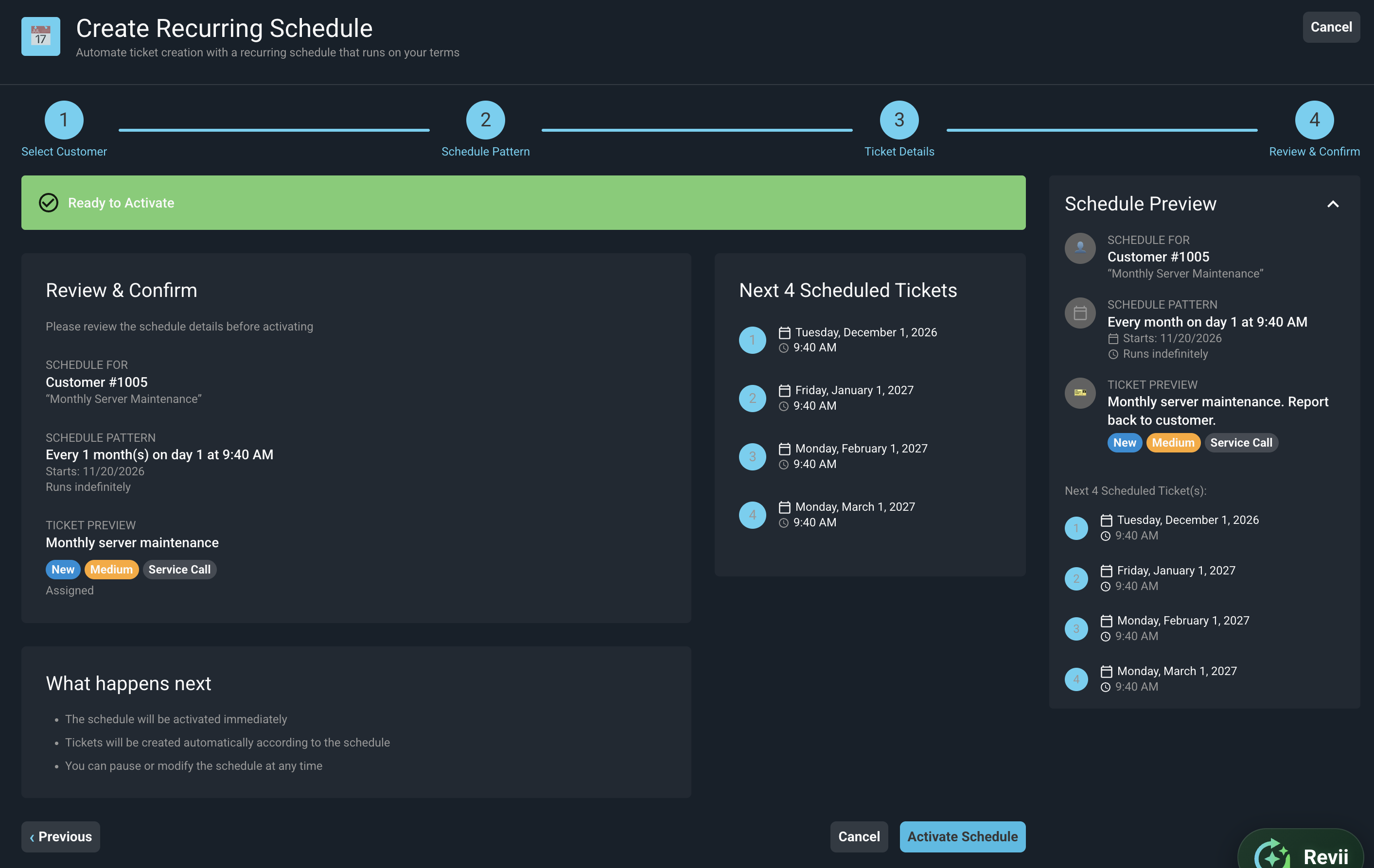
Click Cancel at any step to close the setup without saving the schedule.
For more information about recurring schedules and tickets, see the following articles.
Customer Profile: Servicing Section - Recurring Schedules Tab
Add/Edit New Ticket Templates
Add/Edit Tickets