How To Guide: Using Multiple Ticket Timers
1. Introduction
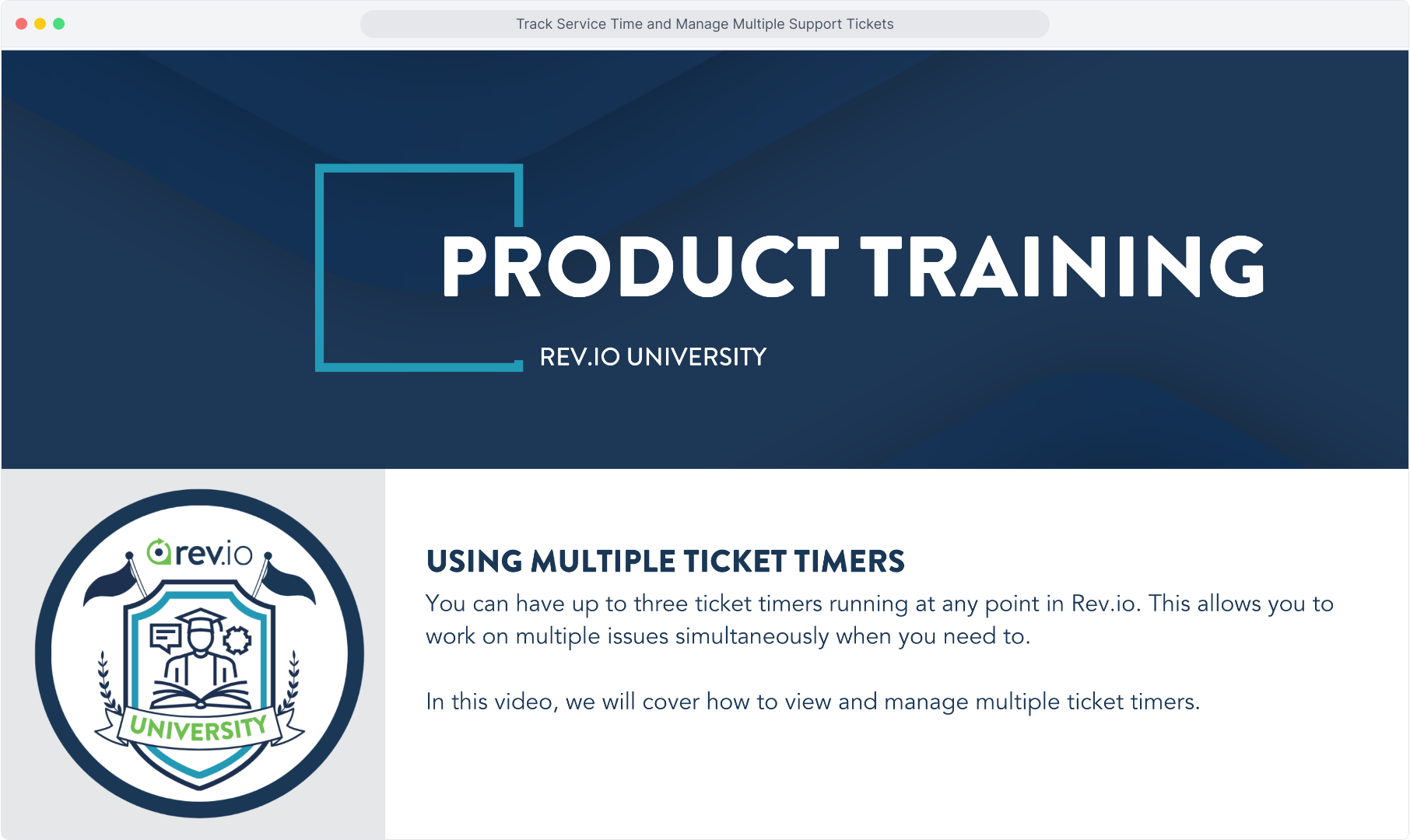
2. If you have a timer running on a ticket, you can see the timer in the global view at the top of any screen. The system displays the ticket ID and the customer name.
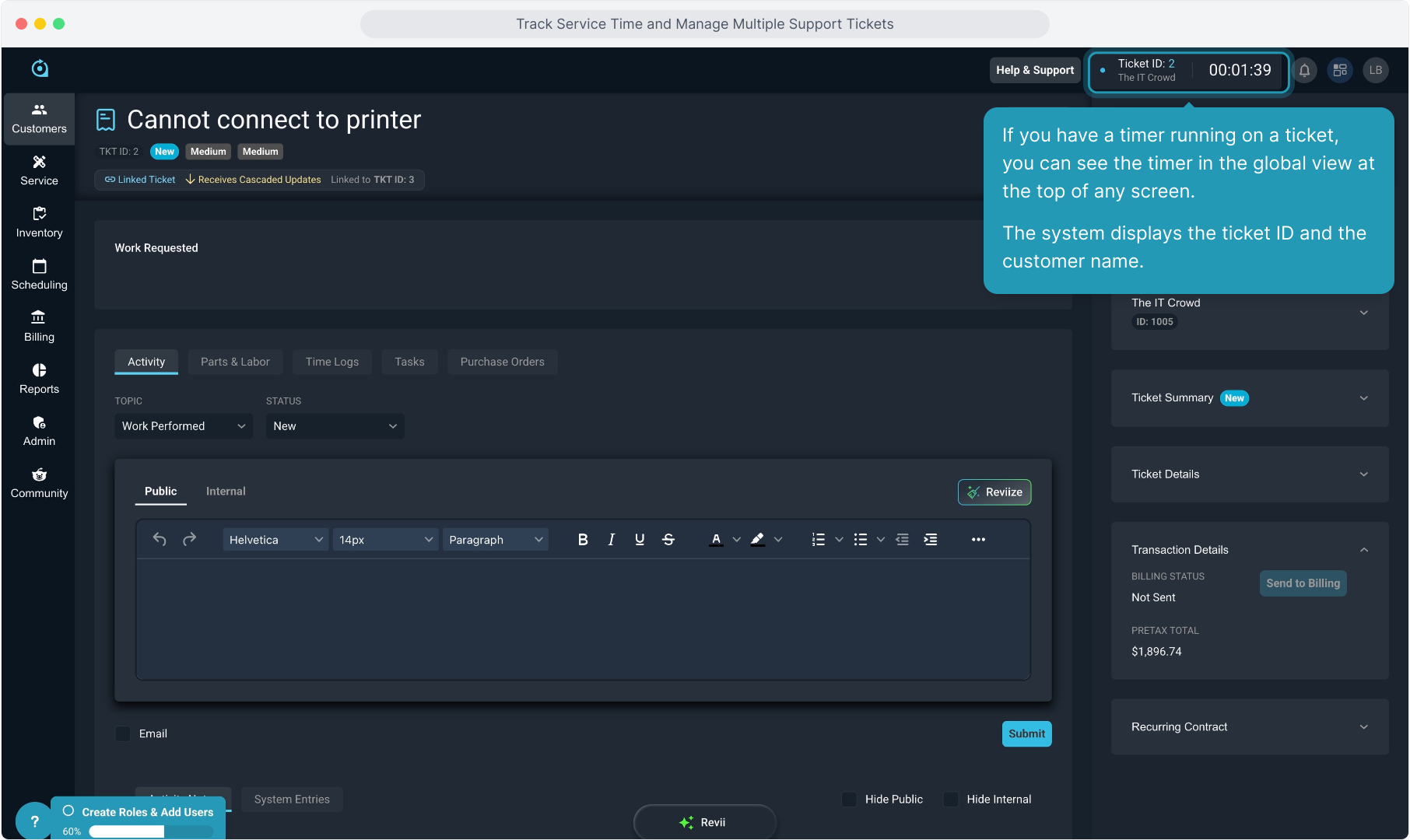
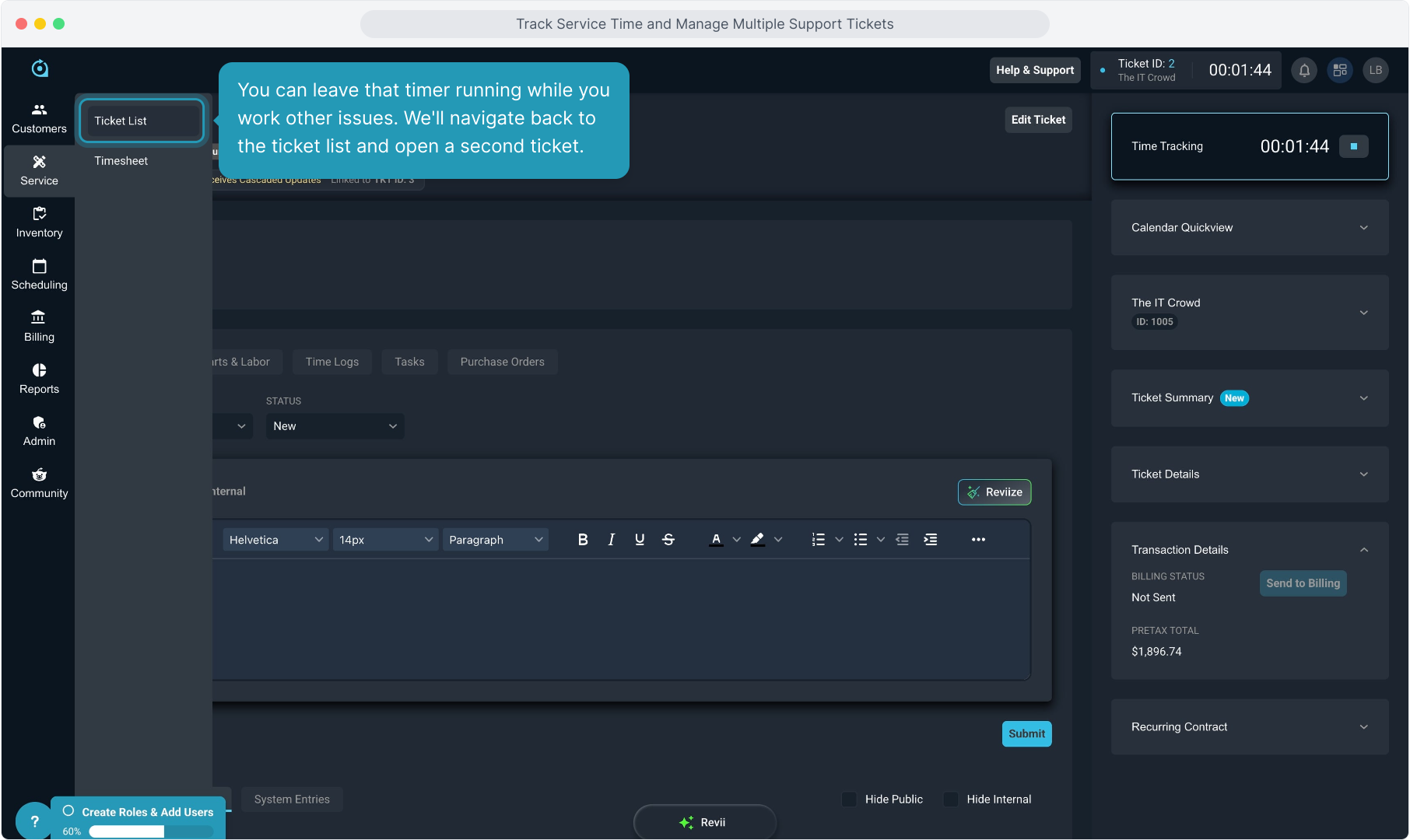
3. To review, you can always see the current ticket's timer on the ticket itself as well. This is where you will start time tracking and end time tracking on a ticket.
4. You can leave that timer running while you work other issues. We'll navigate back to the ticket list and open a second ticket.
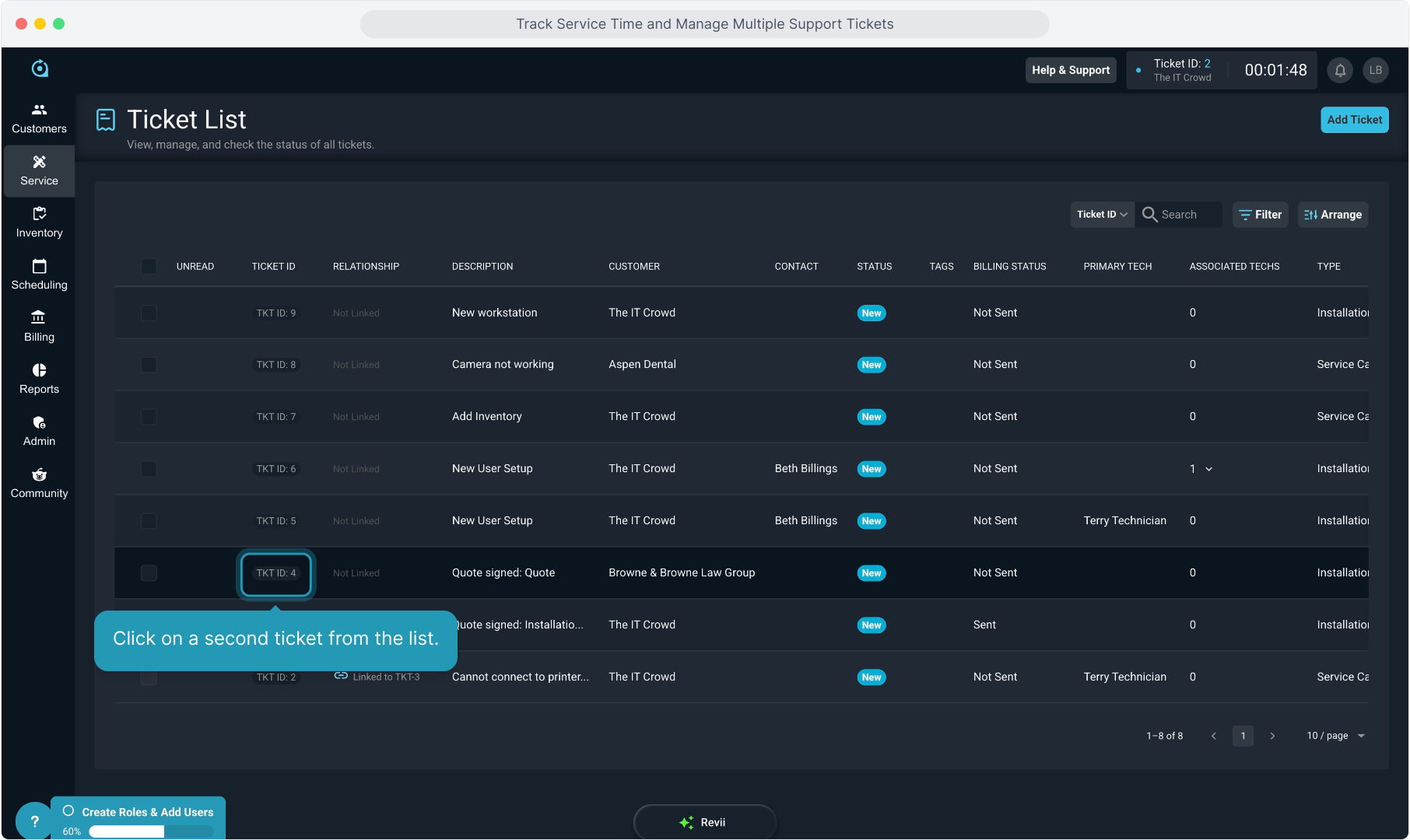
5. Click on a second ticket from the list.
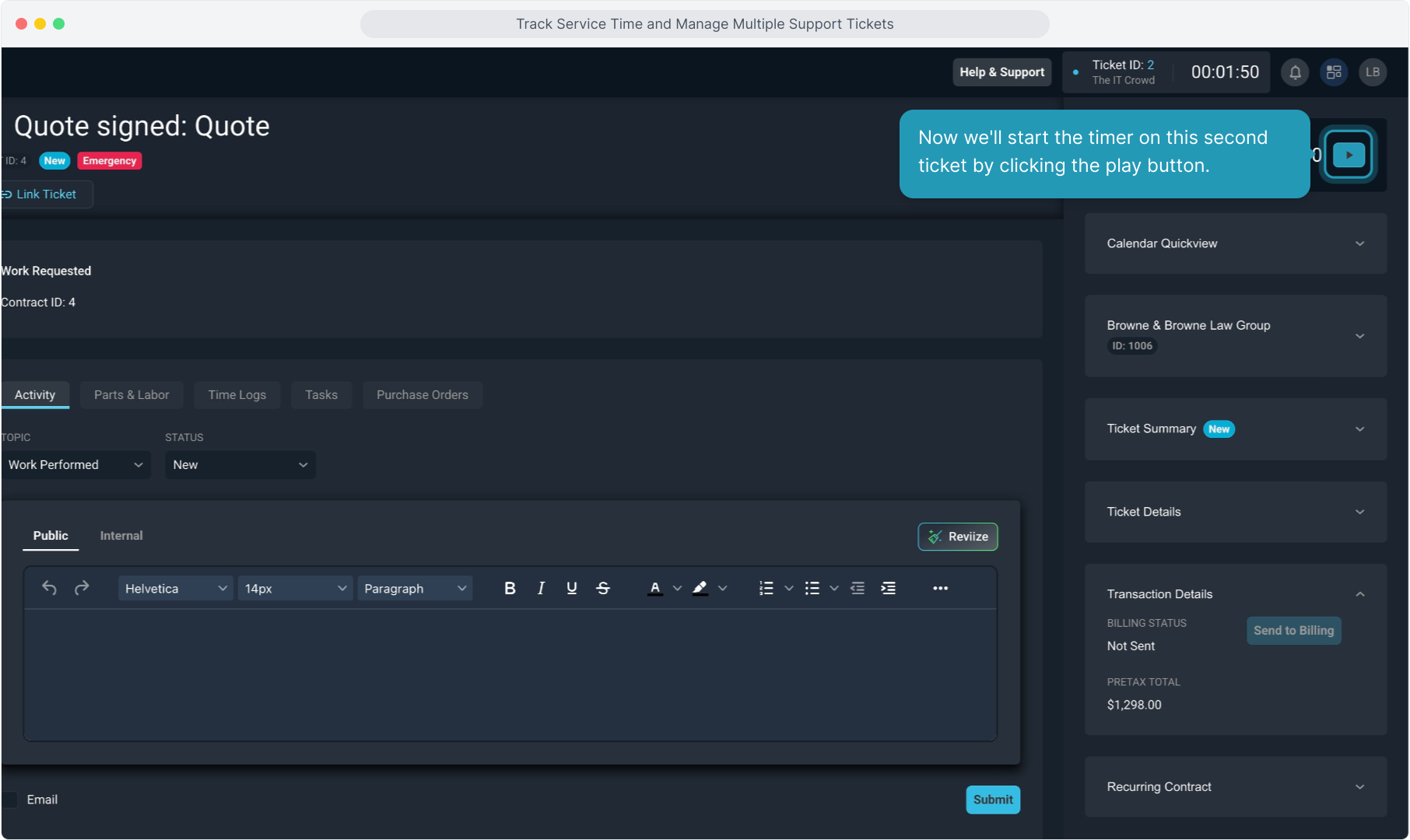
6. Now we'll start the timer on this second ticket by clicking the play button.
7. You'll notice now that the current ticket displays in the global timer view at the top.
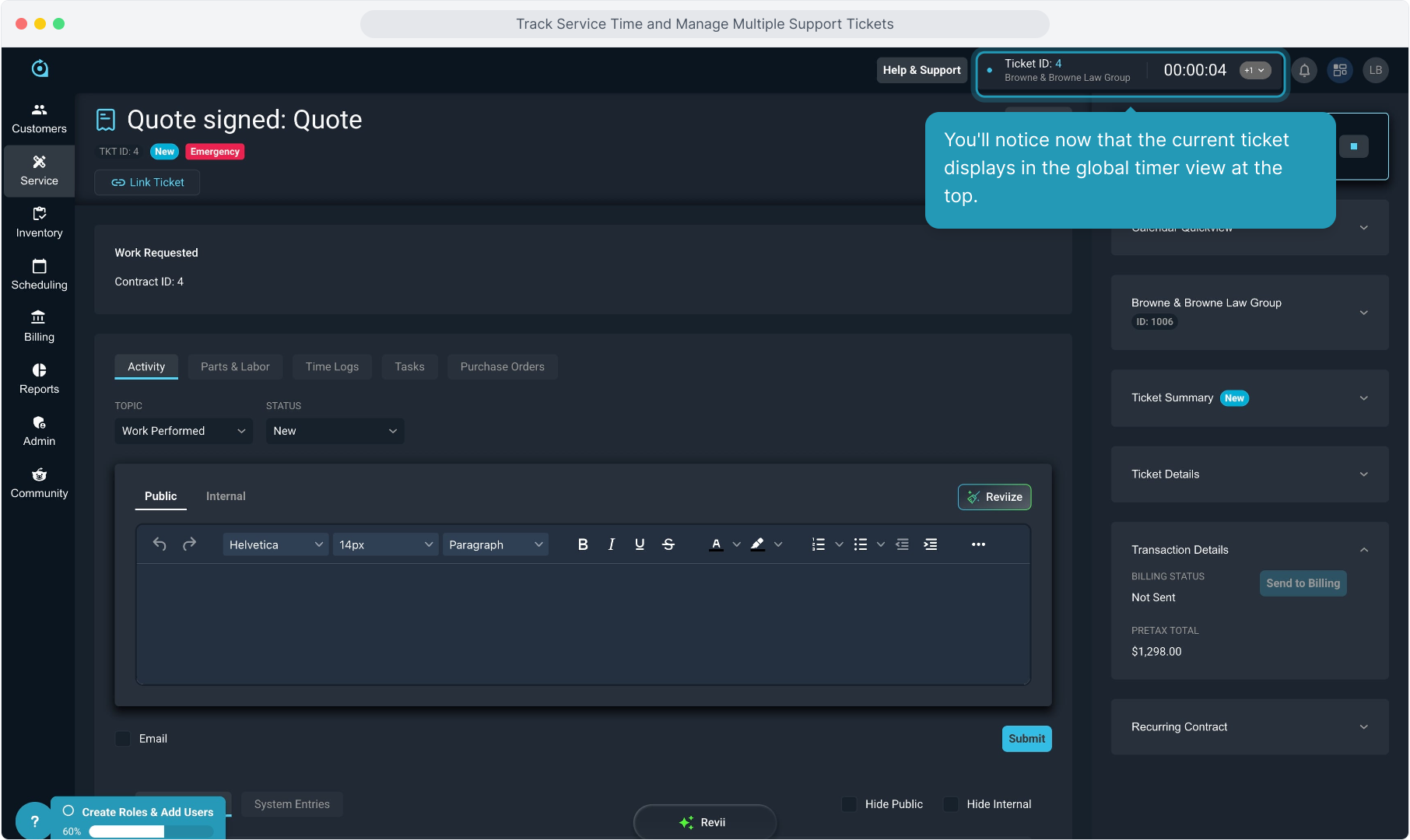
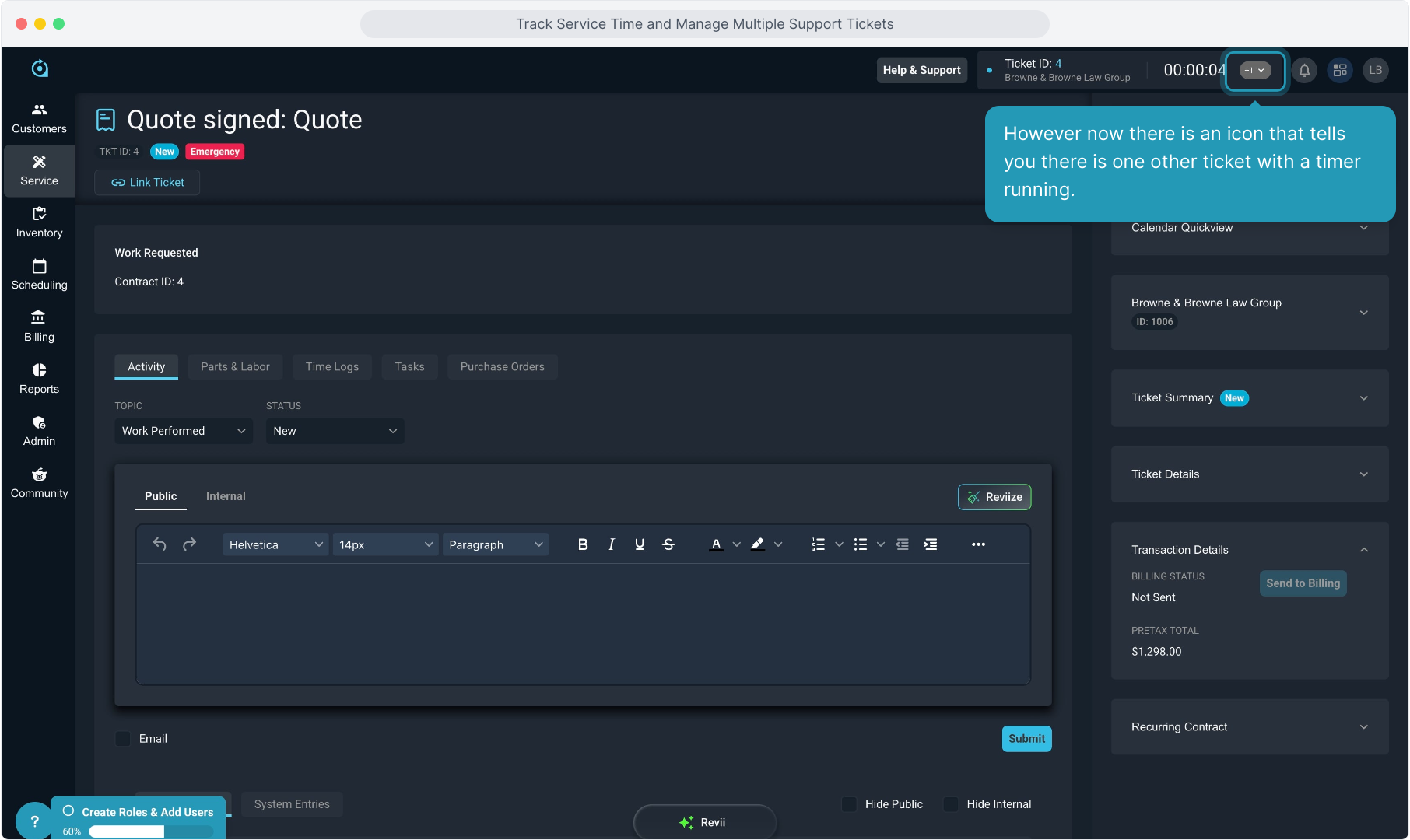
8. However now there is an icon that tells you there is one other ticket with a timer running.
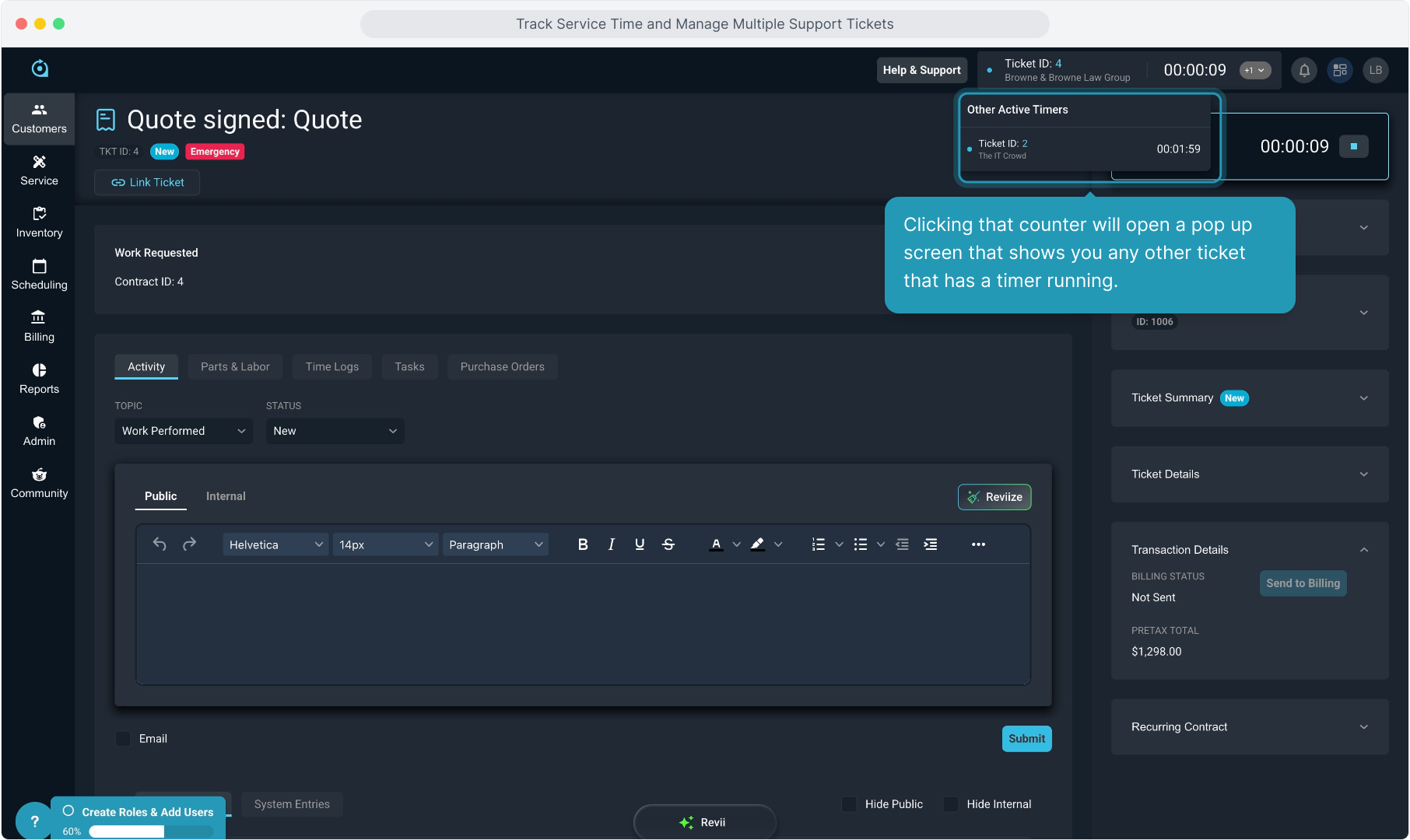
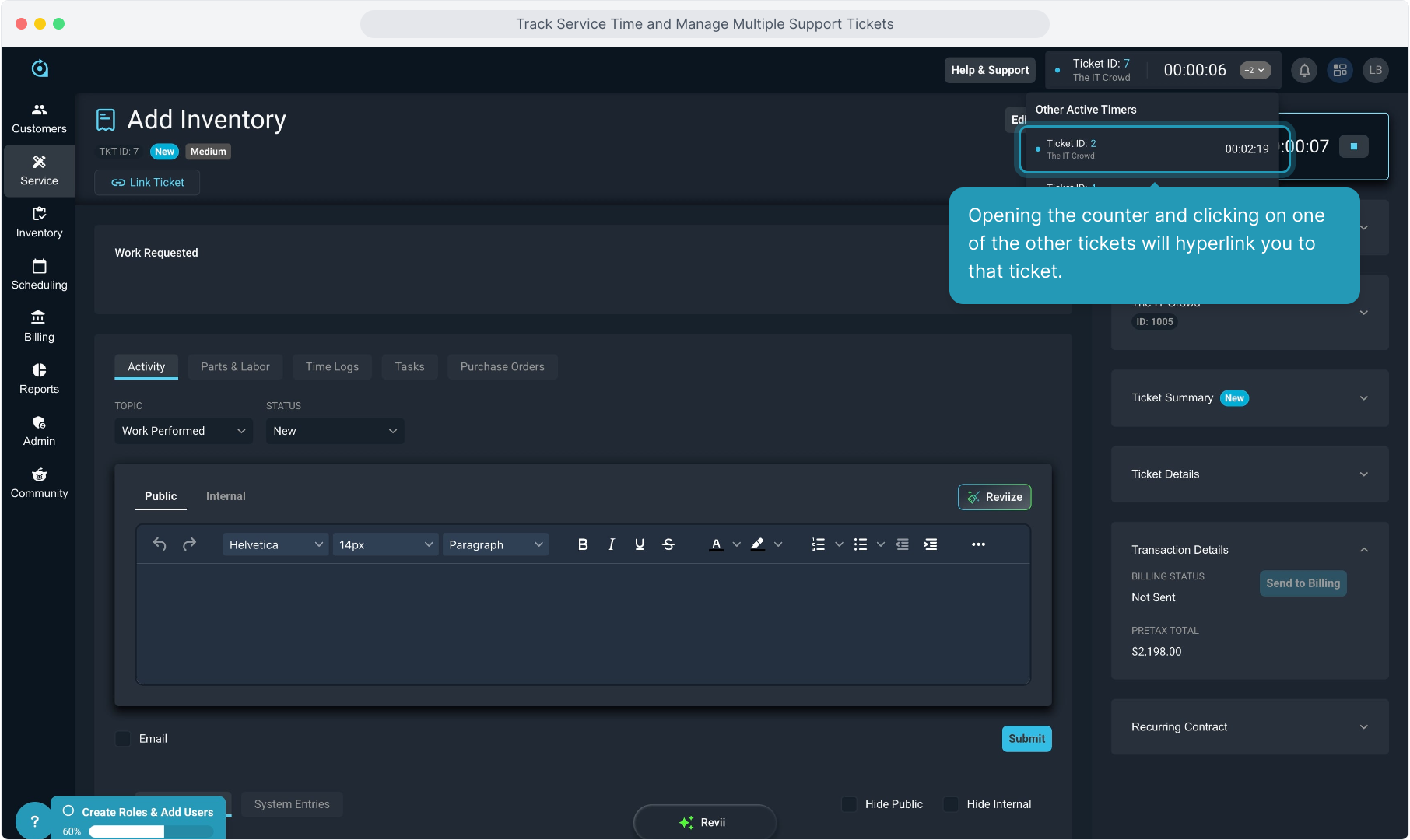
9. Clicking that counter will open a pop up screen that shows you any other ticket that has a timer running.
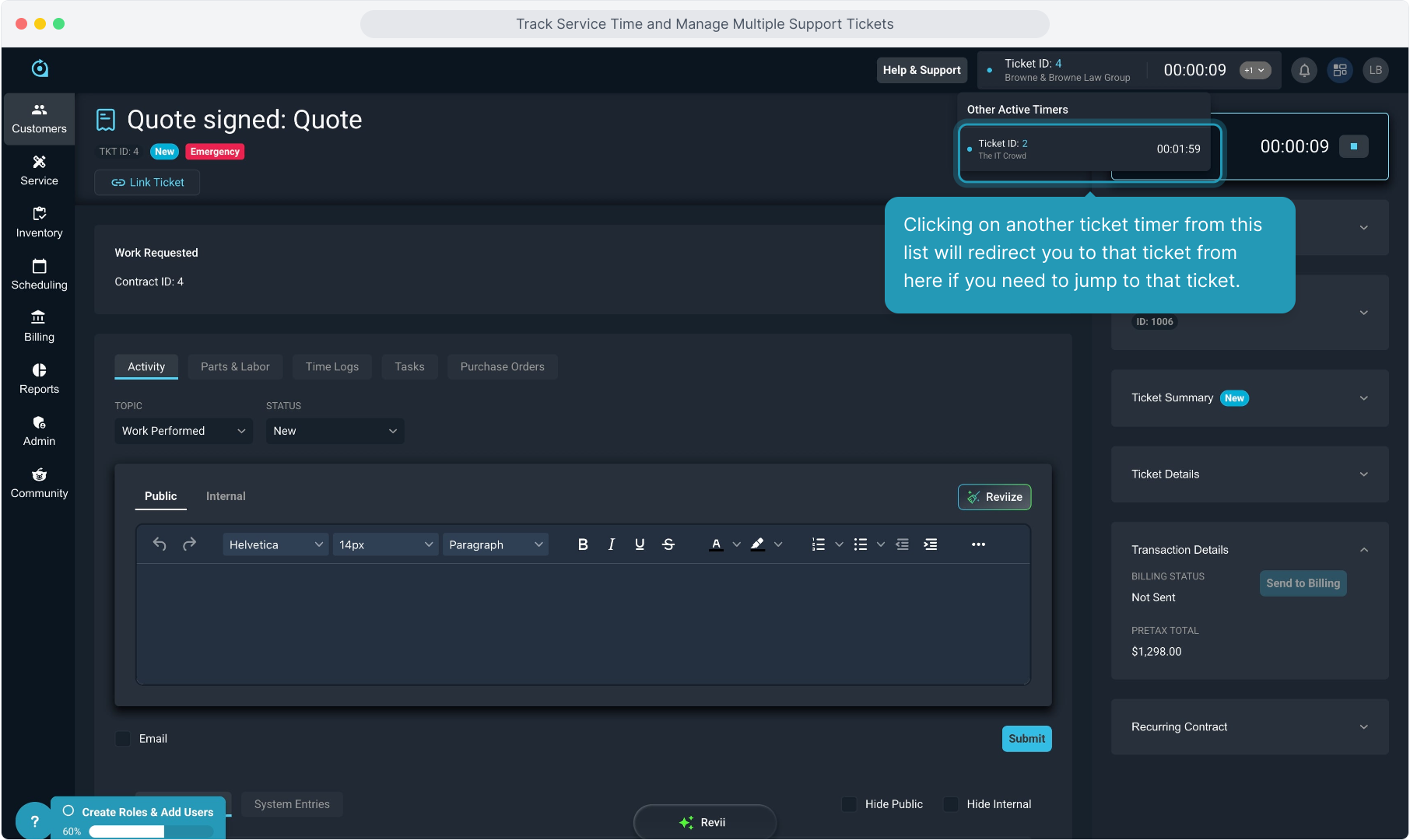
10. Clicking on another ticket timer from this list will redirect you to that ticket from here if you need to jump to that ticket.
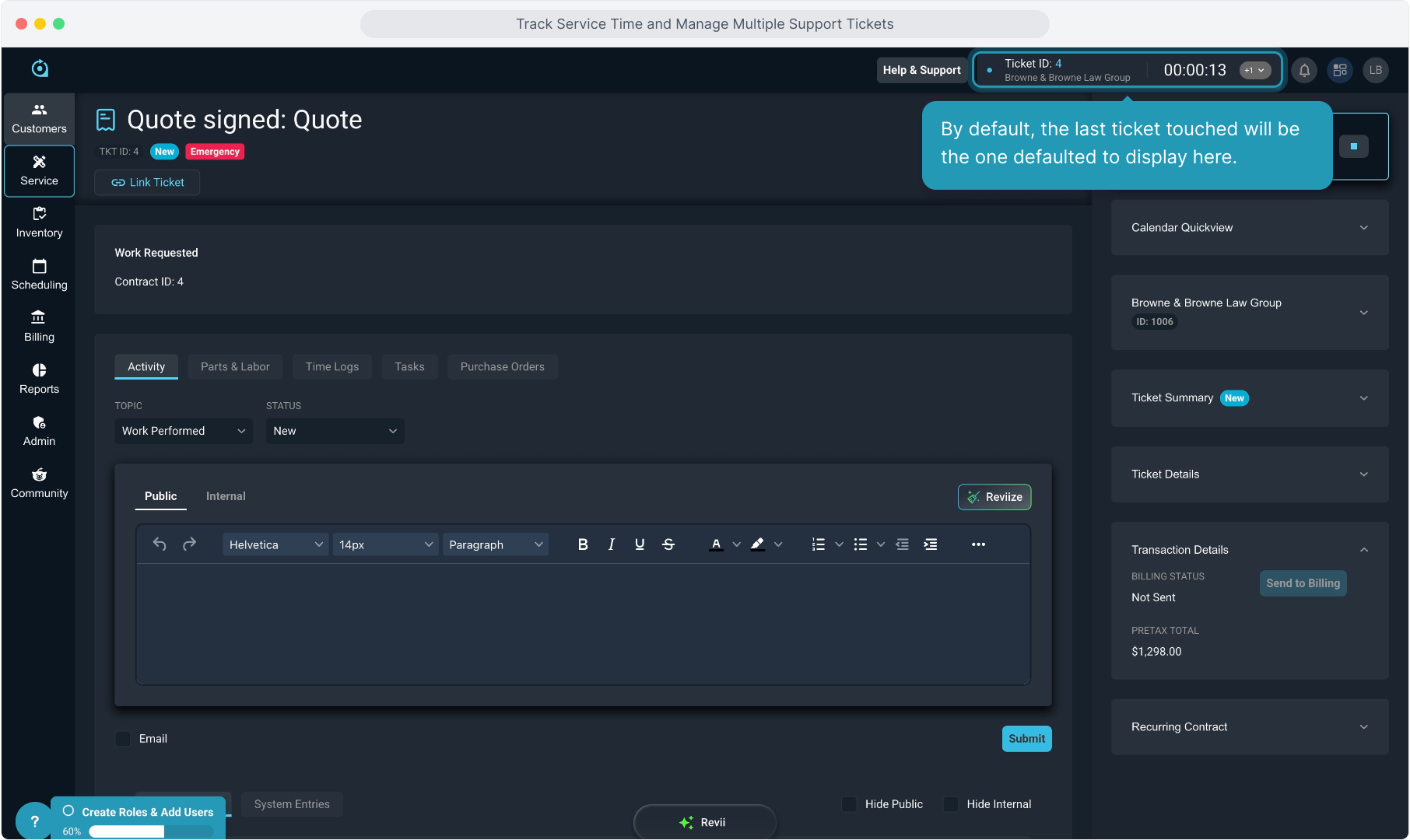
11. By default, the last ticket touched will be the one defaulted to display here.
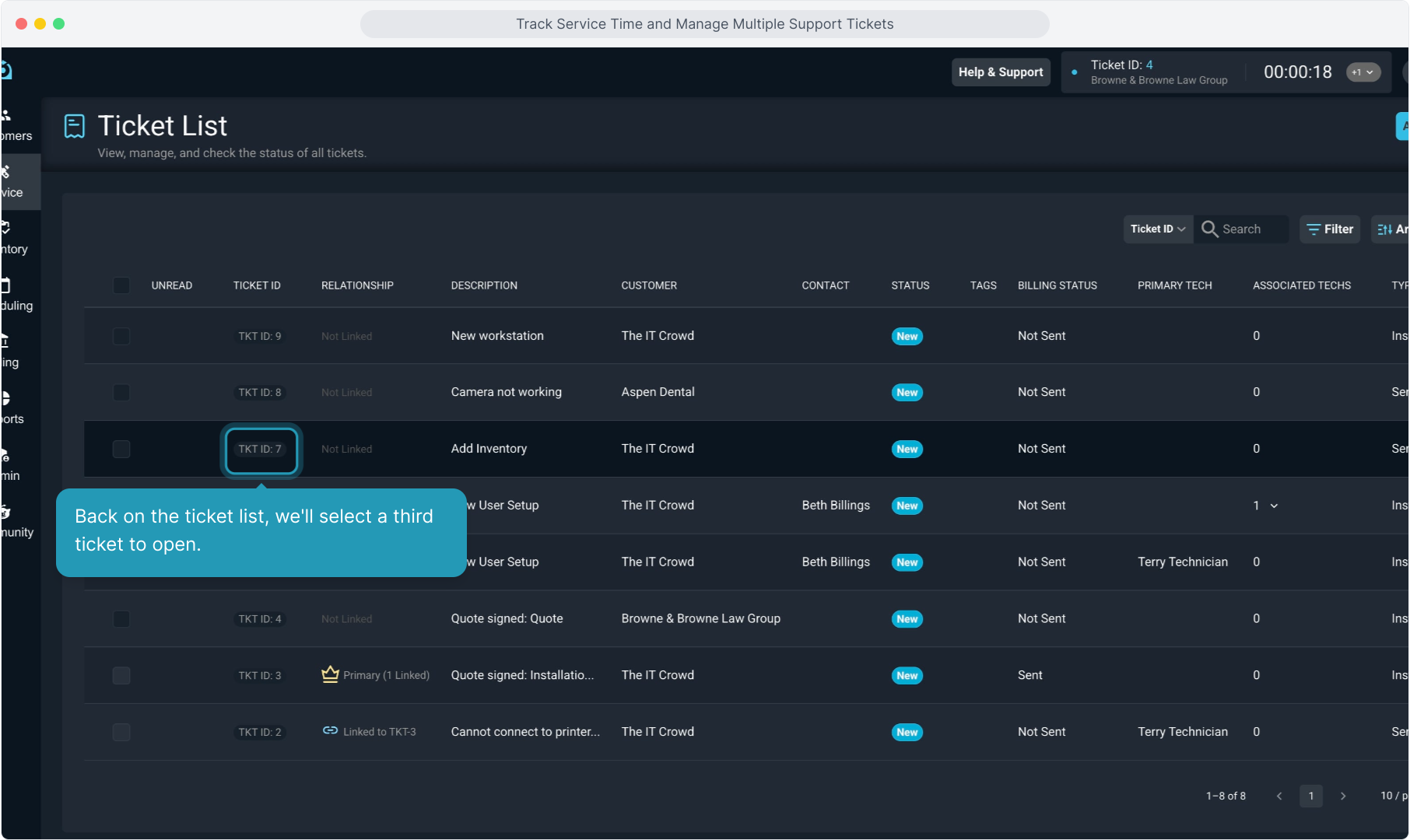
12. Back on the ticket list, we'll select a third ticket to open.
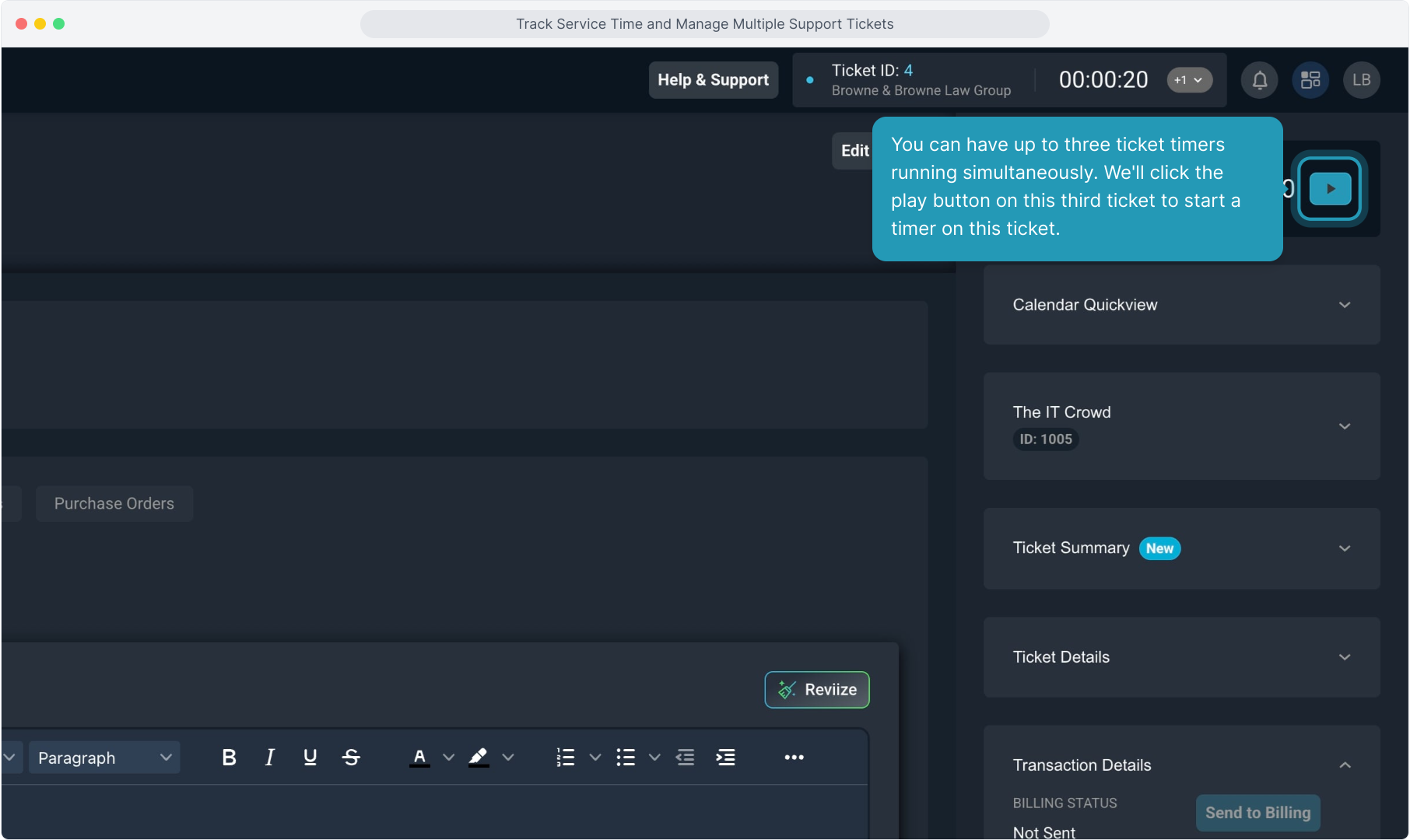
13. You can have up to three ticket timers running simultaneously. We'll click the play button on this third ticket to start a timer on this ticket.
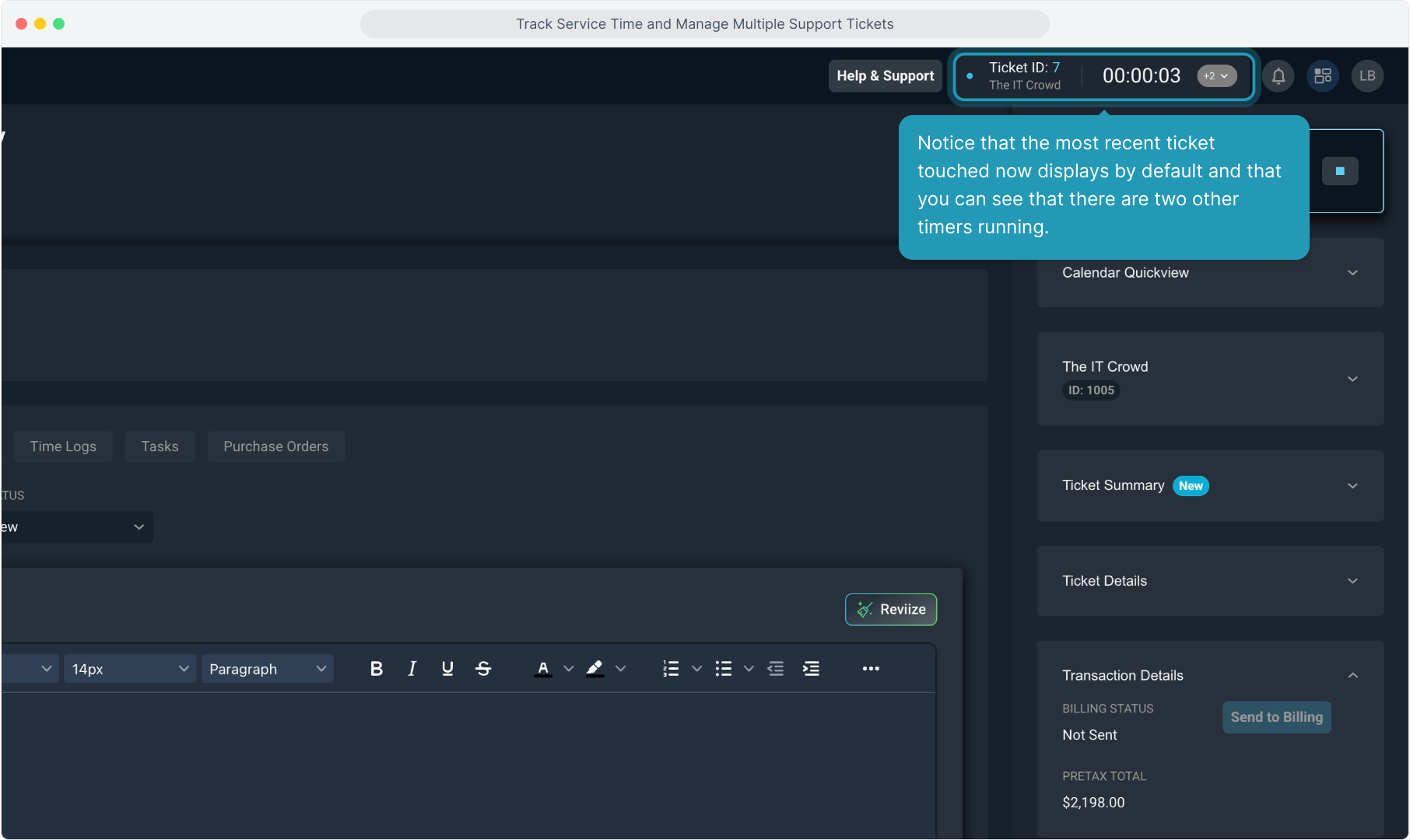
14. Notice that the most recent ticket touched now displays by default and that you can see that there are two other timers running.
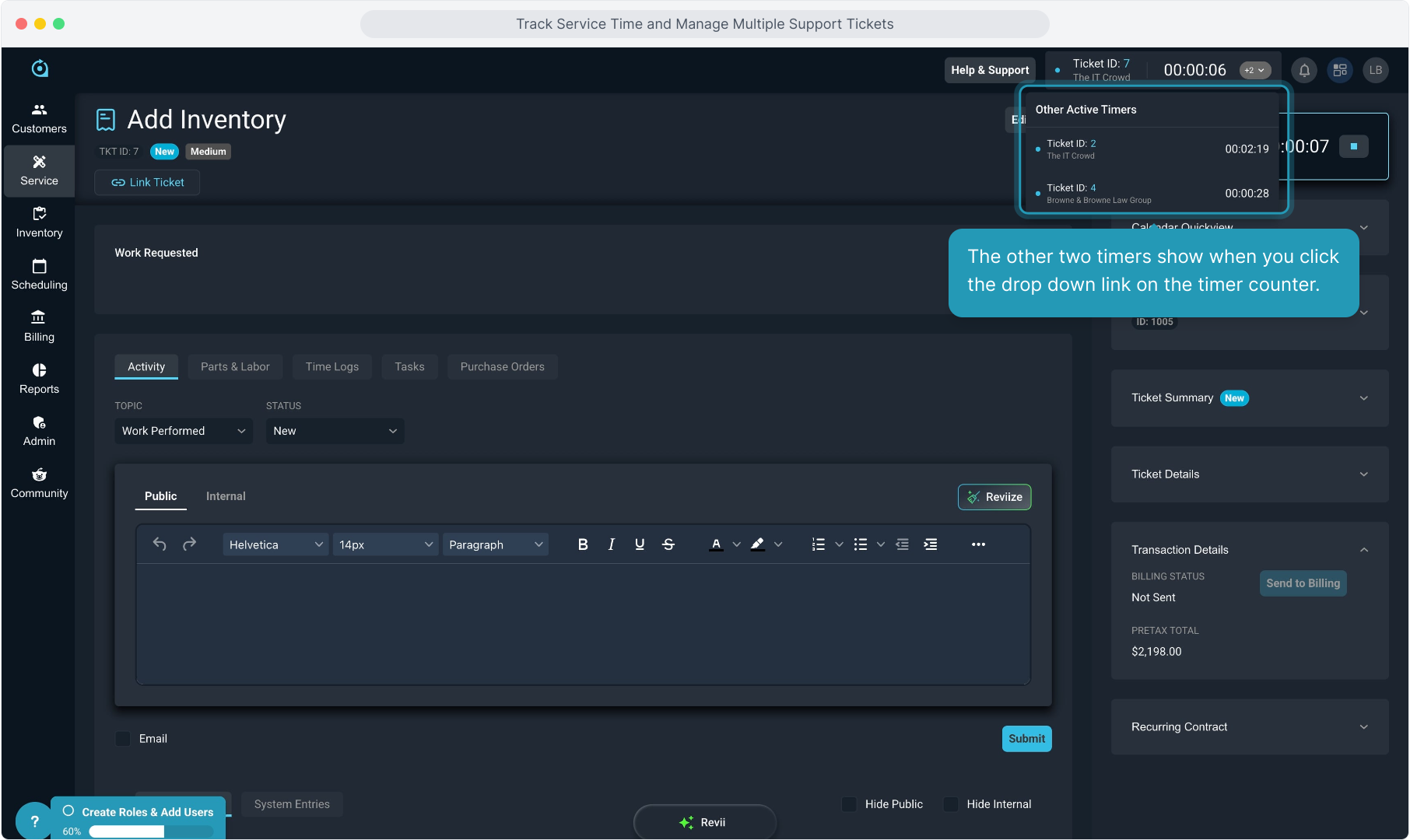
15. The other two timers show when you click the drop down link on the timer counter.
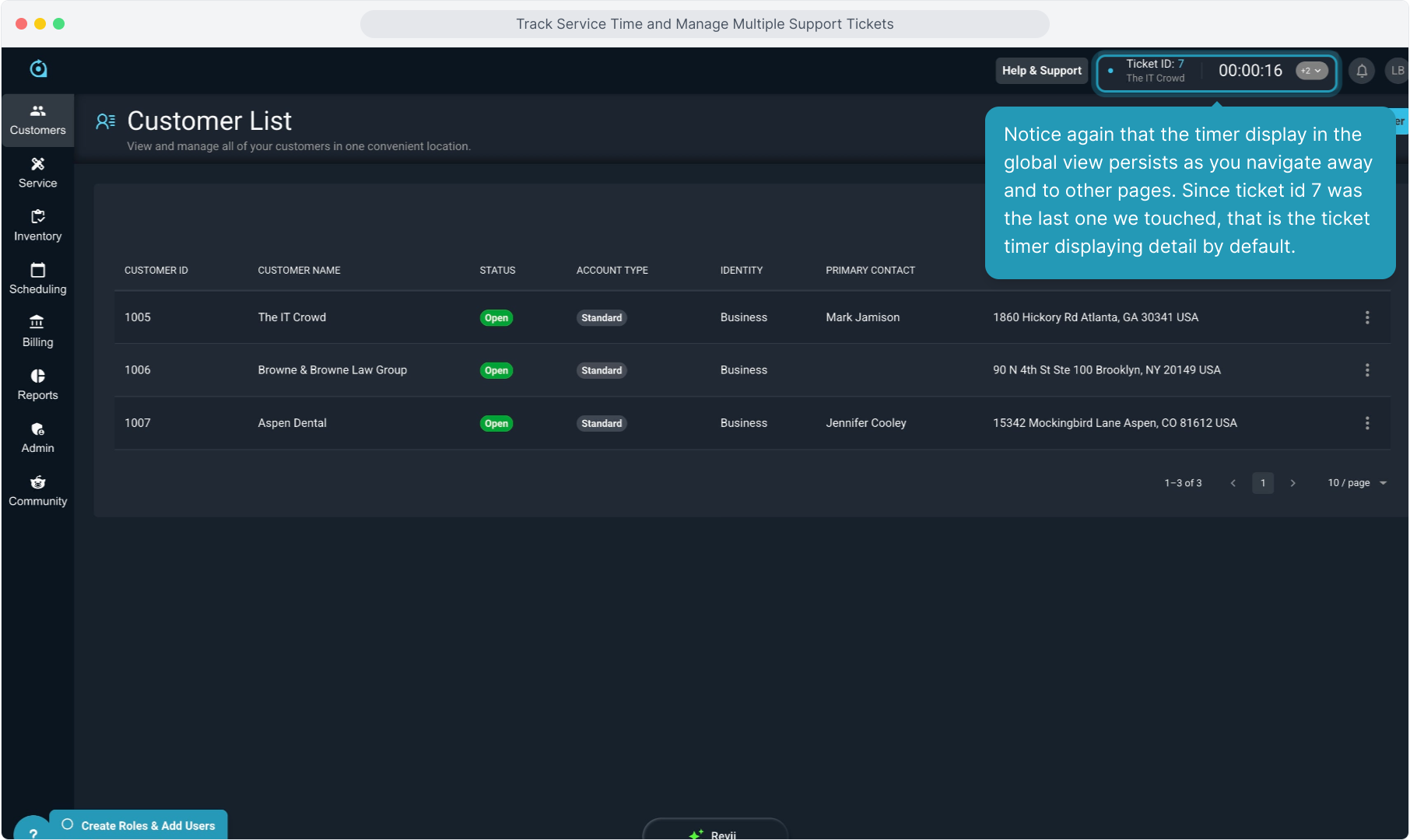
16. Notice again that the timer display in the global view persists as you navigate away and to other pages. Since ticket id 7 was the last one we touched, that is the ticket timer displaying detail by default.
17. Opening the counter and clicking on one of the other tickets will hyperlink you to that ticket.
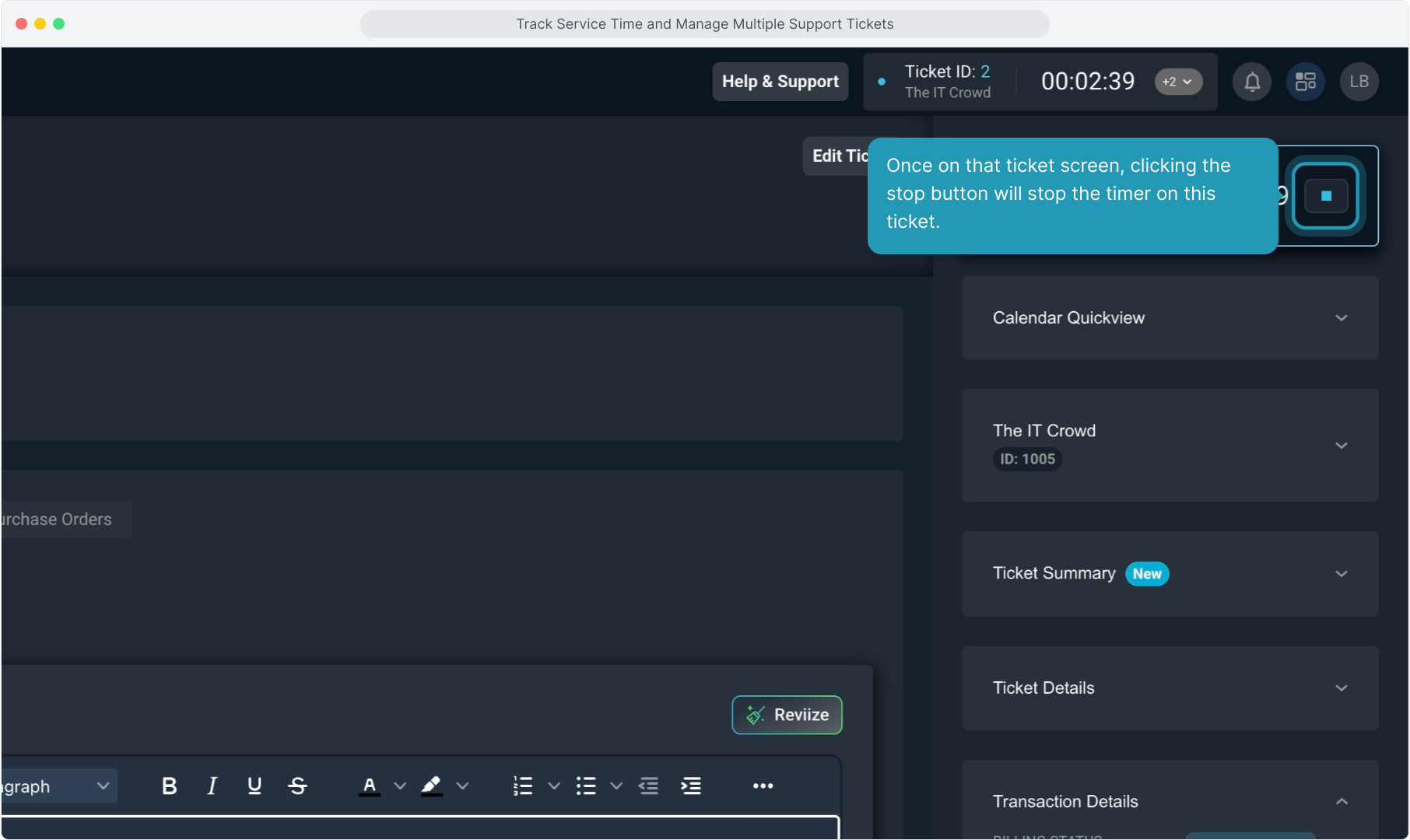
18. Once on that ticket screen, clicking the stop button will stop the timer on this ticket.
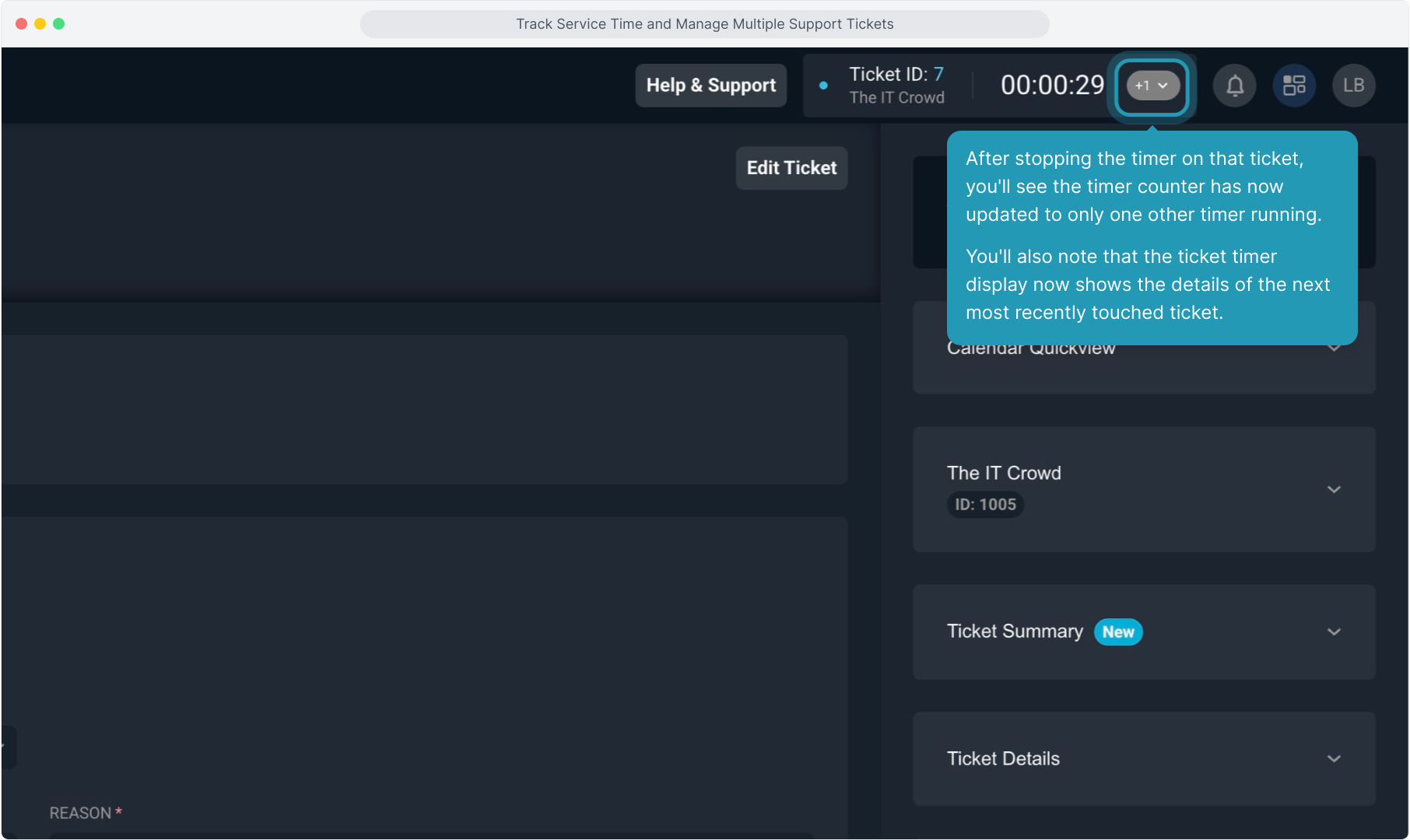
19. After stopping the timer on that ticket, you'll see the timer counter has now updated to only one other timer running.
You'll also note that the ticket timer display now shows the details of the next most recently touched ticket.
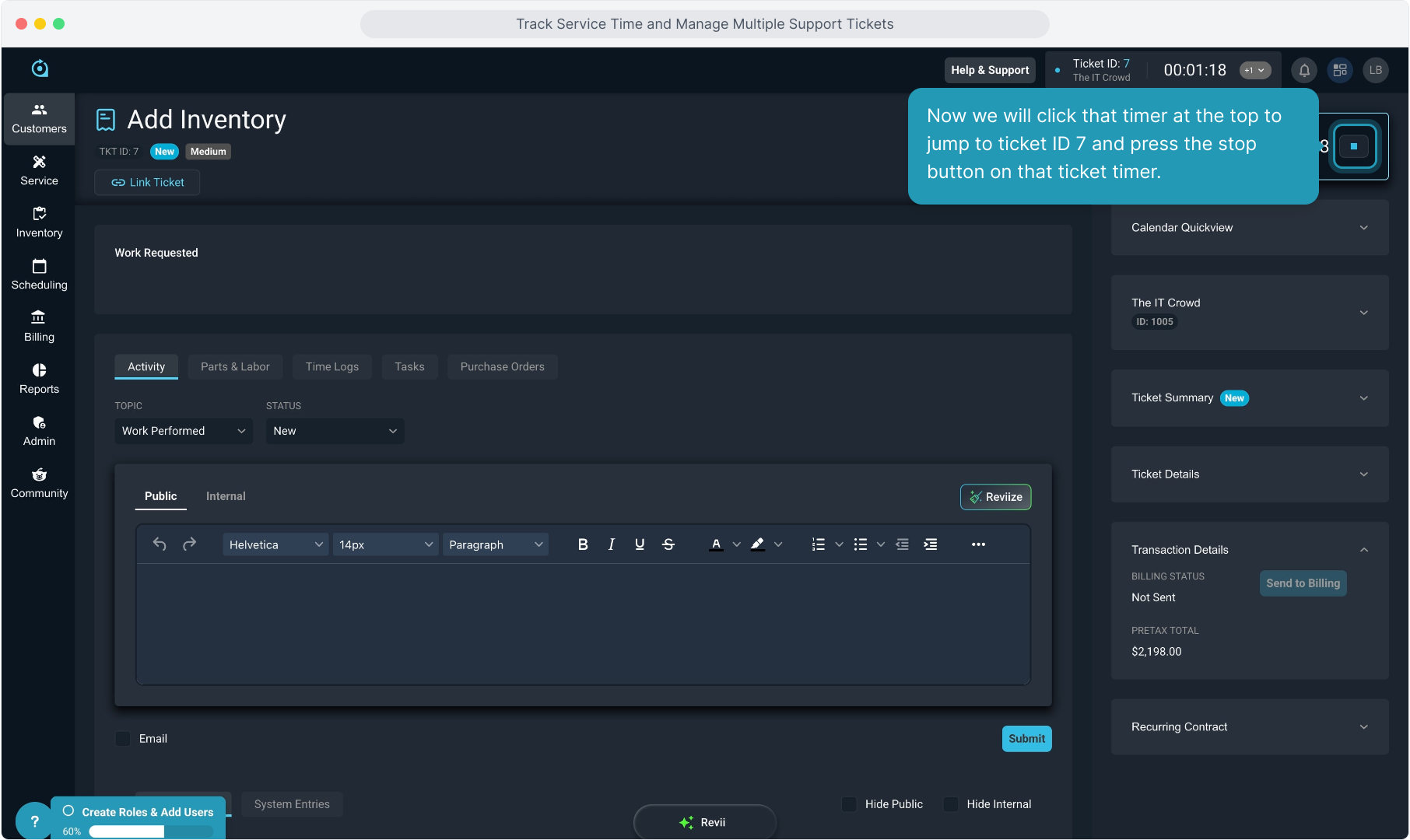
20. Now we will click that timer at the top to jump to ticket ID 7 and press the stop button on that ticket timer.
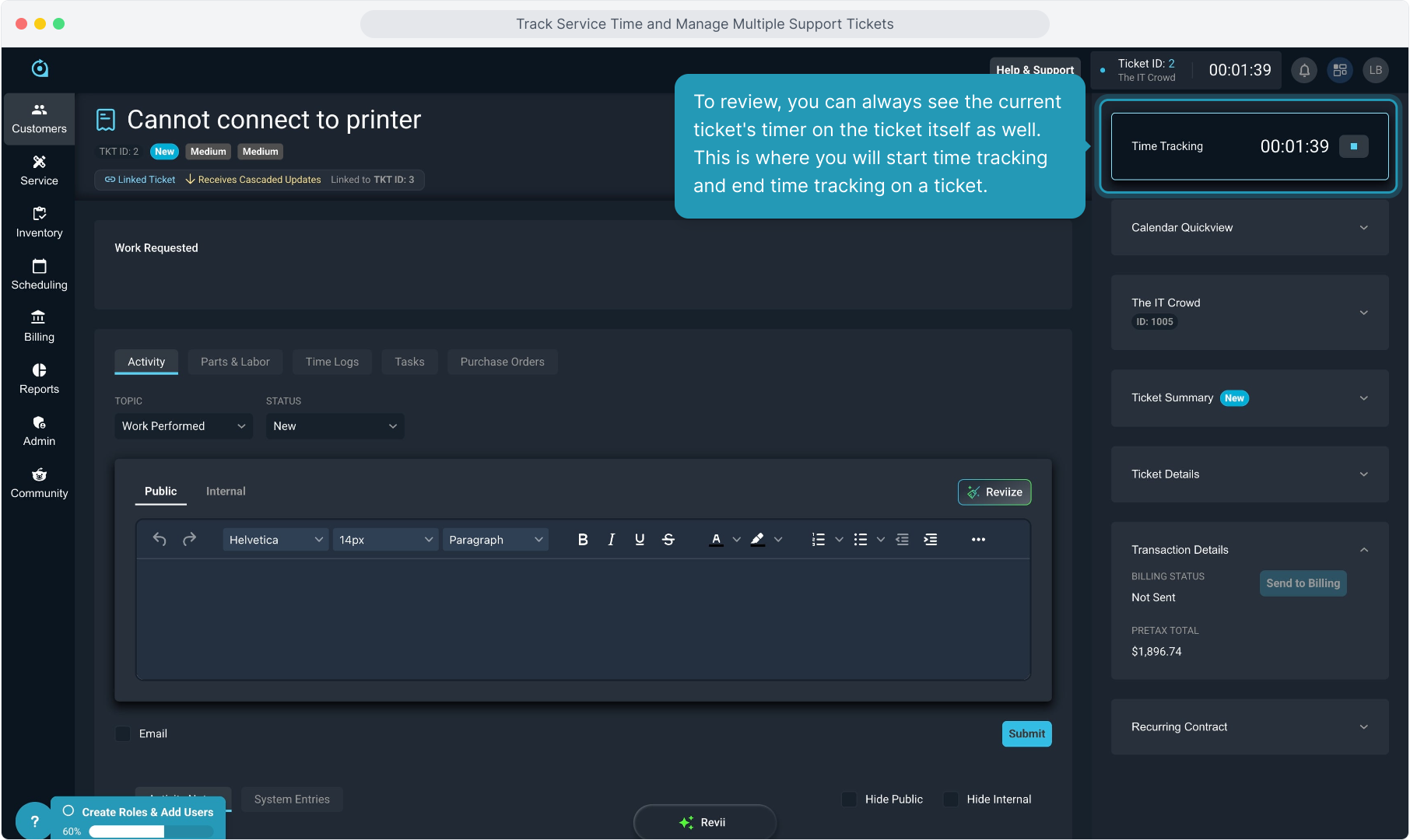
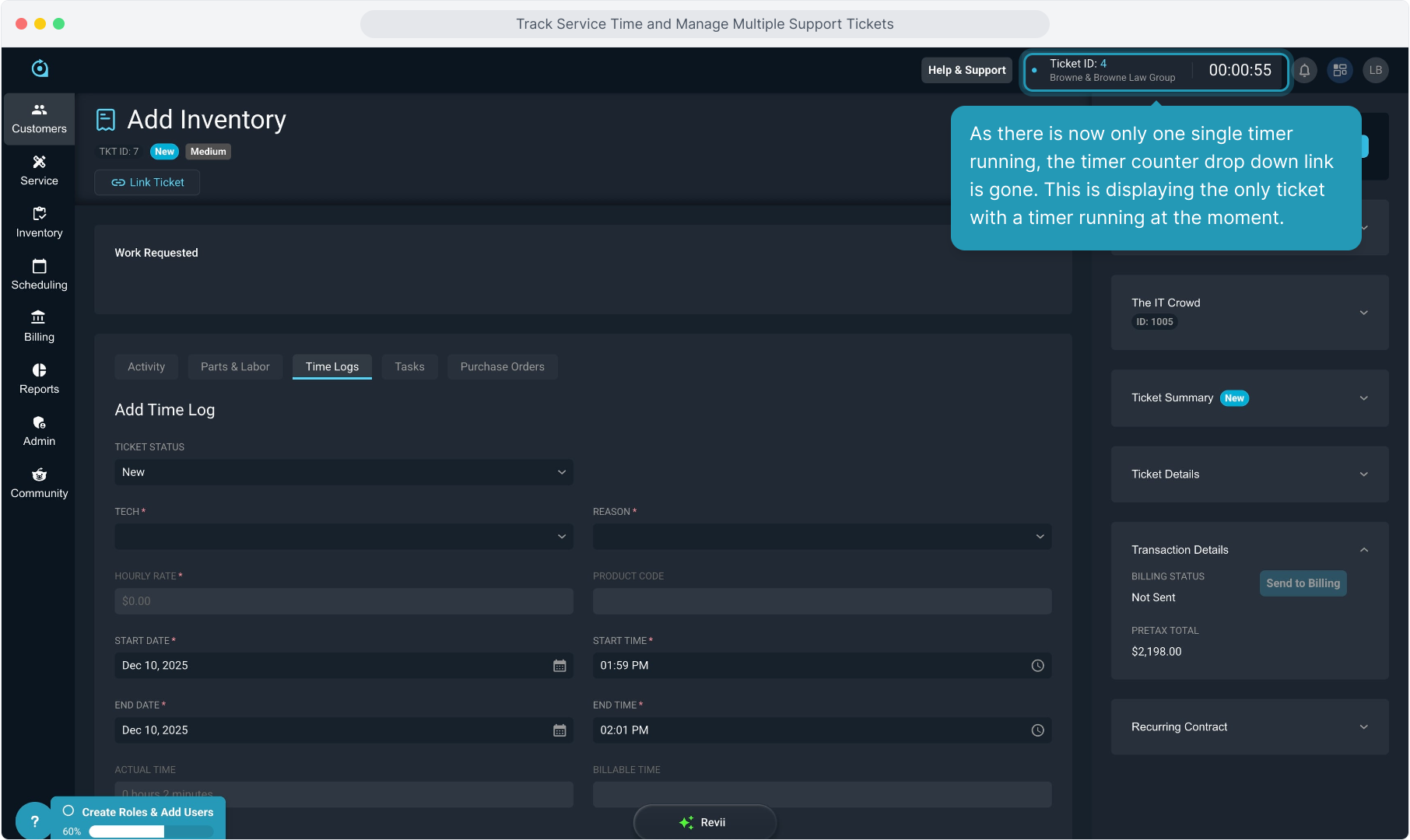
21. As there is now only one single timer running, the timer counter drop down link is gone. This is displaying the only ticket with a timer running at the moment.
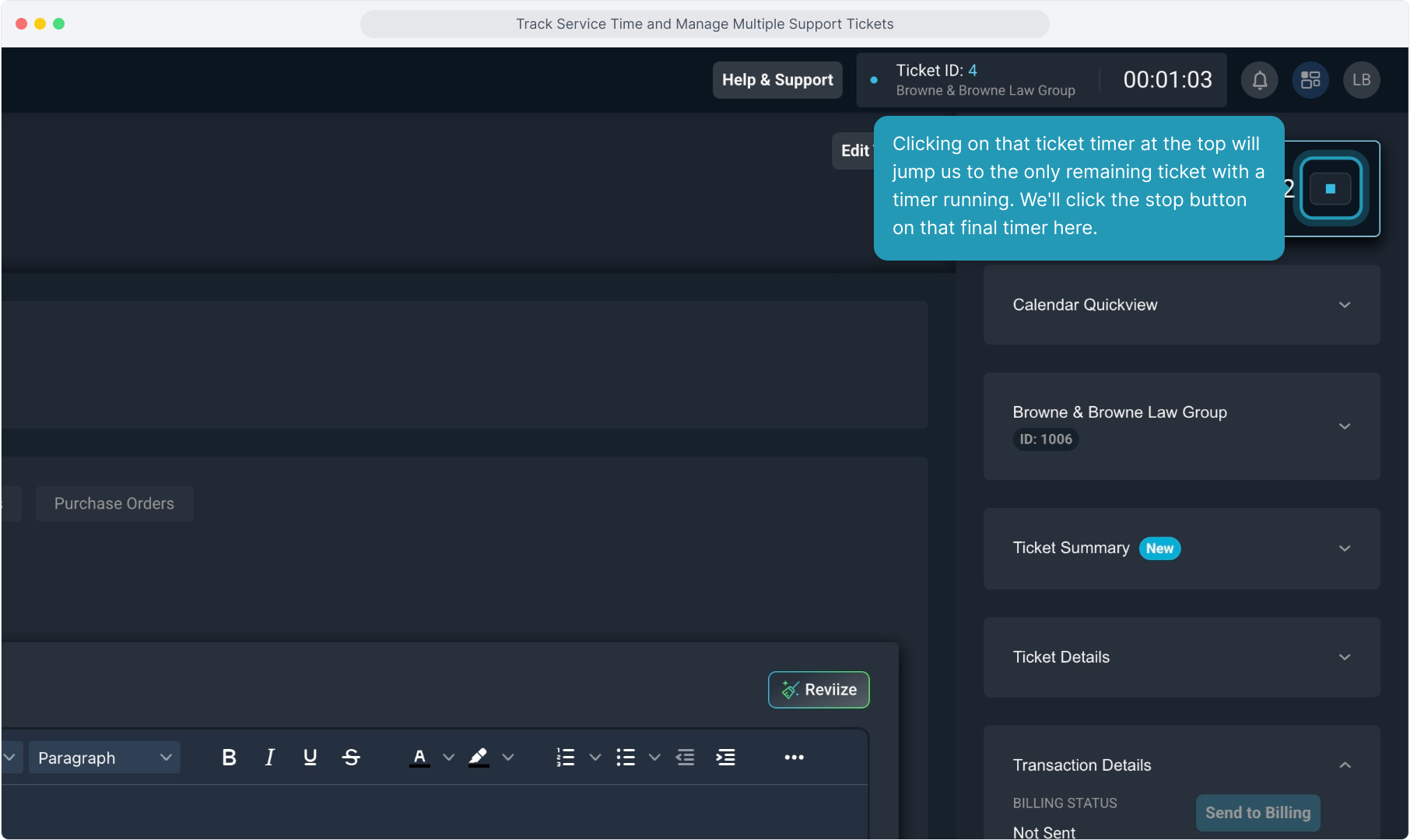
22. Clicking on that ticket timer at the top will jump us to the only remaining ticket with a timer running. We'll click the stop button on that final timer here.
23. When no ticket timers are running, there will not be any timers displayed at the top of the screen.