
Create/Edit Knowledge Base Articles
The article editor allows you to create and update Knowledge Base articles. Articles support rich text formatting including headings, fonts, font sizes, bold, lists, images, and other standard formatting options. Each article can be assigned to a section and tagged to improve searchability.
To create a new article, navigate to the Knowledge Base and click New Article. To edit an existing article, open the article and click Edit.
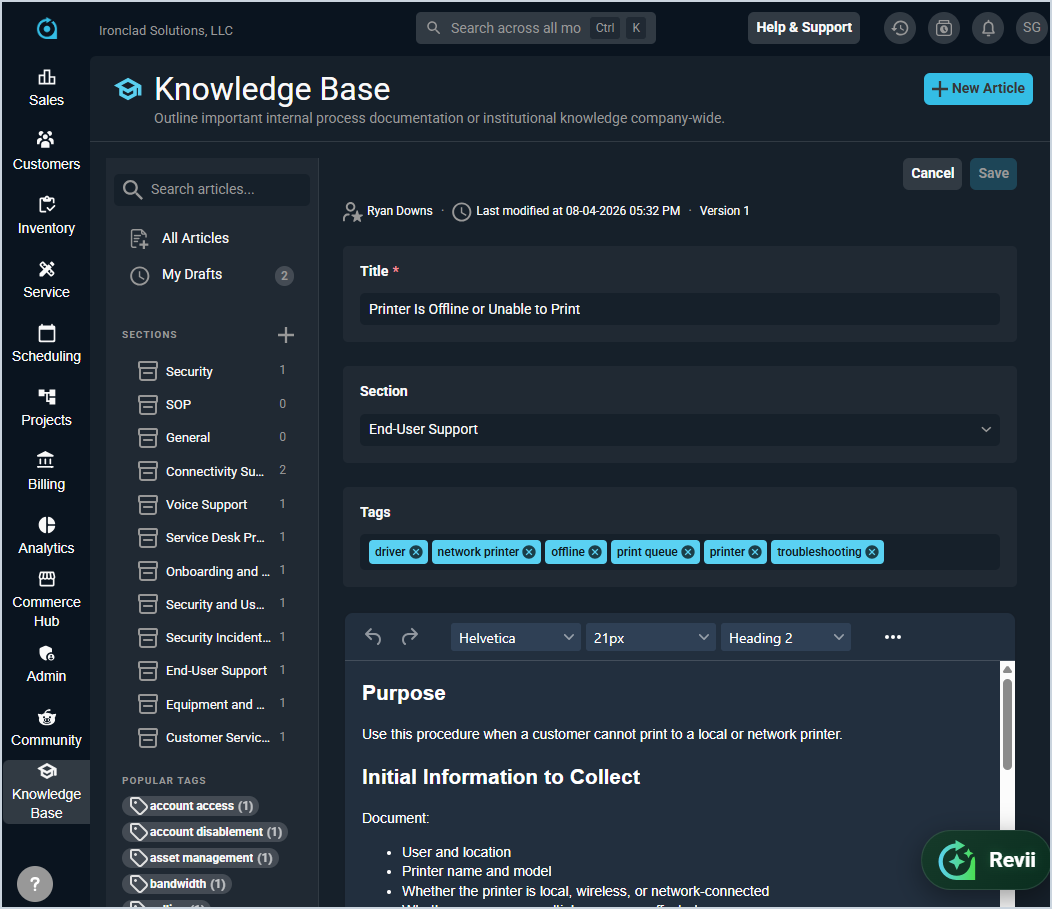
Each field in the article editor is defined below.
| No. | Label | Definition |
|---|---|---|
| 1 | Title | The title of the article as it appears in the articles list view and search results. |
| 2 | Section | The section the article belongs to. Sections are used to organize articles in the left panel of the Knowledge Base. |
| 3 | Tags | One or more tags applied to the article to improve searchability. Tags appear in the Popular Tags list in the left panel and can be used to filter the articles list view. |
| 4 | Body | The content of the article. Use the formatting toolbar to apply headings, fonts, font sizes, lists, images, and other formatting options. |
The article header displays the author, the last modified date, and the current version number.
Click Save to save your changes, or Cancel to discard them.
Draft and Published States
Articles can be saved as a draft or published. Draft articles are only visible to users with the appropriate permission to view drafts. Published articles are visible to all users with access to the Knowledge Base and are included in search results. Access to Knowledge Base features is controlled by role-based permissions. See the Available Permissions article for more information.